


 Video Converter Ultimate
 Grabador de pantalla
 Reparación de vídeo
 Descarga segura
Cómo quitar fácilmente la marca de agua de las imágenes de graduación
Las marcas de agua son una monstruosidad cada vez que las ves en cualquier foto, y arruinan la calidad de la foto. Verás marcas de agua en las fotos siempre que el creador no quiera que le roben su obra. Y si eres estudiante, probablemente verás marcas de agua en tu foto de graduación, indicando el nombre del estudio o el fotógrafo que la tomó.
Si quieres eliminar la marca de agua de tu foto de graduación, necesitas herramientas que te ayuden a quitarla. En este artículo, hemos enumerado los tres quitadores de marcas de agua más utilizados y también aprenderás los pasos para eliminar marcas de agua de fotos de graduación.

Parte 1. Cómo quitar la marca de agua de las imágenes de graduación en línea
Hay muchas herramientas para eliminar marcas de agua que verá en Internet. Sin embargo, no todos son gratuitos y fáciles de usar. Además, en esta parte, sabrá cómo eliminar las marcas de agua de manera cómoda y eficiente.
FVC Free Watermark Remover es un eliminador de marcas de agua en línea que te permite quitar fácilmente las marcas de agua de tus fotos de graduación. Esta herramienta en línea es popular porque no necesitas descargar nada antes de usarla. Además, es compatible con los formatos de imagen más comunes, como PNG, JPG, JPEG, BMP y otros. E incluso si eliminas la marca de agua de tu imagen, cuando la descargues conservará el mismo formato de imagen que tenía antes.
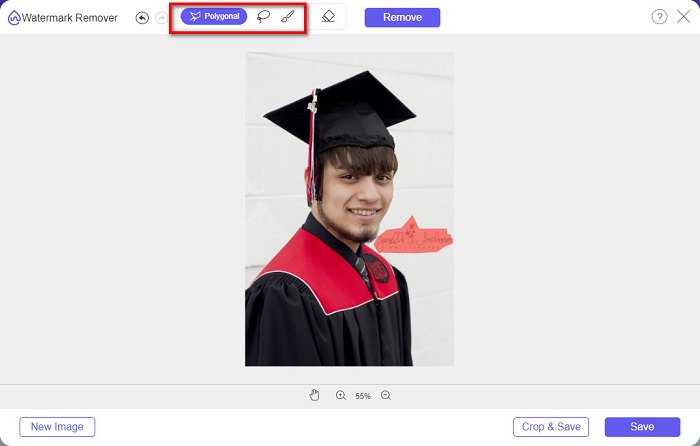
Con este eliminador de marcas de agua, puede elegir entre los ajustes preestablecidos de eliminación al seleccionar el área de la marca de agua. Puede elegir entre poligonal, lazo o pincel. Además, puede usar esta herramienta para borrar otras cosas innecesarias en su imagen.
Pros
- Tiene una interfaz de software de funcionamiento rápido.
- Es seguro de usar.
- Es 100% de uso gratuito.
- Disponible en todos los navegadores web, incluidos Google, Firefox y Safari.
Contras
- Depende de Internet.
Cómo deshacerse de la marca de agua en las imágenes de graduación usando FVC Free Watermark Remover:
Paso 1. En el navegador que utilices, busca FVC Free Watermark Remover. Puedes hacer clic en este enlace para ir directamente a su página web.
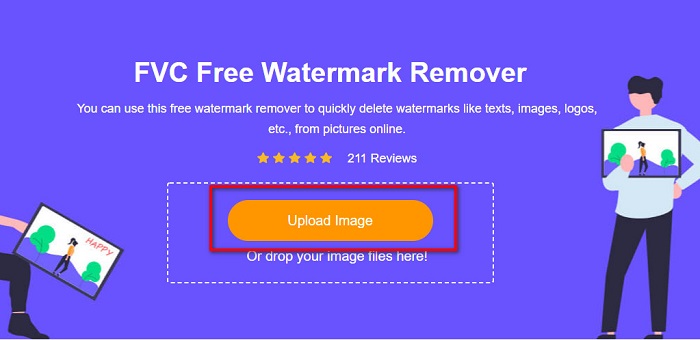
Paso 2. En la interfaz principal del software, haz clic en el botón Upload Image. Se abrirán las carpetas de tu ordenador, donde seleccionarás la foto de graduación y la subirás.
Paso 3. A continuación, selecciona la herramienta de borrado que quieras usar para eliminar la marca de agua. Elige entre Polygonal, Lasso o Brush. Luego selecciona la zona de la marca de agua que quieres quitar.
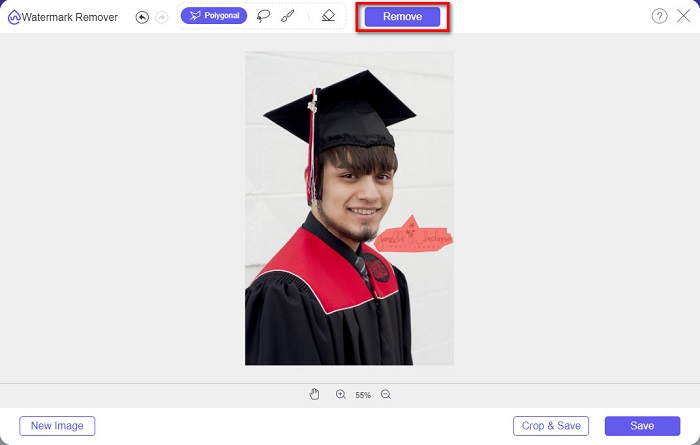
Paso 4. Después de seleccionar el área de la marca de agua, haz clic en el botón Remove para borrar la marca de agua.
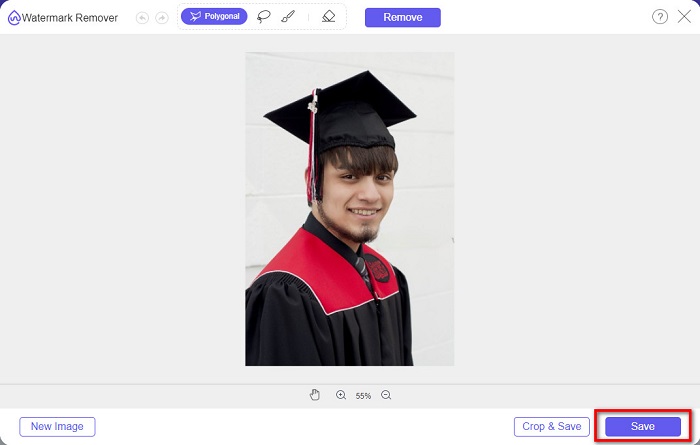
Paso 5. Verás que la marca de agua se ha eliminado. Haz clic en el botón Save para descargar la imagen en tu dispositivo. Además, esta herramienta en línea para eliminar marcas de agua también sirve como quitador de marcas de agua de Photobucket.
Parte 2. Cómo quitar la marca de agua de las imágenes de graduación usando Inpaint
A veces, las personas retocan la marca de agua para que la foto tenga su apariencia original. Pero, ¿cómo hacen eso? Los profesionales usan un editor de fotos y pintan la etiqueta píxel por píxel, lo que resulta en un par de horas de trabajo. Sin embargo, existe otra herramienta que te ayudará a hacerte la vida más fácil. En esta parte, aprenderá a usar Inpaint y sus ventajas.
Inpaint es un eliminador de marcas de agua en línea que también te ayudará a quitar las marcas de agua de tu foto de graduación. Esta aplicación de software en línea también tiene una versión descargable disponible para Windows y Mac. Además, te permite eliminar elementos no deseados de tu foto, como logotipos, textos, objetos, etc. Lo más sorprendente es que cuenta con una función con la que puedes restaurar fotos antiguas y devolverlas a su calidad original. También dispone de herramientas de borrado para seleccionar la zona de la marca de agua que deseas eliminar.
Pros
- Tiene una interfaz de software fácil de usar.
- Te permite hacer retoques faciales digitales.
- Le permite rellenar las áreas negras de Panoramas.
- Accesible en casi todos los navegadores web, como Google y Firefox.
Contras
- Es dependiente de Internet.
Cómo eliminar la marca de agua de la imagen de graduación usando Inpaint:
Paso 1. Busca Inpaint en tu navegador y entra en su página web. Luego, en la interfaz principal del software, haz clic en el botón Upload Image para subir tu foto de graduación.
Paso 2. A continuación, selecciona la herramienta de borrado que quieras usar para marcar el área de la marca de agua. Elige entre marker tool, lasso tool y polygonal lasso tool.
Paso 3. Después, utilizando la herramienta que prefieras, selecciona el área de la marca de agua que quieres eliminar.

Paso 4. Por último, haz clic en el botón Erase para eliminar la marca de agua de tu foto de graduación. Luego haz clic en el botón Download para descargar la foto.
Parte 3. Cómo quitar la marca de agua de la foto de graduación usando Photoshop
Adobe Photoshop es el software de edición más famoso que utilizan muchos profesionales. Pero lo que muchos usuarios no saben es que no se trata solo de un software de edición; también puede eliminar marcas de agua no deseadas en su foto. Para saber cómo eliminar la marca de agua de su foto, lea esta parte de manera completa.
Adobe Photoshop es el software de edición fotográfica más popular y cuenta con muchas funciones de edición. Muchos profesionales utilizan esta aplicación porque permite retocar tus imágenes de forma muy avanzada. Incluye herramientas que te permiten editar tu imagen con gran nivel de detalle. Además, genera resultados de alta calidad que puedes compartir en cualquier plataforma de redes sociales.
Pros
- Tiene muchas funciones de edición avanzadas para usar.
- Contiene muchas herramientas para usar en la edición.
- Produce resultados de alta calidad.
- Le permite editar y crear imágenes tanto impresas como web.
Contras
- Tiene una interfaz de software difícil de usar.
- Necesitas comprar la aplicación para descargarla.
Cómo eliminar cualquier marca de agua en su foto usando Adobe Photoshop:
Paso 1. Descarga Adobe Photoshop en tu dispositivo y ejecuta la aplicación. En la interfaz principal, abre la imagen en Photoshop.
Paso 2. Selecciona el área de la marca de agua. Puedes utilizar la Pen tool, la Quick Selection tool o la Magic Wand tool.
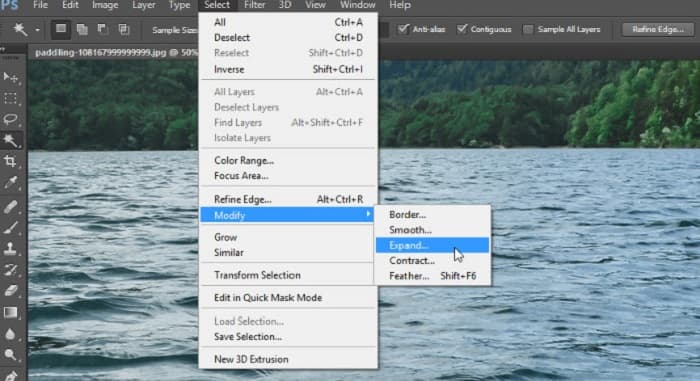
Paso 3. Ve a Select > Modify > Expand para incorporar el píxel de fondo.
Paso 4. Ve a Edit > Fill y selecciona Content-Aware en la sección Contents.
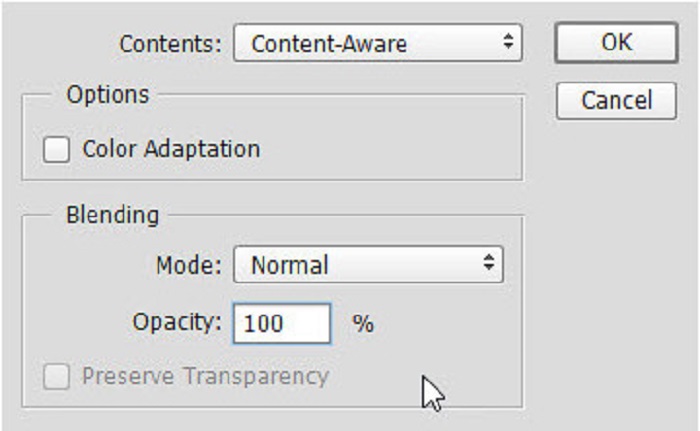
Paso 5. A continuación, pulsa CTRL+D. Verás que la marca de agua se ha rellenado con el fondo. Luego, para eliminar el contorno de la marca de agua, utiliza la Clone Stamp Tool.
Paso 6. Mantén pulsada la tecla Alt y traza el contorno de la marca de agua. Cuando termines de eliminar los rastros, observarás que la marca de agua ha desaparecido.
Parte 4. Preguntas frecuentes sobre cómo eliminar la marca de agua de la imagen de graduación
¿Quitar las marcas de agua de las fotos de graduación arruina la calidad?
Eliminar la marca de agua de las imágenes de graduación no arruinará necesariamente la calidad. Sin embargo, cuando elimina la marca de agua, algunas herramientas aún dejan marcas.
¿Se pueden eliminar las marcas de agua en Canva?
Sí. Canva tiene una función en la que puedes eliminar las marcas de agua de forma gratuita. Simplemente haga clic en el botón Eliminar marcas de agua para hacerlo.
¿Se pueden quitar las marcas de agua en PDF?
Con las herramientas mostradas arriba, puedes eliminar cualquier marca de agua de tu archivo PDF.
Conclusión
Ahora que has aprendido cómo eliminar marcas de agua de fotos de graduación, ya puedes hacerlo tú mismo y probar las herramientas presentadas anteriormente. Quitar la marca de agua es muy sencillo utilizando un eliminador de marcas de agua. Sin embargo, muchas personas recomiendan usar FVC Free Watermark Remover porque es práctico y fácil de usar.
-
 Cómo quitar fácilmente la marca de agua de Lumion en Windows y Mac
 ¿Necesitas eliminar la marca de agua de Lumion para presentarlo profesionalmente? Bueno, hay herramientas que puedes usar para ayudarte a deshacerte de la marca de agua que deja.
-
 Cómo quitar fácilmente la marca de agua de Weibo en videos e imágenes
 ¿Tiene problemas para eliminar la marca de agua de Weibo en imágenes y videos exportados? En ese caso, debe un eliminador de marcas de agua que enumeramos a continuación que podría ayudarlo.
-
 Aprenda a eliminar la marca de agua de Movavi de forma gratuita $91; ¡Imprescindible! $93;
 Exportar un video o una imagen en Movavi dejará una marca de agua, pero ¿es posible eliminarla? Para enseñar como quitar la marca de agua gratis lee esto.
