


 Video Converter Ultimate
 Grabador de pantalla
 Reparación de vídeo
 Descarga segura
Cómo cambiar el tamaño de una imagen en iPhone usando 3 formas efectivas [gratis]
No todas las imágenes de la web que guardas en tu iPhone encajan como fondo de pantalla o pantalla de inicio debido a su relación de aspecto y dimensiones. A veces, cuando usas una foto con dimensiones incorrectas como fondo o pantalla de inicio, se ve borrosa y aparecen bandas negras a los lados en lugar de ajustarse a la pantalla. Molesto, ¿verdad? Por suerte, puedes descargar un redimensionador de fotos en la App Store, usar Atajos o aprovechar el editor de fotos integrado que tienes a mano. Para cambiar el tamaño de una foto en tu iPhone rápidamente, puedes dedicar unos minutos a leer este artículo para entenderlo mejor y solucionar el problema de tamaño que tienes en tu dispositivo.

Parte 1. 3 formas efectivas de cómo cambiar el tamaño de una imagen en iPhone [Descargable e integrado]
Uso de acceso directo [incorporado]
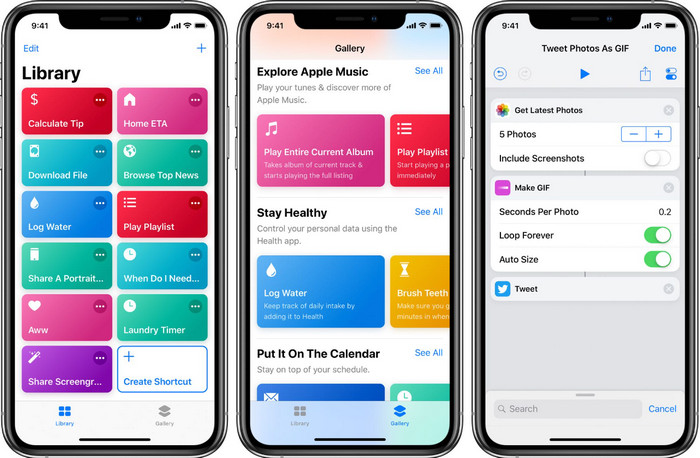
Atajos permite a los usuarios de iOS crear funciones avanzadas que puedes usar, como por ejemplo cambiar el tamaño de la imagen que tienes en tus archivos locales. Todas las versiones de iOS 13 en adelante incluyen esta app preinstalada. Como la introducción de la aplicación es relativamente reciente, las versiones antiguas no cuentan con una app tan completa. Pero puedes descargarla gratis desde la App Store de tu iPhone o iPad. Para enseñarte cómo redimensionar una imagen en iPhone usando esta herramienta, puedes seguir los pasos que añadimos a continuación.
Paso 1. Abre la app en tu iPhone y después toca el botón más en la parte superior para añadir un atajo para cambiar el tamaño en tu dispositivo.
Paso 2. Toca el icono de tres líneas y puntos, luego añade el nombre del atajo; para este atajo, puedes usar el nombre Redimensionar Foto. Activa la opción Mostrar en la hoja para compartir para que, cada vez que quieras compartir una imagen, se redimensione automáticamente si eliges este atajo.
Paso 3. Desmarca la opción Anything (Todo) en Tipo de la hoja para compartir y deja solo Imágenes. Luego pulsa OK para guardar los ajustes que has creado.
Paso 4. Antes de usar esta función, tendrás que pulsar el icono más, Medios y luego pulsar Redimensionar imagen. Puedes establecer la longitud según tus necesidades y pulsar OK para guardarla. Ahora, cada vez que compartas una imagen, tendrás la opción de redimensionarla automáticamente con este atajo.
Uso de la aplicación de fotos [integrada]
Otra aplicación integrada que puedes usar libremente en cualquier versión de iPhone es la app Fotos. Tras años siendo el editor y mejorador de imágenes de confianza para todos los usuarios de iPhone, sería incompleto no mencionarla. Algunos saben cómo funciona esta app para cambiar el tamaño y otros no. Así que, para aquellos usuarios que no saben cómo cambiar el tamaño de una foto en iPhone, este tutorial puede ayudarles.
Paso 1. Abre la app Fotos y toca la foto que quieres redimensionar.
Paso 2. Después de seleccionar la imagen que quieres redimensionar, toca Editar.
Paso 3. Toca el icono de recorte en la esquina superior derecha y después toca el botón con forma de cuadrados.
Paso 4. Verás distintos ajustes predefinidos de relación de aspecto que puedes seleccionar; luego toca OK para guardar los cambios.
Uso del tamaño de la imagen [Descargable]
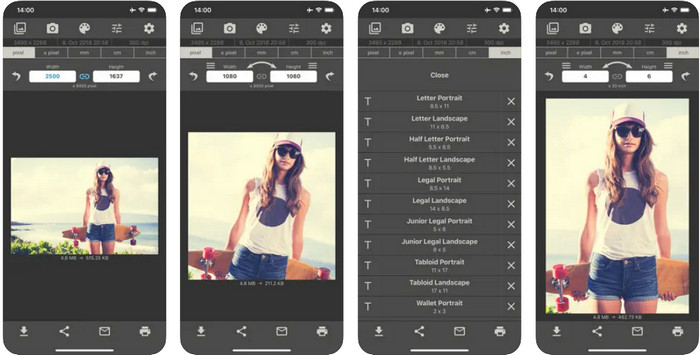
Image Size es una app de terceros en la que puedes confiar y que puedes descargar en iOS para cambiar fácilmente el tamaño de la foto para el fondo de pantalla del iPhone. A diferencia de los dos métodos que hemos presentado, aquí sí necesitas descargar esta app de la App Store antes de usarla. No es una app integrada en iOS, pero está disponible para la mayoría de versiones de iOS y se puede descargar al instante. Como es gratuita, aparecerán varios anuncios emergentes mientras la usas. Si no te molestan los anuncios, puedes seguir los pasos para usar esta app para redimensionar fotos en tu iPhone.
Paso 1. Instala este redimensionador de fotos en tu dispositivo iOS y luego ábrelo.
Paso 2. Toca el icono de imagen para subir la foto que quieres que la app redimensione.
Paso 3. En la parte superior verás la medida aplicada a la imagen; cámbiala por la altura y la longitud que prefieras.
Paso 4. Toca el botón de descarga para guardar la imagen que has redimensionado.
Parte 2. La mejor manera de cambiar el tamaño de una imagen en línea sin publicidad ni proceso de instalación
Con FVC Free Image Upscaler puedes cambiar fácilmente las dimensiones de cualquier imagen de forma automática con la ayuda de la IA. No necesitas mucha experiencia en redimensionado, porque con esta app es muy sencillo. Millones de usuarios usan esta herramienta para cambiar el tamaño, ampliar, mejorar y aumentar la calidad de sus imágenes de una sola vez. Lo que hace que esta herramienta sea aún mejor es que puedes usarla gratis. ¿No es increíble? Pues lo es. Esta app te ofrece un editor todo en uno. Para ayudarte a redimensionar tu foto, sigue los pasos indicados y utiliza esta herramienta.
Paso 1. Puedes abrir esta herramienta web haciendo clic en este enlace, y se abrirá una nueva pestaña en tu pantalla.
Paso 2. Para añadir la imagen que quieres redimensionar, haz clic en Añadir imagen. Busca la imagen en la carpeta de archivos que aparecerá en tu pantalla y pulsa Abrir para añadirla aquí.
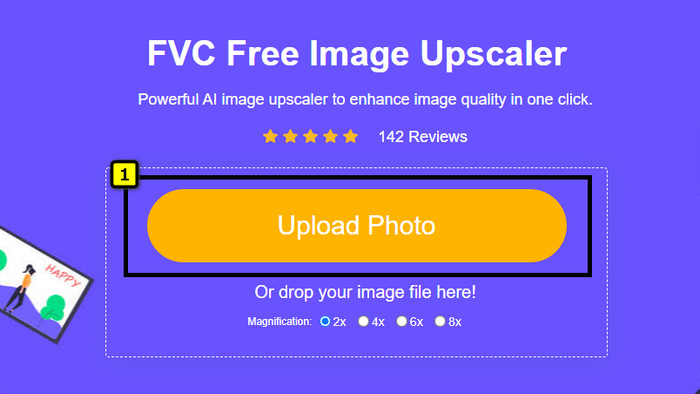
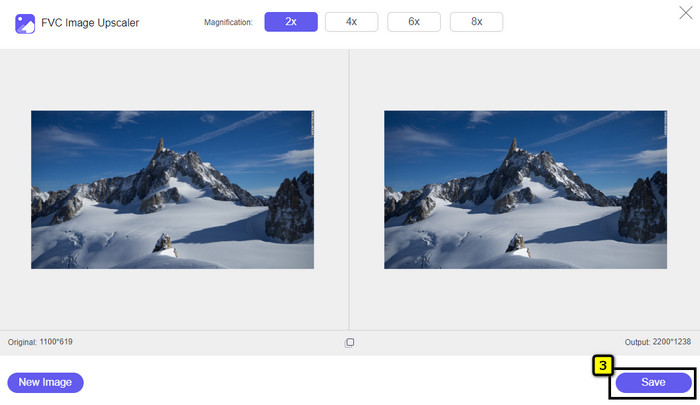
Paso 3. Esta app cargará la imagen que has subido y podrás seleccionar la ampliación que quieras aplicar. Redimensionará automáticamente la foto a unas nuevas dimensiones.
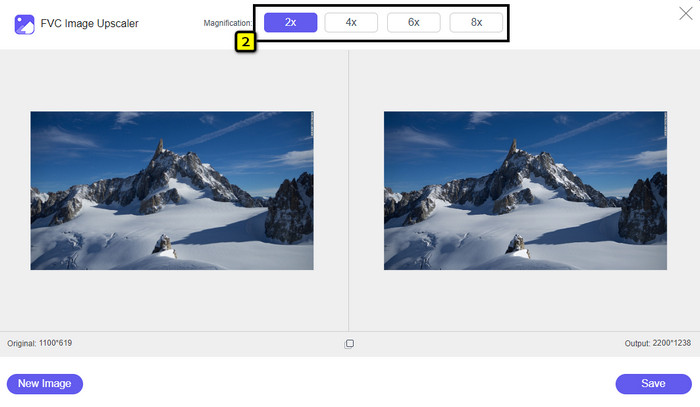
Paso 4. Cuando termines de ajustar la imagen, pulsa Guardar para descargar la versión redimensionada en tu unidad local.
Parte 3. Preguntas frecuentes sobre cómo cambiar el tamaño de la imagen en iPhone
¿Cuál es la dimensión perfecta para usar como fondo de pantalla en iPhone?
Para los usuarios de iPhone SE, 6, 6 plus, 7, 7 plus, 8, 8 plus, la dimensión estándar de la imagen que se utilizará como fondo de pantalla debe estar entre 1136 x 640 y 1920 x 1080 px. Es la longitud y la altura estándar de la imagen que desea utilizar como fondo de pantalla en los dispositivos iPhone. Pero para aquellos que usan iPhone XR, 11 y 13, ahora pueden usar 828 x 1792 o hasta 3073 x 1420 px como dimensión de pantalla.
¿Cuál es la desventaja de recortar en lugar de cambiar el tamaño de las imágenes en el iPhone?
Cuando recortes la imagen, verás que recortará la dimensión de la misma. Sí, el tamaño de la imagen cambiará, pero su apariencia general no es lo mismo que cambiar el tamaño. Mientras cambia el tamaño, puede cambiar libremente la altura y la longitud de una imagen sin cortar los bordes ni ningún otro tipo. Entonces, si desea usar la foto como fondo de pantalla y hacer que se ajuste, es mejor que cambie su tamaño en lugar de recortarla en su iPhone.
¿Por qué al agrandar la imagen se volvió borrosa después de cambiar el tamaño en el iPhone?
Debido a que estas aplicaciones y formas que incluimos en este artículo no crean PPI, estiran la imagen redimensionada en su iPhone. Entonces, si no le gusta experimentar este tipo de problema, debe usar la herramienta en línea que incluimos aquí para crear PPI cuando cambia el tamaño de la imagen en su iPhone.
Conclusión
Puedes confiar en las herramientas que hemos encontrado en iPhone y que pueden ayudarte a cambiar el tamaño de una foto en tu iPhone fácilmente. Aunque no descargues ninguna app, puedes usar las aplicaciones integradas en tu dispositivo. Si quieres ser más específico, puedes usar y descargar la app que hemos añadido. Pero si quieres cambiar el tamaño de tu imagen sin afectar a la calidad, utiliza la herramienta online que hemos incluido. Lee la parte 2, donde añadimos un tutorial sobre cómo usarla.
-
 5 de los mejores redimensionadores de GIF disponibles en todas las plataformas [2022]
 ¿Quieres saber los redimensionadores de GIF que puedes usar? En ese caso, la información proporcionada a continuación hablará sobre los redimensionadores que puede usar en sus GIF en todas las plataformas.
-
 Cómo cambiar el tamaño de la imagen: Adobe Resize Image [en línea y sin conexión]
 Si está buscando una imagen de cambio de tamaño de Adobe, entonces tenemos la solución para usted. Vea esta publicación a fondo para aprender cómo cambiar el tamaño de las imágenes usando Adobe en su PC.
-
 Cómo cambiar el tamaño de una foto para Facebook [Pasos rápidos y sencillos]
 Si tiene problemas para cargar una imagen de gran tamaño en Facebook, tenemos una solución para usted. Termina este artículo para aprender cómo cambiar el tamaño de las fotos para Facebook.
