


 Video Converter Ultimate
 Grabador de pantalla
 Reparación de vídeo
 Descarga segura
Las 6 formas más efectivas de cambiar el tamaño de una imagen en la Web y el escritorio
Con miles de millones de fotografías prestigiosas que podemos descargar, la mayoría de nosotros toma imágenes hermosas, sin embargo, hay casos en los que su tamaño no es el que más nos gusta. Los usuarios intentaron cambiar el tamaño de la imagen que tenían ajustando la altura, el ancho y la relación de aspecto de la imagen con el editor, lo que cambió el PPI de la imagen. El resultado no es el que todos esperaban; las imágenes de alta definición se vuelven pixeladas.
¿Por qué? Porque el editor que usaron para cambiar el tamaño no puede crear ni rellenar el hueco de píxeles en la versión redimensionada. Por eso, las consultas sobre este tema se hicieron populares y estamos aquí para ayudarte a resolver el problema. En esta entrada del blog, te daremos una experiencia práctica sobre cómo cambiar el tamaño de una imagen sin que quede ninguna distorsión en el resultado final.

Parte 1. Los mejores redimensionadores de fotos a los que puede acceder en la web para redimensionar imágenes en línea [3 herramientas gratuitas]
Estas herramientas en línea que agregamos aquí están disponibles en diferentes navegadores web que tiene en su dispositivo. Además, estos son gratuitos, pero hay una herramienta que deberá comprar para usarla sin limitaciones. Sin embargo, estas son herramientas en línea capaces a las que puede acceder para comenzar a cambiar el tamaño de la imagen que tiene. Lea los pasos para saber cómo usarlos.
1. FVC Free Image Upscaler: el mejor redimensionador de imágenes en la Web [Opción favorable]
FVC Free Image Upscaler Online es una herramienta web de inteligencia artificial que puede redimensionar imágenes rápidamente sin perder calidad. De hecho, la herramienta web cambiará automáticamente el tamaño de cada archivo de imagen que subas aquí. A pesar de ser una herramienta online, su rendimiento al redimensionar es rápido y eficaz. Cada imagen que subes aquí se elimina automáticamente del servidor una vez que cambias su tamaño. Además, tiene el redimensionador más limpio y versátil que puedas necesitar; aunque uses distintos dispositivos, puedes acceder a esta herramienta web siempre que tengas conexión a Internet. ¿Quieres ver cómo se comporta este software en esta tarea? Si es así, lee los pasos siguientes y síguelos para cambiar el tamaño de la imagen de manera rápida y eficaz.
Cómo cambiar el tamaño de una imagen con FVC Free Image Upscaler:
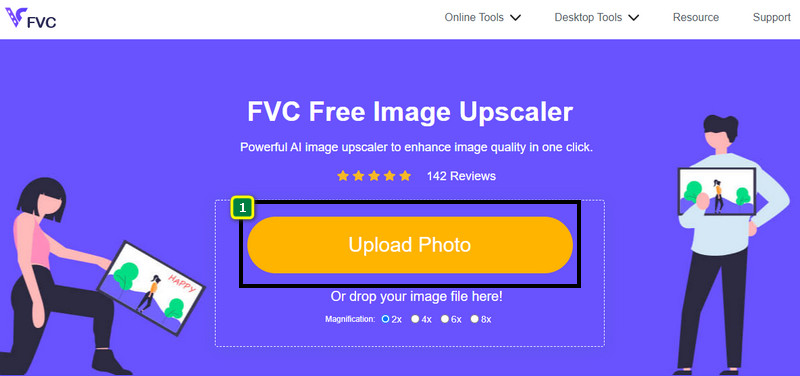
Paso 1. Para acceder a la herramienta web, puedes hacer clic en este enlace, que te llevará automáticamente al sitio web oficial del redimensionador.
Paso 2. Haz clic en Add Image para que se abra una carpeta en tu pantalla, selecciona el archivo de imagen que quieras subir y pulsa Open.
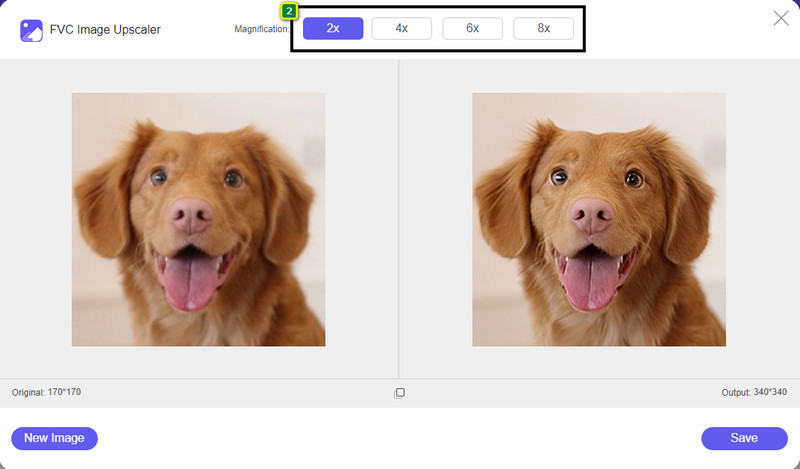
Paso 3. Para cambiar el tamaño de la imagen, debes seleccionar qué tipo de aumento aplicar a tu imagen. Verás que la dimensión total de la imagen cambia en cuanto pruebas y haces clic en 2x, 4x, 6x y 8x.
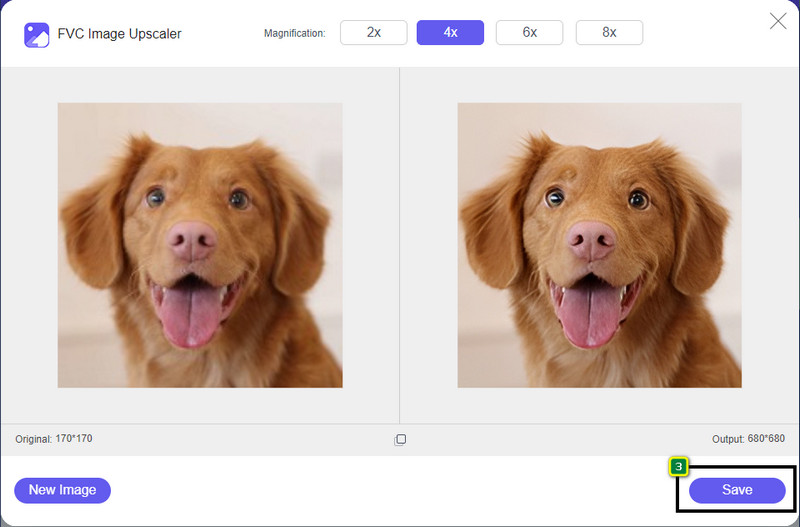
Paso 4. Después de seleccionar el aumento que quieres aplicar, voilà, ya puedes pulsar Save para descargar la versión redimensionada en la unidad de tu ordenador.
2. Be Funky - Editor de fotos [Gratis y de pago]
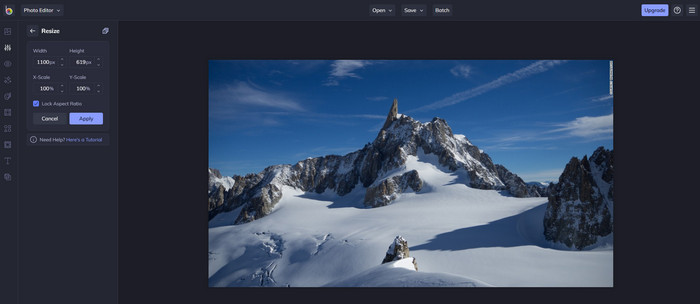
Be Funky - Photo Editor es una plataforma creativa que puedes usar para hacer cosas extraordinarias con tus imágenes. Puede cambiar el tamaño de BMP sin perder calidad. Esta herramienta se considera uno de los mejores editores de imágenes a los que puedes acceder en línea. Aunque tiene una interfaz gráfica similar a Photoshop, las funciones que ofrece son sencillas y fáciles de entender, por lo que podemos decir que también es fácil de usar. Así que, si quieres probar esta herramienta online para cambiar el tamaño de tu imagen fácilmente, sigue los pasos que incluimos aquí.
Cómo cambiar el tamaño de una imagen con Be Funky:
Paso 1. Busca su nombre en tu navegador web y luego haz clic en Get Started and Edit Photo.
Paso 2. Pulsa Open para subir el BMP o cualquier imagen que quieras redimensionar aquí.
Paso 3. Ve a Edit y pulsa la opción Resize.
Paso 4. Aquí puedes cambiar libremente el ancho y el alto o la escala x e y de la imagen. Luego pulsa Apply para ver cómo queda la versión redimensionada.
3. Simple Image Resizer [Gratis]
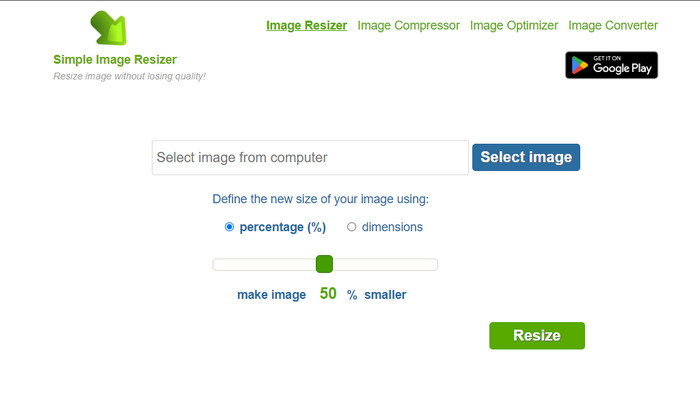
Simple Image Resizer te permite cambiar el tamaño de una imagen definiendo su nuevo tamaño mediante el cambio del porcentaje o de la medida. Es el último redimensionador de imágenes que hemos añadido a este artículo. Su interfaz simple y su facilidad de uso fueron los factores principales por los que lo hemos incluido. Además de su función de cambio de tamaño, aquí puedes optimizar, comprimir y convertir tu imagen de forma gratuita, aunque con anuncios molestos en la web. Así que, si quieres probar este redimensionador online, sigue los pasos siguientes.
Cómo cambiar el tamaño de una imagen con Simple Image Resizer:
Paso 1. Con tu navegador web, busca su nombre para empezar a usar este redimensionador online.
Paso 2. Pulsa Select Image para añadir la foto a la que quieras cambiar el tamaño aquí.
Paso 3. Elige qué prefieres usar para el redimensionado y cambia el porcentaje o la medida. En cualquier caso, el resultado es el mismo.
Paso 4. Haz clic en Resize para guardar el resultado final en tu ordenador.
Parte 2. Cómo cambiar el tamaño de una imagen en Windows y Mac [Pagado y gratuito sin conexión]
A diferencia de las primeras 3 herramientas en línea mencionadas, las siguientes herramientas que presentamos no dependen de Internet, lo que significa que incluso si no tiene Internet, puede usarlas sin problemas. Ya que se pueden descargar o ya están preinstalados en su escritorio. Aprenda cómo usarlos hoy leyendo la información que agregamos a cada uno de ellos.
1. Adobe Photoshop [Windows y Mac]
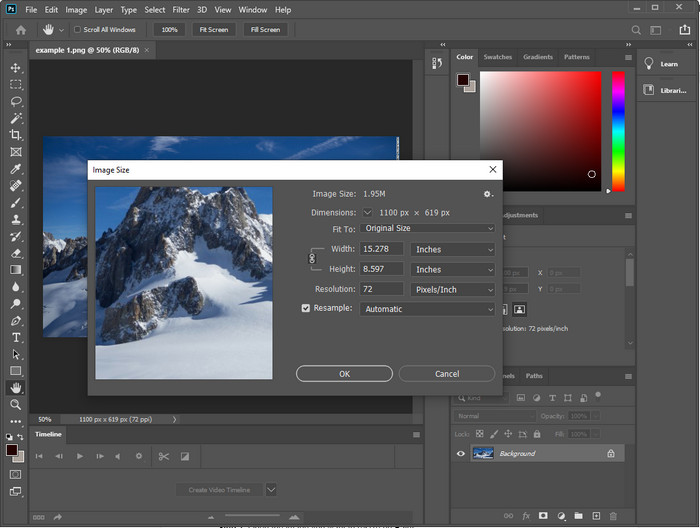
Nuestra primera opción de redimensionador de imágenes offline que puedes descargar en tu dispositivo es Adobe Photoshop. ¿Por qué? Porque crea nuevos datos de píxeles cuando cambias el tamaño y evita que el resultado final tenga baja calidad. Además, este software es conocido por ser un editor de imágenes profesional que puede procesar fácilmente cualquier imagen ráster y vectorial. Aunque el software es una herramienta profesional, puede resultar algo excesivo comprarlo si solo lo vas a usar para cambiar el tamaño. Pero si te interesa saber cómo cambiar el tamaño de una imagen en Photoshop, sigue leyendo.
Cómo cambiar el tamaño de una imagen con Adobe Photoshop:
Paso 1. Descarga e instala el software en tu ordenador visitando su sitio web oficial.
Paso 2. Pulsa File y localiza la imagen en la carpeta después de hacer clic en Open.
Paso 3. Pulsa el menú Image en la parte superior y luego selecciona Image Size.
Paso 4. Cambia la medida de Width y Height según tus preferencias y haz clic en OK para aplicar los cambios.
Paso 5. Vuelve a File y guarda la imagen en tu ordenador.
2. Paint [Aplicación predeterminada en Windows]
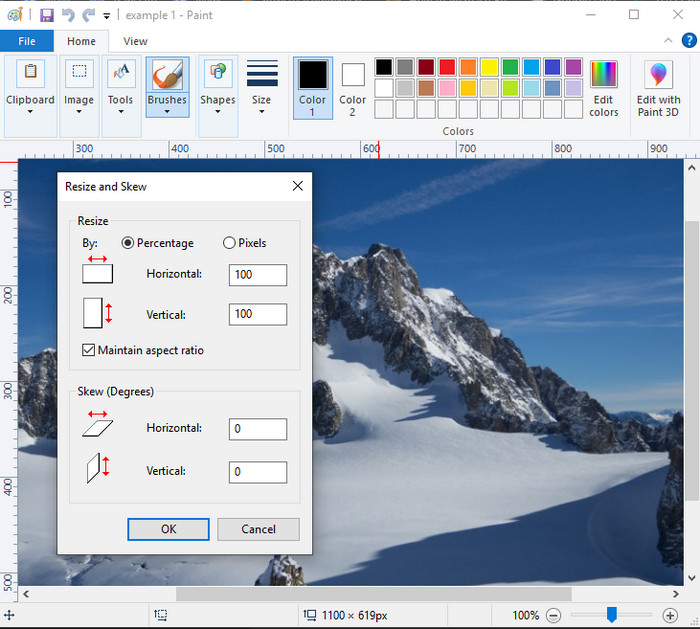
Paint es conocido por ser una aplicación con la que puedes dibujar en un lienzo en blanco. Muchos usuarios de Windows suelen usarlo para crear algo en una página en blanco, añadir detalles a las imágenes y redimensionarlas según sea necesario. Aunque no es un editor específico, aún puede cambiar el tamaño de cualquier imagen ráster que tengas en tu unidad local. La ventaja de usarlo es que no necesitas descargar el software en tu Windows porque viene preinstalado. Así que, si quieres saber cómo redimensionar imágenes de baja resolución con esta app, lee el tutorial que añadimos a continuación.
Cómo cambiar el tamaño de una imagen con Paint:
Paso 1. Abre en Paint la imagen cuyo tamaño quieras cambiar.
Paso 2. Después de abrir la imagen, haz clic en el icono de los two-squares para empezar a cambiar el tamaño de la imagen que has abierto aquí.
Paso 3. Para cambiar el tamaño de la imagen, puedes modificarla por porcentaje o por píxeles. Después de cambiar el número, pulsa OK para aplicar los cambios.
Paso 4. Haz clic en el icono de save para exportar la imagen que has redimensionado aquí.
3. Vista previa [Aplicación predeterminada en Mac]
Preview es una aplicación integrada en la que puedes confiar y que te guía sobre cómo cambiar el tamaño de una imagen en un Mac. Si no te gusta descargar aplicaciones en tu macOS, lo mejor es usar esta app. Es una solución infravalorada, pero puede cambiar el tamaño de tu foto en tu escritorio. Aprender a usarla puede ser una gran ventaja para aprovechar todo el potencial de este software. Si te interesa saber cómo funciona esta herramienta, pasa a la información que añadimos a continuación.
Cómo cambiar el tamaño de una imagen con Preview:
Paso 1. Haz clic con el botón derecho en la imagen de tu Mac, haz clic en Open with y pulsa Preview.
Paso 2. En la parte superior, haz clic en Tools y luego selecciona Adjust Size.
Paso 3. Cambia las medidas de la imagen según tus necesidades y luego pulsa OK para guardar los cambios que has hecho.
Parte 3. Adicional: Top Image Resizer que puedes descargar en Android y iPhone
1. Redimensionador de fotos e imágenes [Android]
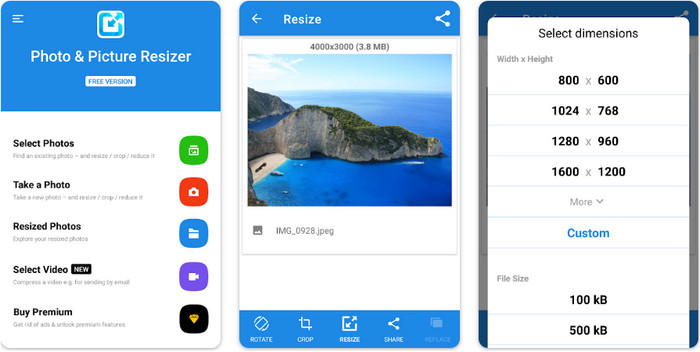
Photo & Picture Resizer es una de las formas más rápidas y sencillas de cambiar el tamaño de la imagen que tienes en tu dispositivo Android. Incluso los usuarios sin experiencia que quieran redimensionar pueden descargarla y usarla como su redimensionador de imágenes. Esta app es gratuita, así que, si quieres usar sus funciones adicionales, tendrás que comprarla. En general, sus funciones de redimensionado son estupendas y puedes dominarlas a la primera.
2. Redimensionador de imágenes gratis [iPhone]
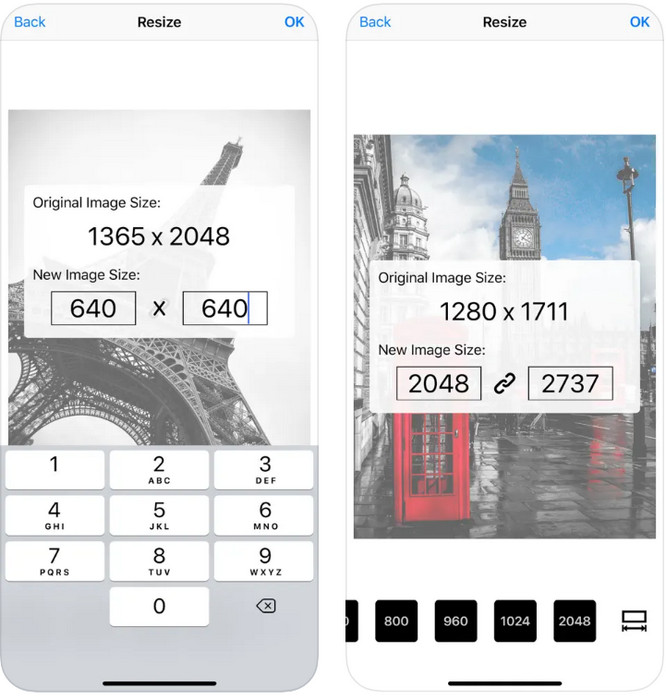
Image Resizer Free es una aplicación para iOS que puedes descargar en iOS 7.0 o superior. Esta aplicación es un redimensionador de imágenes directo al grano que muchos usuarios de iOS utilizan. No tiene funciones adicionales aparte de su función principal, que es cambiar el tamaño. Aunque la herramienta es fácil de usar, muchos usuarios se quejan de que no puede sobrescribir la imagen original con la versión redimensionada.
Parte 4. Preguntas frecuentes sobre cómo cambiar el tamaño de la imagen
¿Qué formato es mejor para cambiar el tamaño, ráster o vector?
Los formatos de trama se componen de pequeños píxeles para crear la apariencia de la imagen, y cuando cambia su tamaño o dimensión, estos píxeles se estiran y se vuelven visibles. A diferencia de si cambia el tamaño de la imagen vectorial, está hecho específicamente para cambiar el tamaño y aumentar la escala de la imagen sin crear un desorden en ella.
¿Puedo cambiar el tamaño de BMP en línea?
Sí, puede cambiar el tamaño del BMP utilizando la solución en línea que agregamos aquí. Sin embargo, cuando amplía la imagen, BMP tiende a pixelarse porque son imágenes rasterizadas. Por lo tanto, si desea evitar el problema de cambiar el tamaño del archivo BMP, es mejor que elija FVC Free Image Upscaler Online, ya que no deja pixelación en la salida final del BMP redimensionado.
¿Aumenta el tamaño del archivo después de cambiar el tamaño de la imagen?
Sí, lo hace. Principalmente porque la imagen que redimensionó agrega datos de píxeles adicionales en la salida real. Sin embargo, su tamaño de archivo no difiere mucho de su tamaño de archivo original.
Conclusión
¿Qué técnica para cambiar el tamaño de una imagen crees que se adapta mejor a ti? Elige entre los redimensionadores que hemos añadido aquí. Si tienes problemas con la conexión a Internet, te recomendamos encarecidamente usar FVC Free Image Upscaler Online por su rendimiento al redimensionar. No hay dificultad para cambiar el tamaño si utilizas este redimensionador en la web.
-
 Imagen de 1440p: toda la información incluida que necesitará [actualizado en 2022]
 ¿Quieres saber acerca de las imágenes de 1440p? O donde se puede conseguir? ¿Convertir tu imagen a 1440p? Lee esto para conocerlos todos.
-
 Tutorial para despixelar una imagen usando los 3 mejores despixeladores de fotos
 ¿Tiene problemas para manejar imágenes pixeladas? Hoy, hemos resuelto el problema y puede usar las herramientas que agregamos aquí.
-
 Cómo enfocar la imagen en una foto usando 3 formas [Tutorial rápido]
 ¿Problemas con la imagen sin enfoque? Aquí, presentaremos cómo enfocar imágenes en Photoshop usando las tres formas que agregamos.
