


 Video Converter Ultimate
 Grabador de pantalla
 Reparación de vídeo
 Descarga segura
El mejor redimensionador de fotos para cambiar el tamaño de la imagen para Twitter sin pérdida de calidad
“Tweet” es un sonido melódico producido por pájaros, pero no estamos hablando de pájaros porque hoy hablaremos del problema más común de los usuarios en Twitter. Este sitio web de microblogging ya tiene más de 217 millones de usuarios que disfrutaron compartiendo sus pensamientos, ideas, problemas, puntos de vista y más; También puede acceder a las noticias aquí.
Otras empresas están sacando partido de este sitio web porque pueden llegar fácilmente a una audiencia publicando un anuncio de sus productos y servicios o vendiéndolos directamente. Sin embargo, muchos usuarios y compañías de Twitter tienen problemas a la hora de publicar imágenes aquí porque no se ajustan al tamaño estándar. Por eso estamos aquí, listos para ayudarte mientras te enseñamos distintas formas de redimensionar la imagen para Twitter usando herramientas gratuitas a las que puedes acceder en internet y descargar en tus dispositivos móviles.

Parte 1. La forma definitiva de cambiar el tamaño de las imágenes en línea para Twitter [Elección del editor]
FVC Free Image Upscaler es un redimensionador de imágenes óptimo que puedes usar para cambiar o ajustar el tamaño de la imagen para Twitter. Su capacidad para modificar el largo y el alto y hacerla adecuada para Twitter es la mejor entre los redimensionadores que hemos utilizado en el mercado. Gracias a su rendimiento y a la IA que incorpora, obtendrás el mejor resultado cuando uses este redimensionador en la web. ¿Está disponible en mi dispositivo? ¡Por supuesto! Puedes acceder a esta herramienta web desde cualquier navegador en el dispositivo que lleves en el bolsillo. ¿Te interesa usar esta herramienta online? Si es así, sigue el tutorial que añadimos a continuación para ver y aprender cómo hacerlo aquí.
Pasos para redimensionar una imagen de Twitter con FVC Free Image Upscaler:
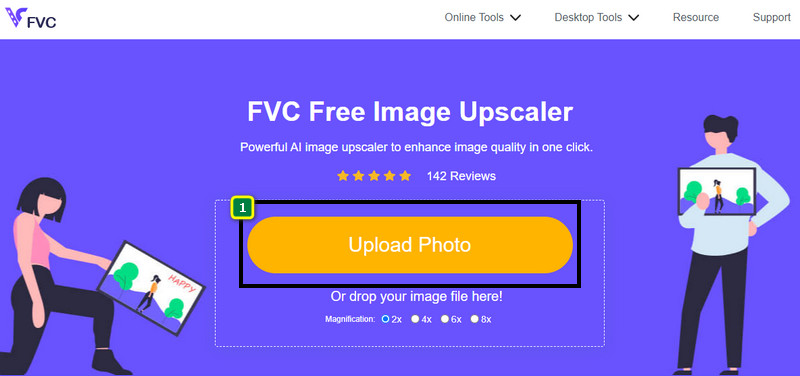
Paso 1. Abre la herramienta web haciendo clic en este enlace, que te llevará directamente al sitio oficial de la herramienta; no tienes de qué preocuparte, su página es segura.
`Paso 2. Después, pulsa Add Image para subir la imagen de Twitter que quieres redimensionar aquí. Espera a que termine la carga mientras la IA detecta el algoritmo de tu imagen.
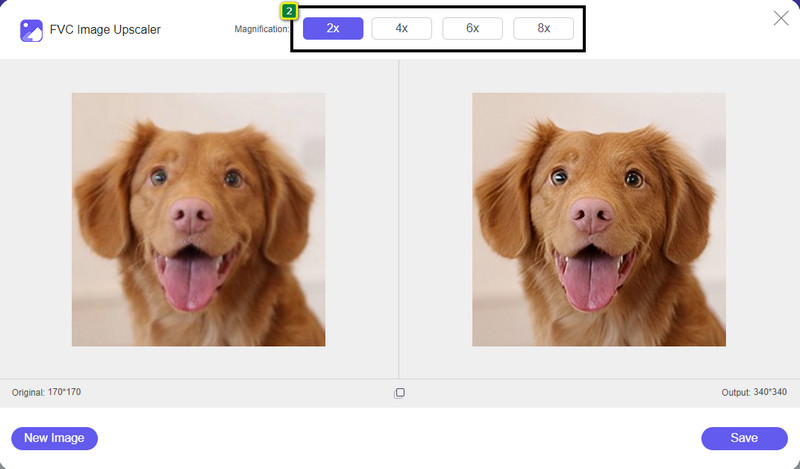
Paso 3. Para cambiar el tamaño de la imagen que has subido, pulsa la opción que quieras usar. En la parte central superior están las opciones de las que hablamos. Es mejor que las pruebes todas para ver cuál se ajusta mejor a tu estándar.
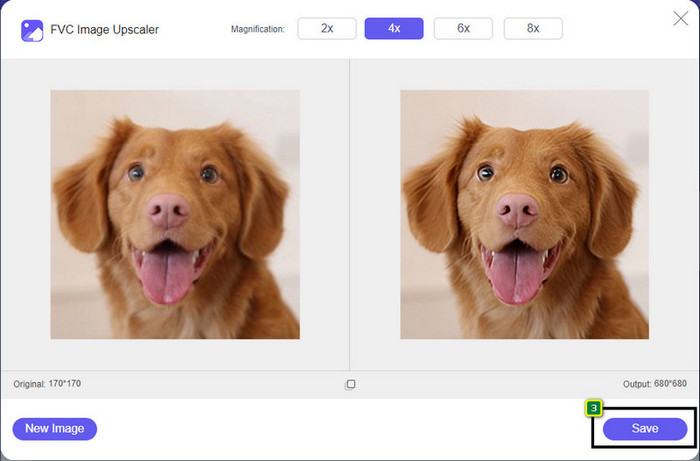
Paso 4. Para guardar la versión redimensionada que has creado aquí, pulsa el botón Save. Se descargará directamente en tu disco local; puedes ir a la carpeta para ver el mejor resultado.
Parte 2. Cómo cambiar el tamaño de la imagen en Android para Twitter [Forma más rápida]
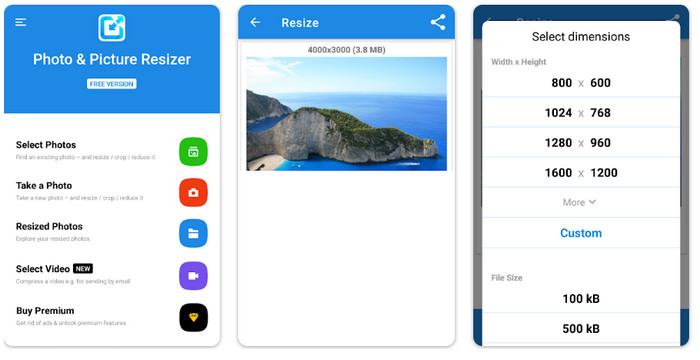
Photo & Picture Resizer es la forma más rápida de redimensionar imágenes para la foto de perfil de Twitter en dispositivos Android. Este editor puede ayudarte a ajustar el tamaño de tu imagen según tus preferencias utilizando las opciones disponibles o personalizando las tuyas propias. Además, ofrece otras funciones, como reducir el tamaño de una sola foto o procesar varias en lote. Una vez lo hayas descargado, no tendrás problemas para entender esta app por lo intuitiva que es. No obstante, su versión gratuita incluye anuncios y las funciones son limitadas. Aun así, esta app funciona bien para cambiar el tamaño de las imágenes de manera que se ajusten a los requisitos de Twitter.
Pasos para redimensionar una imagen de Twitter con Photo & Picture Resizer:
Paso 1. Descarga la app de redimensionado en tu dispositivo y ábrela; toca Select Photo y luego pulsa OK para subir la imagen que quieres redimensionar.
Paso 2. Cuando la imagen se haya subido, selecciona el icono de las cuatro flechas para cambiar el tamaño de la imagen.
Paso 3. Aparecerá en pantalla una lista de dimensiones; elige la que prefieras y la foto se redimensionará según la opción deseada. Después de eso, el redimensionado se iniciará automáticamente y se guardará en tu galería.
Parte 3. Cómo cambiar el tamaño de la imagen en iPhone para Twitter [Forma más fácil]
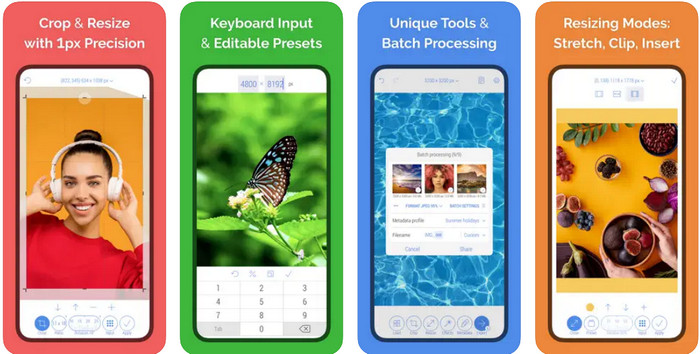
CropSize: Photo Resizer Editor puede ser la app que necesitas para recortar y redimensionar tu imagen al tamaño deseado. Con este redimensionador de imágenes puedes cambiar libremente y con precisión las dimensiones de la imagen para que se adapte a la foto de perfil, anuncios, publicaciones de Twitter y similares. Esta app también ofrece otras funciones de edición que puedes usar con una sola foto o en lote. Así que, si necesitas aumentar la resolución de la imagen que tienes en tu iPhone o quieres saber cómo redimensionar una foto para Twitter, sigue los pasos indicados que añadimos aquí.
Pasos para redimensionar una imagen de Twitter con CropSize:
Paso 1. Ve al App Store, busca el redimensionador y descarga la app en tu iPhone; después, ábrela en tu dispositivo.
Paso 2. Una vez la hayas iniciado, elige la imagen que tienes en tu Álbum y toca la marca de verificación.
Paso 3. Toca la opción Resize para controlar las dimensiones de la imagen. Aquí puedes elegir un ajuste preestablecido, arrastrar el tamaño relativo o introducir un valor numérico concreto.
Paso 4. Toca el botón de exportar para guardar la imagen redimensionada en tu iPhone.
Parte 4. Preguntas frecuentes sobre cómo cambiar el tamaño de las imágenes para Twitter
¿Cuál es la dimensión de la foto de perfil de Twitter?
Para evitar recortar Twitter en su imagen, debe usar la dimensión de perfil predeterminada de 400 x 400 píxeles con un tamaño de archivo inferior a 2 MB para que no recorte la imagen. La dimensión puede ser pequeña, pero necesitas optimizar todo lo que quieras en este contenido.
¿Cuáles son los formatos de imagen admitidos en Twitter?
Puede cargar imágenes en formato JPEG/JPG, PNG y GIF estáticos o en bucle en Twitter. Si sus imágenes no están en el formato que mencionamos, deberá aprender cómo convertir imágenes fácilmente a un formato popular como JPG, PNG y GIF.
¿Cuál es el píxel de imagen recomendado para el encabezado de Twitter?
Para los usuarios de Twitter que quieran cargar un encabezado en su cuenta, es mejor configurar la imagen en 1500 x 1500 píxeles para que quepa. Puede cargar imágenes con una altura y longitud más significativas, pero deberá cortar los bordes para que la imagen se ajuste al encabezado.
Conclusión
En resumen, ahora sabe por qué necesita cambiar el tamaño de la imagen de Twitter para que se ajuste al estándar que establece Twitter para cada propósito. Deberá cortar la imagen con el cambio de tamaño de Twitter para que funcione y sea adecuada para su publicación. Por lo tanto, eliminará algunos detalles de la imagen de forma permanente. Pero, si cambia el tamaño, no tendrá que preocuparse por recortar la imagen de forma permanente como el cambio de tamaño de muestra que presentamos. Además, agregamos pasos sobre cómo usarlos para brindarle un proceso sin complicaciones para cambiar el tamaño de las imágenes en la web, Android y iPhone. Puedes probarlos para ver cuál funciona mejor para ti. ¿Alguna sugerencia sobre este tema? Menciónelo a continuación y discútalo con nosotros.
-
 La mejor aplicación de cambio de tamaño de fotos en línea, sin conexión, Android y iPhone
 ¿Cuáles son las mejores aplicaciones para cambiar el tamaño de fotos? Haga clic en la página para conocer las cinco aplicaciones de cambio de tamaño de fotos más poderosas que puede usar para mejorar o cambiar el tamaño de su archivo.
-
 Cómo cambiar el tamaño de la imagen: Adobe Resize Image [en línea y sin conexión]
 Si está buscando una imagen de cambio de tamaño de Adobe, entonces tenemos la solución para usted. Vea esta publicación a fondo para aprender cómo cambiar el tamaño de las imágenes usando Adobe en su PC.
-
 Cómo cambiar el tamaño de una foto para Facebook [Pasos rápidos y sencillos]
 Si tiene problemas para cargar una imagen de gran tamaño en Facebook, tenemos una solución para usted. Termina este artículo para aprender cómo cambiar el tamaño de las fotos para Facebook.
