


 Video Converter Ultimate
 Grabador de pantalla
 Reparación de vídeo
 Descarga segura
Métodos más fáciles sobre cómo eliminar el logotipo de ManyCam en su dispositivo
¿Te gustaría aprender cómo quitar el logo de ManyCam en tu Windows y Mac? En ese caso, esta publicación te ofrecerá diferentes formas de eliminar un logo de tus vídeos que debes probar. Reproducir tus vídeos favoritos con marcas de agua o logotipos resulta un poco molesto. No puedes disfrutar de tus vídeos y se convierte en una distracción. Incluso hay partes de los vídeos que no puedes ver debido a las marcas de agua, imágenes, textos o logos. Afortunadamente, puedes usar excelentes programas con eliminador de marcas de agua para borrar esos objetos innecesarios de tus vídeos.
Con la ayuda de estas aplicaciones, nunca más te decepcionarás. Si está interesado en conocer los mejores métodos para eliminar el logotipo de ManyCam, su mejor opción es leer este artículo.

Parte 1: Cómo eliminar el logotipo de ManyCam activando la suscripción
Si quieres aprender cómo quitar las marcas de agua de ManyCam, este es el lugar adecuado. ManyCam es un software de transmisión en directo disponible tanto en Windows como en Mac. Esta aplicación te permite crear una emisión única en tus plataformas, hacer tutoriales, presentaciones de negocios, retransmisiones de juegos y mucho más. Además, tiene más funciones estupendas que puedes disfrutar, como añadir música, grabar la pantalla, usar pantalla verde, retransmitir juegos y más. Para los creadores de contenido, ManyCam es valioso y útil. Dispone de las herramientas esenciales que necesitan, como screencasting y grabación de pantalla, lo que les resulta muy práctico.
Sin embargo, cada vez que crea o edita su video, hay un logotipo de manycam en la parte inferior del video, lo cual es perturbador. Afortunadamente, puede eliminar este logotipo activando la suscripción a ManyCam. Siga estos pasos a continuación para saber cómo eliminar el logotipo de manycam activando la suscripción.
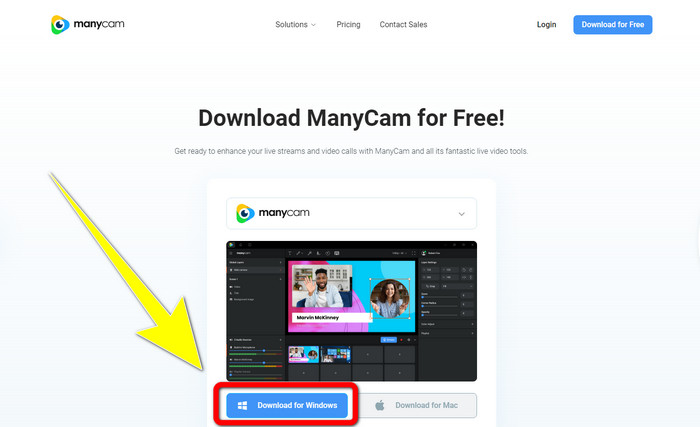
Paso 1: Para descargar ManyCam, haz clic en el botón Download for Windows. Después, procede con el proceso de instalación.
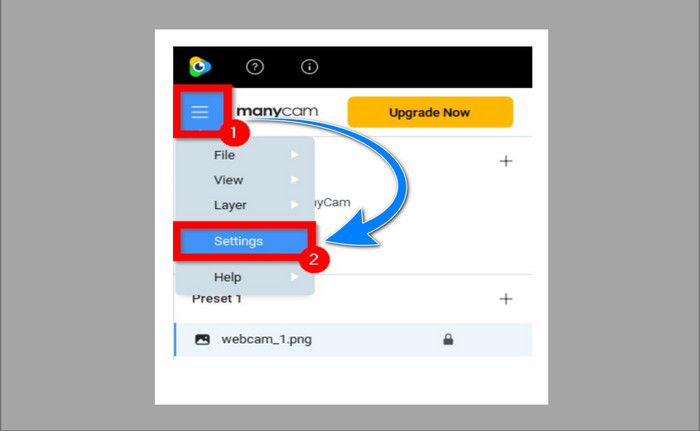
Paso 2: Inicia la aplicación en tu ordenador y haz clic en el icono de menú (sándwich) de ManyCam, luego ve a Settings > Account e inicia sesión en la cuenta que creaste después de comprar la suscripción.
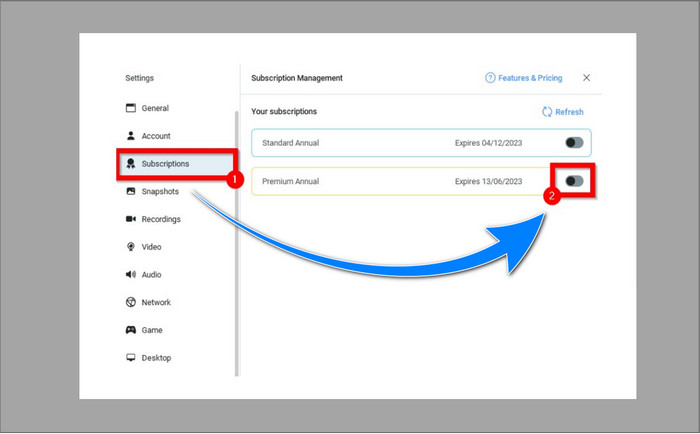
Paso 3: Ve a la pestaña Subscription para asegurarte de que la suscripción está activada.
Paso 4: Si la suscripción ya está activada, aparecerá el mensaje Pop-up, y habrás terminado.
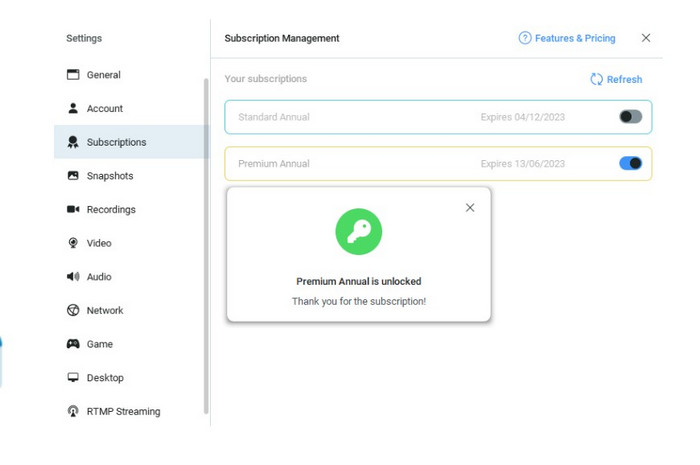
Si su aplicación ManyCam ya está activada, las marcas de agua o el logotipo de sus videos se eliminarán automáticamente. Puede disfrutar viendo sus videos favoritos sin encontrar marcas de agua en ellos.
Parte 2: Cómo eliminar el logotipo de ManyCam sin suscripción
¿Quieres quitar la marca de agua de ManyCam gratis? Además de la aplicación ManyCam, también puedes usar otra aplicación para eliminar el logo de ManyCam. La mejor aplicación que puedes utilizar es Video Converter Ultimate. Esta aplicación puede eliminar objetos innecesarios de tus vídeos, como textos, marcas de agua, logos, etc. Además, Video Converter Ultimate tiene muchas herramientas de edición que puedes disfrutar, como control de velocidad de vídeo, mejora de vídeo, añadir y eliminar marcas de agua, corrección de color, potenciador de volumen y más. La mejor herramienta que puedes usar para eliminar marcas de agua con Video Converter Ultimate es el eliminador de marcas de agua de vídeo (Video Watermark Remover).
Esta herramienta te ayudará a eliminar las marcas de agua con facilidad. Además, esta aplicación está disponible tanto en Windows como en Mac. Además, no tendrá dificultades para utilizar esta aplicación. También admite varios formatos de archivos de audio y video, como MP4, FLV, MOV, MKV, MP3, AAC y más. Si desea eliminar el logotipo de ManyCam con Video Converter Ultimate, este artículo le mostrará dos formas. Estas formas están utilizando el recortador de video y el eliminador de marca de agua de video.
1. Usando el recortador de video
Paso 1. Descarga FVC Video Converter Ultimate y procede con el proceso de instalación.
Descarga gratuitaPara Windows 7 o posteriorDescarga segura
Descarga gratuitaPara macOS 10.7 o posteriorDescarga segura
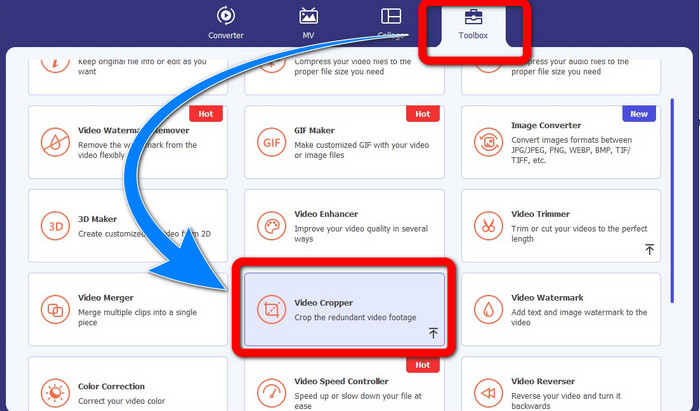
Paso 2: Después de la instalación, inicia la aplicación. Haz clic en Toolbox > Video Cropper.
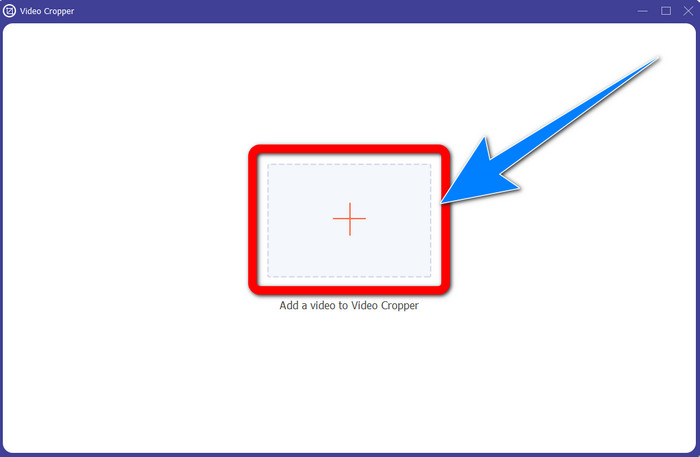
Paso 3: Tras hacer clic en Video Cropper, aparecerá otra interfaz. Haz clic en el botón con el signo Plus y añade tus vídeos con marca de agua de ManyCam.
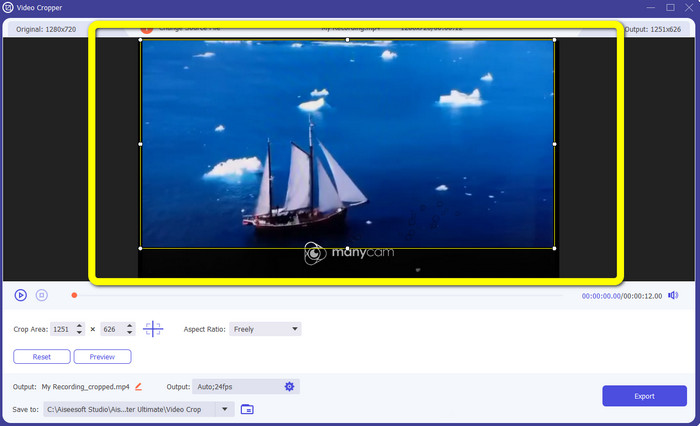
Paso 4: Cuando tu archivo ya esté añadido, puedes recortar tu vídeo y eliminar la marca de agua.
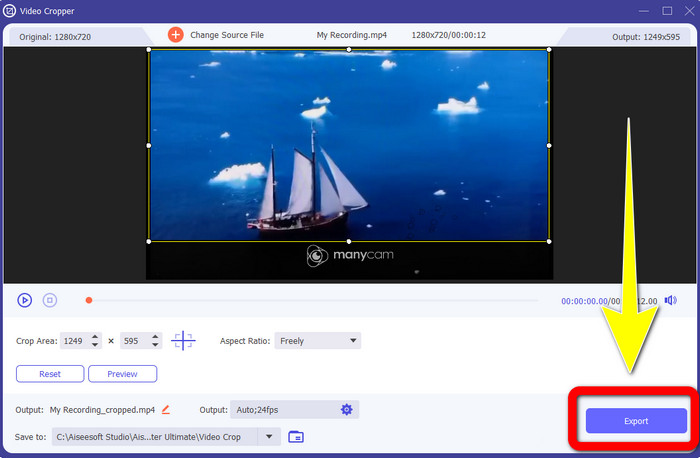
Paso 5: Cuando la marca de agua esté eliminada, haz clic en el botón Export para guardar tu resultado final. Ahora ya puedes reproducir tu vídeo favorito sin marca de agua.
2. Uso del eliminador de marcas de agua de video
Paso 1: Abre la aplicación. Ve a Toolbox > Video Watermark Remover.
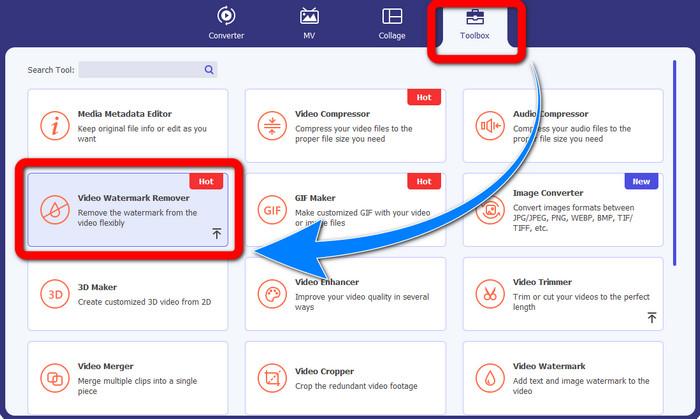
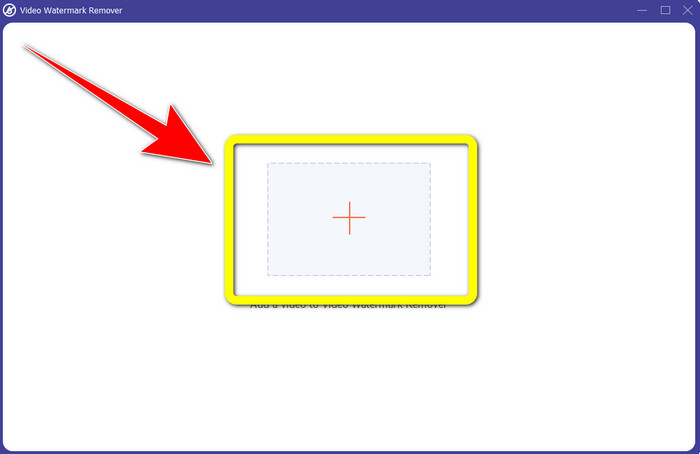
Paso 2: Tras hacer clic en Video Watermark Remover, aparecerá otra interfaz. Haz clic en el botón con el signo Plus para adjuntar tu vídeo con marcas de agua de ManyCam.
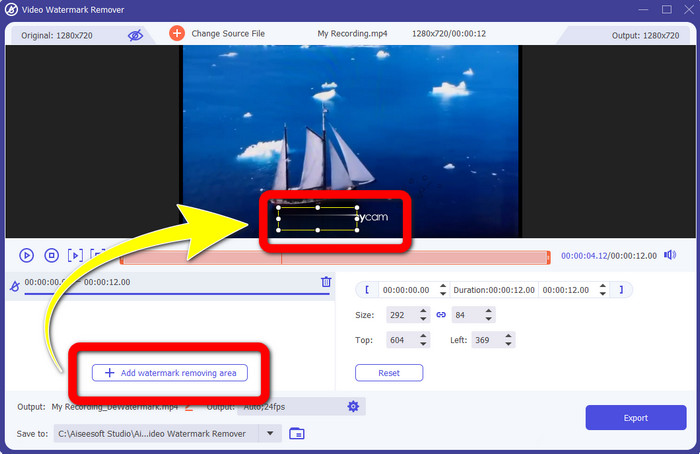
Paso 3: Si ya has adjuntado tu vídeo, haz clic en Add Watermark Removing Area y aparecerá un box en tu vídeo. Arrastra el recuadro hasta la marca de agua para cubrirla.
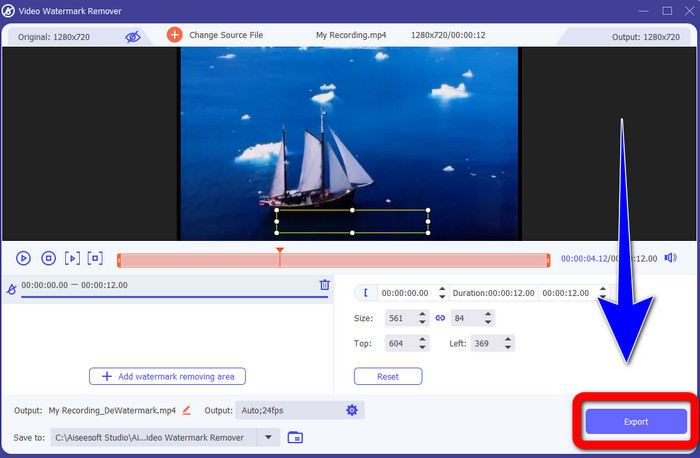
Paso 4: Cuando termines de eliminar las marcas de agua de tus vídeos, haz clic en Export para guardar tu resultado. Esta es la mejor manera de quitar el logo de ManyCam gratis.
Parte 3: Preguntas frecuentes sobre la eliminación del logotipo de ManyCam
¿Cuánto tiempo llevará eliminar el logotipo?
No tiene que esperar más porque el proceso de eliminación del logotipo o cualquier objeto innecesario solo llevará unos segundos.
¿Puedo eliminar el logotipo de ManyCam de mi teléfono?
¡Sí! Puede eliminar el logotipo de ManyCam en sus Android o iPhone utilizando diferentes aplicaciones de software con eliminadores de marcas de agua. Busque la aplicación en su tienda de juegos o tienda de aplicaciones e intente usar las aplicaciones que puede ver en los primeros resultados.
¿Hay una mejor manera de eliminar las marcas de agua en mi Mac?
¡Por supuesto que sí! Puedes usar una excelente aplicación con eliminador de marcas de agua para quitar marcas de agua en tu Mac. Esta aplicación es Video Converter Ultimate. Es perfecta tanto en Windows como en Mac. Este software puede ayudarte a eliminar objetos innecesarios de tus vídeos, como logos, marcas de agua, imágenes y texto.
¿Puedo usar la herramienta de recorte de la aplicación ManyCam para eliminar el logotipo de ManyCam?
¡Por desgracia, no! Usar la herramienta de recorte para eliminar el logo de ManyCam no es eficaz. Aunque intentes recortar el vídeo para quitar el logo, seguirá apareciendo. La única solución para eliminar el logo es activar la suscripción en ManyCam.
Además de ManyCam, ¿hay alguna forma alternativa de eliminar las marcas de agua de mis videos?
¡Sí hay! Además de ManyCam, hay más aplicaciones con eliminador de marcas de agua que puede usar sin comprar. Una de las mejores aplicaciones que puede usar para eliminar marcas de agua en sus videos es Video Converter Ultimate. Es simple y fácil de usar, lo cual es adecuado para principiantes.
Conclusión
Basándote en la información anterior, puedes aprender cómo quitar el logo de ManyCam en tu Windows y Mac. Puedes usar la aplicación ManyCam para eliminar el logo fácilmente después de activar tu suscripción. Además, si quieres usar una aplicación con eliminador de marcas de agua gratis, debes utilizar Video Converter Ultimate. Esta aplicación será de gran ayuda a la hora de borrar objetos innecesarios de tus vídeos.
-
 Los métodos más fáciles sobre cómo eliminar la marca de agua de las fotos
 ¿Estás irritado por las marcas de agua en tus fotos? ¡No te preocupes! Este artículo proporcionará métodos simples y fáciles para eliminar las marcas de agua de sus fotos.
-
 Cómo quitar la marca de agua de Powtoon usando métodos efectivos de 4
 Lea este artículo para aprender cómo eliminar la marca de agua de Powtoon utilizando las mejores herramientas que incluimos aquí y un tutorial.
-
 Revisión del eliminador de marcas de agua de Apowersoft: características, pros y contras, y precios
 Apowersoft Watermark Remover es uno de los mejores removedores de marcas de agua que admite en línea y fuera de línea, ¡haga clic aquí para saber más!
