


 Video Converter Ultimate
 Grabador de pantalla
 Reparación de vídeo
 Descarga segura
Cómo eliminar la marca de agua mordible de tus videos sin esfuerzo
Si estás buscando las mejores y más sencillas formas de eliminar las marcas de agua de Biteable de tus vídeos, ya no tienes que preocuparte más. Sinceramente, ver un vídeo con marcas de agua resulta irritante y frustrante. No puedes disfrutar del vídeo que estás viendo. Además, estas marcas de agua molestan a los espectadores. Es comprensible que las marcas de agua existan para proteger al propietario del vídeo, pero colocar una marca de agua grande no es adecuado. Solo provoca una impresión negativa en las personas a las que les encanta ver sus vídeos favoritos. Un ejemplo son las marcas de agua de Biteable. Estas marcas de agua proceden de la aplicación Biteable, en la que las marcas de agua se añaden automáticamente después de crear o guardar un vídeo. Por suerte, puedes usar aplicaciones para eliminar estas marcas de agua de tus vídeos. Podrás ver tus vídeos favoritos sin sentir irritación ni frustración. Si quieres conocer las aplicaciones más eficaces y fiables que debes usar para eliminar estas marcas de agua, sigue leyendo este artículo.

Parte 1: la mejor manera de eliminar la marca de agua mordible de los videos
Video Converter Ultimate es la aplicación más sobresaliente que puedes usar para eliminar las marcas de agua de Biteable de tus vídeos. Además, este excelente software es capaz de eliminar otros objetos irrelevantes y molestos, como logotipos, textos, firmas, etc. Asimismo, el proceso de eliminación y guardado es muy rápido, por lo que no necesitas emplear mucho tiempo. Además, Video Converter Ultimate ofrece dos métodos sencillos para quitar marcas de agua de tus vídeos: el recortador de vídeo y el eliminador de marcas de agua de vídeo. También dispone de más herramientas de edición que puedes disfrutar, como un controlador de velocidad de vídeo, convertidor de vídeo, compresor de vídeo, corrección de color, creador de collages, creador de GIF, recortador de vídeo, convertidor de imágenes y mucho más. La mejor parte de esta herramienta es que puedes usarla fácilmente porque tiene una interfaz sencilla, perfecta para principiantes. También es compatible con varios formatos de archivo, como MP4, MOV, FLV, MKV, OGV, DIVX y otros. Por último, Video Converter Ultimate está disponible tanto en Windows como en Mac, lo cual es muy práctico para los usuarios. Si quieres eliminar una marca de agua de un vídeo, sigue estos sencillos pasos que te indicamos a continuación.
Uso de la herramienta Eliminador de marcas de agua de video
Paso 1: Ve al sitio web de Video Converter Ultimate y descarga la aplicación. Luego, procede con el proceso de instalación. Después de la instalación, inicia la aplicación.
Descarga gratuitaPara Windows 7 o posteriorDescarga segura
Descarga gratuitaPara macOS 10.7 o posteriorDescarga segura
Paso 2: Después de abrir Video Converter Ultimate, haz clic en el botón Toolbox > Video Watermark Remover. A continuación, aparecerá otra interfaz en la pantalla.
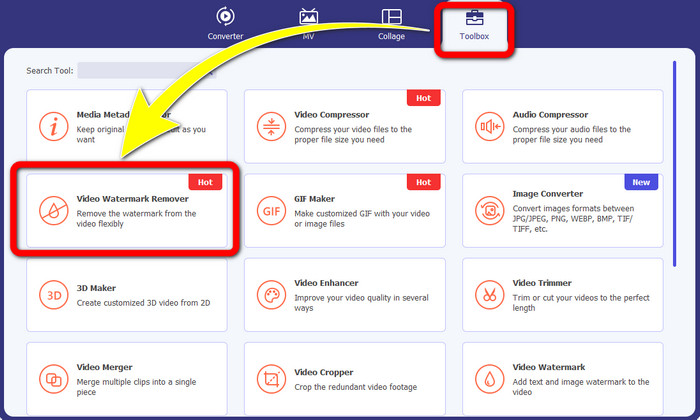
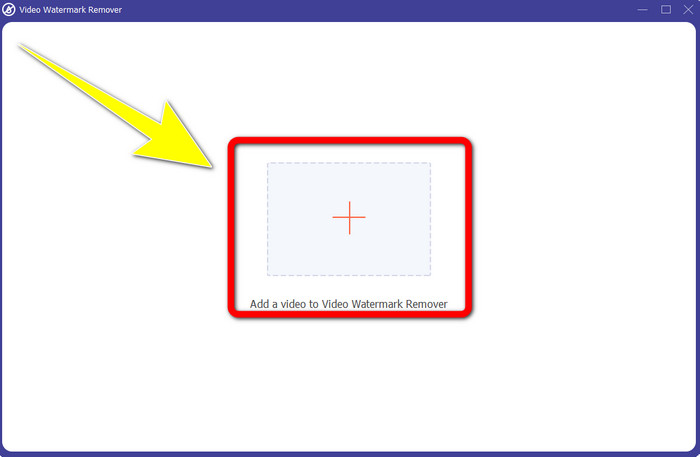
Paso 3: Cuando la nueva interfaz ya haya aparecido en tu pantalla, haz clic en el botón con el signo Más para añadir tu vídeo con una marca de agua de Biteable.
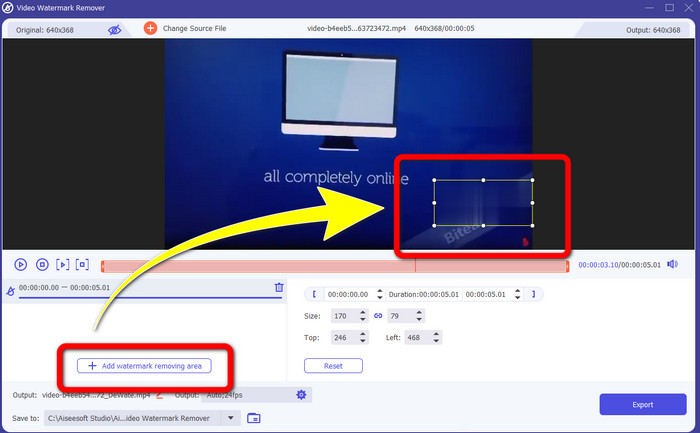
Paso 4: Después de añadir tu vídeo, haz clic en Add Watermark Removing Area. Entonces aparecerá un recuadro pequeño sobre tu vídeo. Arrastra el recuadro para cubrir las marcas de agua.
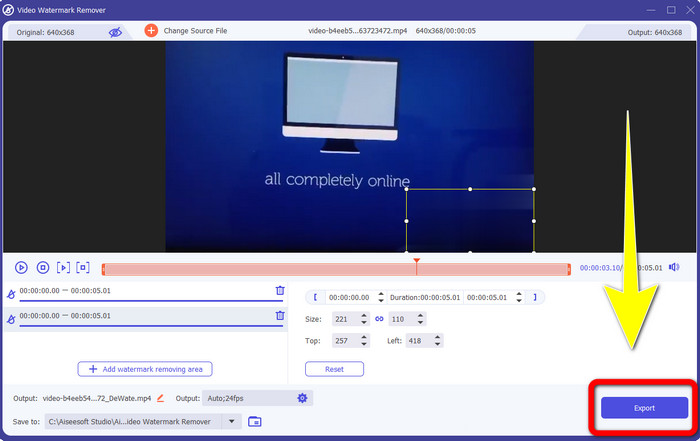
Paso 5: Cuando hayas eliminado la marca de agua de Biteable de tu vídeo, haz clic en el botón Export para guardar el resultado final.
Uso de la herramienta Recortador de video
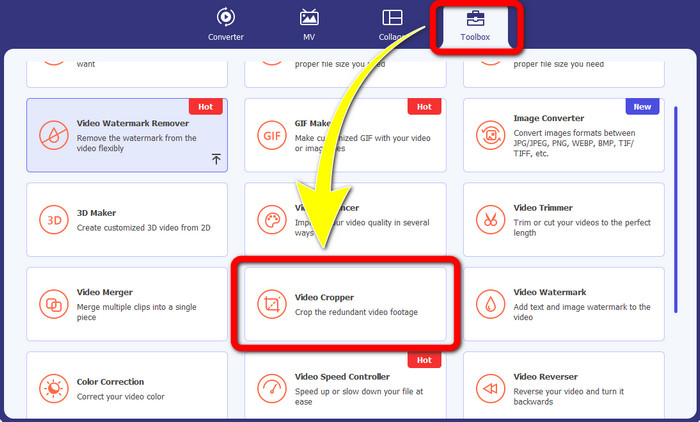
Paso 1: Inicia Video Converter Ultimate. Haz clic en el botón Toolbox > Video Cropper.
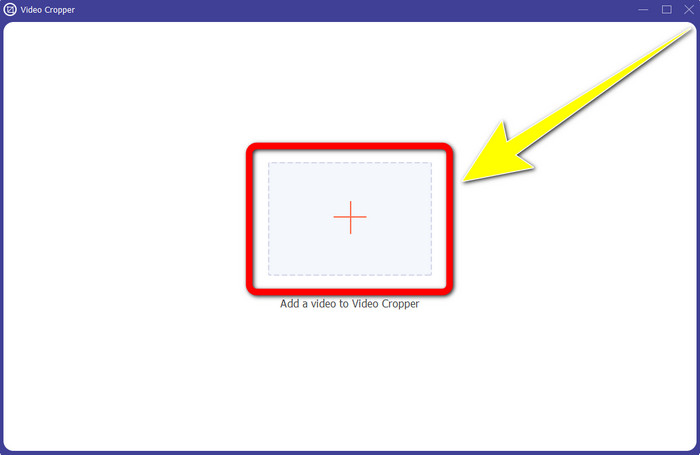
Paso 2: Después de hacer clic en Video Cropper, aparecerá una nueva interfaz en tu pantalla. Haz clic en el icono Más y añade tu vídeo con una marca de agua de Biteable.
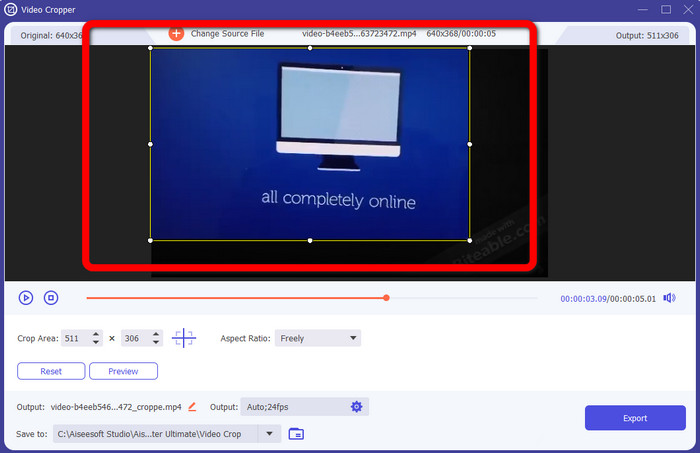
Paso 3: Cuando hayas añadido tu vídeo, ya puedes recortarlo para eliminar las marcas de agua.
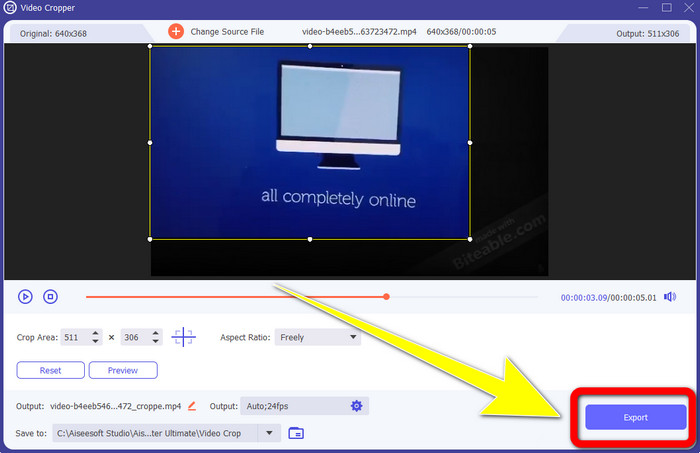
Paso 4: Cuando termines de recortar tu vídeo, haz clic en el botón Export y guarda tu vídeo sin la marca de agua de Biteable.
Parte 2: Cómo eliminar la marca de agua mordible de los videos en línea
1. Usando BeeCut
Si desea eliminar la marca de agua que se puede morder de forma gratuita en línea, BeeCut es la mejor aplicación en línea que puede utilizar. Es capaz de eliminar marcas de agua de tus videos. Es una herramienta en línea simple que puede usar, que es perfecta para principiantes. Puede eliminar las marcas de agua que se pueden morder de cuatro videos en solo unos pocos pasos.
Además, BeeCut tiene muchas herramientas de edición, como recortar, cortar, dividir y combinar videos. Además, si desea hacer un video, puede agregar subtítulos a su video a continuación, lo cual es conveniente para los espectadores. Sin embargo, es lento para cargar archivos y guardar procesos usando esta herramienta. Además, no puede utilizar esta herramienta si no tiene una conexión a Internet. Si desea eliminar las marcas de agua que se pueden morder de su video con esta herramienta en línea, siga los pasos a continuación.
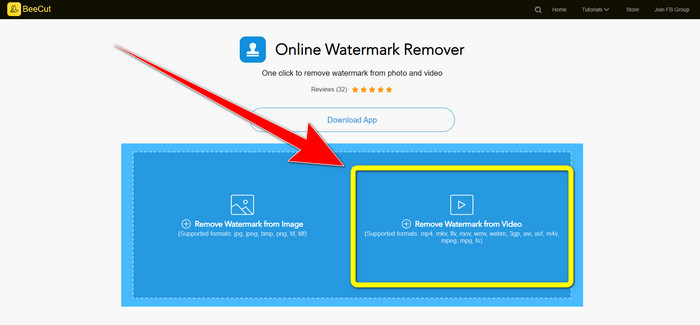
Paso 1: Visita el sitio web de BeeCut. Luego haz clic en el botón Remove Watermark from Video y añade tu vídeo con una marca de agua de Biteable.
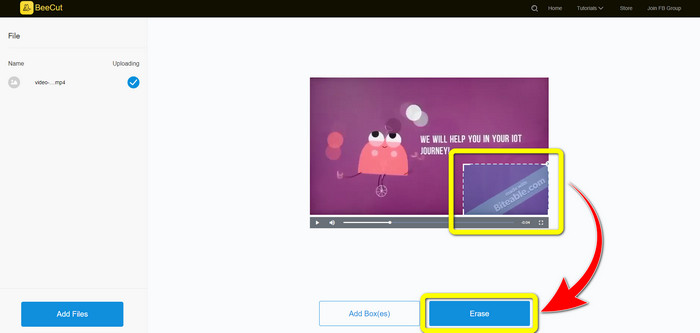
Paso 2: Después de añadir tu archivo, aparecerá un recuadro sobre tu vídeo. Arrástralo y cubre la marca de agua de Biteable. Después, cuando hayas terminado de cubrir las marcas de agua, haz clic en el botón Erase.
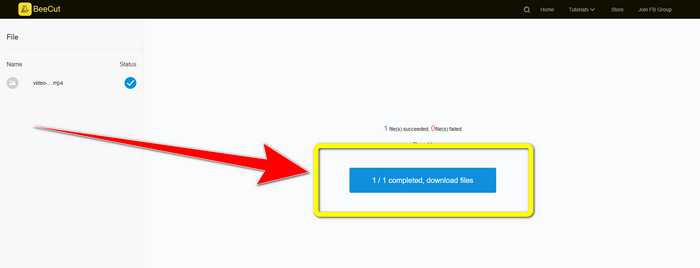
Paso 3: Cuando hayas hecho clic en el botón Erase, espera a que termine el proceso de eliminación. Después podrás descargar el archivo y disfrutar viéndolo sin la marca de agua de Biteable en tu vídeo.
2. Uso de Blur Video en línea
Si todavía está buscando otra aplicación que pueda usar para eliminar la marca de agua mordible de su video en línea, Blur Video Online es una gran herramienta para usted. Y Blur Video Online está disponible para casi todos los dispositivos y navegadores, como Google Chrome, Opera, IE, Mozilla Firefox y más. Sin embargo, esta aplicación dependiente de la web es demasiado lenta para importar archivos de video y el proceso de eliminación de marcas de agua lleva mucho tiempo. También es una herramienta que depende de Internet, lo que significa que solo funciona si tiene una conexión a Internet. Siga los sencillos pasos a continuación para eliminar/difuminar una marca de agua Biteable de su video.
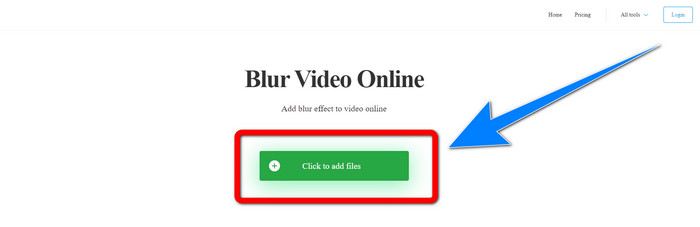
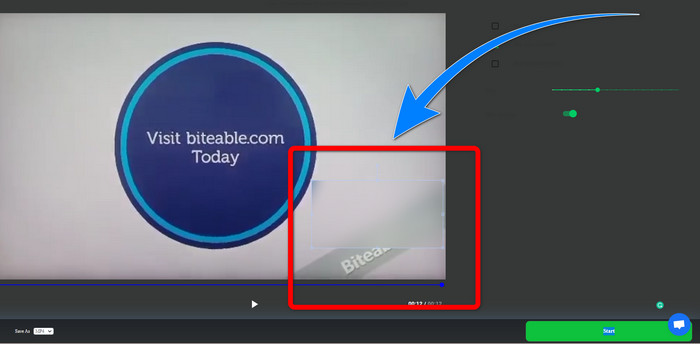
Paso 1: Ve al sitio web de Blur Video Online. Luego, haz clic en el botón Click to Add File y añade tu vídeo con una marca de agua.
Paso 2: Cuando ya hayas insertado tu vídeo, aparecerá un recuadro sobre tu vídeo. Arrástralo para cubrir las marcas de agua y guarda tu resultado final.
Relacionado con:
La mejor forma de eliminar la marca de agua de Camtasia 9 en Windows
Cómo eliminar rápidamente la banda de marca de agua de AVS Video Editor
Parte 3: Preguntas frecuentes sobre la eliminación de marcas de agua que se pueden morder de los videos
¿Puedo eliminar un sello de fecha usando Video Converter Ultimate?
¡Sí tu puedes! Video Converter Ultimate puede ayudarlo a eliminar objetos molestos de sus videos, como sellos de fecha, marcas de agua, texto, etc.
¿Toma mucho tiempo eliminar las marcas de agua de mis videos?
Depende de las aplicaciones que esté utilizando. Algunas aplicaciones pueden eliminar instantáneamente las marcas de agua de sus videos, y algunas aplicaciones tardan en eliminarlas.
¿Hay algún eliminador de marcas de agua que pueda usar sin perder la calidad de mis videos?
Sí, la hay. Puedes utilizar Video Converter Ultimate. No solo es bueno para eliminar marcas de agua y editar vídeos. Esta aplicación te permite quitar las marcas de agua de tus vídeos sin perder calidad.
Conclusión
Eliminar la marca de agua de tus vídeos es estupendo, sobre todo si quieres ver tus vídeos favoritos sin elementos innecesarios. Este artículo te ha presentado aplicaciones prácticas que puedes utilizar para eliminar las marcas de agua de Biteable de tus vídeos. Por último, usar Video Converter Ultimate es la mejor opción si buscas la aplicación más excelente y destacada para eliminar marcas de agua de tus vídeos.
-
 Cómo quitar la marca de agua de Powtoon usando métodos efectivos de 4
 Lea este artículo para aprender cómo eliminar la marca de agua de Powtoon utilizando las mejores herramientas que incluimos aquí y un tutorial.
-
 Revisión del eliminador de marcas de agua de Apowersoft: características, pros y contras, y precios
 Apowersoft Watermark Remover es uno de los mejores removedores de marcas de agua que admite en línea y fuera de línea, ¡haga clic aquí para saber más!
-
 3 de los últimos eliminadores de marcas de agua de Shutterstock que necesitará
 ¿No le gusta la marca de agua de Shutterstock adjunta al video exportado? Puede usar un eliminador de marcas de agua de Shutterstock para borrarlas de manera efectiva.
