


 Video Converter Ultimate
 Grabador de pantalla
 Reparación de vídeo
 Descarga segura
Los mejores métodos para eliminar el logotipo de VideoScribe de un video
¿Deseas aprender a eliminar el logo de VideoScribe de tus vídeos? Hay ocasiones en las que te encuentras con un logo en tus vídeos. No puedes evitarlo, especialmente cuando el propietario del vídeo quiere proteger su contenido y promocionar su marca. También puedes encontrarte con un logo al usar la versión gratuita de una determinada aplicación. El mejor ejemplo es la aplicación VideoScribe. Si utilizas la versión gratuita de esta aplicación, tu vídeo llevará el logo de VideoScribe a menos que la compres. Pero antes de eso, puedes usar otras aplicaciones gratuitas para eliminar el logo de tus vídeos. Debes leer este artículo para descubrir cómo quitar un logo sin comprar nada.

Parte 1: Cómo quitar el logotipo de VideScribe de un video sin conexión
Si quieres eliminar el logo de VideoScribe de tus vídeos sin conexión, puedes usar Video Converter Ultimate. Esta aplicación puede ayudarte a eliminar el logo de VideoScribe de tus vídeos de forma fácil y rápida. También puedes usar este software para editar vídeos sin perder calidad. Además, tiene una interfaz gráfica sencilla que ofrece resultados de alta calidad. Video Converter Ultimate está disponible tanto para Mac como para Windows. Aunque dispone de muchas funciones, sigue siendo adecuado para principiantes. Esta aplicación es compatible con muchos formatos de archivo, como FLV, MOV, MP4, MTS, DivX, XviD y muchos más. Además, esta aplicación cuenta con numerosas herramientas de edición que puedes usar para mejorar tus vídeos, como mejorar, recortar, recortar el encuadre, corregir el color, girar vídeos y mucho más. Video Converter Ultimate también puede ofrecerte dos maneras de eliminar el logo de VideoScribe de tus vídeos.
Uso del eliminador de marcas de agua de video
Paso 1: Haz clic en el botón de descarga de abajo para descargar Video Converter Ultimate en tu Windows o Mac. Después, instala el software en tu dispositivo y ejecútalo.
Descarga gratuitaPara Windows 7 o posteriorDescarga segura
Descarga gratuitaPara macOS 10.7 o posteriorDescarga segura
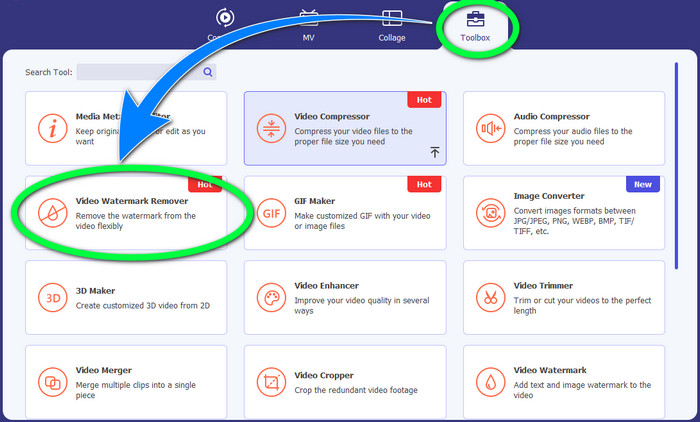
Paso 2: Después de eso, ve al panel de Caja de herramientas y haz clic en el botón Quitador de marca de agua de vídeo. Aparecerá una nueva interfaz en tu pantalla.
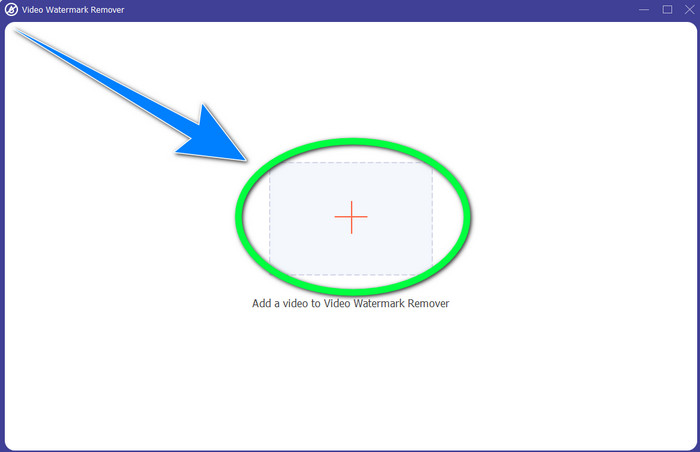
Paso 3: Haz clic en el botón + para importar el archivo de vídeo con el logo de VideoScribe que quieres eliminar.
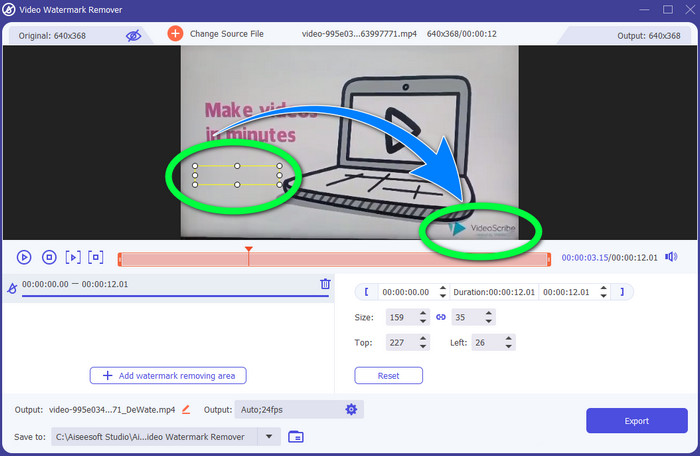
Paso 4: Cuando termines de importar el vídeo, haz clic en Añadir área para quitar marca de agua y coloca la mini caja de selección sobre el logo. Puedes ajustar el tamaño de la caja.
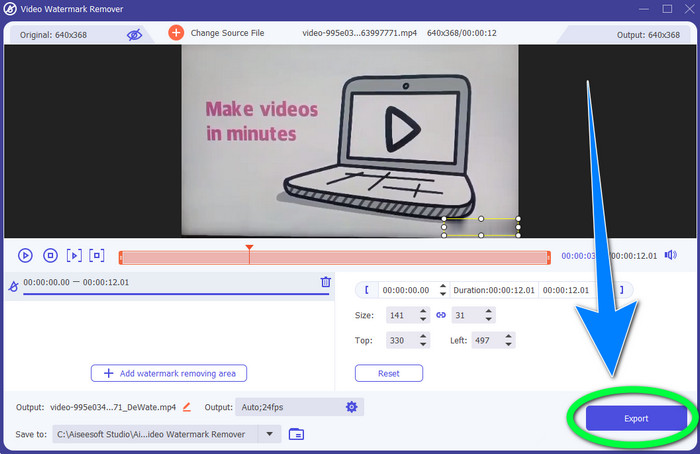
Paso 5: En el último paso, puedes hacer clic en el botón Exportar para guardar el vídeo sin que aparezca el logo.
Uso de la función de recorte de video
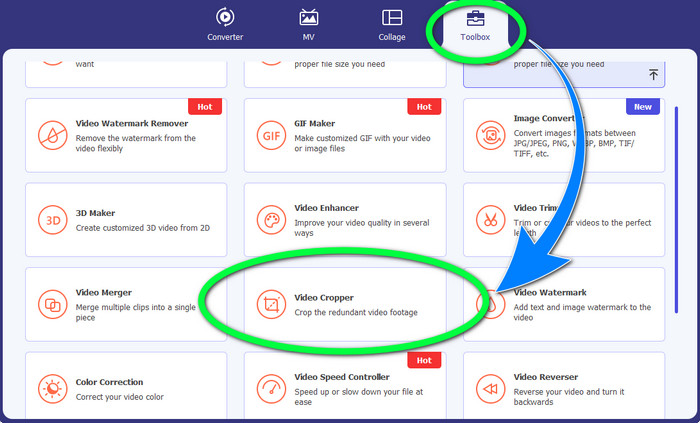
Paso 1: La herramienta de recorte es otra forma de eliminar el logo de VideoScribe. En la Caja de herramientas, haz clic en el botón Recortador de vídeo.
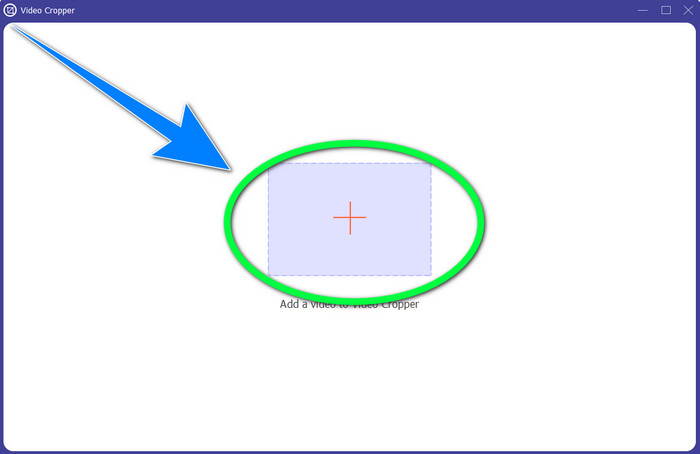
Paso 2: Aparecerá una nueva interfaz en tu pantalla. Selecciona el botón con el signo + e inserta tu vídeo con el logo de VideoScribe.
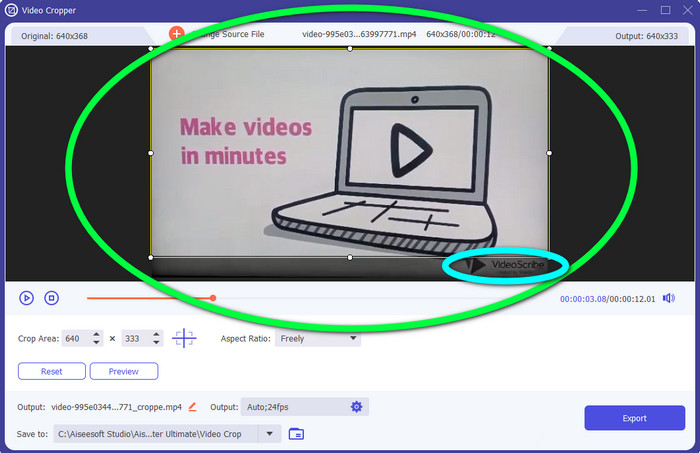
Paso 3: La herramienta de recorte te permite recortar el borde de tu vídeo. Si el logo está en el borde de tu vídeo, puedes cortarlo para eliminar el logo.
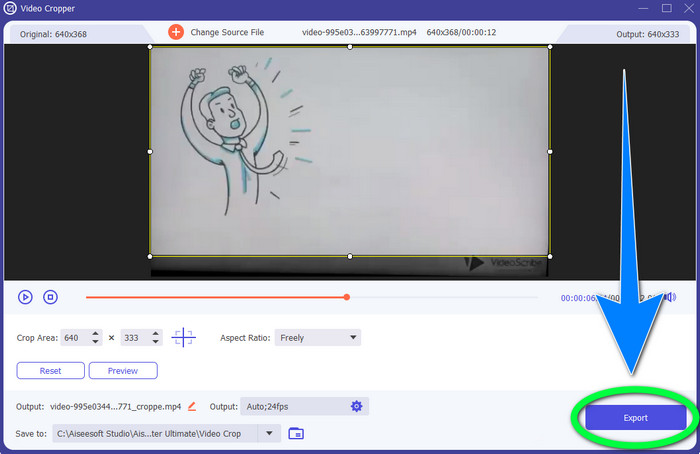
Paso 4: Después, si crees que ya has eliminado el logo de VideoScribe, puedes seleccionar el botón Exportar y guardar tu vídeo final en tu dispositivo.
Parte 2: Cómo quitar el logotipo de VideoScribe de un video en línea
Usando BeeCut-Online Watermark Remover
¿Quieres eliminar el logo de VideoScribe de tus vídeos en línea? BeeCut-Online Watermark Remover es una de las fantásticas y útiles herramientas online que puedes utilizar. Esta herramienta online puede ayudarte a borrar elementos molestos de tus vídeos, como logos, marcas de agua, textos, fechas y más. Por lo tanto, puedes eliminar el logo de VideoScribe de tus vídeos sin esfuerzo gracias a su interfaz sencilla. Además, BeeCut-Online Watermark Remover admite numerosos formatos de archivo, como FLV, MOV, MP4, WebM, ASF, AVI, 3GP, MPG y otros. Asimismo, también puedes eliminar elementos molestos de tus imágenes con esta herramienta. Lamentablemente, esta aplicación depende de Internet, lo que significa que no puedes utilizarla si no tienes acceso o conexión a Internet. En cuanto al proceso de eliminación, a veces puede resultar lento, dependiendo de si tienes una conexión a Internet rápida o lenta. Te proporcionamos los pasos a continuación en orden.
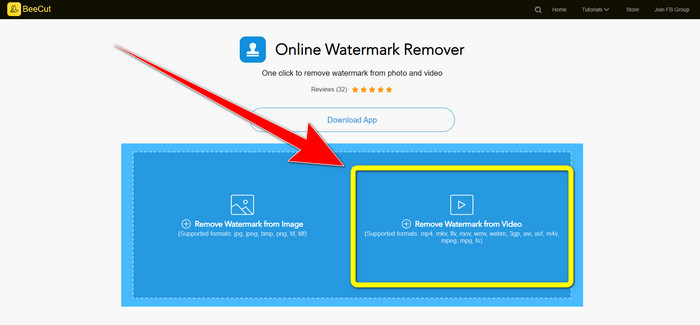
Paso 1: Ve a la página web de BeeCut-Online Watermark Remover. Haz clic en el botón Remove Watermark from Video y adjunta tu vídeo con un logo de VideoScribe.
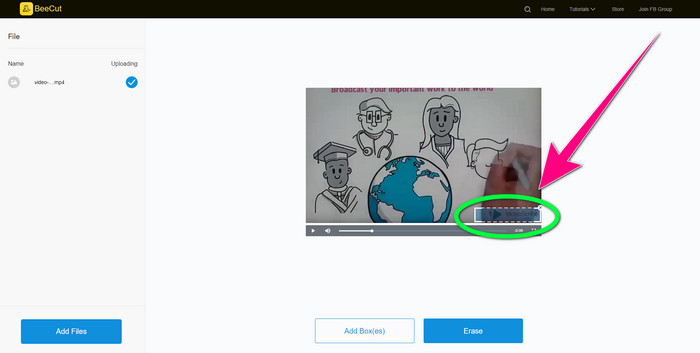
Paso 2: Después de añadir tu vídeo, utiliza la caja pequeña que aparece en tu vídeo y arrástrala para cubrir el logo.
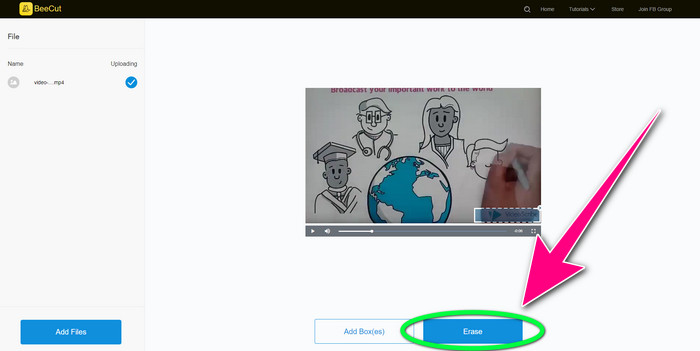
Paso 3: Cuando hayas terminado de cubrir el logo con la caja pequeña, selecciona el botón Erase para guardar y descargar tu vídeo sin el logo de VideoScribe.
Uso de Video Watermark Remover en línea
Video Watermark Remover Online es otra herramienta online que puedes utilizar para eliminar el logo de VideoScribe de tus vídeos. Tiene una interfaz sencilla y es adecuada para principiantes. Además, puedes eliminar logos de tus vídeos sin perder calidad, lo cual es excelente. Sin embargo, esta herramienta online tiene funciones limitadas en la versión gratuita. Solo puedes eliminar logos de 5 vídeos y no puedes exportarlos a otros formatos de archivo. Y como se trata de una aplicación online, no puedes usarla sin conexión a Internet. Además, a veces la herramienta no funciona correctamente. Si quieres aprender a eliminar logos de tus vídeos, sigue los sencillos pasos que aparecen a continuación.
Paso 1: Ve a la página web de Video Watermark Remover Online. Haz clic en el botón Click or Drag Videos Here para insertar tu vídeo con un logo de VideoScribe.

Paso 2: Haz clic en el botón Remove Watermark y espera al proceso de eliminación. Después, ya podrás guardar tu vídeo.
Parte 3: Preguntas frecuentes sobre la eliminación del logotipo de VideoScribe del video
¿Puedo confiar en las herramientas en línea para eliminar los logotipos de mis videos?
Sí tu puedes. Las herramientas en línea son seguras y pueden asegurar su archivo de video. Algunas herramientas pueden eliminar automáticamente sus archivos después del proceso, por lo que no tiene que preocuparse. Sin embargo, no todas las herramientas en línea son iguales, por lo que aún debe buscar reseñas para saber si puede confiar en una herramienta en particular.
¿Cómo te deshaces de los logos de un video?
Si desea deshacerse del logotipo, descargue Video Converter Ultimate en su computadora o Mac. Puede usar el eliminador de marcas de agua de video o la herramienta de recorte de video. Estas dos formas pueden ayudarte a deshacerte del logo de tu video.
¿Puedo eliminar el logotipo de VideoScribe sin una suscripción?
¡Sí, por supuesto! Puede eliminar el logotipo de VideoScribe con Video Converter Ultimate. No necesita comprar esta aplicación para eliminar el logotipo porque es gratis.
Conclusión
Este artículo te ha proporcionado información sobre cómo eliminar el logo de VideoScribe del vídeo usando tu herramienta descargable y herramientas online. Pero, si quieres quitar un logo de tus vídeos de manera rápida y sencilla, puedes usar Video Converter Ultimate.
-
 3 de los últimos eliminadores de marcas de agua de Shutterstock que necesitará
 ¿No le gusta la marca de agua de Shutterstock adjunta al video exportado? Puede usar un eliminador de marcas de agua de Shutterstock para borrarlas de manera efectiva.
-
 Cómo quitar la marca de agua de Powtoon usando métodos efectivos de 4
 Lea este artículo para aprender cómo eliminar la marca de agua de Powtoon utilizando las mejores herramientas que incluimos aquí y un tutorial.
-
 Revisión del eliminador de marcas de agua de Apowersoft: características, pros y contras, y precios
 Apowersoft Watermark Remover es uno de los mejores removedores de marcas de agua que admite en línea y fuera de línea, ¡haga clic aquí para saber más!
