


 Video Converter Ultimate
 Grabador de pantalla
 Reparación de vídeo
 Descarga segura
Aprenda los métodos perfectos sobre cómo crear una URL a partir de una imagen
Hoy en día, los formatos de archivo de imagen se han vuelto muy populares. Estos formatos son una de las mejores formas de compartir y abrir imágenes en distintos navegadores y programas. Sin embargo, hay ocasiones en las que no puedes compartir tus imágenes, uses la extensión que uses. Esta situación puede resultar problemática para otras personas. Pero, aunque no lo supiéramos, había una solución para este tipo de dificultad. Si quieres compartir tus fotos en cualquier lugar, la mejor manera es transcodificar la imagen a una URL. De este modo, puedes compartir la foto con otras personas sin necesidad de ninguna extensión. Afortunadamente, este artículo tiene una solución excepcional para ti. Lee esta publicación mientras te ofrecemos los mejores tutoriales sobre cómo convertir tus imágenes en un enlace.

Parte 1. Métodos efectivos para convertir una imagen en un enlace
Convertir imagen a enlace usando i-Converter
Algunos conversores de imagen a URL en línea no funcionan bien, así que queremos presentarte i-Converter. Es un conversor online en el que puedes confiar para transformar tus archivos de imagen en un enlace URL. Puedes acceder a la herramienta en línea desde distintos navegadores, como Firefox, Chrome, Edge, Explorer y otros. Además, el proceso de conversión de archivos es sencillo. De este modo, la herramienta es adecuada tanto si eres un usuario avanzado como si eres principiante. Adicionalmente, es compatible con varios formatos de archivo de imagen. Puedes convertir tus imágenes a JPEG, BMP, TIFF, PNG, GIF, DOC y más. Además, i-Converter es gratuito. Esto significa que puedes convertir tus imágenes sin adquirir un plan de suscripción. No obstante, i-Converter es exclusivo para archivos de imagen JPG. Si tu imagen no tiene la extensión .jpg, no podrás subirla a esta herramienta en línea. Asimismo, hay ocasiones en las que la herramienta no rinde bien. Al tratarse de una herramienta online, se recomienda encarecidamente disponer de conexión a Internet.
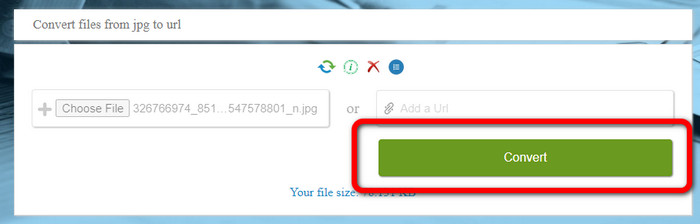
Paso 1. Abre cualquier navegador en tu ordenador y visita la página web de i-Converter. Cuando ya estés en la página principal, haz clic en el botón Choose File. Cuando aparezca el explorador de archivos en la pantalla, abre la imagen que quieres convertir en URL.
Paso 2. Después de subir el archivo de imagen que quieres convertir, haz clic en el botón Convert. Luego, espera al proceso de conversión. Tras unos segundos, la herramienta te dará el enlace. Puedes copiar el enlace en el navegador para abrir la imagen haciendo clic en el botón Copy Code.
Cómo convertir una imagen en un enlace usando Image to Link
Otra herramienta en línea que puedes utilizar para convertir imágenes a HTML es Image to Link. En comparación con la primera herramienta mencionada, esta admite varios formatos de entrada como JPG, PNG y GIF. Además, ofrece métodos muy sencillos. Tras subir la imagen, la herramienta la convertirá automáticamente. El proceso de conversión es rápido, por lo que puedes obtener el enlace enseguida. Asimismo, Image to Link está disponible en varios navegadores web. Puedes usarlo en Google, Mozilla, Explorer y otros. Todos los usuarios son capaces de manejar esta herramienta gracias a sus opciones fáciles de entender. Lo mejor es que puedes convertir varias imágenes a la vez. Así, esta herramienta es perfecta cuando quieras convertir más archivos. Sin embargo, al usar el conversor, aparecen algunos anuncios en pantalla que resultan molestos para los usuarios. Además, cuando conviertes varios archivos, solo puedes subir hasta cinco imágenes. También necesitas acceso a Internet para utilizar este conversor de imágenes en línea.
Paso 1. Accede desde tu navegador al sitio web de Image to Link. En la página, haz clic en el botón Start Uploading. Luego abre desde tu ordenador el archivo de imagen que quieres convertir. Puedes subir hasta cinco imágenes cuando realices un proceso de conversión por lotes.
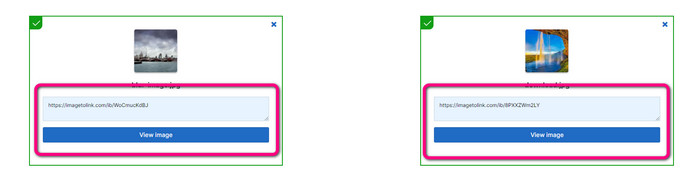
Paso 2. Tras la carga, la herramienta convertirá automáticamente la imagen en un enlace. Después, la herramienta proporcionará un enlace que podrás usar para abrir la imagen. Para abrir la imagen, copia el enlace proporcionado y pégalo en tu navegador.
Parte 2. Cómo cambiar imágenes a JPG, PNG y GIF
Convierta imágenes a JPG, PNG y GIF en FVC Free Image Converter
Uno de los principales conversores de imágenes en línea que puedes usar es FVC Free Image Converter. Esta herramienta puede transcodificar tu imagen a varios formatos como JPG, PNG y GIF. También admite diversos formatos de entrada, incluidos BMP, SVG, ICO, WebP y otros. Puedes convertir imágenes con un método muy sencillo, lo cual es perfecto para los usuarios. Además, el conversor de imágenes dispone de excelentes funciones que puedes disfrutar. Una de ellas es la función de conversión por lotes. Permite subir varias imágenes y convertirlas con un solo clic. Ten en cuenta que puedes convertir hasta 40 archivos de imagen. También ofrece un proceso de conversión rápido, con el que podrás convertir imágenes en cuestión de segundos.
Además, FVC Free Image Converter en todos los navegadores, para que pueda operarlo en cualquier lugar siempre que tenga una conexión a Internet. La herramienta también garantiza su privacidad. Durante el proceso de conversión, nunca encontrará anuncios molestos en su pantalla. Después de guardar sus imágenes convertidas, la herramienta eliminará sus datos para que nadie pueda ver sus fotos cargadas y convertidas. Utilice los métodos enumerados a continuación para convertir imágenes sin esfuerzo a formato JPG, PNG o GIF.
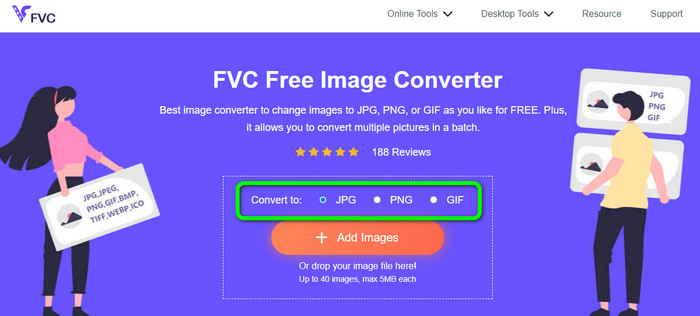
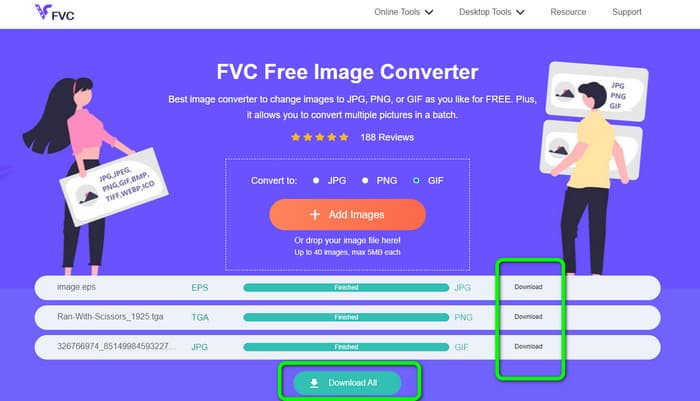
Paso 1. Ve al sitio web oficial de FVC Free Image Converter. Puedes acceder a este conversor de imágenes en línea desde cualquier navegador. Después, puedes hacer clic en el formato JPG, PNG o GIF en la opción de formato.
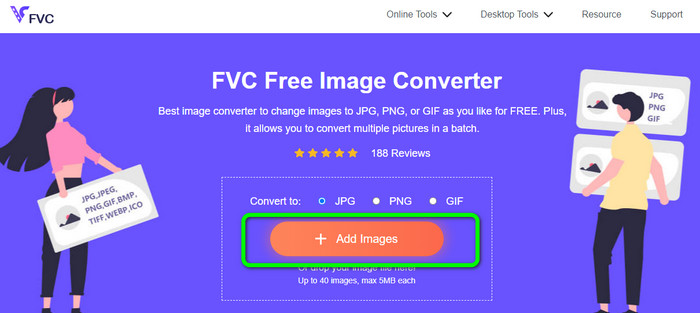
Paso 2. Haz clic en Add Images para subir el archivo de imagen desde tu ordenador. También puedes arrastrar y soltar el archivo dentro del recuadro. Como la herramienta ofrece conversión por lotes, puedes subir varios archivos simultáneamente.
Paso 3. Verás que el conversor de imágenes convertirá las imágenes automáticamente tras el proceso de carga. Cuando termine la conversión, haz clic en el botón Download All para guardarlas todas de una vez. Pero, si prefieres guardar la imagen manualmente, haz clic en el botón Download situado a la derecha.
Parte 3. Preguntas frecuentes sobre la conversión de imágenes a enlaces
1. ¿Por qué convertir una imagen en un enlace?
Puede usar una imagen como botón si tiene un sitio web o un blog. De esta manera, los usuarios pueden acceder a su página de inicio o a una página en particular. Además, es posible vincular fotos en publicaciones en redes sociales o firmas de correo electrónico. Además, es una forma fantástica de publicitar su sitio web o blog y aumentar el tráfico. Estas son solo algunas de las justificaciones más importantes para la conversión de URL de una imagen.
2. ¿Cuáles son los beneficios de convertir una imagen en un enlace?
Puede ser más sencillo para los usuarios hacer clic en su enlace si convierte una imagen en un enlace. Si desea que los visitantes hagan clic en una pequeña imagen, convertir la imagen en una URL les dará un área más extensa para hacer clic. Compartir su material con otros puede hacer que sea mucho más sencillo descubrir nuevos bienes o servicios.
3. ¿Cómo encuentro la URL de una imagen en un sitio web?
Haga clic derecho en la imagen y elija Copiar enlace de imagen para obtener la URL de una imagen en un sitio web. Luego puede abrir la URL en una nueva pestaña para guardar la imagen o compartir la URL por correo electrónico, redes sociales y otros canales.
Conclusión
¡Listo! Ya has aprendido los mejores métodos para convertir imágenes en enlaces. Además, has descubierto las formas más sencillas de convertir imágenes a formatos JPG, PNG y GIF. Por lo tanto, si quieres cambiar tus imágenes a enlaces URL, consulta los métodos eficaces que hemos mostrado arriba. Por otro lado, si deseas un conversor de imágenes sobresaliente para convertir imágenes a otros formatos, utiliza FVC Free Image Converter.
-
 Métodos sobre cómo convertir imágenes a JPG en línea y sin conexión
 ¿Quieres convertir el archivo a formato JPG por alguna razón? Entonces este articulo es para usted. Te enseñaremos el mejor método para convertir tu imagen a JPG
-
 Métodos útiles para convertir fácilmente imágenes a formato PNG
 ¿Está buscando la mejor manera de guardar su imagen como PNG? Esta guía ofrece excelentes soluciones para convertir imágenes a PNG en línea y fuera de línea
-
 Qué es JPEG/JPG: convierta sus imágenes a JPG sin esfuerzo
 ¿Tienes curiosidad sobre el significado de JPEG? Tenemos una respuesta para ti. Además, aprenderá cómo convertir diferentes formatos de imagen en archivos JPG. Lea la publicación ahora.
