


 Video Converter Ultimate
 Grabador de pantalla
 Reparación de vídeo
 Descarga segura
Tutorial sobre cómo realizar capturas de pantalla GIF en su computadora
El espacio en línea ha convertido indudablemente la mayoría de nuestras actividades en tareas virtuales. Tanto si estás preparando una reunión, creando una presentación o incluso quieres llegar a miles de personas enseñándoles a cocinar un plato, grabar tu pantalla es una solución eficaz para capturar todo lo necesario. Sin embargo, grabar la pantalla con una herramienta nativa de tu dispositivo, como la barra de juegos de Xbox o el grabador de pantalla QuickTime, impone límites a la hora de satisfacer al máximo tus necesidades de screencasting. En esta publicación, hemos seleccionado programas de primera categoría que llevan la captura de pantalla a GIF al siguiente nivel.

Parte 1: Cómo grabar la pantalla en GIF en Windows/Mac de forma gratuita
1. Grabador de pantalla gratuito FVC
Con solo unos clics, grabar tu pantalla está a tu alcance gracias a FVC Free Screen Recorder. Esta solución en línea ofrece una amplia gama de funciones básicas de grabación de pantalla, dejando comentarios asombrosos entre sus usuarios. FVC Free Screen Recorder puede capturar tus actividades en pantalla, como juegos, vídeos y conferencias en línea, sin colocar ninguna marca de agua en tu resultado. Además, permite capturar las actividades de la pantalla de tu ordenador junto con el sonido del sistema y del micrófono. De este modo, puedes dejar tu dispositivo grabando y reproducirlo cuando lo necesites. A continuación, hemos creado una guía sobre cómo grabar un GIF en Mac y Windows usando FVC Free Screen Recorder.
Paso 1. Accede al mejor grabador de pantalla en línea
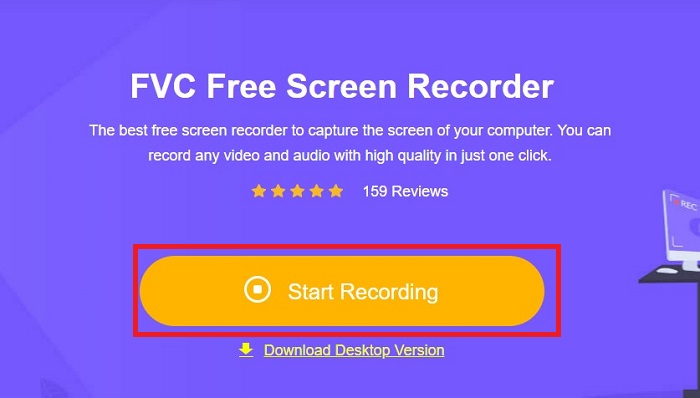
Abre el motor de búsqueda de tu dispositivo y escribe FVC Free Screen Recorder en la barra de búsqueda. Una vez activada la herramienta, haz clic en el botón Start Recording en el centro para acceder a las herramientas de grabación.
Paso 2. Configura la grabación
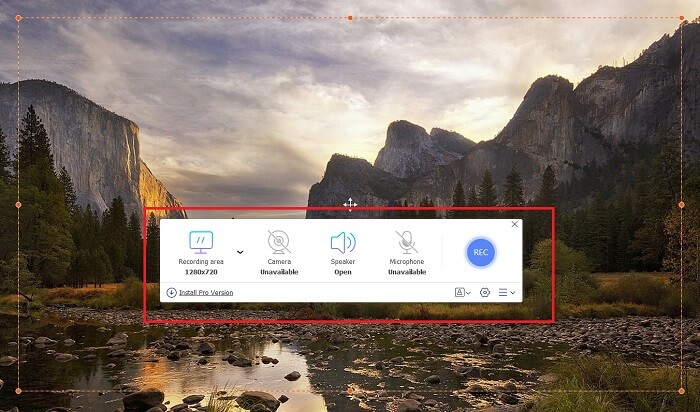
Configura tus requisitos de grabación en Recording Area, System Sound y Camera. Una vez que se cumplan todos los requisitos, pulsa el botón REC para iniciar la grabación de la pantalla.
Paso 3. Anota durante la grabación
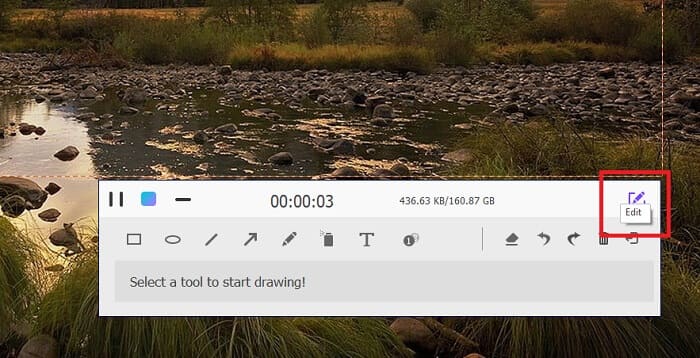
Después de la cuenta regresiva de 3 segundos, ahora estás grabando tu pantalla. Si necesita agregar anotaciones como texto, formas, resaltados y lápiz, haga clic en el botón Editar en la esquina inferior izquierda del cuadro de grabación.
Paso 4. Guarda el resultado
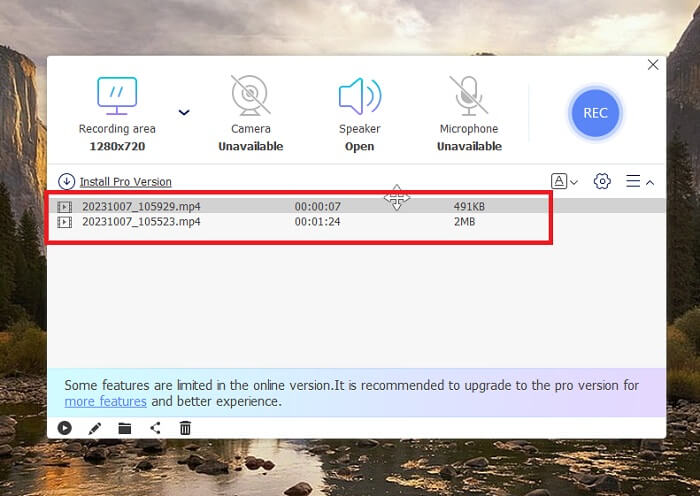
Para guardar tu vídeo capturado, pulsa el botón Stop de FVC Free Screen Recorder. Tras el proceso de guardado, se te dirigirá al panel Recorded de la herramienta. También puedes hacer clic en el botón Folder para acceder al directorio local de tu archivo de salida.
Funciones:
◆ Este programa es una herramienta de primer nivel para agregar anotaciones en tiempo real durante la transmisión de pantalla.
◆ FVC Free Screen Recorder ofrece formatos de salida altamente compatibles, incluidos MP4 y WMV.
◆ Esta herramienta proporciona un efecto de imagen en imagen para superponer una cámara web en su pantalla.
◆ Esta herramienta es un software de screencasting sin límite de tiempo.
2. Chrome Capture: herramienta de captura de pantalla y gif
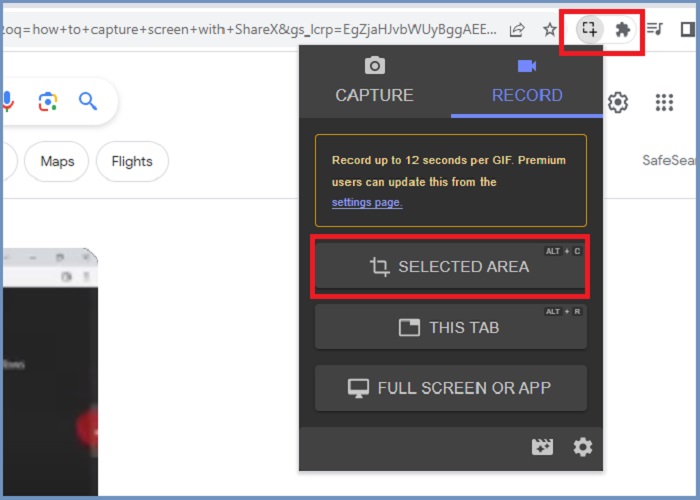
Chrome Capture es una herramienta de extensión de Google que convierte la grabación de pantalla en GIF. Esta aplicación de navegador web le permite capturar su pantalla en áreas seleccionadas, una pestaña o actividades de pantalla completa. Además de eso, Chrome Capture es la mejor opción para tomar capturas de pantalla web de página completa, por lo que obtendrá toda la información necesaria. Varios usuarios se enganchan con esta herramienta debido a su interfaz fácil de usar y funciones intuitivas como herramientas de recorte y anotación. ChromeCapture hace que la grabación de pantalla sea menos complicada al ofrecer teclas de acceso directo para tomar una captura de pantalla o detener la grabación. Cree un GIF a partir de la grabación de pantalla usando Chrome Capture siguiendo la guía a continuación.
Paso 1. Primero, abre en Google Chrome la página que deseas capturar. Después, haz clic en el icono Chrome Capture en las herramientas de extensiones en la esquina superior derecha de tu navegador.
Paso 2. Ahora ve a la pestaña de grabación de Chrome Capture y elige tu tipo de grabación preferido, como área seleccionada, pestaña o completa. Una vez que hagas clic en tu elección, comenzará la grabación. Cuando termines, pulsa el botón Stop para proceder al proceso de guardado.
Paso 3. Para crear un GIF a partir de la grabación de pantalla, haz clic en el botón Save y elige GIF como archivo de salida. También puedes cambiar el nombre del archivo para una recuperación más rápida.
Funciones:
◆ Chrome Capture ofrece formatos de salida como WebM y GIF.
◆ Esta herramienta facilita el intercambio en línea de sus videos grabados.
◆ La herramienta Editar del programa te permite agregar texto, dibujar flechas, cambiar la velocidad de las grabaciones y más.
Parte 2: Cómo grabar y editar grabaciones GIF en Mac y Windows
1. CompartirX
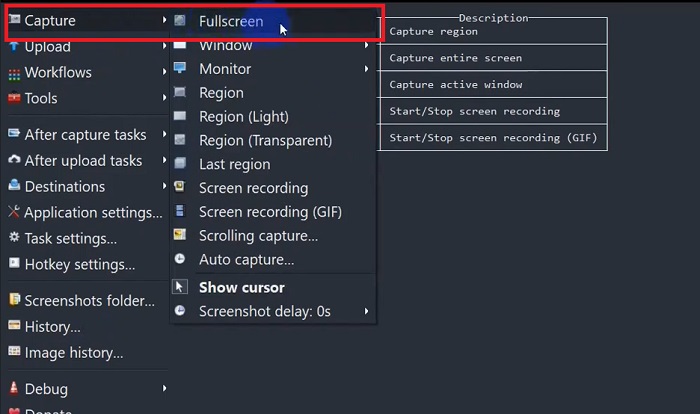
En términos de tener un capturador de pantalla eficiente y, al mismo tiempo, gratuito, ShareX permanece en la lista. Esta herramienta es una herramienta de grabación de pantalla de código abierto para sistemas operativos Windows. Además de eso, ofrece una grabación de región personalizada, donde puedes elegir un área específica de tu pantalla para capturar. Además de eso, ShareX presenta la herramienta de captura con desplazamiento, que permite a los usuarios tomar una captura de pantalla del contenido a la vez en lugar de varias capturas de pantalla. Si desea saber cómo funciona ShareX para grabar ventanas GIF, aquí tiene un tutorial paso a paso.
Paso 1. Primero, abre ShareX en tu dispositivo Windows. Luego ve a Capture y selecciona tu tipo de grabación preferido.
Paso 2. Cuando aparezca el cuadro de selección, mueve el cursor para resaltar la región de la pantalla que quieres capturar. Después, haz clic en Start.
Paso 3. Tras la grabación, pulsa el botón Stop. Después, volverán a aparecer las opciones de grabación de pantalla para que elijas los formatos de salida de Video y Audio. Finalmente, haz clic en el botón Download para localizar el archivo grabado en tu ordenador.
Funciones:
◆ Ofrece teclas de acceso rápido especiales para controlar la actividad de grabación de pantalla con facilidad.
◆ ShareX permite a los usuarios convertir la grabación de pantalla a GIF.
◆ La herramienta tiene tres tipos de captura de pantalla en cualquier región: rectángulo, elipse o mano alzada.
2. Grabarlo
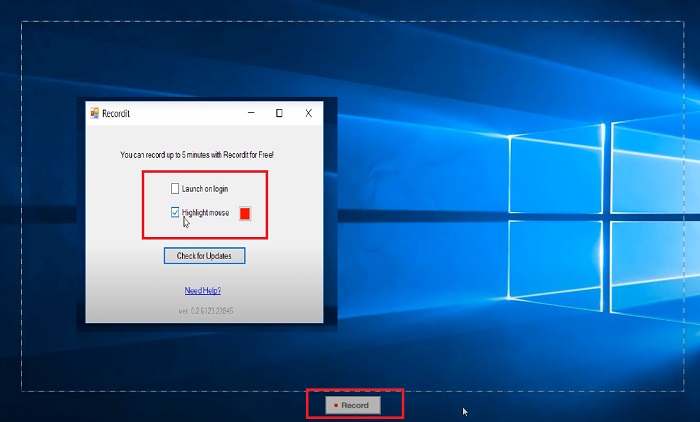
Recordit es otro software ejemplar que te permite capturar las actividades de tu pantalla. Esta herramienta es una herramienta de grabación basada en GIF y es compatible con dispositivos Windows y Mac. Sin embargo, la prueba gratuita del programa sólo puede grabar hasta un máximo de cinco minutos y tendrás que actualizar a la versión premium del software para superar esta limitación. Ahora, aprendamos cómo realizar capturas de pantalla GIF con el programa.
Paso 1. Tras instalar Recordit en tu dispositivo, verás su icono en la System Tray.
Paso 2. A continuación, espera a que la herramienta aparezca en tu pantalla. Arrastra para seleccionar la parte de la pantalla que quieres grabar y, una vez configurada, haz clic en Start para grabar.
Paso 3. Por último, pulsa el botón Stop cuando la grabación haya terminado. Haz clic en GIF para localizar tu archivo de salida con extensión GIF en la configuración.
Funciones:
◆ Recordit proporciona un registro histórico de sus grabaciones de pantalla recientes y pasadas.
◆ Esta herramienta permite a los usuarios personalizar sus actividades de grabación de pantalla en diferentes regiones.
3. Pantalla a GIF
Otro capturador de pantalla que no debes dejar pasar es la herramienta ScreentoGIF. Como sugiere el nombre, este software permite a los usuarios crear directamente un GIF a partir de sus grabaciones de pantalla. Además, se considera una herramienta de código abierto, lo que significa que no es necesario gastar dinero para tenerla. ScreenToGIF puede capturar y exportar su salida a PNG, PSD y video. Por supuesto, si desea compartir su archivo GIF en línea, ScreenToGIF puede cargarlo fácilmente en Imgur y Gfycat.
Paso 1. Abre ScreenToGIF en tu dispositivo para grabar GIF en Mac o Windows.
Paso 2. Para empezar a capturar tu pantalla, ve a la Toolbox de la herramienta y selecciona Recorder. Después, mueve el icono de mira a un área específica que quieras capturar.
Paso 3. Después, pulsa F8 en tu teclado para detener la grabación.
Funciones:
◆ Permite que una cámara web superpuesta te grabe a ti mismo y a tu pantalla simultáneamente.
◆ Con Sketchboard, puede grabar sus dibujos en tiempo real.
Lecturas recomendadas:
Guía paso a paso para convertir MP4 a GIF en el escritorio o en línea
Las 5 mejores formas de convertir una imagen en GIF animado [Actualizado 2023]
Parte 3: Preguntas frecuentes sobre la grabación de pantalla en GIF
¿Mac tiene herramientas integradas para convertir la grabación de pantalla en GIF?
En términos de una grabadora de pantalla incorporada, los dispositivos Mac tienen una disponible en la aplicación QuickTime. Sin embargo, las salidas grabadas están configuradas en MOV de forma predeterminada y es posible que necesites un software de terceros para convertirlas a GIF.
¿Existe alguna herramienta para grabar GIF en iPhone y Android?
¡Definitivamente sí! Los dispositivos móviles iPhone y Android vienen con una grabadora de pantalla nativa. También pueden capturar el sonido del sistema y su voz a través de un micrófono.
¿Es ScreentoGIF seguro?
Por supuesto, ScreenToGIF es un software gratuito para dispositivos Windows y no contiene software malicioso.
¿Puedes configurar un GIF para la pantalla de inicio en Mac?
Configurar un archivo GIF como pantalla de inicio de tu Mac es posible sin necesidad de otra aplicación. Solo tienes que abrir tus Settings > System Preferences > Desktop and Screen Saver y elegir los GIF disponibles.
¿Puede la pantalla de bloqueo de Windows ser un GIF?
La mayor parte del fondo de pantalla de Windows es estático, a diferencia de los dispositivos Mac. Es posible que necesites una aplicación de terceros, como Lively Wallpaper, para iniciar un fondo de pantalla GIF en tu dispositivo Windows.
Conclusión
Tanto si quieres grabar la pantalla en GIF como en una imagen estática, añadir anotaciones y una superposición de cámara web, tu objetivo de screencasting es totalmente posible con las herramientas mencionadas. Las soluciones en línea son ideales para grabaciones puntuales, pero el software de escritorio es muy recomendable si quieres evitar interrupciones no deseadas y los retrasos debidos a la conexión a Internet.
-
 Recortar GIF: las mejores herramientas en línea, de escritorio y móviles para recortar un GIF
 ¿Quieres capturar una parte de un GIF para transmitir tus emociones y reacciones con precisión? Aquí, descubramos y optimicemos varias herramientas para recortar GIF animados.
-
 Las 6 mejores aplicaciones GIF increíbles para iPhone en 2023 (Reseñas)
 Esta publicación lo guiará a través de las mejores aplicaciones de creación de GIF para iPhone y computadoras. Échales un vistazo y descubre lo que tienen para ofrecer.
-
 Programas de creación de GIF 3D de primer nivel que no querrás perderte
 Tener que buscar y evaluar todas y cada una de las aplicaciones 3D GIF Maker que ve puede llevar mucho tiempo. Afortunadamente, hemos compilado una lista que puedes leer.
