


 Video Converter Ultimate
 Grabador de pantalla
 Reparación de vídeo
 Descarga segura
5 soluciones para cuando VLC Media Player no reproduce vídeos
Si no sabes qué reproductor usar, VLC Media Player es la mejor opción. Al fin y al cabo, ¿a quién no le gusta una plataforma tan gratuita y de código abierto con una amplia compatibilidad?
Pero nadie puede garantizar ser perfecto todo el tiempo, y lo mismo ocurre con VLC Media Player. Muchos usuarios ya han informado de que han tenido problemas con vídeos que no se reproducen. Y las soluciones relacionadas son interminables. En este artículo, vamos a analizar y resumir las existentes y viables soluciones para el problema de VLC Media Player no reproduce vídeo. Te presentaremos un total de 5 soluciones. Sin más preámbulos, veamos cómo hacerlo.

Parte 1. Cómo solucionar el problema de que VLC no reproduce videos
Convertir el vídeo a otros formatos compatibles
¿Por qué VLC Media Player no reproduce videos? Puede ser porque el formato de video no es compatible.
Sí, estamos de acuerdo en que VLC Media Player es el reproductor multimedia con mayor compatibilidad del mercado. Pero, a pesar de su completo catálogo, es difícil garantizar su compatibilidad con todos los formatos de vídeo existentes. Puedes empezar por encontrar el vídeo que no se puede reproducir en tu dispositivo y comprobar su formato revisando sus propiedades. Si VLC Media Player no admite el formato del archivo o el códec de vídeo, conviértelo a un formato más popular, como MP4.
Te sugerimos probar algunos conversores de formato de vídeo profesionales de terceros, como FVC Video Converter Ultimate. Actualmente admite más de 1000 formatos y cuenta con tecnología de aceleración por hardware. Puedes convertir por lotes archivos de vídeo con una eficiencia hasta 3 veces mayor.
Tenga en cuenta que el formato de salida más seguro es MP4 H.264. Este formato y códec son compatibles con prácticamente cualquier dispositivo o reproductor.
Descarga gratuitaPara Windows 7 o posteriorDescarga segura
Descarga gratuitaPara macOS 10.7 o posteriorDescarga segura
Aquí se explica cómo convertir el formato de vídeo a MP4 H.264 con FVC Video Converter Ultimate.
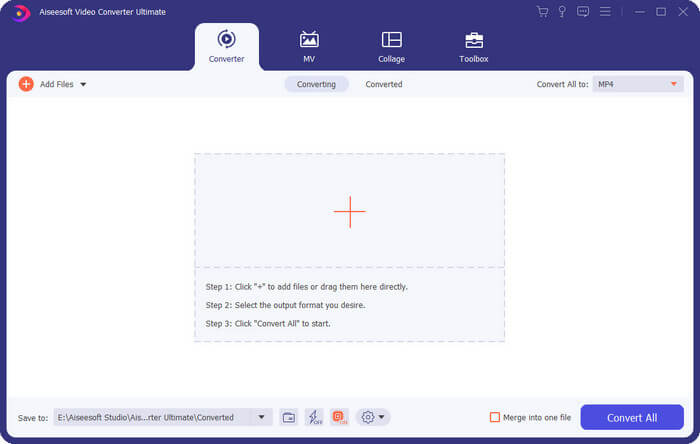
Paso 1. Descarga e instala FVC Video Converter Ultimate en tu ordenador. Después de acceder a la interfaz principal, elige la pestaña Convertidor. Haz clic en Añadir archivos para subir tu vídeo.
Paso 2. Despliega la lista de formatos debajo de Convertir todo a. Aquí, elige Vídeo > MP4. Selecciona la opción con H.264 como códec de vídeo.
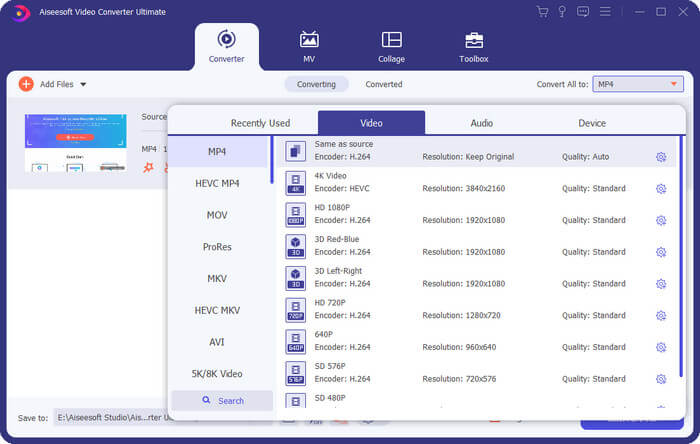
Paso 3. Una vez que termines los ajustes, haz clic en Convertir todo.
Actualizar VLC a la última versión
¿El video no se reproduce en VLC Media Player? Quizás tu software no esté actualizado.
VLC Media Player se mantiene en constante mantenimiento y actualización. Los desarrolladores también amplían constantemente los códecs o formatos de vídeo compatibles con VLC. Si aún usas una versión anterior, podrías tener problemas para reproducir archivos de vídeo codificados con códecs más recientes.
Por lo tanto, es necesario actualizar VLC Media Player a tiempo, lo que podría ayudarle a corregir algunos errores menores. Sin embargo, es posible que algunas de sus personalizaciones no se conserven después de la actualización. También podría tener que ajustarlas manualmente.
Aquí le mostramos cómo actualizar su VLC Media Player a la última versión.
Paso 1. Abre tu VLC Media Player.
Paso 2. Haz clic en el botón Ayuda y elige Buscar actualizaciones.
Si una notificación le avisa que hay una nueva versión disponible, siga las instrucciones en pantalla para completar la descarga y la instalación.
Reinstalar VLC Media Player
¿El video de VLC Media Player no funciona? Si después de reiniciarlo varias veces sigue sin estar disponible, desinstala la versión actual y descarga una nueva.
Volver a descargar VLC Media Player puede ayudarte a solucionar muchos problemas y restaurar el programa a su estado inicial perfecto. Ten en cuenta que si ya instalaste complementos o códecs adicionales en VLC Media Player, es posible que tengas que volver a agregarlos manualmente después de esta reinstalación. La reinstalación es sencilla. Solo tienes que encontrar VLC Media Player en tu sistema. Haz clic derecho en él y selecciona "Desinstalar". Una vez completada la desinstalación, visita el sitio web oficial y descarga la última versión.
Desactivar la aceleración de hardware
Desactivar la aceleración de hardware también puede ayudar con el problema de que VLC no reproduce videos.
A veces, para garantizar una reproducción de vídeo fluida y de alta calidad, VLC Media Player activa la aceleración por hardware. Esta función aprovecha al máximo el procesador o la tarjeta gráfica de tu dispositivo. Sin embargo, esto también puede causar problemas de compatibilidad. Este problema puede ser especialmente evidente si tu ordenador tiene controladores antiguos.
Aquí se explica cómo desactivar la aceleración de hardware en su VLC Media Player.
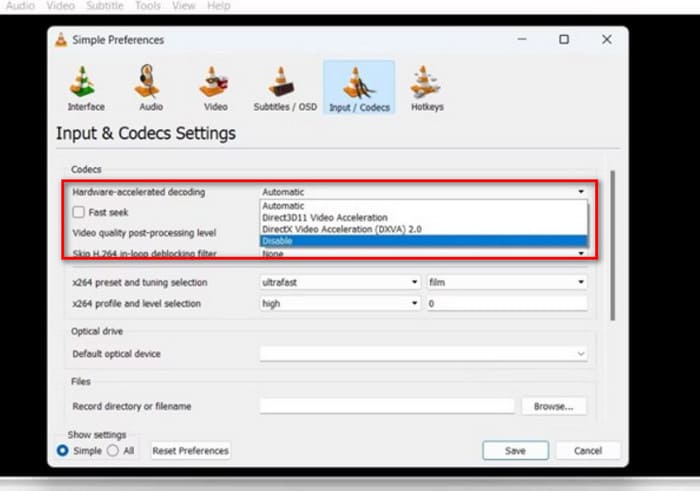
Paso 1. Abre tu VLC Media Player y haz clic en Herramientas > Preferencias.
Paso 2. Cambia a la pestaña Entrada/Códecs. Despliega el menú junto a Decodificación acelerada por hardware.
Paso 3. Elige Desactivar. Por último, haz clic en Guardar para conservar el cambio.
Utilice la alternativa del reproductor VLC
Si has probado todas estas opciones y ves que el problema de que VLC Media Player no reproduce vídeo todavía persiste, entonces no te recomendamos seguir perdiendo el tiempo ajustando este reproductor. Puedes probar algunas alternativas a VLC Media Player. Su rendimiento y compatibilidad pueden adaptarse mejor a tus necesidades.
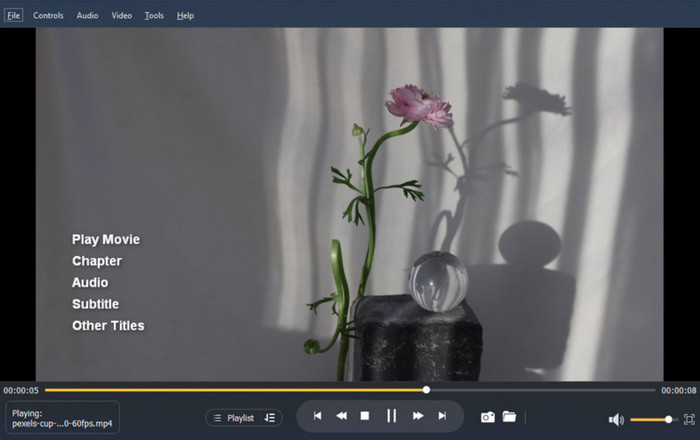
Entre los reproductores del mismo tipo, recomendamos Aiseesoft Blu-ray Player. Este software puede reproducir archivos de vídeo en HD, archivos de audio, discos Blu-ray, DVD, carpetas Blu-ray, carpetas de DVD, archivos ISO, etc. Admite calidad de imagen 1080p e incluso 4K. Tanto si tu vídeo está equipado con sonido DTS-HD Master Audio como con Dolby TrueHD, Aiseesoft Blu-ray Player puede reproducirlo al 100%.
Descarga gratuitaPara Windows 7 o posteriorDescarga segura
Descarga gratuitaPara macOS 10.7 o posteriorDescarga segura
Aquí le mostramos cómo reproducir sus videos con Aiseesoft Blu-ray Player.
Paso 1. Descarga e instala Aiseesoft Blu-ray Player en tu dispositivo.
Paso 2. Después de abrir la interfaz principal, haz clic en Abrir archivo y selecciona tu vídeo.
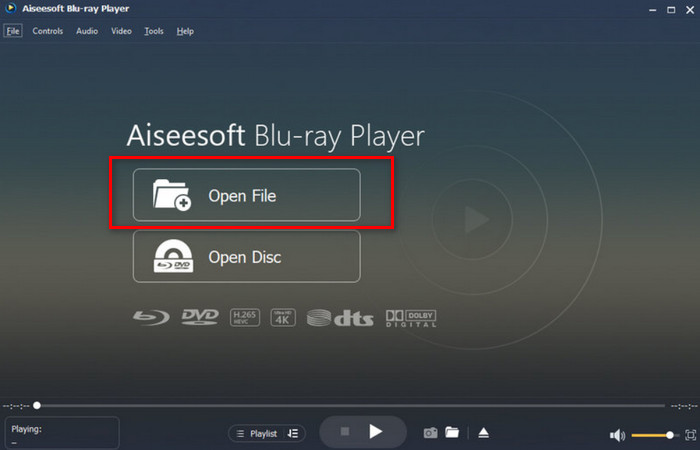
Paso 3. Tu vídeo se cargará. Haz clic en el icono Reproducir y podrás disfrutar de la reproducción.
Parte 2. Preguntas frecuentes sobre si VLC Media Player no reproduce videos
¿Cómo solucionar que VLC Media Player no reproduzca videos de YouTube?
Puede que la versión de tu VLC Media Player sea demasiado baja, lo que lo hace incompatible con los últimos formatos de vídeo de YouTube. Debes actualizarlo a tiempo. Además, comprueba si tu reproductor tiene activada la aceleración por hardware. Si es así, desactívala a tiempo.
¿Por qué no hay audio cuando VLC reproduce un vídeo?
Primero, comprueba si el volumen está activado. Luego, considera si el códec de audio actual es incompatible; de ser así, convierte el formato de audio a tiempo. Otra posibilidad es que el archivo de audio esté dañado. Necesitas herramientas de reparación de audio y video para solucionarlo.
¿VLC puede reproducir cualquier archivo?
Aunque VLC Media Player es conocido por su compatibilidad, esto no significa que sea compatible con todos los formatos. Hay algunos formatos extremadamente raros o propietarios que no puede abrir. Se recomienda mantener el reproductor actualizado.
Conclusión
El problema de VLC Media Player no reproduce vídeo sigue apareciendo con bastante frecuencia. Normalmente, pensamos que la causa puede ser la incompatibilidad de formato o de códecs, que el reproductor no está actualizado, que la aceleración por hardware está activada, etc. En este artículo, hemos reunido 5 soluciones fiables para ti, incluidas dos de las mejores herramientas de procesamiento de audio y vídeo para ordenadores. Esperamos que puedas resolver todos los problemas con éxito con nuestra ayuda.
-
 Cómo utilizar VLC para reparar vídeos | Tu guía definitiva
 ¿Tienes vídeos rotos pegados en tus archivos? Explora la guía definitiva para la reparación de vídeos VLC para reparar tus vídeos y volver a reproducirlos fácilmente.
-
 Guía paso a paso para capturas de pantalla en VLC Media Player
 Aprenda los sencillos pasos para tomar capturas de pantalla VLC sin esfuerzo. Siga nuestra guía para capturar instantáneas de forma rápida y sencilla mediante teclas de acceso directo y configuraciones de menú.
-
 Cómo grabar audio con VLC Media Player: una guía completa
 En esta publicación, aprenderás a grabar audio con VLC Media Player. Este artículo detalla los pasos y te recomienda una de las mejores alternativas a VLC.
