


 Video Converter Ultimate
 Grabador de pantalla
 Reparación de vídeo
 Descarga segura
Cómo convertir la grabación de Zoom a MP4 en computadoras Windows y Mac
Zoom es una plataforma que permite realizar videollamadas, como reuniones y clases en línea. Normalmente, guarda las grabaciones en un formato que puede reproducirse en la mayoría de los dispositivos, como MP4. Sin embargo, si detienes la grabación por accidente antes de tiempo, el archivo puede quedarse en el formato original de la plataforma, que es .zoom, y no podrás abrirlo directamente. Esto sucede porque Zoom no ha tenido la oportunidad de convertir el archivo automáticamente a MP4. Si esto te ocurre, tendrás que convertir el archivo de Zoom a MP4 dentro o fuera de la propia plataforma. Por suerte, hay varias formas de conseguir que Zoom complete este proceso de conversión. Te explicaremos cómo hacerlo usando el propio programa de Zoom y una herramienta especial que viene incluida con Zoom. Si eso no te funciona, también te indicamos otra herramienta que puedes utilizar en su lugar. ¡Así que vamos directamente al contenido!

Parte 1. ¿Las grabaciones de Zoom están en MP4?
En primer lugar, Zoom produce grabaciones MP4, que es su configuración predeterminada. Sin embargo, esto no sucederá en un instante. Lo que queremos decir es que, durante la grabación, el metraje sin editar aún no está en el formato MP4 que crees. De hecho, como se mencionó anteriormente, el metraje del proceso todavía está en formato .zoom, que es el formato propietario de la plataforma, y solo se convertirá a MP4 una vez que se haya realizado la grabación y se haya completado la conversión. Esto es especialmente cierto cuando detienes accidentalmente las grabaciones.
Parte 2. 3 formas de convertir la grabación de Zoom a MP4 con Zoom
Pasemos ahora a las herramientas efectivas que lo ayudarán a convertir grabaciones de Zoom a MP4 si no tiene una dentro de la plataforma.
1. Cliente Zoom (escritorio)
¿Sabías que Zoom realiza un seguimiento de todas tus grabaciones dentro de la aplicación cliente de escritorio? No sólo puede acceder fácilmente a sus grabaciones, sino que Zoom también proporciona un convertidor incorporado. Esto garantizará la compatibilidad de reproducción en la mayoría de los dispositivos. Por lo tanto, si no está seguro de cómo usarlo, aquí hay un desglose detallado de cómo encontrar y convertir sus grabaciones de Zoom al formato MP4.
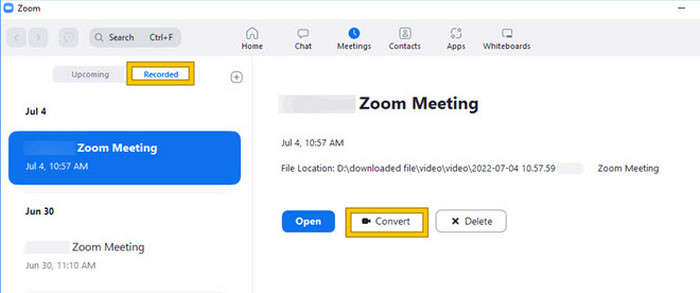
Paso 1. Inicia Zoom en tu ordenador y dirígete de inmediato a la sección Reuniones para abrir el historial de tus reuniones.
Paso 2. Una vez abierta, verás la lista de tus reuniones grabadas. Localiza la grabación que quieres convertir y haz clic para seleccionarla.
Paso 3. Tras seleccionarla, aparecerá una opción en el lado derecho de la pantalla. Haz clic en el botón Convertir y espera al resultado final convertido a MP4.
2. Transcodificar (macOS)
Si es usuario de Mac y la conversión automática de grabación de Zoom a MP4 falla, aquí tiene una útil herramienta llamada Transcode para ayudarlo. Esta herramienta le permite convertir manualmente esos archivos .zoom a MP4, que podrían no reproducirse correctamente debido a una conversión automática fallida. En esencia, Transcode proporciona una solución manual para que los usuarios de Mac garanticen que sus grabaciones de Zoom sean accesibles y utilizables cuando el proceso automático no funciona como se esperaba.
Paso 1. Localiza tu archivo .zoom, haz doble clic sobre él y selecciona Elegir aplicación en la ventana emergente. Después, abre el archivo con la aplicación Transcode, que también puedes configurar para que se use siempre con tus archivos.
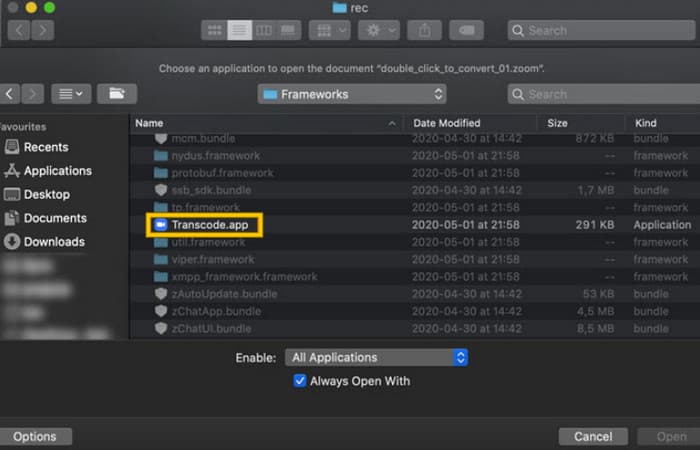
Paso 2. Justo después de elegir la aplicación, el proceso de conversión se iniciará automáticamente.
Paso 3. Cuando termine el proceso de conversión, elige la carpeta en la que quieres guardar el archivo de salida.
3. zTscoder (escritorio)
Si quieres una herramienta similar a la anterior para tu escritorio, te recomendamos zTscoder. zTscoder es la versión para Windows de Transcode, que es el programa en el que confían los usuarios de Mac para situaciones similares. Ambas herramientas le permiten convertir manualmente sus archivos de Zoom al formato MP4 estándar, que podría no reproducirse correctamente. Por lo tanto, si ahora estás frente a tu escritorio, sigue los pasos a continuación.
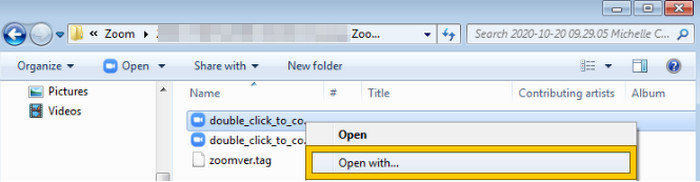
Paso 1. Localiza la carpeta donde se guardan tus grabaciones de Zoom y elige la que necesites convertir. Haz clic derecho en el archivo y ábrelo con zTscoder.
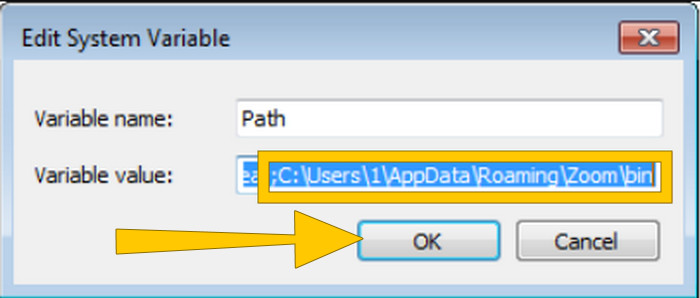
Paso 2. Si la herramienta no responde, ve al Panel de control, navega hasta Sistema y seguridad > Sistema y, a continuación, abre Configuración avanzada del sistema. Desde ahí, añade C:\Users\*tu nombre de usuario*\AppData\Roaming\Zoom\bin en el valor de la variable y haz clic en Aceptar.
Paso 3. Una vez que el archivo esté configurado para abrirse con la herramienta, el proceso de conversión se iniciará automáticamente.
Parte 3. Grabe reuniones de Zoom en MP4 con calidad de hasta 4K
¿Quieres una buena solución para tener tus reuniones de Zoom en MP4? ¡Grábalas con FVC Screen Recorder! Este grabador ofrece una solución versátil que va más allá de las reuniones de Zoom. Esta herramienta te permite grabar tus clases en línea, conferencias, tutoriales o cualquier contenido que aparezca en tu pantalla de Zoom. Además, tienes la flexibilidad de grabar toda la pantalla o solo una ventana específica, ya que ofrece ajustes para ello. También puede capturar el sonido del micrófono, el audio del sistema e incluso la señal de tu cámara web, siempre que configures los ajustes de antemano. Este software es compatible tanto con ordenadores Mac como Windows y te permite guardar tus grabaciones en formatos de alta calidad, incluyendo resoluciones de hasta 4K. Otro motivo destacable para apreciar FVC es que va un paso más allá al ofrecer herramientas de anotación que te permiten resaltar puntos clave durante la grabación. Mientras tanto, aquí te explicamos cómo convertir grabaciones de Zoom a MP4.
Paso 1. Instala el grabador en tu ordenador. Puedes usar el botón de descarga que aparece más abajo. Mientras realizas el proceso de instalación, abre la reunión de Zoom que quieres grabar en MP4.
Descarga gratuitaPara Windows 7 o posteriorDescarga segura
Descarga gratuitaPara macOS 10.7 o posteriorDescarga segura
Paso 2. Inicia el conversor y haz clic en la herramienta Video Recorder. Luego, ajusta la visualización de la pantalla para abarcar toda la interfaz de la reunión de Zoom. También puedes configurar el sonido del sistema y el micrófono si lo deseas.
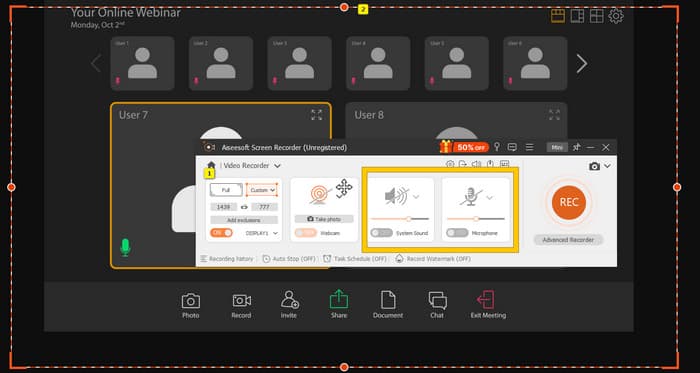
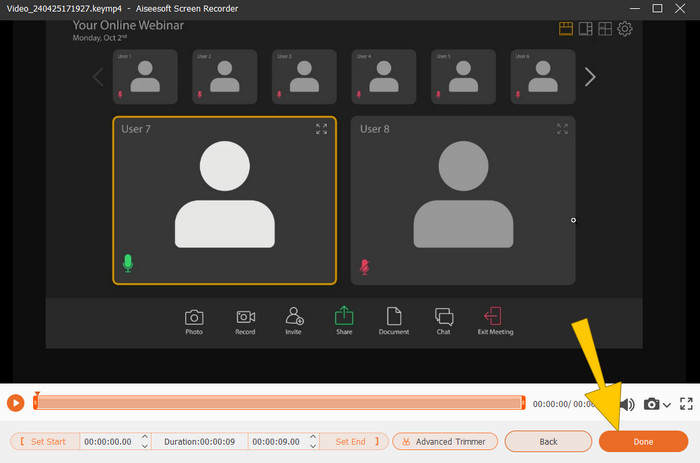
Paso 3. Después, haz clic en el botón REC para iniciar la grabación. Cuando la reunión termine, haz clic en el botón Detener de la barra flotante. Luego, realiza algunos pequeños ajustes en la nueva ventana. De lo contrario, haz clic en el botón DONE para proceder a guardar la grabación.
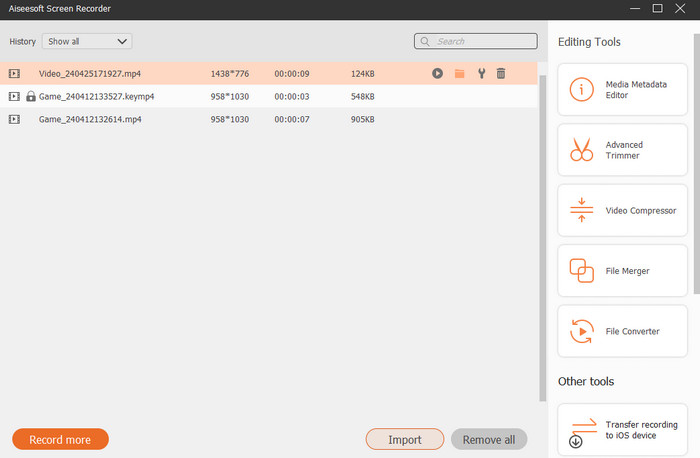
Paso 4. Para más opciones de edición, la herramienta te llevará a su biblioteca, donde verás la lista de tus grabaciones. Allí también estarán disponibles las herramientas de edición que puedes utilizar libremente.
Lectura ampliada:
6 increíbles grabadores MP4 de 2024 [Gratuitos y de pago]
Los 5 mejores grabadores de reuniones de Zoom para grabar reuniones en Zoom [2024]
Parte 4. Preguntas frecuentes sobre la conversión de grabaciones con Zoom
¿Las grabaciones de Zoom son MP4?
Sí. Sin embargo, es posible que las grabaciones no estén en MP4 si se detuvieron accidentalmente.
¿Existe un límite en la duración de las grabaciones que puedo convertir a MP4?
Eso depende. Las cuentas gratuitas pueden tener limitaciones en el espacio de almacenamiento y las opciones de conversión, mientras que los planes pagos suelen ofrecer más flexibilidad y límites más altos.
¿Cómo puedo convertir una grabación de Zoom a MP4?
Puede convertir una grabación de Zoom a MP4 con el cliente Zoom, ya que tiene una función de conversión incorporada. Cuando abres la grabación, solo necesitas hacer clic en el botón Convertir.
Conclusión
Por defecto, las reuniones de Zoom se guardan en MP4, pero si los videos no se guardan correctamente, aún tendrás que convertir las grabaciones de Zoom a MP4. Por suerte, en esta publicación se presentan métodos efectivos para realizar la conversión. Esperamos que te resulte útil.
-
 7 de las magníficas grabadoras de voz accesibles en todas las plataformas
 ¿Quieres aprender a hacer grabaciones de audio? Luego vaya a este artículo mientras hablamos sobre la mejor grabadora de audio que puede adaptarse a sus necesidades.
-
 Reseña de CamStudio 2025: Ventajas y desventajas
 CamStudio es un fantástico programa de captura de pantalla gratuito y de código abierto para grabar la visualización de su pantalla. ¿Es seguro el grabador de pantalla CamStudio? Bueno, esta revisión lo ayudará a descubrir todas las características de CamStudio.
-
 Maneras viables sobre cómo puede grabar audio con VLC Player
 Aprenda las mejores formas de grabar audio con el reproductor VLC y otras herramientas prácticas leyendo el artículo.
