


 Video Converter Ultimate
 Grabador de pantalla
 Reparación de vídeo
 Descarga segura
Cómo recortar archivos WAV en Windows, Mac y en línea
El uso de una herramienta de recorte o corte al editar archivos WAV es una forma de acortarlos y conservar las partes que quieres. En este artículo, exploraremos tres métodos para recortar audio WAV usando la mejor herramienta para todo tipo de usuarios, un software avanzado y una herramienta basada en la web.

Parte 1. Recortar un archivo WAV con el recortador WAV profesional [Lo mejor para todos]
El Video Converter Ultimate recomendado por FVC es una herramienta completa para recortar WAV, gratuita para descargar tanto en Windows como en macOS. Este software ofrece funciones para recortar y cortar archivos WAV, como crear cortes rápidos mediante su herramienta de división rápida, añadir y fusionar segmentos, establecer con precisión los tiempos de inicio y final del archivo de audio y añadir efectos de fundido. La herramienta también muestra en tiempo real la duración para ver los resultados antes y después al cortar tu archivo WAV a una longitud más adecuada.
Pros
- Herramienta de recorte de archivos WAV de procesamiento de alta velocidad.
- Se puede utilizar como Editor WAV y amplificador de volumen.
- Es capaz de fusionar sus archivos WAV recortados con un solo clic.
- Es una herramienta segura y protegida, sin anuncios ni virus.
Contras
- La versión gratuita no puede permitir una conversión 120 veces más rápida.
Paso 1. Descarga el recortador de archivos WAV desde el enlace de descarga que aparece a continuación e instálalo en tu ordenador. Una vez instalado, inicia el software.
Descarga gratuitaPara Windows 7 o posteriorDescarga segura
Descarga gratuitaPara macOS 10.7 o posteriorDescarga segura
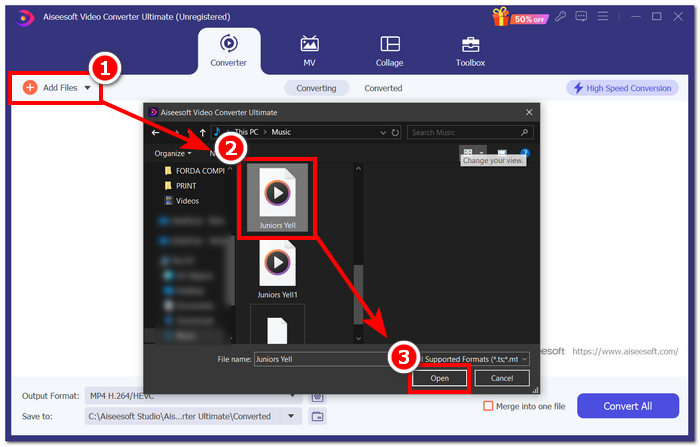
Paso 2. Haz clic en el botón Añadir archivos en la esquina superior izquierda del software para cargar el archivo WAV que quieres recortar.
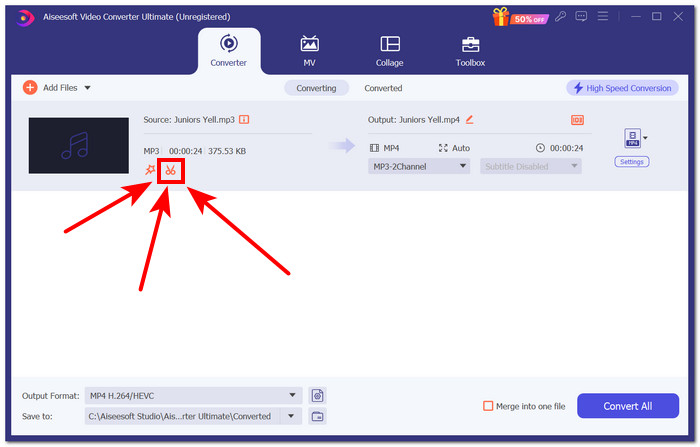
Paso 3. Para empezar a recortar tu archivo WAV, haz clic en la herramienta Cortar (el botón de tijeras) situada justo al lado de tu archivo WAV.
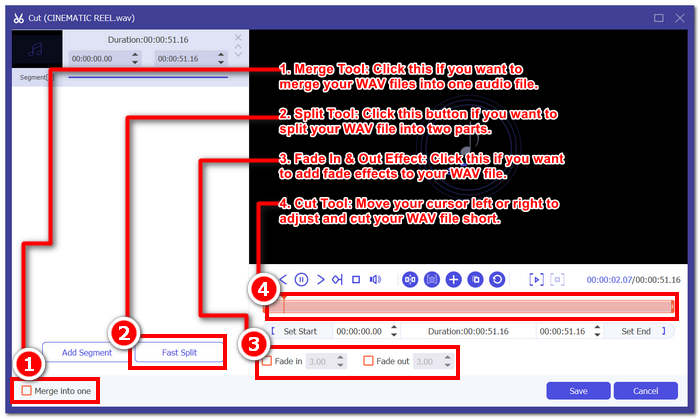
Se abrirá una nueva ventana. En ella, encontrará todas las funciones de la herramienta Cortar disponibles, incluida la herramienta de recorte.
Paso 4. Para cortar o recortar tu archivo WAV y acortarlo, arrastra el cursor por la pista de izquierda a derecha para recortar tu archivo WAV.
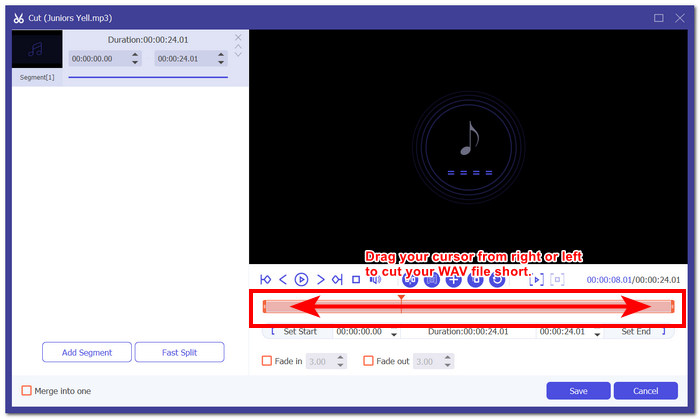
Una vez que hayas terminado de recortar tu archivo WAV, debería verse así. Para ver la duración en tiempo real, mira en la esquina superior izquierda. Allí, se mostrará dónde comenzó y terminó el corte y se mostrará la nueva duración, sin incluir las partes que acabas de eliminar.
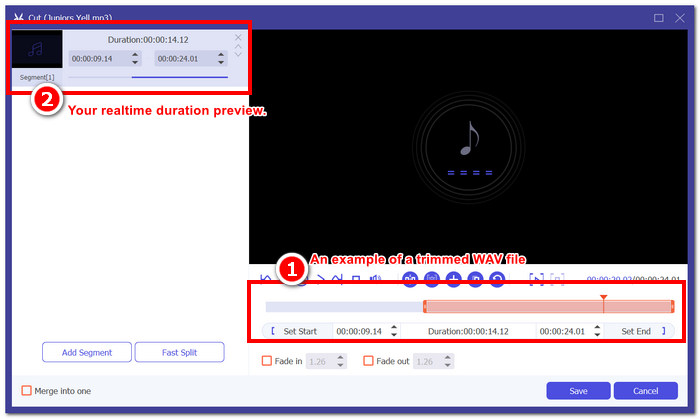
Paso 5. Una vez que estés satisfecho con tu archivo WAV recortado, haz clic en el botón Guardar situado en la parte inferior del software. Después, haz clic en el botón Convertir todo para descargarlo en tu carpeta de descargas.

A la hora de buscar la mejor herramienta para recortar WAV tanto para profesionales como para principiantes, se recomienda usar Video Converter Ultimate recomendado por FVC. Este software funcionará como recortador de archivos WAV y como programa para editar WAV. Además, cabe señalar que la herramienta no solo funciona como recortador de WAV; los usuarios también pueden realizar tareas como crear una división rápida para un corte preciso de archivos WAV, añadir y fusionar segmentos en el archivo WAV y exportar con una tecnología de procesamiento de alta velocidad.
Parte 2. Recortar un archivo WAV con un cortador WAV gratuito y de código abierto [para usuarios avanzados]
Lleva tu experiencia de recorte de archivos WAV a nuevas alturas con Audacity, un software de calidad profesional pero gratuito y de código abierto. Este popular software es compatible con Windows y macOS, lo que lo convierte en uno de los software más buscados en términos de proceso de edición de nivel avanzado. Audacity permite al usuario seleccionar la parte específica donde desea cortar o recortar sus archivos a través de la lupa incorporada para expandir la pista. Además, también tiene un botón designado para el corte instantáneo de archivos WAV llamado 'I-beam'. Este software es para aquellos que buscan un nivel más avanzado de recorte, ya que permite a los usuarios observar más de cerca la forma de onda de una pista de archivo WAV que se puede usar para ver y cortar el archivo con precisión.
Pros
- Software de edición y recorte de WAV de uso gratuito.
- Puede funcionar como una herramienta de recorte WAV multipista.
- Ofrece una amplia biblioteca de efectos de audio de terceros.
- Puede sincronizar su edición de audio con otras pistas.
Contras
- A los usuarios puede resultarles difícil navegar por todo el software.
Paso 1. Instala Audacity desde su sitio web oficial y, una vez instalado, ábrelo en tu ordenador.
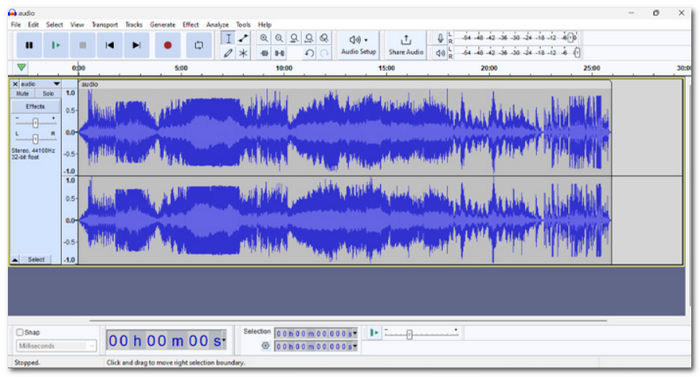
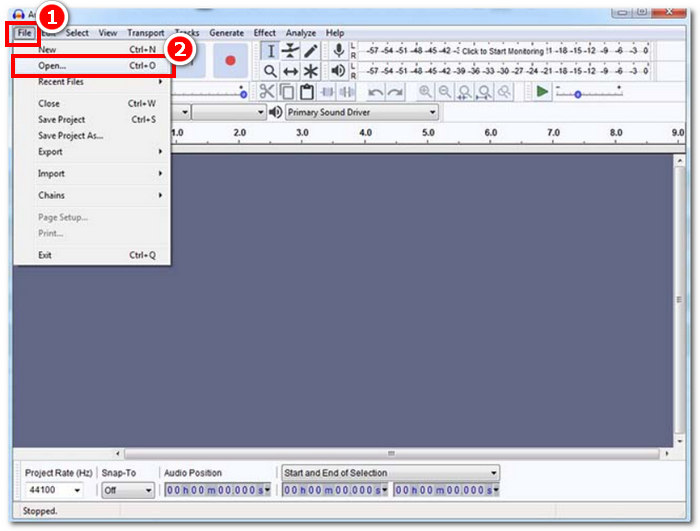
Paso 2. Abre el programa e importa tu archivo WAV haciendo clic en el botón Archivo > Abrir en la esquina superior izquierda.
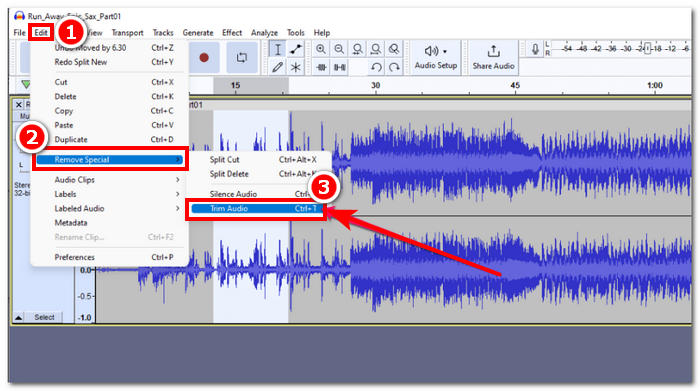
Paso 3. Una vez que tu archivo WAV esté cargado en el programa, ve a la parte del archivo donde quieres recortar. Después, haz clic en el menú Editar en la esquina superior izquierda y luego busca Quitar especial. En esa sección, haz clic en Recortar audio para recortar tu archivo WAV de forma efectiva.
Paso 4. Una vez que estés satisfecho con todo el recorte de tu archivo WAV, expórtalo y guárdalo en su carpeta de descargas correspondiente haciendo clic en el menú Archivo en la esquina superior izquierda del programa. Allí, haz clic en Exportar > Exportar como WAV y se guardará automáticamente en tu carpeta de descargas.
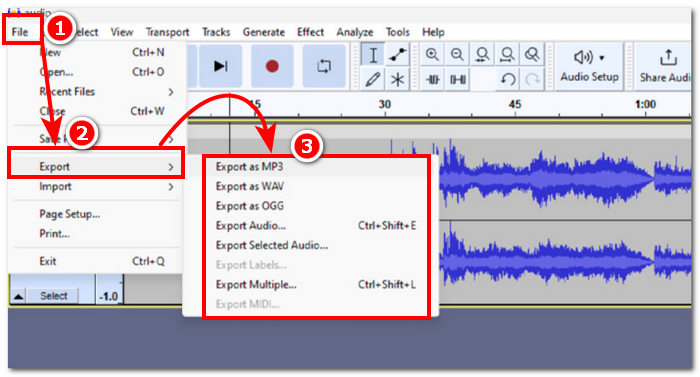
Audacity tiene el potencial de ser el mejor recortador de WAV de la lista, pero su inaccesibilidad para usuarios ocasionales lo convierte en una herramienta solo para usuarios avanzados. A pesar de sus funciones de nivel superior en recorte y edición de audio, funcionó relativamente bien y puede manejar todas las necesidades de edición de archivos WAV, desde las básicas hasta las avanzadas. Por lo tanto, probar Audacity requiere conocimiento del software y familiaridad con todas las funciones para evitar confundirse y abrumarse con su interfaz.
Parte 3. Recortar un archivo WAV en línea [Pasos sencillos]
Otro método para recortar un archivo WAV en línea es a través de Aconvert, un recortador de archivos WAV gratuito basado en la web. Los usuarios pueden cargar fácilmente un archivo WAV en la herramienta, seleccionar dónde quieren comenzar a cortar e ingresar la duración ideal para ello. Y así, habrá terminado de recortar su archivo WAV. A continuación, se detallará una guía paso a paso y sus pros y contras para ayudarlo a comprender mejor la herramienta en línea y usarla de manera efectiva.
Pros
- Herramienta online sencilla y de fácil navegación.
- Permite recortar rápidamente un archivo WAV.
- Puede ingresar una URL para cargar su archivo WAV.
Contras
- Tiene muchos anuncios emergentes.
- Sólo puedes reproducir el archivo WAV después de cortarlo.
- Requiere una conexión a Internet.
Paso 1. Ve al sitio web oficial de Aconvert para acceder a la herramienta de recorte de archivos WAV.
Paso 2. Una vez que estés en la interfaz de la herramienta web, haz clic en la sección de menú Audio en el lado izquierdo de la herramienta y haz clic en la herramienta Cortar situada en la parte superior de la herramienta.
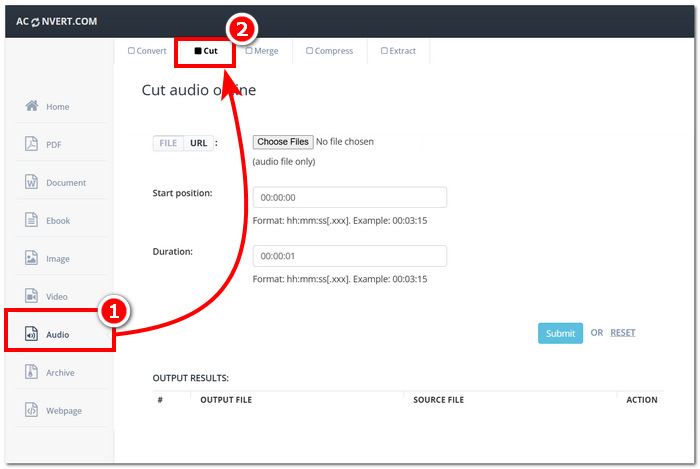
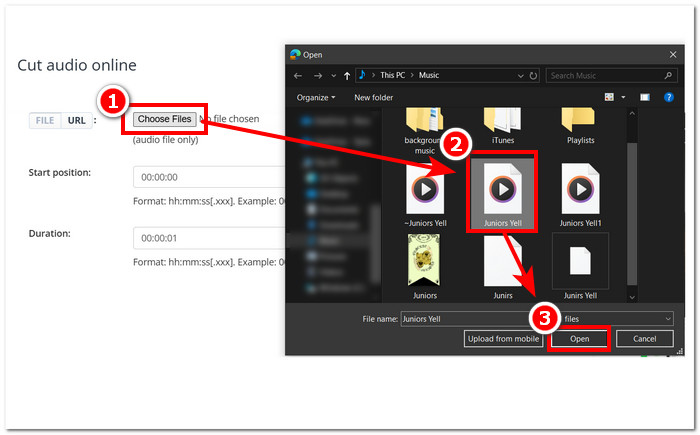
Paso 3. Haz clic en Elegir archivos y selecciona el archivo WAV que quieres cortar o recortar.
Paso 4. Una vez que hayas seleccionado tu archivo WAV, introduce tu posición de inicio y la duración en los campos proporcionados. Luego, haz clic en el botón Enviar para comenzar a recortar tu archivo WAV.
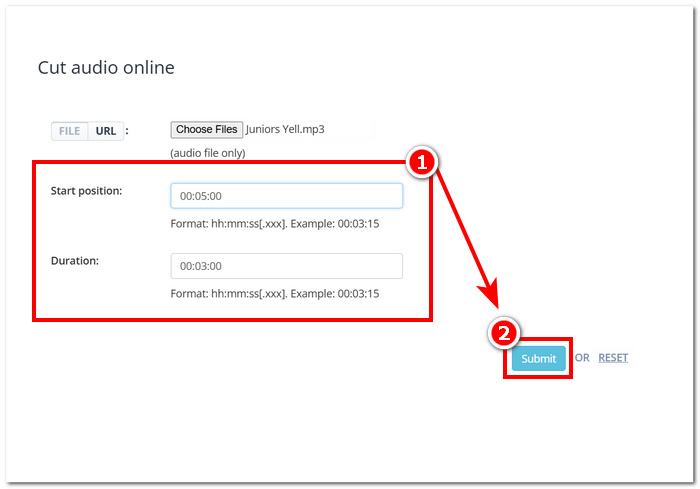
La posición de inicio se refiere al punto de inicio donde comienza el corte y la duración se refiere al tiempo total de duración que desea que tenga su archivo WAV.
Paso 5. Una vez que la herramienta haya procesado tu archivo, podrás descargar tu archivo WAV recortado haciendo clic en el botón Guardar en la sección de acciones en la parte inferior de la interfaz.
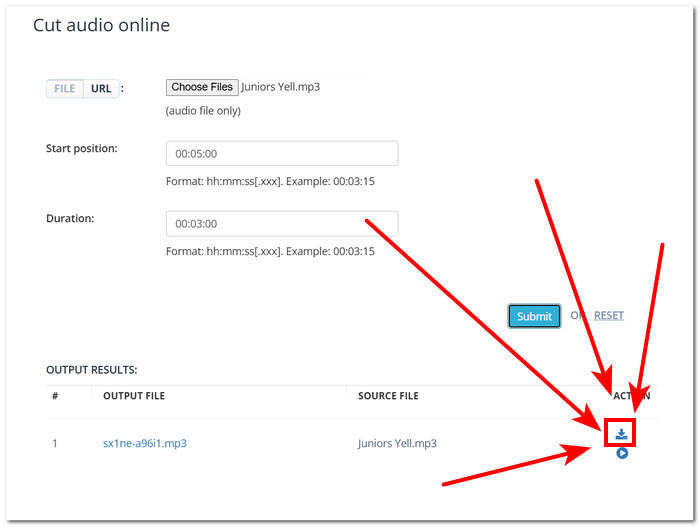
Aconvert es la solución más rápida para recortar archivos WAV rápidamente, ya que permite recortarlos sin problemas y ofrece resultados instantáneos. Esta herramienta basada en la web puede resultar conveniente para los usuarios, pero también es importante tener en cuenta que tiene anuncios emergentes que pueden generar inquietudes sobre la seguridad de los archivos y la calidad de la exportación.
Parte 4. Preguntas frecuentes sobre el recorte de archivos WAV
¿Todavía se utilizan los archivos WAV?
Sí, los archivos WAV se siguen utilizando hoy en día. Seguirán utilizándose porque son eficaces para preservar y almacenar datos de audio sin pérdidas y son compatibles con muchos programas y dispositivos de audio.
¿Puedes cortar un archivo WAV en Windows Media Player?
No, Windows Media Player solo funciona como reproductor multimedia para tus archivos WAV. No cuenta con funciones integradas para recortar o cortar archivos WAV.
¿Final Cut Pro admite WAV?
Sí, Final Cut Pro admite WAV, y puedes recortar, fusionar y editar archivos WAV fácilmente.
¿Cómo recortar un archivo WAV sin perder calidad?
Para recortar un archivo WAV sin perder calidad, asegúrese de utilizar software confiable y herramientas basadas en la web como Video Converter Ultimate o Audacity, seleccionados por FVC. El uso de herramientas confiables garantiza que siempre exportará audio de alta calidad y mantendrá la calidad de audio original de su archivo WAV.
¿Qué software se utiliza para cortar archivos WAV?
Audacity es un conocido programa de edición de archivos WAV. Cuando utilices un software avanzado como Audacity, asegúrate de estar completamente familiarizado con la interfaz, ya que navegar por ella como principiante puede resultar bastante confuso y complicado.
Conclusión
Recortar archivos WAV es un proceso sencillo y una función habitual en las herramientas de edición de audio. Usa las herramientas de software adecuadas, como Video Converter Ultimate recomendado por FVC, Audacity y Aconvert, para recortar tus archivos WAV y asegurarte de eliminar de forma efectiva las partes no deseadas con una exportación de alta calidad.
-
 ¿Cómo puedo convertir MP4 a WAV en línea gratis?
 ¿Intenta convertir MP4 a WAV? ¿No sabes qué convertidor puede ayudarte con eso perfectamente sin pagar un centavo? Lea esta publicación y todas sus preguntas serán respondidas.
-
 Revisión de los 10 mejores reproductores de música MP3 gratuitos
 ¿Cuál es el mejor reproductor de música MP3? ¿Cómo pongo música en un reproductor MP3? ¿Cómo descargar el reproductor de música MP3? Esta publicación le brinda una revisión detallada de los 10 mejores reproductores MP3 gratuitos para PC con Windows y Mac.
-
 Los 8 mejores reproductores MOV para PC y Mac para reproducir archivos de video QuickTime MOV
 Obtenga más información sobre los 8 mejores reproductores MOV disponibles para Windows y Mac. Puede elegir el deseado y apropiado para reproducir archivos MOV con la calidad original.
