


 Video Converter Ultimate
 Grabador de pantalla
 Reparación de vídeo
 Descarga segura
Cambiar el tamaño de una imagen sin perder calidad: compresión sin pérdida
Una de las mayores preocupaciones al redimensionar una imagen es la pérdida de calidad. Pues bien, la respuesta varía según cómo se haya redimensionado la foto, qué herramienta se haya utilizado y otros factores. Afortunadamente, una verdad poco valorada es que puedes redimensionar una imagen sin perder calidad si lo haces correctamente. Siguiendo las buenas prácticas, comprendiendo los matices del cambio de tamaño de imágenes y encontrando la herramienta adecuada, sin duda podrás mantener la claridad y nitidez de tus imágenes, independientemente de los ajustes de tamaño que realices.
En esta guía, profundizaremos en tres métodos efectivos para cambiar el tamaño de las imágenes manteniendo su integridad visual y garantizando que la calidad siga siendo casi la misma.

Parte 1. La forma más rápida de cambiar el tamaño de una imagen sin perder calidad [Compatible con lotes]
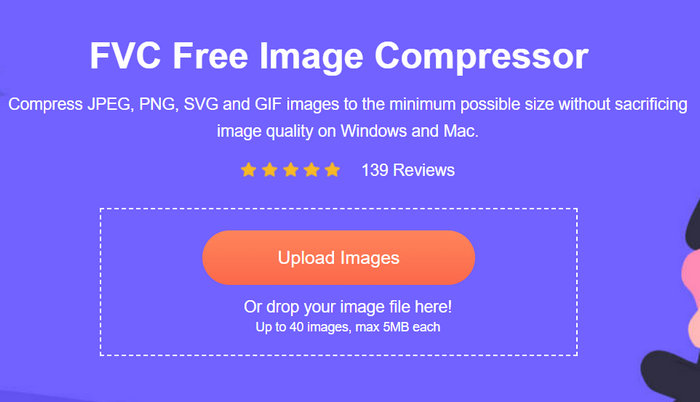
FVC Free Image Compressor es una herramienta online gratuita para comprimir imágenes, ideal para quienes buscan una forma rápida de redimensionar imágenes sin perder calidad. Con un solo clic, tus fotos se redimensionarán automáticamente y su calidad se mantendrá casi intacta. Además, esta herramienta es muy fácil de usar, de modo que cualquier tipo de usuario puede utilizarla sin sentirse perdido durante el proceso. Por último, cuando tengas un montón de archivos de imagen que redimensionar, esta herramienta te permitirá comprimir hasta 40 archivos de imagen simultáneamente.
Aquí te explicamos cómo redimensionar una imagen sin perder calidad usando FVC Free Image Compressor
Paso 1. Abre tu navegador y escribe Free Image Compressor en la barra de búsqueda.
Paso 2. Una vez en la página web, haz clic en Upload Images para importar las fotos que quieres redimensionar. La herramienta comprimirá automáticamente todas las fotos que hayas subido.
Paso 3. Espera a que termine el proceso de compresión. Cuando haya finalizado, verás una barra de estado indicando que se ha completado y la información sobre el tamaño de la imagen antes y después de la compresión. Después, haz clic en Download All para guardar tu imagen.
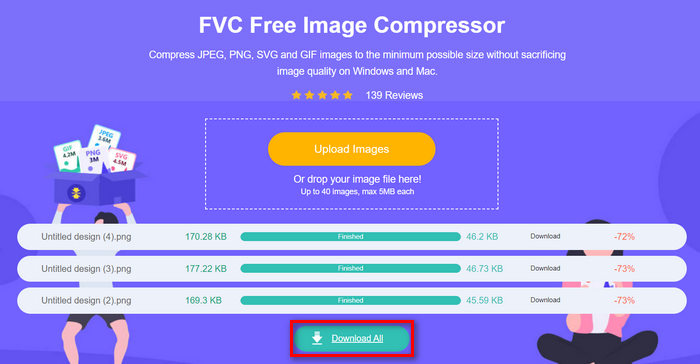
Con el compresor de imágenes gratuito FVC, cambiar el tamaño de una imagen no te costará nada. Además, esta herramienta es completamente gratuita y muy accesible, por lo que es una herramienta de compresión portátil para todos.
Parte 2. Cómo reducir una imagen en Photoshop sin perder calidad
Mientras tanto, cuando tengas instalado Photoshop en tu dispositivo, puedes usarlo para reducir tus archivos de imagen. Esta herramienta es un software de edición de fotos muy conocido por su excelente conjunto de funciones y capacidades. Con Photoshop, no solo puedes editar y mejorar fotos con precisión, sino también optimizarlas para varios propósitos, incluida la reducción del tamaño de archivo. Estos son los dos métodos que puedes probar para cambiar el tamaño de una imagen sin perder calidad.
Cambiar el tamaño de la imagen en píxeles
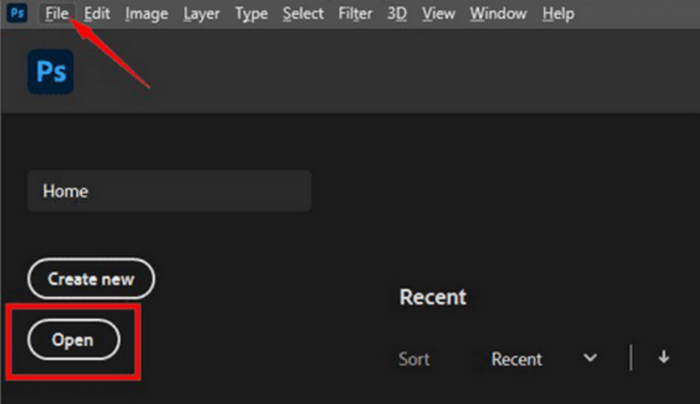
Paso 1. Abre tu imagen en Photoshop haciendo clic en Open o ve a File y selecciona la imagen que quieres redimensionar.
Paso 2. Ahora dirígete a la pestaña Image y selecciona Image Size en el menú.
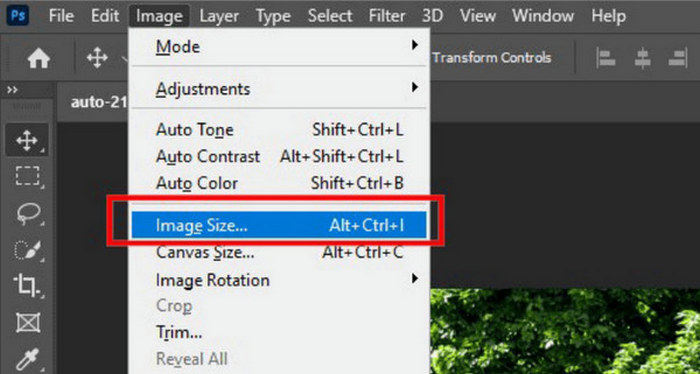
Paso 3. En el cuadro de diálogo Image Size, elige Pixels en el menú desplegable. Para establecer dimensiones específicas, introduce valores en los cuadros de texto de anchura y altura y haz clic en OK para redimensionar la imagen.
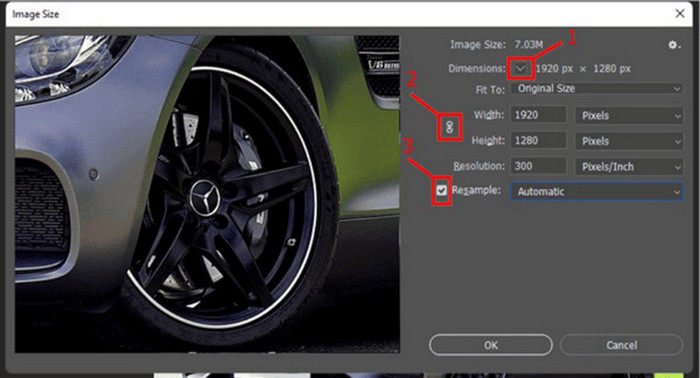
Paso 4. Por último, guarda tu archivo de imagen haciendo clic en el botón Save As en la pestaña File.
Guarde el archivo PSD en formato JPEG antes de guardarlo.
Cambiar el tamaño de la imagen en pulgadas
Paso 1. Abre tu imagen en Photoshop haciendo clic en Open o ve a File y selecciona tu imagen.
Paso 2. Ahora dirígete a la pestaña Image y selecciona Image Size.
Paso 3. En el cuadro de diálogo Image Size, elige Inches en el menú desplegable. Para establecer dimensiones específicas, introduce valores en los cuadros de texto de anchura y altura y haz clic en OK para redimensionar la imagen.
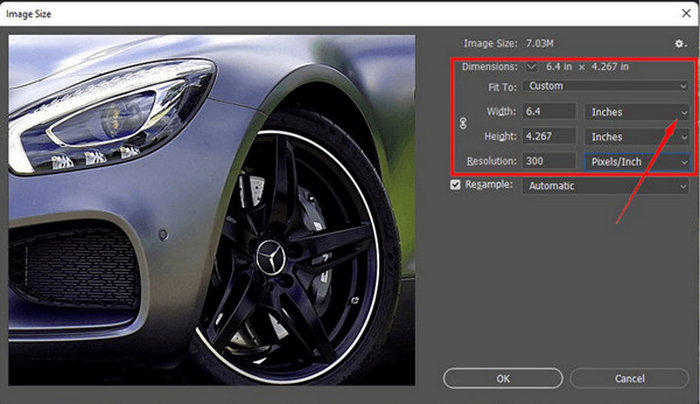
Paso 4. Por último, haz clic en el botón Save As en la pestaña File para guardar la imagen final.
Photoshop es una herramienta versátil y potente que permite a los usuarios editar fotografías y cambiar su tamaño sin perder calidad. Además, los usuarios pueden aprovechar los algoritmos de alta calidad de Photoshop para garantizar que sus imágenes permanezcan nítidas y claras incluso después de realizar ajustes de tamaño significativos. Sin embargo, una desventaja de usar esta herramienta es que puede ser bastante compleja, lo que dificultará que los principiantes naveguen por sus funciones.
Parte 3. Cambiar el tamaño de la imagen sin perder calidad mediante el aumento de escala con IA
El FVC Free Image Upscaler es una herramienta impulsada por IA diseñada para redimensionar imágenes sin perder calidad. Emplea tecnología de superresolución basada en IA, entrenada con millones de ejemplos, para reconocer y mejorar automáticamente las partes borrosas de una imagen. Esta herramienta puede corregir píxeles, colores, texturas y otros detalles perdidos, garantizando que la imagen se redimensione sin pérdida de calidad.
Paso 1. Primero, tienes que acceder a su página web oficial.
Paso 2. Una vez que hayas accedido a ella, importa el archivo de imagen que quieres redimensionar haciendo clic en el botón Upload Photo.
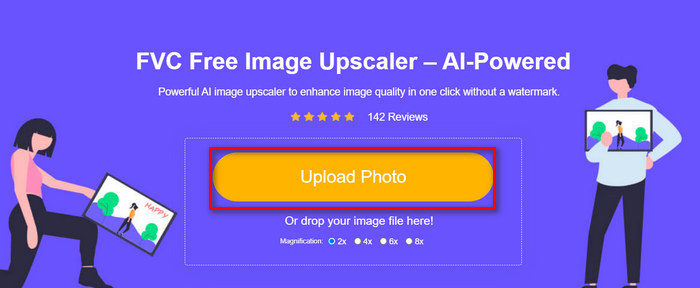
Paso 3. Ahora elige cómo quieres que se amplíe. Puedes elegir multiplicar el tamaño de tu imagen entre 2x y 8x. De este modo, podrás redimensionar tu imagen sin perder calidad.
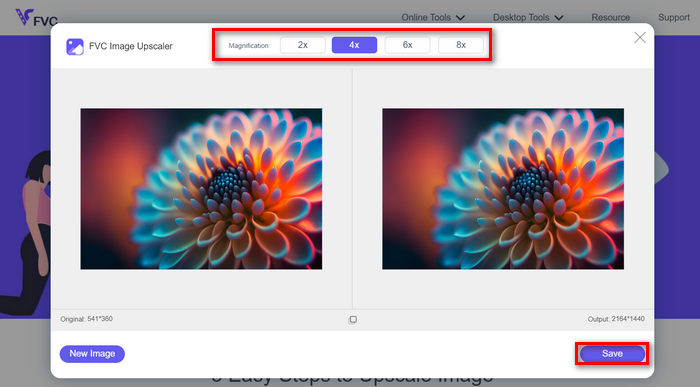
Paso 4. Cuando hayas terminado, haz clic en el botón Save, y el nuevo archivo redimensionado se descargará automáticamente en tu ordenador.
Este amplificador de imágenes basado en IA es una excelente herramienta para redimensionar imágenes sin perder calidad. Esta función no solo cambia el tamaño de la imagen, sino que también la amplía y mejora.
Parte 4. Comparación de 3 métodos para cambiar el tamaño de una imagen sin perder calidad
| Herramienta de cambio de tamaño de imagen | Compresión por lotes | Velocidad | Facilidad de operación |
| Compresor de imagen libre de FVC | Sí, hasta 40 imágenes | Rápido | Extremadamente fácil de usar |
| Photoshop | No | Promedio | Bastante simple de operar |
| Mejorador de imagen libre de FVC | No | Rápido | Extremadamente fácil de usar |
Parte 5. Preguntas frecuentes sobre cómo cambiar el tamaño de una imagen sin perder calidad
¿Las imágenes pierden calidad al reducirse?
En parte, no. Las imágenes generalmente no pierden calidad cuando se reducen. Al reducir el tamaño de una imagen se conservan los detalles y la nitidez originales de la imagen porque no se pierde información de los píxeles. Sin embargo, la percepción de la calidad puede variar según el método de compresión utilizado y la capacidad del software para manejar el proceso de reducción de escala de manera eficiente.
¿Cómo cambiar el tamaño de una imagen en Paint sin perder calidad?
Para cambiar el tamaño de una imagen en Paint sin perder calidad, abra Paint y cargue la imagen. Después, haga clic en el botón de cambio de tamaño en la pestaña de inicio. En el cuadro de diálogo de cambio de tamaño y sesgo, elija la opción de porcentaje o píxeles. Asegúrese de que la casilla de verificación Mantener relación de aspecto esté marcada para mantener las proporciones de la imagen. A partir de ahí, ingrese cómo desea cambiar el tamaño de la imagen y haga clic en Aceptar.
¿Cuál es la mejor herramienta para redimensionar imágenes sin perder calidad?
Existen muchas herramientas excelentes para redimensionar imágenes sin perder calidad. Sin embargo, cuando se trata del método más rápido con función de compresión por lotes, la herramienta FVC Free Image Compressor es la mejor opción. Te permite redimensionar hasta 40 imágenes simultáneamente manteniendo resultados de alta calidad, lo que la hace muy eficiente y fácil de usar para todo tipo de usuarios.
Conclusión
Con los métodos y herramientas adecuados, puedes redimensionar imágenes sin perder calidad. Así que, elijas o no alguna de estas herramientas, el objetivo principal es encontrar la que mejor se adapte a ti. ¿Listo para mejorar tus imágenes sin esfuerzo? Prueba estas herramientas hoy mismo y comprueba la diferencia por ti mismo.
-
 Principales reductores de tamaño de imagen en dispositivos móviles y de escritorio
 Mire las aplicaciones principales en este artículo para encontrar el mejor reductor de tamaño de fotos en su dispositivo favorito. ¡Aprenda la mejor optimización de tamaño para imágenes ahora!
-
 Los 5 mejores métodos para reducir el tamaño de la imagen en cualquier dispositivo
 Conozca los métodos efectivos para cambiar el tamaño o comprimir el tamaño de una imagen haciendo clic en esta publicación. Descubra redimensionadores de fotografías excepcionales y sus instrucciones paso a paso.
-
 Eliminar personas de las fotos: edición de fotos rápida y sencilla
 ¿Quieres deshacerte de las personas de tu foto? Lea este artículo mientras le mostramos los mejores y más fáciles métodos para eliminar personas de las fotos usando aplicaciones.
