


 Video Converter Ultimate
 Grabador de pantalla
 Reparación de vídeo
 Descarga segura
¿Cómo fusionar archivos M4V? Aquí están las 2 soluciones más rápidas
Los archivos M4V, también conocidos como archivos de vídeo MPEG-4, suelen descargarse desde iTunes. Son muy similares a los archivos MP4 porque ambos usan el formato contenedor MPEG-4. Es muy probable que acabes de descargar desde iTunes varios clips de vídeo incompletos en formato M4V y luego quieras unir los archivos M4V en una sola historia completa sin cortes. ¿Cómo combinar archivos M4V? Este artículo pretende ofrecerte dos métodos para hacerlo de forma eficiente y sin perder calidad de imagen.

Parte 1: Solución más rápida: utilice una fusión M4V gratuita en línea
Para la solución más rápida, puedes usar FVC Free Online Video Merger, que no requiere mucho tiempo para aprender los pasos y la configuración. Simplemente abre la herramienta en tu navegador, añade tus archivos M4V y haz un solo clic para unir los archivos M4V.
Funciones clave
- • Combine archivos M4V de cualquier cantidad y tamaño en un solo archivo de forma gratuita.
- • Interfaz fácil de usar y procesos intuitivos de fusión previa.
- • Puede guardar los archivos M4V combinados como otros 9 formatos principales.
- • No deje marcas de agua en los videos M4V combinados.
- • Cargue sus archivos de cualquier tamaño en solo 1 segundo.
Pasos para unir archivos M4V online gratis
Paso 1. Haz clic aquí para cargar FVC Free Online Video Merger. En la página web de la herramienta online, haz clic en el botón Subir vídeos para unir situado en el centro de la pantalla.

Nota: La herramienta te pedirá que descargues e instales un lanzador si es la primera vez que la usas. Una vez instalado el lanzador, haz clic de nuevo en el botón Subir vídeos para unir.
Paso 2. Ahora debería abrirse la ventana Abrir. Aquí tienes que seleccionar los archivos M4V y después hacer clic en el botón Abrir en la parte inferior de la ventana.
Paso 3. Después de subir los archivos M4V, puedes ajustar la secuencia de los archivos M4V eliminando los existentes e insertando otros nuevos en los lugares deseados.
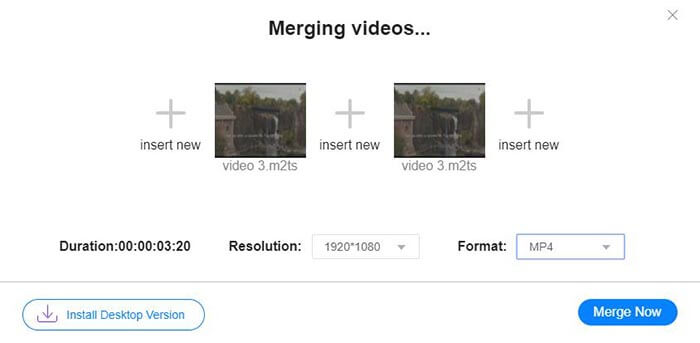
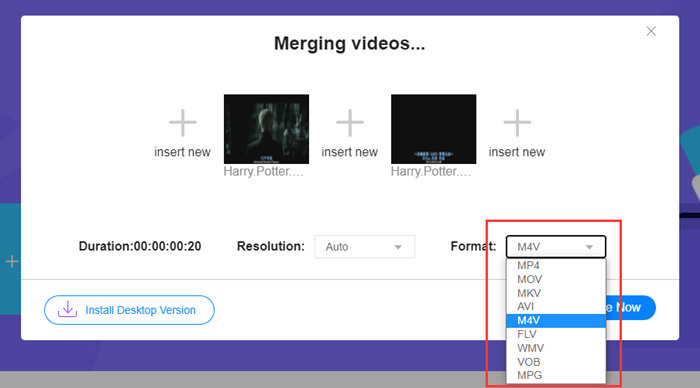
Paso 4. Para conservar el archivo unido en formato M4V, tienes que elegir M4V en la lista de Formato. También puedes elegir cualquiera de los formatos indicados para convertir el vídeo M4V resultante.
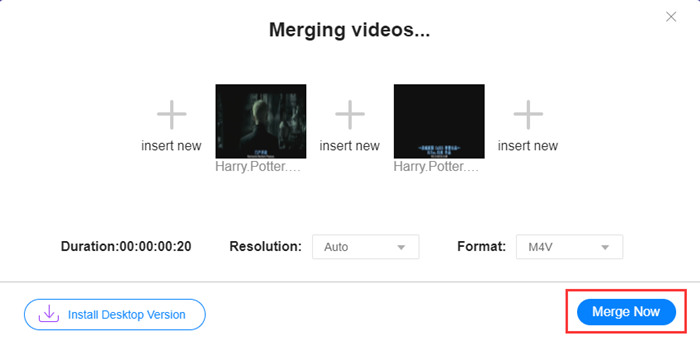
Paso 5. Haz clic en el botón Unir ahora para empezar a combinar los archivos M4V. La herramienta te pedirá entonces que elijas la carpeta de destino del archivo de salida.
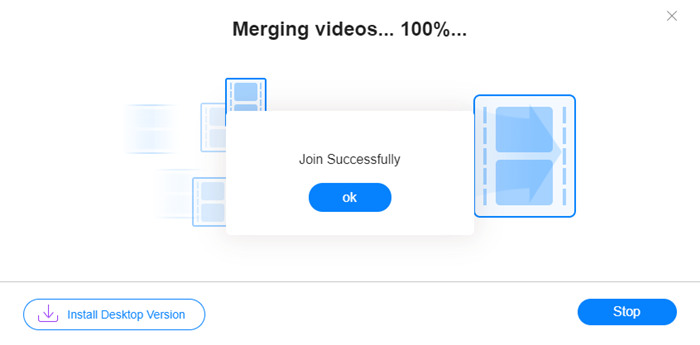
Cuando vea el aviso de éxito a continuación, el video combinado se guardará en su computadora.
Ya has aprendido la forma más rápida de combinar archivos M4V. Sin embargo, este método solo te permite unir los vídeos uno detrás de otro, pero no te ayuda a recortar los extremos no deseados, lo que puede provocar periodos de pantalla en negro en el vídeo. Quizá también necesites el siguiente método, que no solo sirve para unir archivos M4V, sino también para recortarlos sin cortes. Aquí puedes comprimir archivos M4V.
Parte 2: un método para fusionar archivos M4V sin problemas
Para obtener un vídeo completo y fluido, no basta con unir los archivos M4V uno detrás de otro. También necesitas recortar los segmentos no deseados del principio y del final. Por lo tanto, esto implica usar una herramienta de edición de vídeo. Tienes muchísimas opciones entre las que elegir, pero aquí nos gustaría recomendarte Video Converter Ultimate. La razón es sencilla: es fácil de usar y sus funciones son lo suficientemente potentes.
Funciones clave
- • Fusionar, recortar, rotar, recortar y agregar efectos a videos M4V.
- • La tecnología de aceleración de hardware ayuda a finalizar la unión de archivos M4V 70 veces más rápido.
- • Abundante colección de filtros y efectos para embellecer sus videos
- • Utilice el potenciador de video incorporado para mejorar la calidad de su video
- • Convierta sus videos en 3D y disfrútelos con sus gafas 3D
Descarga gratuitaPara Windows 7 o posteriorDescarga segura
Descarga gratuitaPara macOS 10.7 o posteriorDescarga segura
Pasos para unir archivos M4V sin cortes
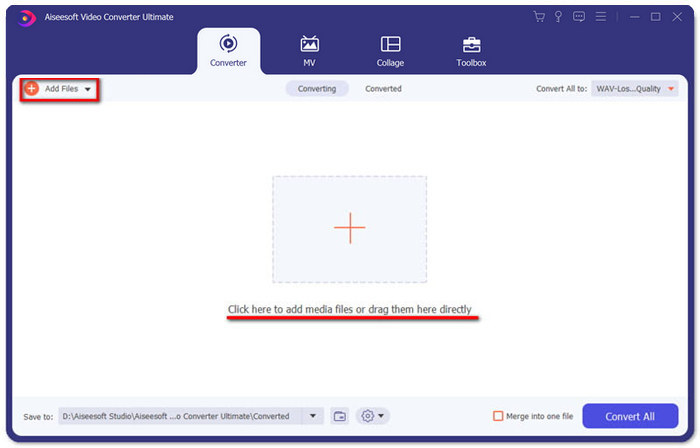
Paso 1. Instala e inicia Video Converter Ultimate. Haz clic en el botón Añadir archivos o arrastra los archivos a la interfaz para añadir los vídeos.
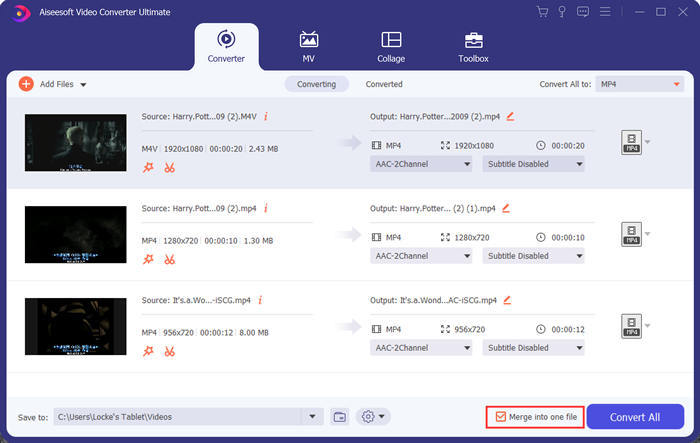
Después de añadirlos, puedes arrastrar los archivos hacia arriba o hacia abajo para organizar su orden. Además, debes marcar la casilla Unir en un solo archivo para que el programa no convierta los vídeos añadidos por separado.
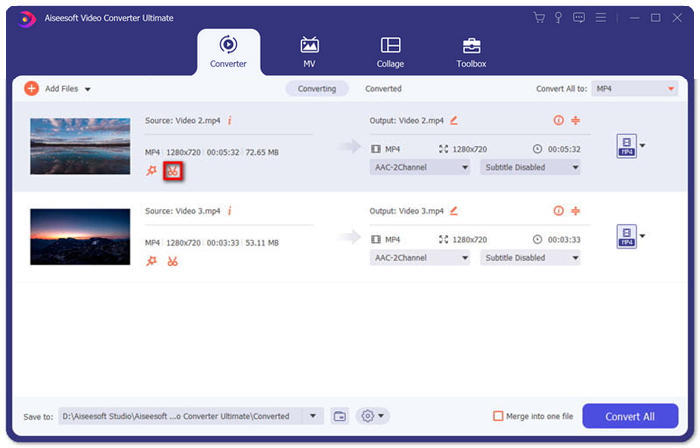
Paso 2. Para usar la función de recorte, puedes hacer clic en el icono Cortar de un vídeo añadido.
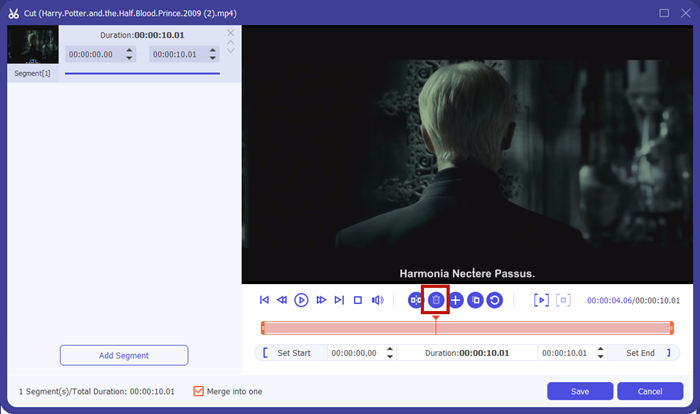
En la interfaz de Cortar, puedes eliminar fácilmente las partes no deseadas de un vídeo. Solo tienes que seleccionar un segmento estableciendo sus puntos de inicio y fin y luego hacer clic en el icono de la papelera para eliminarlo.
Paso 3. De vuelta a la interfaz principal, puedes elegir el archivo de salida. Haz clic en la flecha hacia abajo junto a Convertir todo a. Entonces podrás seleccionar M4V u otros formatos como formato de salida.
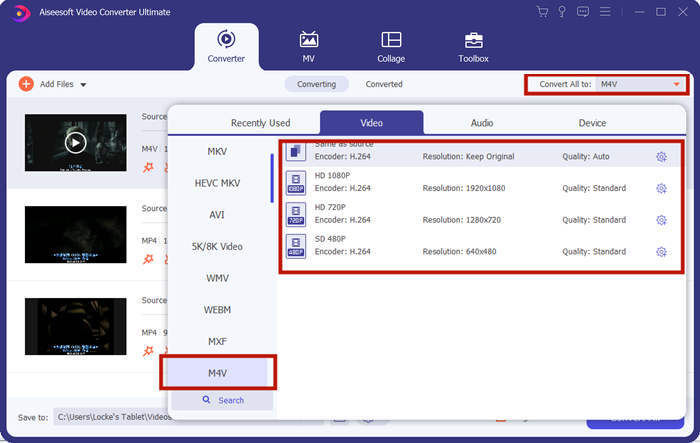
Paso 4. Haz clic en el botón Convertir todo en la esquina inferior derecha del programa y espera a que el programa una los archivos M4V.

Cuando finalice la fusión, verá un aviso de éxito. Luego, puede encontrar el archivo M4V combinado en la carpeta de destino. Los anteriores son dos métodos para unir archivos de video M4V. También hemos concluido a continuación algunas de las preguntas más frecuentes.
Parte 3: Preguntas frecuentes sobre la unión de archivos M4V
¿Qué es un archivo M4V?
M4V, diseñado por Apple, a veces también se llama Archivo de video de iTunes. Es similar a MP4 porque ambos están basados en MPEG-4. La característica más especial de M4V es que iTunes podría agregar protección DRM para evitar la distribución no autorizada de videos de iTunes.
¿Cómo abrir un archivo M4V?
Si no está protegido por DRM, un archivo M4V puede reproducirse en VLC, QuickTime, Windows Media Player y muchos otros reproductores multimedia. A veces también funciona cambiar la extensión .M4V por .MP4 para abrirlo. Sin embargo, un archivo M4V con protección DRM solo puede reproducirse en dispositivos autorizados.
¿Puedo eliminar la protección DRM de un archivo M4V?
Sí tu puedes. Puede encontrar innumerables programas de eliminación de DRM en el mercado. Éstos son algunos de ellos: TunesKit DRM M4V Converter, Aimersoft DRM Media Converter, Requiem DRM Remover, Ondesoft iTunes Convertert, Apple Music Converter.
Conclusión
Este texto ha presentado dos formas eficaces de unir varios archivos de vídeo M4V en uno solo. Para la solución más rápida, FVC Free Online Video Merger es tu mejor opción. Puedes utilizarlo sin descargar ningún programa. El proceso de carga también se completa de inmediato. Pero si quieres una calidad superior, o no solo combinar archivos M4V sino también recortarlos, puedes recurrir a Video Converter Ultimate. Te ofrece potentes funciones de edición y a la vez una interfaz intuitiva para principiantes. Si has encontrado soluciones mejores, nos gustaría saberlo. Solo tienes que dejarnos un comentario más abajo.
-
 Cómo convertir M4V a MP4 con / sin DRM
 6 formas de convertir gratis M4V a MP4 (eliminación de DRM incluida)
-
 Los 5 mejores reproductores M4V para reproducir archivos M4V fácilmente en computadoras / móviles
 Los 5 mejores reproductores M4V para Windows / Mac / Android / iOS que debe conocer
-
 Cómo extraer MP3 de M4V con 4 métodos excelentes que debe conocer
 Convertidor de M4V a MP3: 4 mejores métodos para extraer MP3 de archivos M4V
