


 Video Converter Ultimate
 Grabador de pantalla
 Reparación de vídeo
 Descarga segura
5 formas de reparar el reproductor de Windows Media que no funciona en Windows 7/8/10
El Reproductor de Windows Media ha dejado de funcionar. Un problema causó que el programa no funcionara correctamente. También reproducirá audio pero no video. ¿Cómo arreglar este problema?
Cuando el Reproductor de Windows Media deja de funcionar, es posible que reciba el error "El Reproductor de Windows Media ha dejado de funcionar" sin ninguna información específica al respecto, o se le informa que "El tipo de archivo no es compatible". Incluso no hay indicaciones y sus clics simplemente no funcionan.
Hay muchas razones por las que Windows Media Player no funciona. El problema más común es que los archivos no son compatibles, lo que provocará que los vídeos se reproduzcan sin imagen, sin sonido o sin subtítulos. Por lo demás, las causas pueden ser muy variadas y no aparece ningún aviso específico. En este caso, tienes que revisar todos los problemas enumerados en el siguiente artículo para solucionar este error complejo. Pero también puedes optar por la mejor solución: usar un reproductor de vídeo alternativo para ver cualquier vídeo sin problemas ni limitaciones.

Parte 1: El mejor reproductor multimedia alternativo que no debe perderse
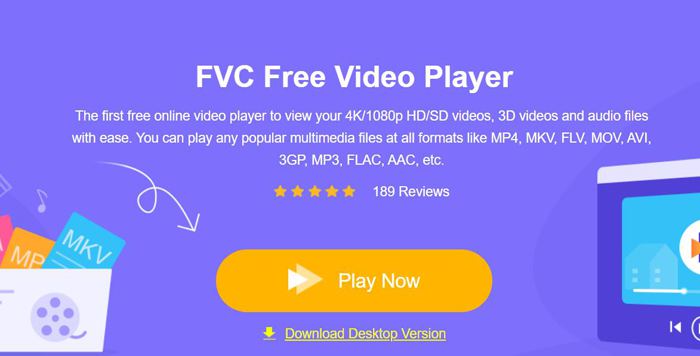
Para evitar que Windows Media Player deje de funcionar, es mejor elegir una alternativa profesional. FVC Free Video Player es un reproductor de vídeo online gratuito que resolverá todos los problemas que puedas encontrar al usar Windows Media Player. Permite reproducir vídeos sin limitaciones de formato ni de resolución. Y sin necesidad de descargar ningún otro programa, podrás reproducir con fluidez todos los formatos de vídeo.
- 1. Admite la reproducción de casi todos los formatos, incluidos archivos FLV, MKV, RMVB y DVD o Blu-ray.
- 2. Reproduzca videos con alta calidad que alcancen una resolución de 4K.
- 3. Capaz de ajustar las pistas de audio y los subtítulos en diferentes idiomas.
- 4. Tome una captura de pantalla en cualquier momento cuando reproduzca videos.
Paso 1: Accede a la página web de FVC Free Video Player desde cualquier navegador. Luego haz clic en el botón Play Now para instalar el lanzador. Tras unos minutos, haz clic de nuevo en el botón Play Now para iniciar FVC Free Video Player.
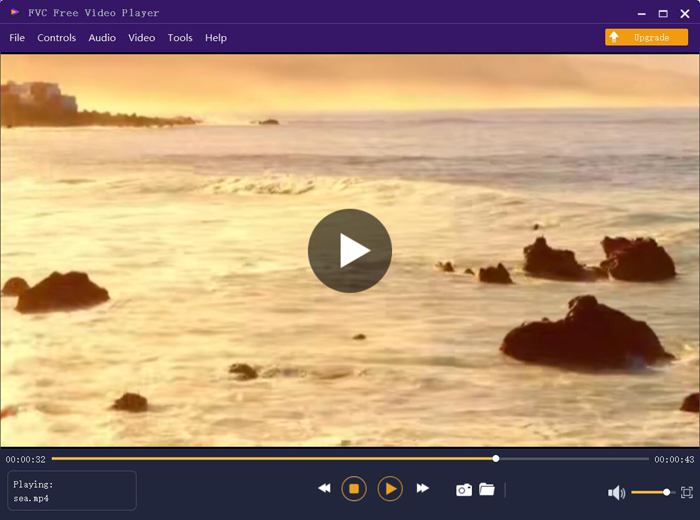
Paso 2: Haz clic en el botón Open Files para elegir el vídeo que quieras. A continuación comenzará a reproducirse automáticamente. En el menú Control puedes ver las teclas rápidas para ajustar el volumen. También puedes elegir las pistas de audio o vídeo según tus necesidades. Además, si haces clic en el botón Tools y eliges la opción Effect, incluso podrás ajustar el matiz, brillo, contraste, saturación y gamma.
Parte 2: Cómo arreglar Windows Media Player que no funciona en Windows 7/8/10
Como se mencionó anteriormente, muchas razones pueden hacer que el Reproductor de Windows Media no funcione, y existen 3 métodos para solucionar este problema en diferentes situaciones.
Método 1: inicie el solucionador de problemas de Windows Media Player
Cuando su Windows Media Player no responde después de hacer clic, de esta manera lo ayudará a resolverlo.
Paso 1: Pulsa las teclas Windows y R en el teclado para abrir el programa Ejecutar. Luego debes copiar y pegar msdt.exe -id WindowsMediaPlayerConfigurationDiagnostic en la barra de búsqueda. Haz clic en el botón OK para ir al solucionador de problemas de la Configuración de Windows Media Player. A continuación, haz clic en el botón Next para iniciarlo.
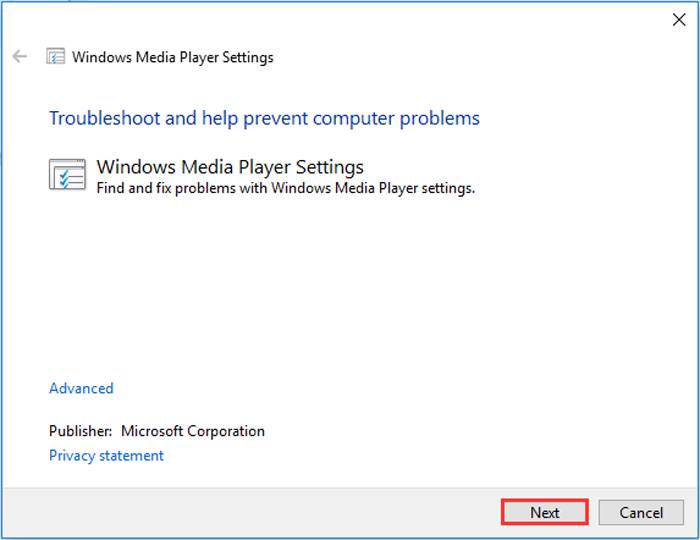
Paso 2: Cuando aparezca la ventana, haz clic en el botón Apply this fix para restablecer Windows Media Player a los valores predeterminados. Después puedes intentar reiniciar Windows Media Player.
Método 2: instale otros decodificadores en Windows Media Player
Si su Windows Media Player no funciona con algunos videos o audios especiales, puede descargar el decodificador de respuesta para reproducir estos videos.
Paso 1: Abre Microsoft Store en tu ordenador. Haz clic en el botón Search y escribe Video Extension en la barra de búsqueda. Podrás descargar en tu equipo la extensión de vídeo que necesites.
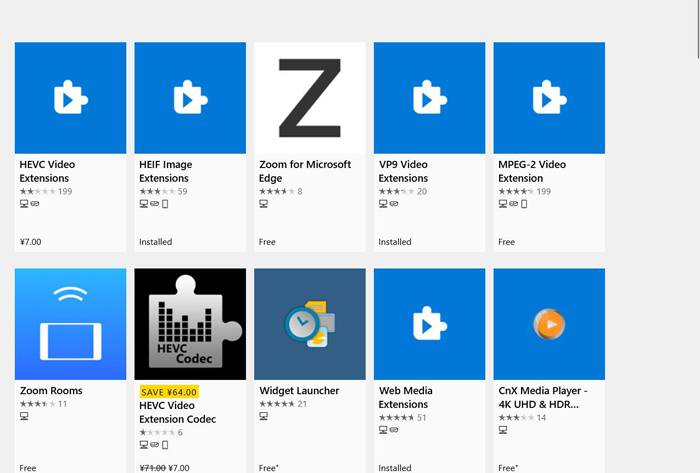
Paso 2: Tras la instalación, vuelve a abrir los vídeos con Windows Media Player. Pero debes tener en cuenta que sigue habiendo muchos formatos no compatibles, como FLV, RMVB, etc.
Método 3: reinstale Windows Media Player.
Si el método mencionado no funciona, debería intentar reinstalar el software cuando Windows Media Player deje de funcionar.
Paso 1: Pulsa las teclas Windows y R en tu teclado para abrir el programa Ejecutar. Luego escribe optionalfeatures.exe en la barra de búsqueda. Haz clic en el botón OK para abrir o cerrar una función. A continuación, desmarca Windows Media Player.
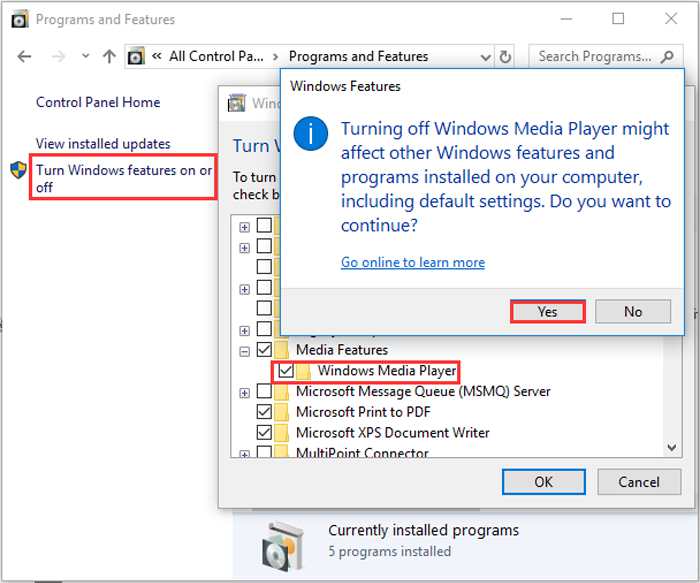
Paso 2: Reinicia el ordenador y repite la operación anterior. Luego marca Windows Media Player. Después de eso, reinicia de nuevo el ordenador y el programa se instalará automáticamente en tu equipo.
Excepto por estos problemas, Windows Media Player también tiene muchas desventajas. No puede ajustar la velocidad de reproducción de video y las teclas de acceso rápido siempre son inútiles. Entonces, ¿por qué no elegir el reproductor de video en línea gratuito para resolver todos los problemas?
Parte 3: las preguntas frecuentes de Windows Media Player no funcionan
1. ¿Por qué no se pueden reproducir archivos de video FLV en Windows Media Player?
Aunque Windows Media Player permite instalar varios decodificadores para reproducir vídeos en algunos formatos poco comunes, el formato FLV no es compatible. En este caso, puedes probar a descargar alternativas a Windows Media Player o convertir los formatos de los vídeos.
2. ¿Por qué mi Windows Media Player no funciona después de las actualizaciones de Windows 10?
Tal vez Windows Media Player se corrompió después de la actualización. Puede probar el método 3 mencionado para reinstalar Windows Media Player.
3. ¿Cómo elegir pistas de subtítulos en Windows Media Player?
Desafortunadamente, no hay opción para elegir diferentes subtítulos, videos y pistas de audio en Windows Media Player. Puedes elegir otras alternativas para reproducir videos.
Conclusión
Las razones por las que el Reproductor de Windows Media no funciona serán muy complejas, lo que dificulta la solución de este problema. Por lo tanto, simplemente puede descargar el mejor reproductor multimedia alternativo: FVC Free Video Player para reproducir videos sin problemas con alta calidad. De esta manera, puede evitar que el Reproductor de Windows Media no funcione para siempre.
-
 Cómo reproducir DVD en Windows Media Player en 2021
 ¿Por qué mi DVD no se reproduce en Windows Media Player? ¿Cómo reproducir DVD en el reproductor multimedia de Windows 7? Esta publicación comparte 3 formas de reproducir DVD con o sin WMP.
-
 6 soluciones verificadas para arreglar videos que no se reproducen en Chrome
 Para solucionar el problema de que los videos no se reproducen en Chrome, todo lo que necesita hacer es leer nuestra solución de problemas y realizar las soluciones verificadas una por una.
-
 5 soluciones de trabajo 100% para arreglar videos que no se reproducen en iPad
 ¿Tus videos no se reproducen en el iPad? Aquí hay cinco soluciones que lo ayudarán a deshacerse de este problema y luego podrá disfrutar fácilmente de sus videos favoritos en el teléfono.
