


 Video Converter Ultimate
 Grabador de pantalla
 Reparación de vídeo
 Descarga segura
Cómo convertir archivos FLV a videos de iPhone sin perder calidad
It is well-known that the iPhone and iPad are equipped with the latest-generation displays. It makes sense that watching movies on iDevices is a popular activity. However, iOS users always face a format barrier when playing movies. For instance, the quite common FLV files are not supported by Apple’s native software. That is why we share this guide, helping you convert FLV to iPhone video format on desktop or online easily.

Parte 1: El mejor software gratuito para convertir FLV a video de iPhone
Natively, iPhone supports M4V, a part of MP4, MOV and a part of AVI. That makes converting FLV to iPhone format difficult. FVC Free FLV Converter is a powerful tool. It provides the presets to convert multimedia files to iPhone format directly. More importantly, it is completely free to use.
Main Features of the Best Free FLV to iPhone Video Converter
- 1. Convierta archivos FLV a formato de video de iPhone fácilmente.
- 2. Incluye muchos ajustes preestablecidos para iPhone, iPad y más.
- 3. Ofrezca amplias funciones de bonificación, como mejora de vídeo.
Descarga gratuitaPara Windows 7 o posteriorDescarga segura
Descarga gratuitaPara macOS 10.7 o posteriorDescarga segura
Cómo convertir FLV a video de iPhone en lote
Paso 1: agregue archivos FLV
Run the best free FLV to iPhone video converter once you install it on your computer. Then click the Add File(s) button to trigger the open-file dialog. Find and select all FLV files that you want to play on iPhone and click Open. The converter supports batch converting.

Paso 2: establecer el formato de salida
After FLV loading, you will see all of them in the library area. Go to the bottom area, click and expand the Output format option. Select Apple iPhone on the list and choose your device model. Then the software will optimize the parameters accordingly. It will set the output format for all FLV files. If you hope to change specific parameter, click the Gear icon to open the profile dialog.

Paso 3: convierte FLV a video de iPhone
Next, click the Open Folder button, select the destination folder and confirm it. By default, the software will save iPhone videos to your video library, but you can change it based on your preference. Finally, click on the Convert button to begin converting FLV to iPhone videos.

Besides, the program also supports converting FLV videos to Xbox, PS4, Samsung, Apple TV, or other popular devices.
Parte 2: Cómo convertir FLV a formato de iPhone en línea
Some people do not like to install software on their hard disk. Sometimes, you may just need to convert FLV to iPhone videos occasionally. In such cases, web video converter app, such as FVC Free Online Video Converter, is a portable choice. It can meet your need without installing any software. Plus, it does not ask any payment or registration. Unlike other web apps, it also does not have file size limit, so you can upload unlimited FLV files for converting.
Step 1: Open https://www.free-videoconverter.net/free-online-video-converter/ in a web browser to open the home page. Press the Add Files to Convert button and download the launcher.

Step 2: When downloading finishes, the launcher will pop up automatically. Then click the Add File button at upper left corner and upload the FLV files you intend to play on iPhone.
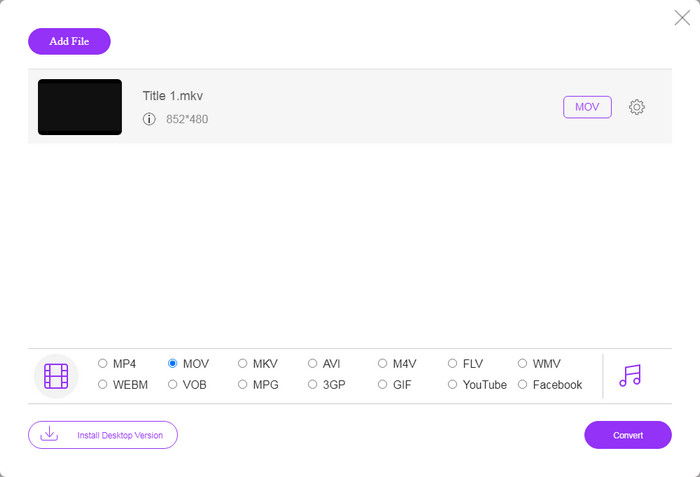
Step 3: Locate the bottom format area and select MOV, which is the most acceptable video format for iOS devices. Click on the Convert button and the web app will do FLV to iPhone format converting online. Wait for the process to complete and download the result to your hard drive.
Si desea restablecer las opciones, haga clic en el icono Configuración y las encontrará en el cuadro de diálogo Configuración, como resolución, códec, etc.
Parte 3: Preguntas frecuentes sobre la conversión de FLV a video de iPhone
¿Puedes reproducir archivos FLV en iPhone sin convertir?
The only way to convert FLV files on iPhone without converting is to install a third-party FLV player, such as VLC for iOS. Then you can watch your favorite movies easily.
¿Dónde se guardan los videos en el iPhone?
Los videos que grabe y transfiera en el iPhone se guardarán en la aplicación Fotos. Si descarga un video usando una aplicación, se guardará en la aplicación. De todos modos, no puede acceder al sistema de archivos en iPhone o iPad.
¿Qué tipos de archivos se utilizan en los videos del iPhone?
En iPhone, H.264 es el único códec de video compatible. Cuando se trata de formatos de video, MOV y MP4 están estrechamente relacionados. Para la grabación de video en iOS, Apple usa el códec de video H.265 o HEVC más nuevo.
Conclusión
Ahora, debe comprender cómo abrir y reproducir archivos FLV en iPhone. Aparentemente, no puede abrir videos FLV en iPhone directamente. La mejor manera es convertir sus archivos a un formato compatible con iPhone, como MOV. Entonces puedes reproducir los videos sin problemas. FVC Free FLV Converter es uno de los mejores convertidores de video FLV a iPhone gratuitos. No solo es fácil de usar, sino que también puede producir una excelente calidad de salida. ¿Más preguntas? Por favor escriba a continuación.
-
 3 métodos sencillos para convertir FLV a AVI en el escritorio y en línea
 1. Convierta fácilmente videos FLV a otros formatos multimedia. 2. Admite casi todos los formatos de video, como AVI, MP4, MKV, etc. 3. Procese por lotes cientos de archivos FLV por conversión.
-
 Las 3 formas principales de convertir FLV a WMV en Windows y Mac
 ¿Está buscando la mejor manera de convertir FLV a WMV sin perder calidad en PC o Mac? Tienes suerte ya que aquí te compartimos tres métodos para hacer el trabajo fácilmente.
-
 Guía concreta para subir sus videos FLV a YouTube
 ¿Subir FLV a YouTube pero falló? Puede resolver este problema por su cuenta y convertir FLV a códecs compatibles con YouTube siguiendo nuestra guía paso a paso.
