


 Video Converter Ultimate
 Grabador de pantalla
 Reparación de vídeo
El mejor convertidor para convertir AIFF a MP3 con una guía paso a paso
Los archivos AIFF almacenan la forma de audio de mayor calidad de la que hayas oído hablar. Aunque este formato puede guardarse en un programa de escritorio porque no está comprimido, no es ideal para almacenarlo o descargarlo en tu teléfono. Así que existe una forma de guardar archivos AIFF en tu móvil e incluso en tu ordenador ocupando mucho menos espacio. La mejor manera de solucionar este problema es convertir AIFF a MP3. Sin embargo, la conversión puede tener efectos secundarios en tus archivos de audio. Por eso hemos reunido suficientes herramientas entre las que puedes elegir para convertir AIFF sin perder la calidad del archivo. Continúa leyendo, sigamos analizando las herramientas que encontrarás a continuación y empecemos directamente presentándolas y mostrando los pasos a seguir.

Parte 1. Cómo convertir AIFF a MP3 en Windows y Mac
1. Video Converter Ultimate
Convertir formatos puede ser espectacular con Video Converter Ultimate. Si tu conversor no te ofrece un trato especial, entonces prueba a usar esta herramienta. Porque este conversor definitivo presenta muchas funciones avanzadas que otros conversores para AIFF a MP3 en Windows o Mac no tienen. Además, esta herramienta no se limita solo a programas de Windows, también puedes descargarla en tu Mac. Así que, si quieres experimentar una conversión definitiva, es imprescindible seguir los pasos y lograr una conversión satisfactoria de tu archivo AIFF.
Paso 1. Para usar el conversor, primero debes descargarlo en el disco de tu PC o Mac. Después instálalo, modifica los ajustes y haz clic en Finalizar para iniciar la herramienta.
Descarga gratuitaPara Windows 7 o posteriorDescarga segura
Descarga gratuitaPara macOS 10.7 o posteriorDescarga segura
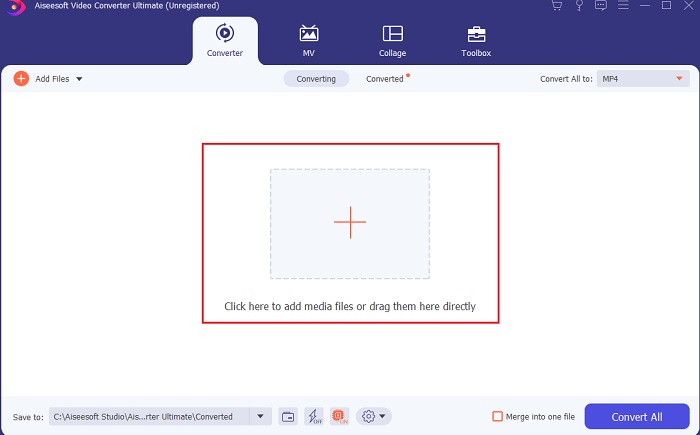
Paso 2. Tras la instalación del conversor, haz clic en Añadir archivos para añadir los archivos AIFF que quieras convertir. Si son muchos archivos en la carpeta, puedes arrastrarlos y soltarlos en la interfaz.
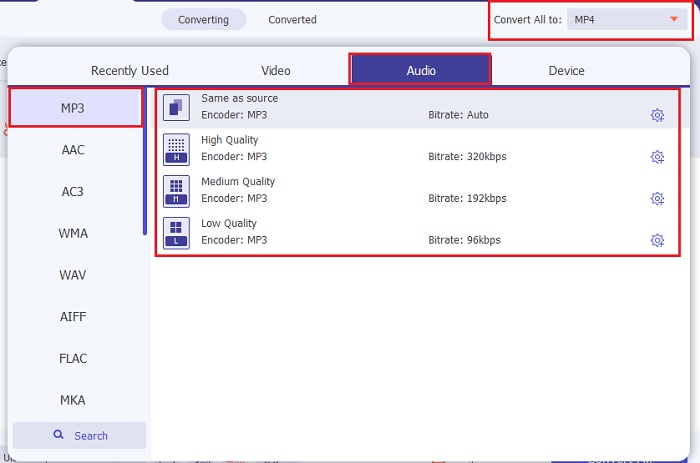
Paso 3. Continúa con el siguiente paso haciendo clic en la opción Convertir todo a. Luego elige el formato de audio al que quieres convertirlos. Por ejemplo, puedes seleccionar MP3 como resultado final.
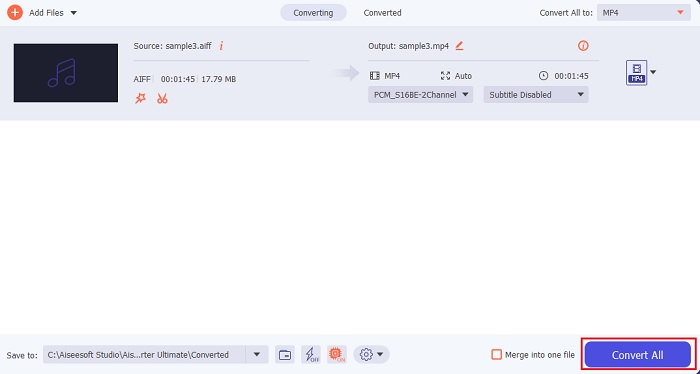
Paso 4. Haz clic en el botón Convertir todo para iniciar la conversión de los archivos AIFF.
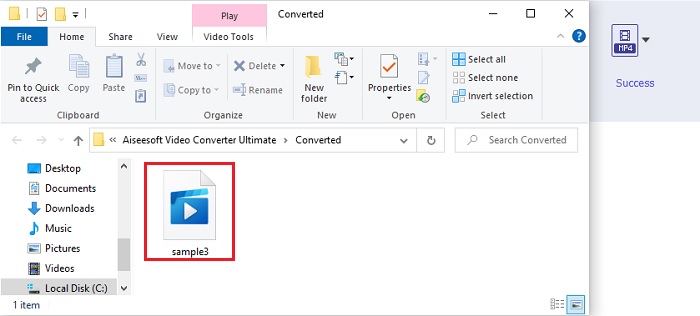
Paso 5. Espera unos segundos a que finalice la conversión y, a continuación, se mostrará una carpeta en tu pantalla. Haz clic en el archivo MP3 recién convertido y escucha el mejor sonido que hayas oído nunca.
2. iTunes
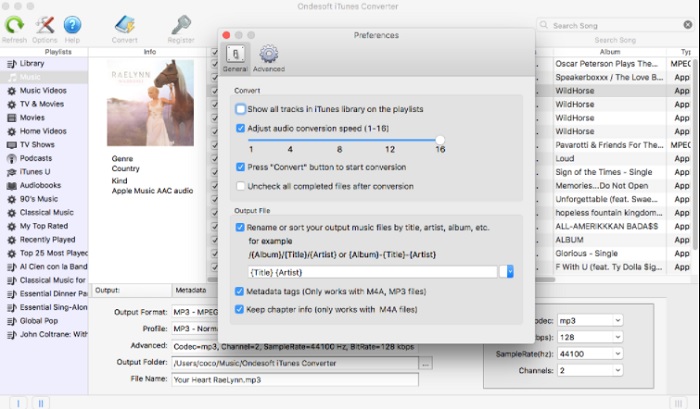
Este reproductor multimedia nativo también puede convertir archivos AIFF a MP3 en Mac, iTunes. Este reproductor multimedia, desarrollado por Apple, es su biblioteca y reproductor de música predeterminados en todos los programas de iOS y Mac. Además, una de las funciones que puedes usar aquí es el conversor. Aunque dispone de funciones de conversión, admite menos formatos que las herramientas en línea. Pero es eficaz y seguro para usar y convertir archivos a un nuevo formato que se pueda reproducir. Asimismo, este reproductor multimedia nativo no se puede usar en productos que no sean de Apple, como Android o Windows. Así que sigue los pasos indicados a continuación para saber más sobre la función de conversión de iTunes.
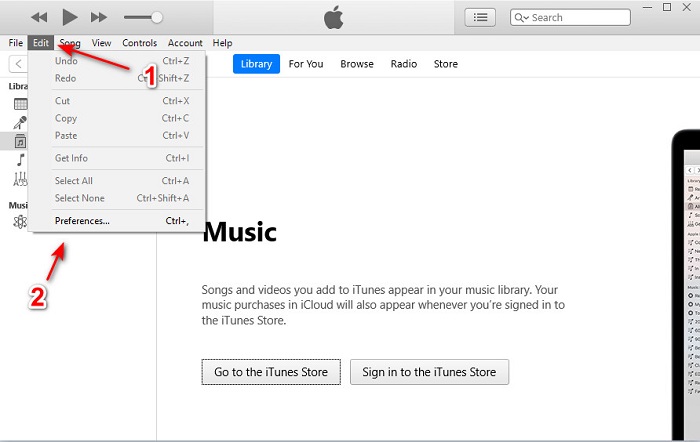
Paso 1. Abre iTunes en tu ordenador y, a continuación, haz clic en Editar y Preferencias.
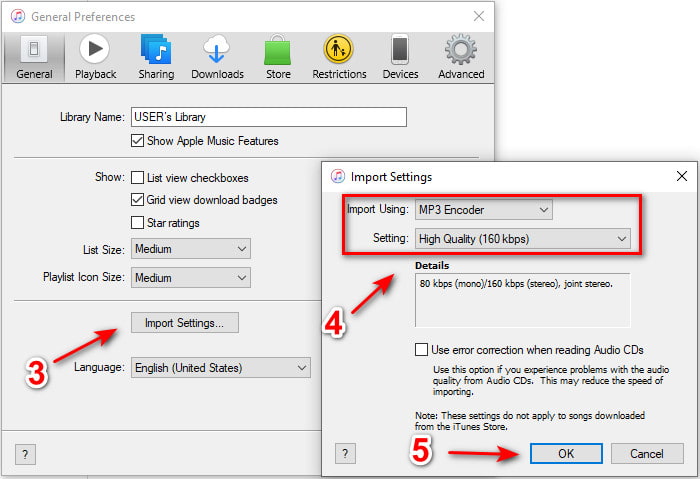
Paso 2. En la pestaña General, haz clic en Ajustes de importación. Aparecerá un menú más pequeño; cambia aquí el formato y la calidad y luego haz clic en Aceptar para guardar.
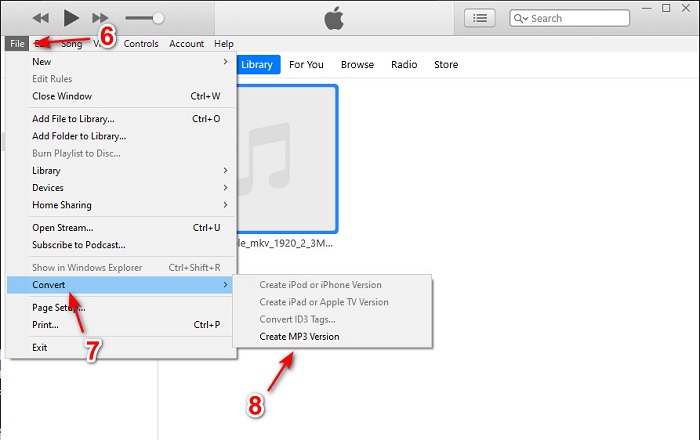
Paso 3. Arrastra el archivo a la interfaz y haz clic en él. Ve a Archivo, Convertir y haz clic en Crear versión en MP3 para iniciar la conversión.
Parte 2. Los 2 principales convertidores en línea gratuitos para convertir AIFF a MP3
1. Convertidor de audio gratuito FVC
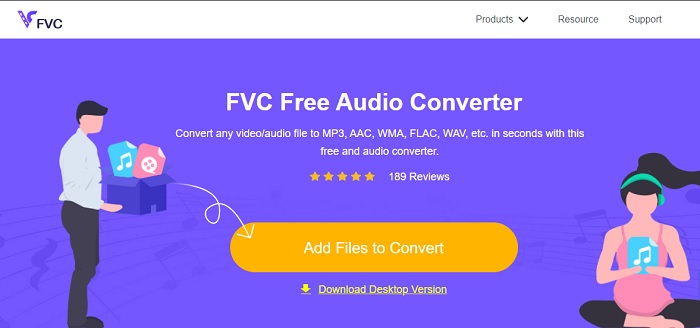
Si conviertes AIFF a MP3 obtendrás un tamaño de archivo inferior a 320 kbps si utilizas este conversor web, FVC Free Audio Converters. Millones de usuarios en la red han utilizado esta solución para convertir formatos de archivo. Aunque esta herramienta no dispone de funciones avanzadas como las que ofrece la versión de pago FVC Video Converter Ultimate porque es gratuita, aún así puedes disfrutar de un nivel medio de conversión definitiva si decides usarla. Además, admite muchos más formatos de audio que iTunes. Sigue los pasos indicados a continuación para aprender a usar esta herramienta web.
Paso 1. Para ir a la página principal del conversor de audio, haz clic en este enlace.
Paso 2. Luego haz clic en el botón Añadir archivos para convertir y permite que la herramienta inicie el lanzador. Información adicional: si es la primera vez que utilizas esta herramienta web, primero debes descargar e instalar el lanzador.
Descarga la versión de escritorio para convertir archivos por lotes.
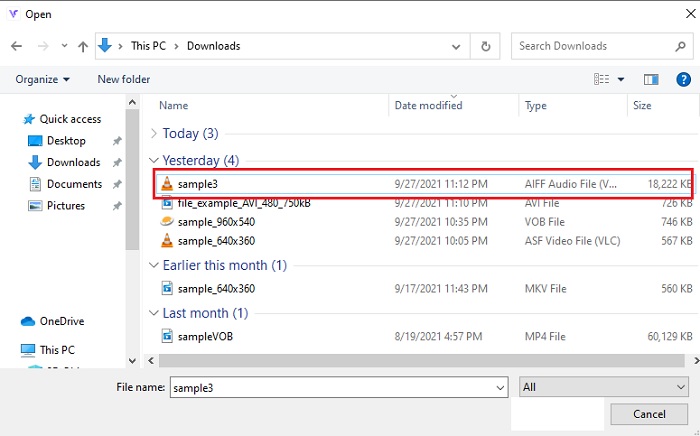
Paso 3. Después de iniciar la herramienta web, debes seleccionar los archivos AIFF y hacer clic en Abrir para que se redirijan a la interfaz principal de la herramienta en línea.
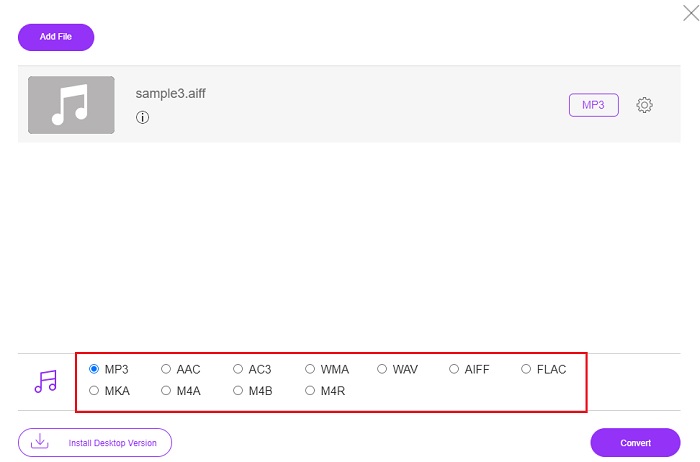
Paso 4. Elige abajo el formato de audio al que quieres convertir. Luego haz clic en el botón Convertir y selecciona el destino del archivo para comenzar el proceso de conversión.
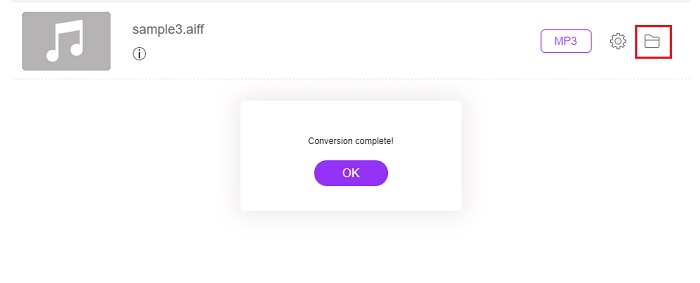
Paso 5. Localicemos el archivo convertido cuando finalice la conversión haciendo clic en la carpeta. Se mostrará un explorador de archivos en tu pantalla; haz clic en el archivo convertido y escúchalo.
2. Zamzar
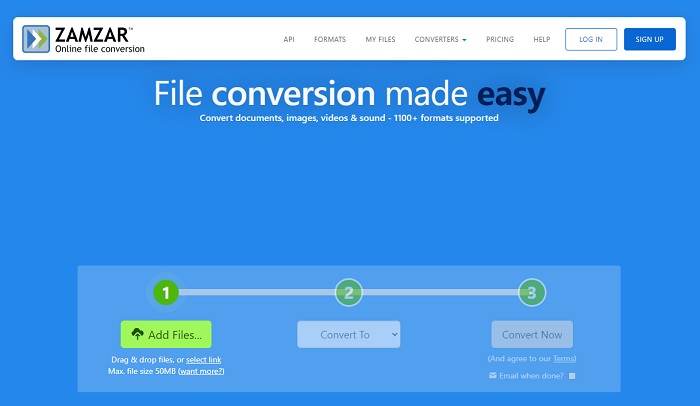
Convertir con Zamzar puede ser la mejor elección que hagas para convertir archivos. Esta herramienta es muy fácil de entender, ya que solo muestra tres pasos o procesos básicos para realizar la conversión. Pero esta herramienta tiene un límite de tamaño de archivo y un número limitado de archivos a convertir. Además, el proceso de conversión aquí es bastante deficiente. Te llevará mucho tiempo y, si la conversión ya ha comenzado, no podrás cancelarla. Así que, antes de poder hacer otra conversión, es mejor que esperes a que termine y luego añadas de nuevo el archivo. Lee los pasos siguientes y síguelos para convertir.
Paso 1. Busca en tu navegador la página principal de Zamzar.
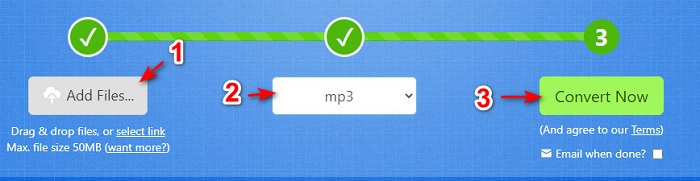
Paso 2. Luego haz clic en Añadir archivo para elegir el archivo de audio que quieras convertir. Elige el formato haciendo clic en Convertir a.
Paso 3. Si estás listo para iniciar la conversión, haz clic en Convertir ahora para empezar el proceso.
Lecturas recomendadas
AIFF frente a MP3
AIFF, el formato de archivo de intercambio de audio, es desarrollado por Apple. Y es una variante del formato IFF. Los archivos AIFF no están comprimidos, por lo que tienen una mejor calidad de audio que los archivos MP3 similares. Eso también puede llevar a los usuarios al problema de que el espacio en disco no es suficiente.
El formato MP3 fue lanzado en 1993 por Moving Picture Experts Group (MPEG). Era el estándar para almacenar música, ya que podía comprimir audio a un tamaño mucho más pequeño que otros formatos sin comprimir. Todavía se usa ampliamente hoy en día, especialmente para distribuir audio en línea.
Parte 3. Preguntas frecuentes sobre AIFF a MP3
¿Cuál es mejor: AIFF o MP3?
Aunque el mismo formato almacena un archivo de audio de calidad, comparemos cada formato. Para abreviar, MP3 produce buena calidad con menos espacio, pero AIFF produce un archivo de audio de alta calidad con más espacio.
¿Cuál es el mejor uso de los archivos AIFF?
Como los archivos AIFF almacenan el archivo de audio natural y de calidad, el tamaño del archivo en este formato es enorme porque no está comprimido. Pero este formato AIFF es ideal para editar y agregar efectos para que el audio suene mejor.
¿Cuáles son las diferencias entre AIF, AIFF y AIFC?
Los archivos AIF se usan más comúnmente para almacenar archivos de audio en CD, DVD, Blu-ray y archivos AIFF que se usan para almacenar datos personales y de sonido, lo que significa que tienen un tamaño de archivo enorme. Pero AIFC es la versión comprimida de AIFF, este formato es el más utilizado por los reproductores multimedia para reproducir el formato .aiff de alta calidad.
Conclusión
Para finalizar, ahora nos resulta más fácil entender qué es un archivo AIFF. Pero, como ya hemos comentado, este formato es muy grande en tamaño y la forma de solucionarlo es convertirlo al formato de audio universal, MP3. Buscar qué herramienta necesitas usar puede ser un poco engorroso porque algunas pueden dañar tus archivos AIFF. Aunque hemos presentado distintas soluciones, sigue habiendo una herramienta que es extraordinaria en la tarea de convertir. FVC Video Converter Ultimate puede ser tu ayuda para resolver este sencillo problema. Entonces, ¿a qué esperas? Descarga ya la herramienta y vive la experiencia de una conversión extraordinaria.
-
 Los 4 mejores métodos para convertir OGG a MP3 sin perder calidad
 ¿Cómo convertir sus archivos OGG a formato MP3 para escucharlos en una computadora o dispositivo móvil? Aquí compartimos 5 formas más fáciles de hacerlo en el escritorio o en línea.
-
 Cómo convertir M4A a MP3 con 4 convertidores de audio gratuitos
 ¿No puede reproducir M4A y necesita convertirlo a MP3? ¿Existe alguna forma gratuita de convertir M4A a MP3 en línea? Esta publicación comparte 4 formas gratuitas de ayudarlo a convertir M4A a MP3 con iTunes, convertidores de audio en línea y profesionales.
-
 Cómo convertir WMA a MP3 en Mac / Windows / Online
 ¿Es posible convertir WMA a MP3 con Windows Media Player? ¿Cómo convertir WMA a MP3 gratis? Esta publicación comparte 4 métodos simples para ayudarlo a realizar la conversión de audio de WMA a MP3 en Mac, PC con Windows y en línea.

