


 Video Converter Ultimate
 Grabador de pantalla
 Reparación de vídeo
Los 6 mejores programas de inversión que puede usar para invertir video en Windows y Mac
Invertir un video puede crear un nuevo mensaje que puede hacer pensar o sorprender a su audiencia. Este efecto de video se ha utilizado para hacer que un video sea interesante y transmitir un mensaje de una manera diferente. Muchos videos musicales como Breezeblock de Aljt se han subido en video inverso a YouTube. Entonces, para saber más sobre cómo revertir videos, siga esta guía. Como te ayuda a hacer la inversión del video más fácil que nunca.

Parte 1. El mejor software sin conexión 1 y 2 y aprenda cómo invertir un video en Windows y Mac
Top 1. Convertidor de video definitivo
Hay muchos editores de vídeo que quieren dominar el mercado, pero el conversor fenomenal sigue siendo la mejor opción. Video Converter Ultimate ya ha sido utilizado y ha ayudado a millones de usuarios con problemas como cómo invertir un vídeo. Esta herramienta te permite hacer la edición por tu cuenta pero con un toque profesional. Aunque no tengas experiencia en edición, esta herramienta es la mejor para ti, incluso si ya tienes experiencia. Además, muchos editores no cuentan con las funciones avanzadas que este software puede ofrecerte. Así que, si quieres saber más sobre este software, veamos los pasos a continuación y sigámoslos correctamente.
Paso 1. Descarga primero el software en tu disco duro, luego instálalo y sigue el proceso de configuración.
Descarga gratuitaPara Windows 7 o posteriorDescarga segura
Descarga gratuitaPara macOS 10.7 o posteriorDescarga segura
Paso 2. A continuación, inicia la herramienta y, en la Caja de herramientas, busca Video Reverser.
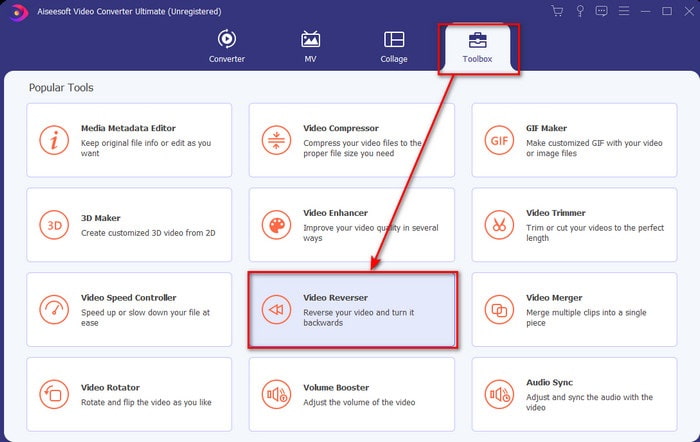
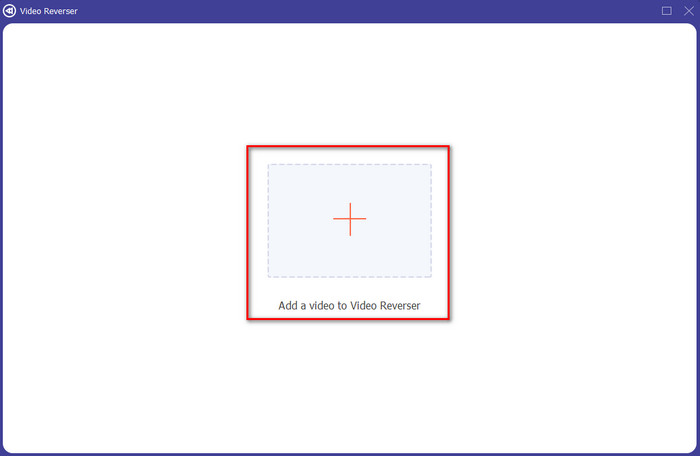
Paso 3. Haz clic en el símbolo + y elige en la carpeta el vídeo que quieres invertir. Luego haz clic en Open para proceder al siguiente paso.
Paso 4. Después ajusta la duración del vídeo moviendo el playback in and out. Para descargar el vídeo invertido, haz clic en Export.
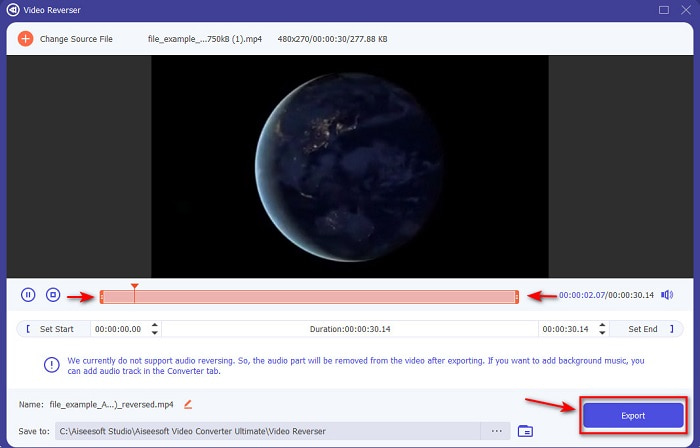
Paso 5. Espera unos segundos a que termine la exportación; cuando haya finalizado, ya podrás volver a ver el vídeo haciendo clic en el archivo invertido en la carpeta. Y disfruta del efecto de inversión sin retrasos que te ofrece Ultimate Converter Ultimate.
Pros
- La salida final profesional se puede ejecutar fácilmente si utiliza esta herramienta.
- Tiene muchas características sorprendentes para hacer que su video sea fenomenal.
- Se puede realizar una inversión ilimitada en esta herramienta.
Contras
- Debe descargarse primero antes de poder usarlo.
- No es gratis, pero vale la pena si compras esta herramienta profesional fenomenal.
Relacionado:
Top 2. Creador de videos fácil
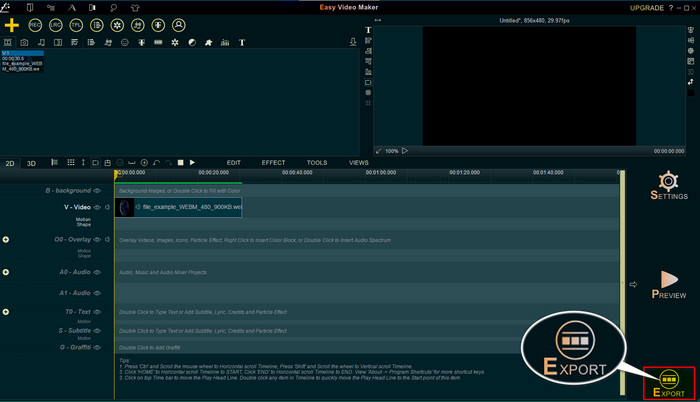
Easy Video Maker es una práctica herramienta que puedes usar y que ofrece una edición de vídeo de nivel medio que puedes necesitar. Además, puedes utilizarla para mejorar el aspecto visual de tu vídeo, ya que admite transiciones, efectos, combinación y mucho más. Sin embargo, la interfaz de la herramienta parece sacada de los años 90, ya que se ve muy anticuada. También es difícil de usar para crear y editar un vídeo, aunque su rendimiento es bueno. Y el formato que admite esta herramienta para el archivo final es MP4. Así que, si quieres utilizar esta herramienta, sigue los pasos que se indican a continuación.
Paso 1. Descarga desde la web la versión oficial de Easy Video Maker.
Paso 2. A continuación, inicia la herramienta, haz clic en el botón add y en Import/ Add Video. Arrastra el archivo a la Línea de tiempo (Timeline) y haz clic derecho en el vídeo. Haz clic en Reverse Playback para invertir el vídeo.
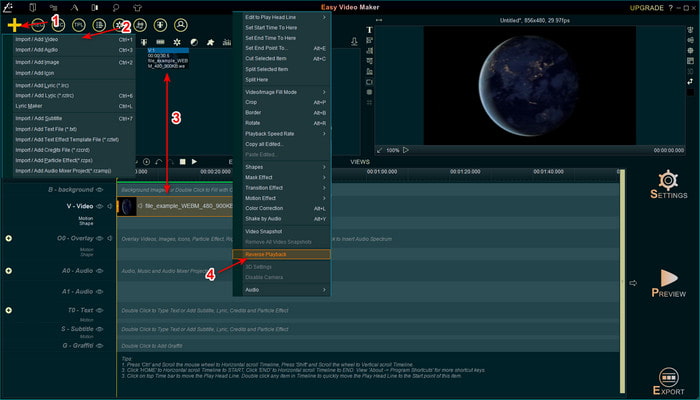
Paso 3. Pulsa Export para guardar el archivo en tu unidad.
Pros
- La herramienta se puede descargar gratis.
- Es compatible con la edición de nivel medio que necesitará.
- Aprender a usar esto llevará algún tiempo, pero te acostumbrarás.
Contras
- El inicio de la herramienta se carga mucho más de lo esperado y la interfaz parece demasiado antigua. No se siente retro, sino literalmente antiguo.
- No puedes exportar más de 5 minutos de video a su versión gratuita.
Parte 2. Las 3 y 4 mejores herramientas en línea para invertir un video
Top 3. Ezgif
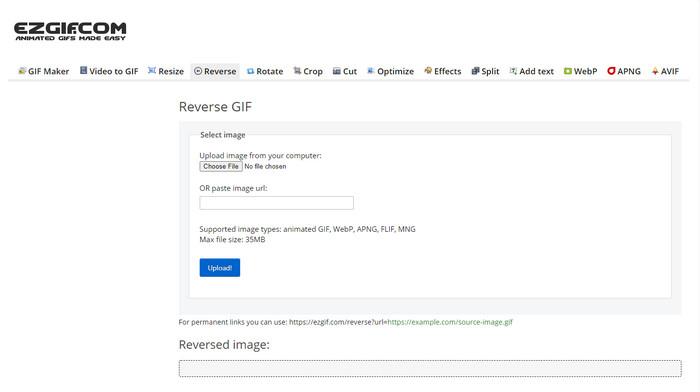
Ezgif tiene una función que puedes usar para invertir clips gratis en línea. Además, cuenta con otras funciones de edición, como crear GIF, cambiar el tamaño, recortar, optimizar y más. Sin embargo, si intentas insertar en la herramienta web un archivo de más de 35 MB, verás que la herramienta no permitirá invertirlo porque es demasiado grande. Por lo tanto, si tu intención es invertir un vídeo largo, esta herramienta no es la mejor opción porque tiene limitaciones. Aun así, el rendimiento de su función de inversión es excelente para invertir clips gratis.
Pros
- No es necesario descargarlo en su escritorio.
- Flexible y eficiente.
- Fácil de usar.
Contras
- Limita su inversión a solo 35 MB, que es muy pequeño para usar.
- Descargar el archivo inverso en su disco lleva mucho más tiempo de lo esperado.
Top 4. Clideo
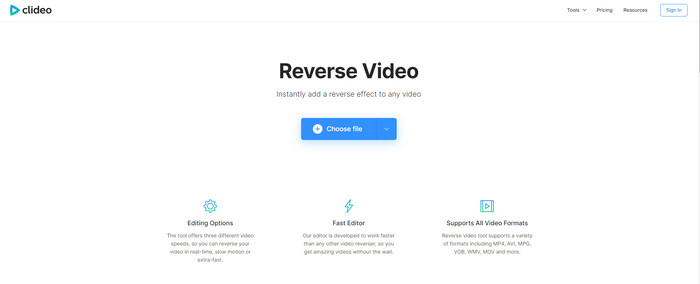
Otra herramienta online que puedes usar para rebobinar vídeos es Clideo. El aspecto visual de la herramienta es muy minimalista, pero está muy bien. El diseño general de la herramienta es más limpio que el de Ezgif y tiene un aire más profesional. Pero, como se suele decir, no te dejes engañar por las apariencias: la subida de archivos aquí es muy lenta, especialmente si tu archivo supera los 40 MB. Por ello, asegúrate de tener mucho tiempo libre y paciencia para esperar solo a que se cargue el archivo. Sin embargo, incluye muchas funciones de edición que puedes usar para mejorar tu vídeo gratis.
Pros
- Gratis para ser utilizado por cualquier persona que tenga una conexión a Internet.
- La interfaz de usuario web es generalmente excelente.
- Increíbles funciones de edición están disponibles.
Contras
- Cargar y descargar el video para revertir tomará mucho más tiempo del esperado.
- Se incluye una gran marca de agua después de exportar el video inverso.
Parte 3. Las 5 y 6 mejores aplicaciones para invertir un video en iPhone/Android
Top 5. Video inverso: reproducir hacia atrás 4+
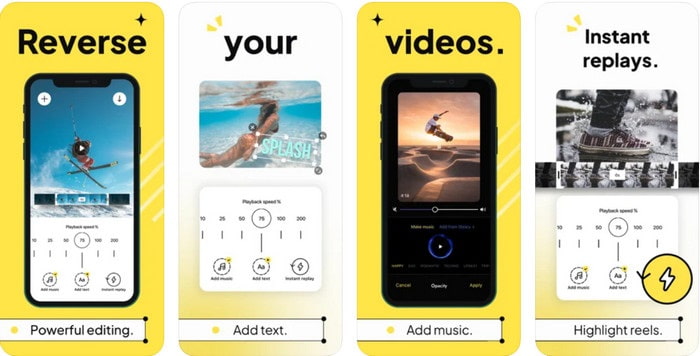
Reverse Video: Play Backwards 4+ solo está disponible para usuarios de iOS y se utiliza para editar vídeos al revés. La interfaz de esta app es fácil de entender, además puedes añadir texto y música de fondo. Aunque puedes descargar la herramienta gratis, muchas reseñas sobre esta app afirman que se trata de una estafa para sacar dinero. También comentan que se ven obligados a dejar una reseña de 5 estrellas para poder acceder a las funciones de la herramienta. No obstante, si quieres probarla por ti mismo, no esperes nada extraordinario, porque esta herramienta no es la mejor opción para invertir vídeos.
Pros
- Ya logra 4.5 estrellas en calificación.
- La inversión de video aquí es buena para ser utilizada.
Contras
- La mayoría de las reseñas aquí no hablan de la aplicación. Y la mayoría son repetitivos que hablan de tonterías.
- Se tarda una eternidad en cargar un solo archivo.
- La calidad del video exportado gratis es mala.
Top 6. Reverse Movie FX - video mágico
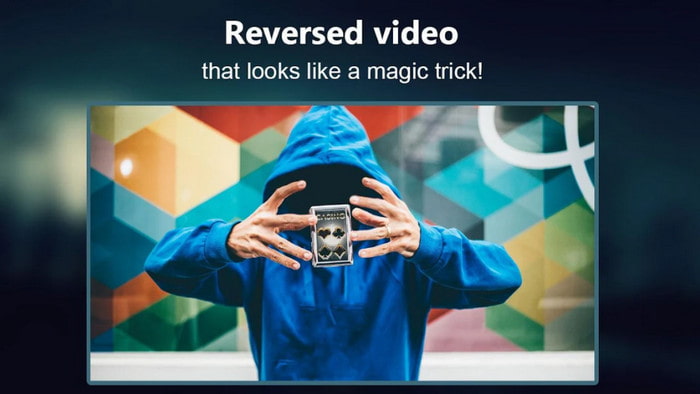
Puedes invertir películas con la ayuda de esta app para Android que puedes descargar en Play Store, Reverse Movie FX - magic video. Ya la han usado muchos usuarios a los que les encanta crear películas en reversa; también incluye funciones de bucle y música de fondo. Aunque la herramienta parece impecable, la calidad del vídeo del archivo de salida disminuye. Básicamente, si inviertes un vídeo en 1080, espera obtener 720 o menos. Además, contiene anuncios, así que ten cuidado porque algunos aparecen de repente. Aun así, invertir vídeos aquí es fácil y mejor que en Reverse Video: Play Backwards 4+.
Pros
- Es genial crear un clip inverso, una película o un video en su teléfono.
- Interfaz de usuario fácil de entender.
- 4,5 estrellas en las reseñas de aplicaciones.
Contras
- La aplicación tiene muchos anuncios emergentes de la nada.
- Los errores menores y mayores todavía están en la aplicación. Por ejemplo, si intenta revertir un video, a veces dice error.
Parte 4. Preguntas frecuentes sobre el video inverso
¿Cuál es la diferencia entre invertir y revertir?
Invierta el enfoque en convertir algo en un lado diferente u otra posición; podría estar al revés o al revés. Por ejemplo, si invierte el número 12, el resultado será 21. Mientras que la inversión es de una dirección, regresa a la dirección original. Por ejemplo, si el reloj está en reversa contará hasta 12, 11, 10, 9, 8, 7, 6 y así sucesivamente.
¿Se puede usar el efecto de rebobinado de video como transiciones?
Sí, en lugar de usar una buena transición animada antigua, ¿por qué no intenta explorar el arte de rebobinar el video? Simplemente agregando reversa puede ser muy efectivo, especialmente si no tienes tanta experiencia en la edición de videos. Y simplemente usando esto como su transición, puede hacer un gran video que puede sorprender a otras personas, incluso a usted. Luego agregue música de fondo como toque final para hacerlo más fabuloso.
¿Puedo ver un video al revés en VLC?
Sí, ya puede ver clips inversos, películas o cualquier tipo de video en VLC. Pero si no está prefabricado o deberíamos decir que no está ya al revés cuando lo juegas allí. Entonces es triste decir que no admite la reproducción de videos en reversa. Entonces, antes de reproducirlo en VLC, inviértalo con la ayuda de la herramienta en la lista.
Conclusión
Como resultado de tu paciencia al leer y seguir cuidadosamente los pasos de este artículo sobre cómo invertir un vídeo, ahora tienes los conocimientos y las capacidades para hacer tus propias inversiones. Así que ahora debes elegir el mejor software para invertir y conseguir el mejor efecto para que tu vídeo destaque. Y antes de nada, el mejor inversor de esta lista no es otro que el fenomenal Video Converter Ultimate. Así que ahora es el momento perfecto para descargarlo, probarlo y aplicar por tu cuenta el efecto de inversión aquí.
Descarga gratuitaPara Windows 7 o posteriorDescarga segura
Descarga gratuitaPara macOS 10.7 o posteriorDescarga segura
-
 Cómo unir videos VOB desde DVD en Windows y Mac
 ¿Cómo unir videos VOB desde DVD en Windows y Mac? Aquí hay 2 métodos eficientes para combinar los archivos VOB extraídos y fusionarlos directamente desde un DVD.
-
 Las 6 mejores fusiones de AVI: cómo unir archivos de video AVI en Windows y Mac
 Cuando desee unir videos AVI para un DVD, puede conocer las características de los 6 mejores ensambladores de AVI, incluidas las herramientas en línea gratuitas, así como los programas de escritorio del artículo.
-
 [Guía] 2 métodos definitivos para unir videos MXF de Sony X70
 Si ha tomado algunos videos MXF de Sony X70, ¿cuáles son los mejores métodos para unir archivos MXF? Aquí están los 2 métodos eficientes para combinar los videos con alta calidad.
