


 Video Converter Ultimate
 Grabador de pantalla
 Reparación de vídeo
 Descarga segura
Cómo editar archivos WAV para una edición rápida de audio de alta calidad
Los archivos WAV son el formato de archivo de audio más popular y se consideran la forma ideal de contener música o grabaciones con diferentes tasas de bits. Unos formatos de archivo mejores equivalen a mayor calidad, y editar archivos WAV puede contribuir a mejorarlos mucho más. Pero ¿cómo puedes asegurarte de que no estás arruinando la calidad de tu archivo WAV sin saberlo? No te preocupes, esta guía te dará respuestas sobre qué software o herramientas son las mejores para editar tus archivos WAV. Hemos reunido cuatro métodos basados directamente en nuestra experiencia al utilizarlos. Además, en esta guía, tanto si eres un principiante como si ya tienes experiencia, aprenderás paso a paso cómo editar archivos WAV de forma eficaz sin estropearlos.

Parte 1. La mejor manera de editar WAV con el editor WAV con todas las funciones
FVC ha navegado por Internet para encontrar la forma perfecta de editar WAV que merezca aparecer en este artículo para que tú no tengas que hacerlo. Para nuestra sorpresa, nos encontramos con este Video Converter Ultimate seleccionado por FVC, que es fácil de usar y tiene una interfaz sencilla que ofrece herramientas completas, como la posibilidad de cortar, dividir, unir, amplificar el volumen, etc. Editar archivos WAV con este software excepcional para Windows y Mac, con más de cinco millones de descargas, genera confianza no solo para la edición de WAV, sino que también funciona como conversor y herramienta de edición de vídeo.
Funciones clave:
• Editor WAV versátil y fácil de usar.
• Herramientas destacadas como cortador de audio, fusionador, compresor, eliminador de ruido, amplificador de volumen, etc.
• Compatible con más de 1000 formatos de audio/video, como MP3, AAC, WMA, WAV y más.
• No hay límites de tamaño de archivo al cargar su WAV.
Paso 1. Descarga e instala aquí el Video Converter Ultimate seleccionado por FVC.
Descarga gratuitaPara Windows 7 o posteriorDescarga segura
Descarga gratuitaPara macOS 10.7 o posteriorDescarga segura
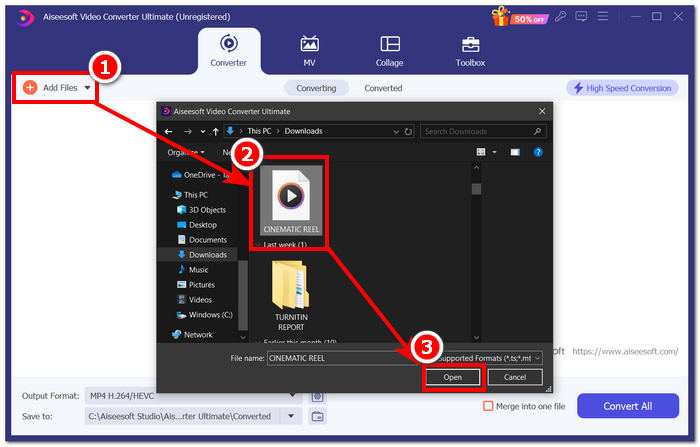
Paso 2. En la interfaz de la herramienta, haz clic en el botón Añadir archivos para añadir tu archivo WAV al software.
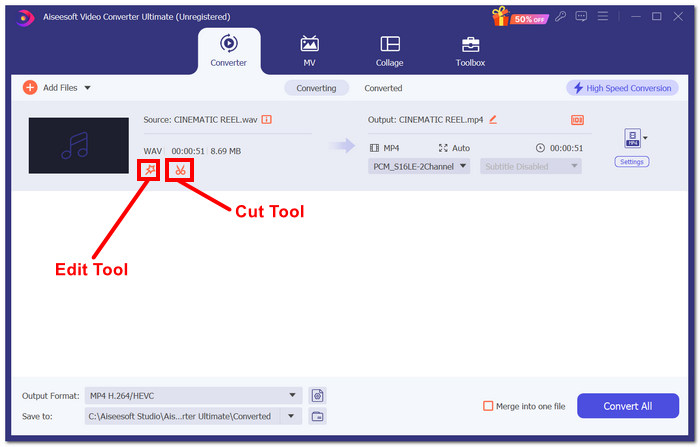
Paso 3. Una vez que tu archivo WAV esté en la herramienta, podrás editarlo haciendo clic en las herramientas Editar y Cortar situadas justo al lado de tu archivo WAV cargado.
Nota:
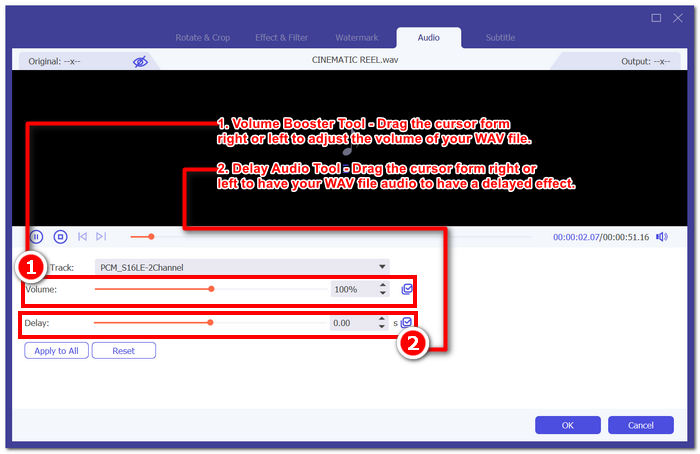
La herramienta Editar es un ícono con forma de varita mágica y alberga las funciones Amplificador de volumen y Retardo de audio.
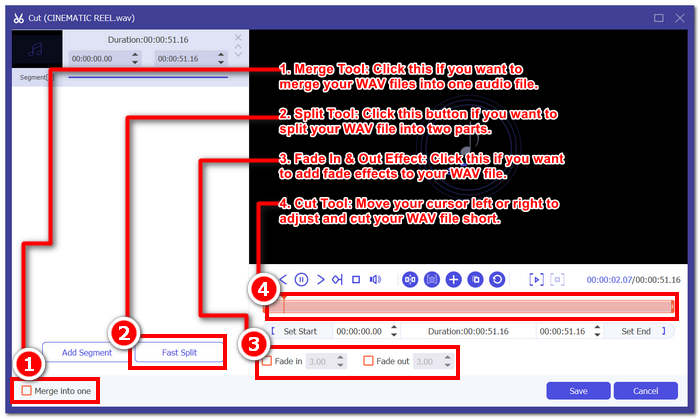
La herramienta Cortar es el ícono de tijera y contiene los efectos Cortar, Dividir, Fusionar y Agregar fundido.
Paso 4. Para editar tu archivo WAV, haz clic en el icono con forma de varita mágica para usar la función de amplificador de volumen y arrastra el cursor de volumen a la izquierda o a la derecha para ajustar el volumen, o introduce directamente el volumen que desees. Si quieres corregir el retardo del audio, arrastra el cursor de retardo para ajustar la sincronización del audio. Una vez hecho esto, haz clic en el botón Aceptar.
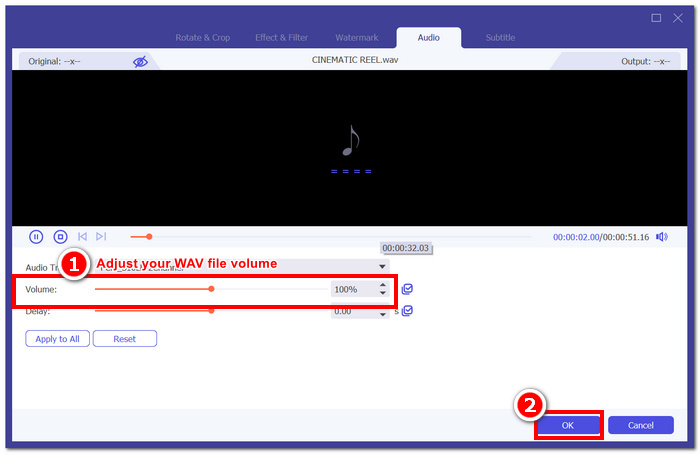
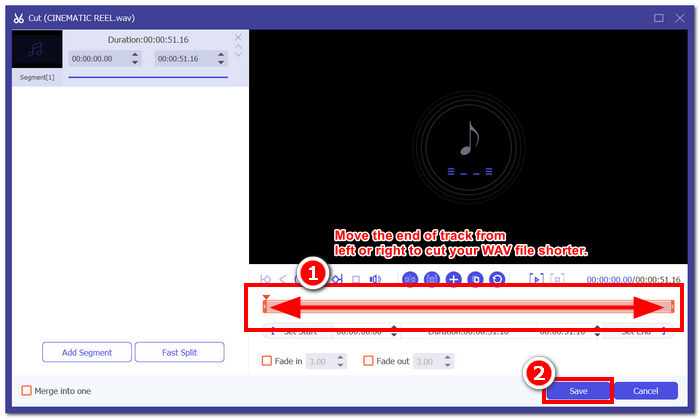
Por otro lado, para cortar el archivo WAV, haz clic en el botón de tijeras y simplemente arrastra el cursor hacia la pista de izquierda a derecha para acortar el archivo WAV. Una vez que hayas terminado de cortar el archivo WAV, procede a hacer clic en el botón Guardar.
Paso 5. Una vez que hayas Editado y Cortado tu archivo WAV a tu gusto, haz clic en el botón Convertir todo para descargarlo en la carpeta de descargas designada de tu escritorio.

Nuestra experiencia en la edición de un archivo WAV con el software elegido por FVC nos ahorra tiempo y hace honor a su reputación, ya que seguir los pasos anteriores nos ayuda a realizar la tarea sin problemas. Además, al usar el software, notamos que está repleto de otras funciones para la edición de video y audio. En general, esto nos brinda muchas opciones para elegir qué más podemos hacer para editar nuestros archivos WAV.
Parte 2. Edite un archivo WAV en Windows 7/8/10/11 con la herramienta integrada
Método 1. Editar archivos WAV en Windows Media Player con un complemento
Windows Media Player, un reproductor multimedia integrado en los dispositivos Windows, también se puede utilizar como editor de archivos WAV mediante un complemento. Para ello, el complemento SolveigMM WMP Trimmer está disponible para descargar en Microsoft Store de forma gratuita y así poder cortar y editar su archivo WAV.
Paso 1. Ve a Microsoft Store de Windows y descarga desde allí el complemento SolveigMM WMP Trimmer Plugin.
Paso 2. Una vez instalado el complemento, abre Windows Media Player, haz clic en la sección Herramientas situada en la parte superior del reproductor y, a continuación, haz clic en Complementos para habilitar SolveigMM WMP Trimmer Plugin.
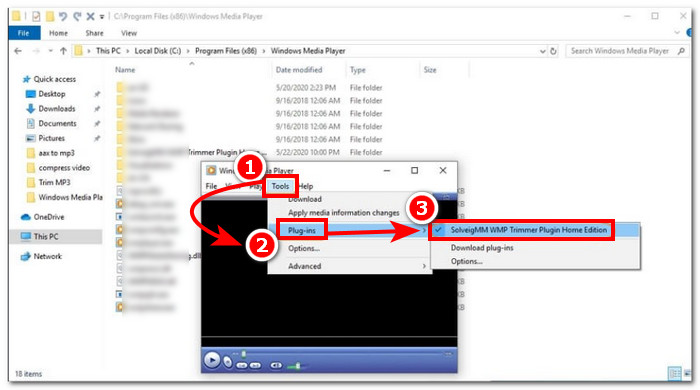
Paso 3. Una vez habilitado el complemento, procede a subir tu archivo WAV haciendo clic en la carpeta Archivo situada en la esquina superior izquierda del reproductor o en el icono de Carpeta situado en la parte inferior izquierda del reproductor para cargar tu archivo WAV. Una vez que el archivo WAV esté cargado en el reproductor, haz clic en el botón Editar archivo para pasar a la edición propiamente dicha del WAV.
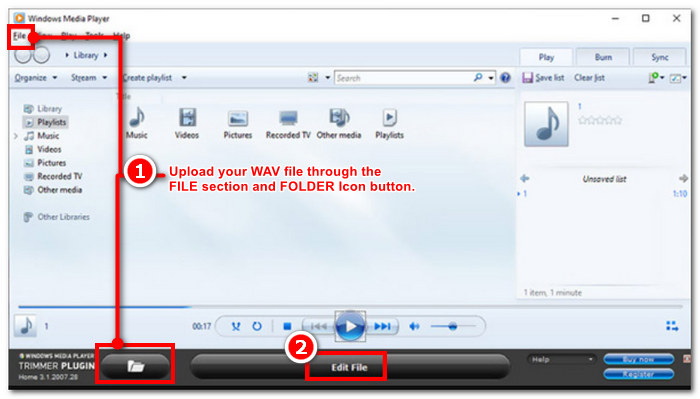
Paso 4. Ahora puedes realizar tareas de edición, como recortar tu archivo WAV ajustando las barras de recorte de izquierda a derecha. Cuando estés satisfecho con la duración de tu archivo WAV, haz clic en el botón Recortar para guardarlo de forma predeterminada en la misma carpeta que tu WAV.
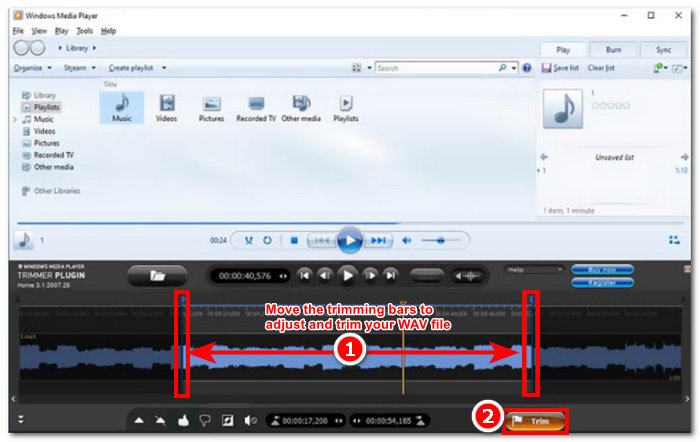
Ahora que ha editado su archivo WAV, en este caso, realice el recorte a través del Reproductor de Windows Media con la ayuda de complementos. Ahora puede editar su archivo WAV a través del reproductor integrado. Los complementos pueden resultar útiles para la comodidad del usuario, pero no son totalmente gratuitos, ya que solo vienen con funciones de edición limitadas en comparación con su versión de pago.
Método 2. Editar las propiedades de los archivos WAV con el Explorador de archivos
Si en general te resulta difícil manejar herramientas de software, también tenemos algo para que puedas editar archivos WAV usando la herramienta incorporada en tu Windows 7/8/10/11. Aunque parezca mentira, Windows no dispone de un software o funciones preinstaladas que permitan editar libremente tu archivo WAV, pero aún es posible editar la información de tu archivo WAV modificando sus propiedades mediante el método predeterminado. En resumen, utilizar el método predeterminado es una forma de editar la información de tu archivo WAV ajustando las propiedades cuando visualizas el archivo. Por lo tanto, a continuación enumeraremos los métodos para editar las propiedades de la información de tu archivo WAV.
Paso 1. Abre el Explorador de archivos y localiza el archivo WAV que quieres editar.
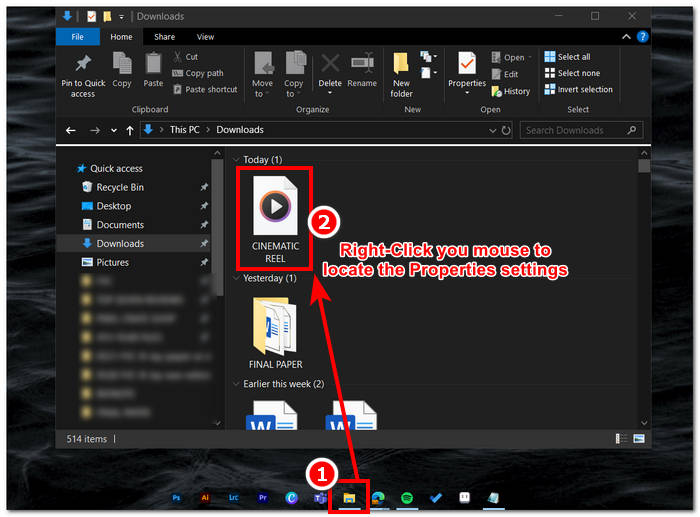
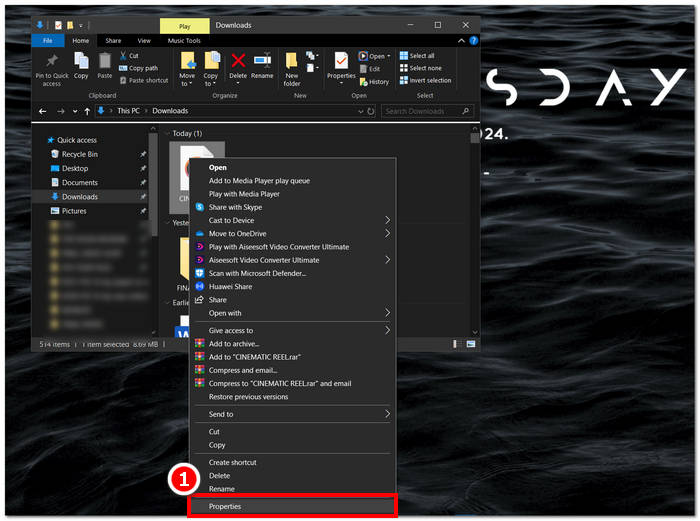
Paso 2. Una vez localizadas las Propiedades, haz clic en ellas y aparecerá una ventana con la información de tu archivo WAV.
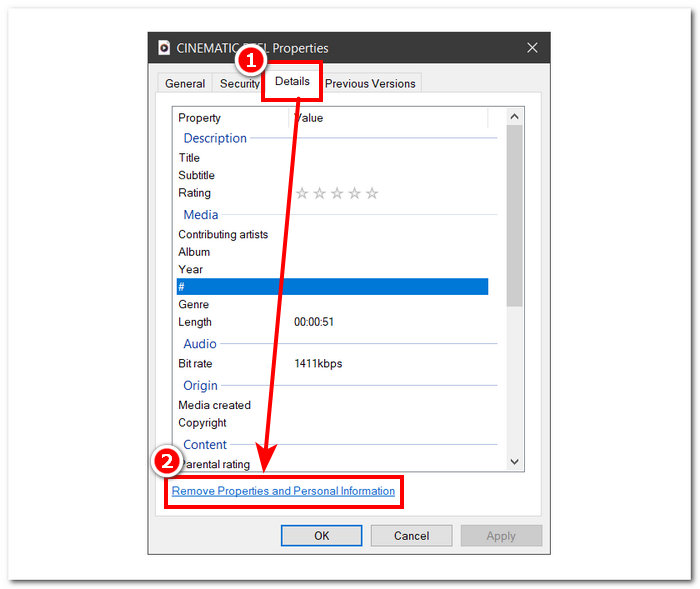
Paso 3. En la nueva ventana que se abre, haz clic en Detalles y luego en Quitar propiedades e información personal en la parte inferior de la ventana.
Paso 4. Selecciona la segunda opción: Quitar las siguientes propiedades de este archivo, luego haz clic en el botón Seleccionar todo. Por último, haz clic en el botón Aceptar para restablecer los detalles de la información de tu archivo WAV a su configuración predeterminada.
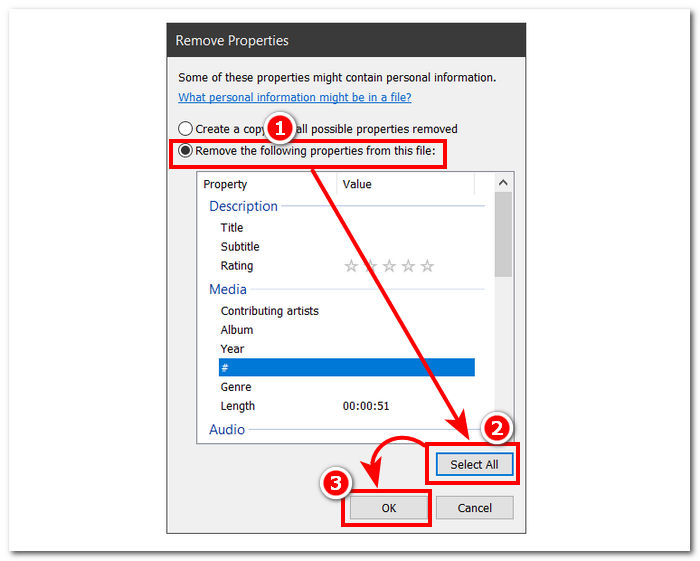
Recuerda que este método es exclusivo para usuarios de Windows y no permite ajustar el archivo de audio, sino las propiedades de la información. En general, utilizar el método predeterminado para restablecer la información de tu archivo WAV es conveniente. Sin embargo, cuando quieras completar los detalles de la información de tu archivo WAV, no hay otra forma que utilizar un software para ello, en este caso, el software seleccionado por FVC.
Parte 3. Editar archivos WAV en Mac con GarageBand
Nos topamos con un software que también tiene una versión para aplicaciones móviles. GarageBand es una herramienta popular para dispositivos macOS e iOS que ofrece un editor de audio con todas las funciones. La herramienta ofrece ajustes predefinidos y se integra con controles inteligentes. Además, a continuación enumeramos un método simple para usar GarageBand; en este caso, usaremos la versión para macOS.
Paso 1. Descarga GarageBand en tu dispositivo macOS y, una vez que hayas completado la instalación del software, ábrelo.
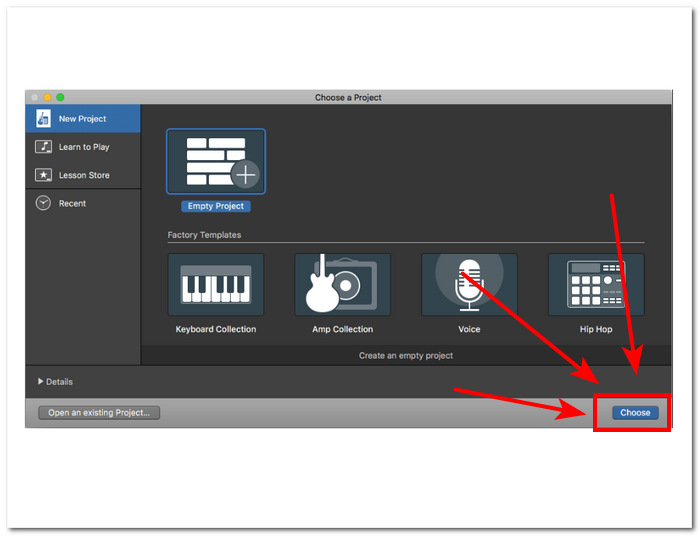
Paso 2. Carga tu archivo WAV en el software haciendo clic en el botón Elegir. Una vez que tu archivo WAV esté cargado en la herramienta, procede a hacer doble clic en la pista para que la ventana del Editor de audio aparezca en la parte inferior de la interfaz.
Paso 3. Edita tu archivo WAV explorando las secciones Pista y Región situadas en la parte inferior del software.
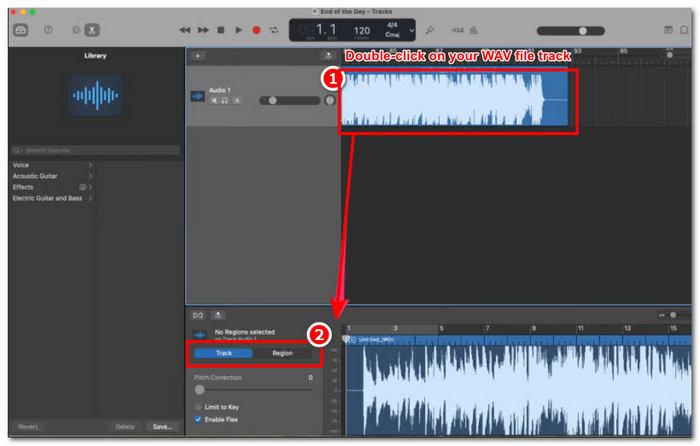
La sección Pista es responsable de editar el tono de tu archivo WAV y sirve como corrector.
La sección Región alberga los ajustes de transposición, esto puede ayudar al usuario a invertir la reproducción del archivo WAV.
Paso 4. Cuando estés satisfecho con los cambios realizados en tu archivo WAV, exporta tu archivo haciendo clic en Compartir > Exportar canción a disco y elige dónde quieres guardar tu archivo WAV editado.
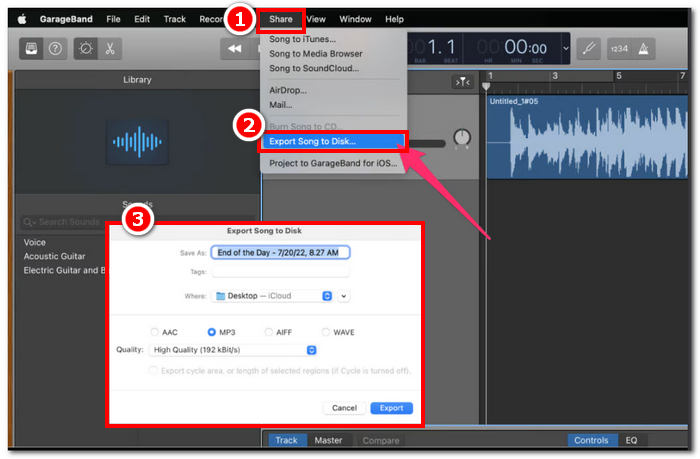
GarageBand es un software confiable para editar archivos WAV en macOS e iOS. Por lo tanto, si buscas funciones más avanzadas, te recomendamos usar la versión GarageBand para macOS. En general, ambas versiones son excelentes para la edición de audio básica y de nivel medio, pero ten en cuenta que debes tener un cierto conocimiento de la interfaz de la herramienta para evitar confusiones.
Parte 4. Editar archivos WAV con un editor en línea
Otro método para editar un archivo WAV es utilizar una herramienta en línea que pueda realizar ediciones básicas. TwistedWave surgió como un editor de audio basado en la web que no solo funciona como editor en línea, sino que también permite a los usuarios editar audio WAV. Además, a pesar de su interfaz obsoleta, es una herramienta WAV confiable y tiene uno de los diseños más simples entre las herramientas de edición WAV basadas en la web que encontramos.
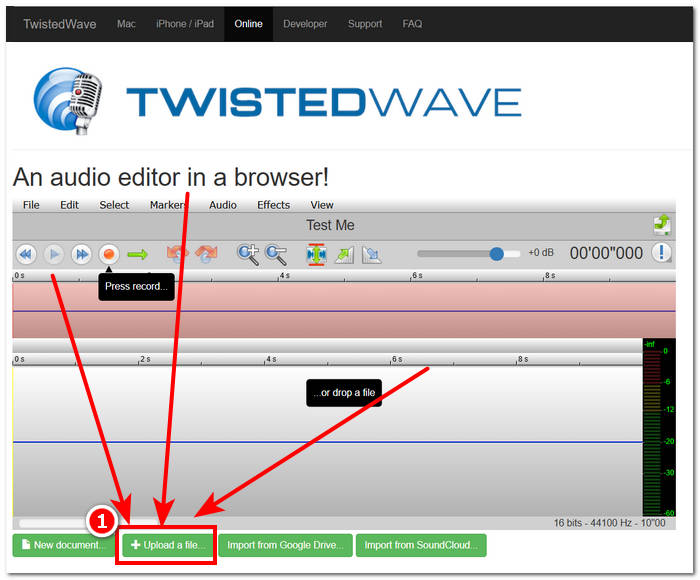
Paso 1. Ve al sitio web oficial de TwistedWave y haz clic en el botón Subir un archivo para seleccionar en tu escritorio el archivo WAV que quieres editar en la herramienta.
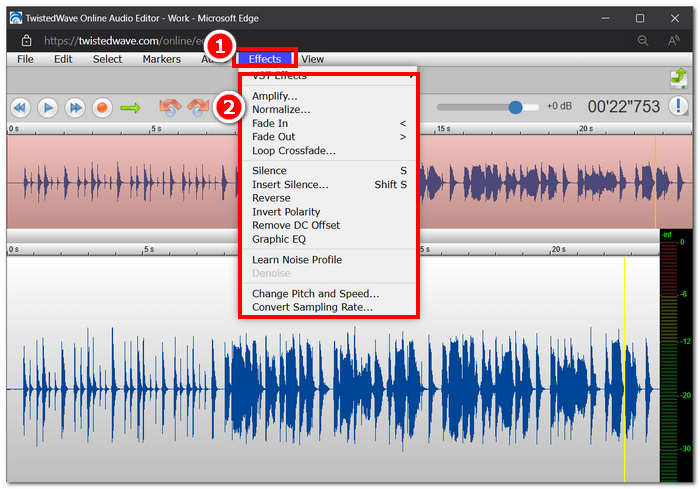
Paso 2. Una vez que tu archivo WAV esté en la herramienta, haz clic en la sección Efecto situada en la parte superior de la interfaz de la herramienta. Elige las acciones que desees entre los efectos disponibles que quieras aplicar a tu archivo WAV.
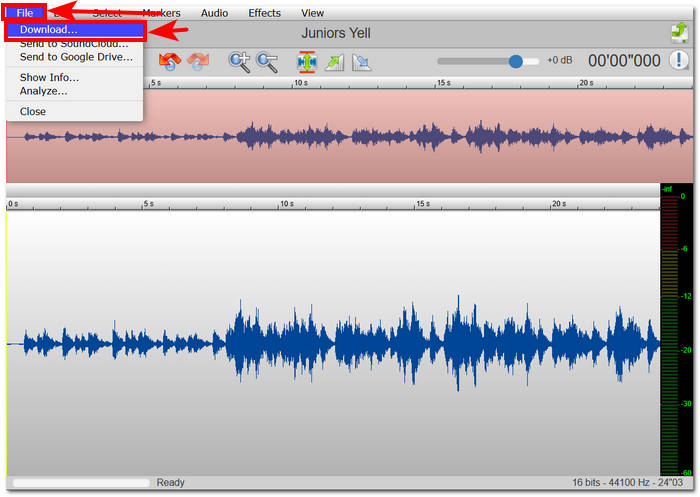
Paso 3. Una vez que hayas seleccionado los efectos que quieres en tu archivo, procede a descargar tu WAV editado. Para ello, haz clic en la sección Archivo en la esquina superior izquierda de la herramienta y haz clic en Descargar para exportar el archivo WAV a tu carpeta de descargas.
Para editar archivos WAV en línea, TwistedWave es la forma más sencilla de procesar un archivo WAV en el servidor, por lo que no es necesario descargar ningún software. A pesar de su uso conveniente, solo permite al usuario editar un archivo en la cuenta gratuita durante un máximo de cinco minutos.
Parte 5. Preguntas frecuentes sobre la edición de archivos WAV
¿Microsoft tiene un software de edición de audio?
Al momento de crear esta guía, Microsoft no contaba con un software de edición de audio dedicado, al igual que con un editor de archivos WAV. Para tareas como modificar el audio y aplicar efectos, se recomienda utilizar el software seleccionado por FVC y Audacity.
¿Puedes recortar un archivo WAV en Windows Media Player?
No, Windows Media Player no tiene capacidad para realizar esa tarea. Para recortar tu archivo WAV en el escritorio necesitas software de terceros, como GarageBand para macOS y el software seleccionado por FVC para Windows.
¿Cuál es la aplicación de edición de audio más sencilla para Mac?
GarageBand es sin duda la más sencilla, con un diseño de interfaz simple. Es ampliamente conocida entre los usuarios de macOS, por no hablar de los entusiastas de la música y los productores novatos. Esta herramienta ofrece funciones avanzadas y sólidas y viene preinstalada en macOS para un acceso instantáneo al servicio.
¿Para qué se utilizan comúnmente los archivos WAV?
Los archivos WAV se asocian comúnmente con el uso profesional en procesos de audio, grabación y edición. Conocido por su calidad sin pérdida y su naturaleza sin compresión, WAV es un formato ideal para exportar WAV y otros proyectos de audio.
¿Un archivo WAV es digital o analógico?
Un archivo WAV es un formato digital para almacenar datos de sonido que se pueden compartir a través de computadoras y otros dispositivos. Por lo tanto, contiene ondas de sonido analógicas, pero en formato digital.
Conclusión
Editar archivos WAV utilizando el software y las herramientas adecuadas garantiza un audio de mayor calidad. Por lo tanto, sigue los distintos pasos para editar archivos WAV, incluyendo el software completo recomendado, los métodos integrados para Windows, GarageBand para usuarios de macOS e iOS y, por último, las herramientas basadas en la web.
-
 WAV Player: las 5 mejores aplicaciones WAV Player para Android, iPhone, PC y Mac
 ¿Cómo reproducir archivos WAV en un teléfono Android? ¿Qué jugador puede reproducir WAV? Esta publicación comparte los 5 mejores reproductores WAV gratuitos para Android, iPhone, Mac y PC.
-
 Los 6 mejores grabadores WAV gratuitos disponibles para Windows y Mac
 El mejor software de grabación WAV que compartimos en este artículo tiene una variedad de funciones útiles que lo ayudan a capturar audio y voz como profesionales.
-
 Las 5 mejores grabadoras de teclado y mouse para Windows y Mac
 Estos son los cinco mejores programas de grabación de teclado y mouse que pueden guardar los movimientos del mouse y los clics del teclado, y repetir los eventos.
