


 Video Converter Ultimate
 Grabador de pantalla
 Reparación de vídeo
 Descarga segura
3 métodos definitivos para editar archivos WMA fácilmente [2024]
Los archivos WMA, o Windows Media Audio, son un formato popular de compresión de audio que proporciona sonido de alta calidad manteniendo un tamaño de archivo manejable. Editar estos archivos puede parecer abrumador, lo cual es un problema habitual para algunos usuarios que necesitan modificarlos. Pero con las herramientas y técnicas adecuadas, editar archivos como estos es pan comido. En esta guía, te mostraremos tres métodos eficaces para editar archivos WMA en diferentes plataformas, como Windows, macOS y en línea. Tanto si eres principiante como si ya tienes experiencia editando audio, encontrarás en este artículo la solución perfecta para tus necesidades.

Parte 1: Pasos sencillos para editar archivos WMA en Windows 11/10/8/7 y macOS
La manera más sencilla de editar archivos WMA en Windows y macOS es mediante la herramienta seleccionada por FVC, Video Converter Ultimate. Esta herramienta todo en uno admite varios formatos de audio, incluido WMA, razón por la cual es ideal para editar archivos WMA. Además, cuenta con una interfaz muy intuitiva y fácil de usar, lo que la hace accesible incluso para principiantes. Los usuarios también pueden comprimir su audio, aumentar el volumen y aplicar cancelación de ruido, convirtiéndola en una solución integral para todas tus necesidades de edición de audio.
Paso 1. En tu ordenador Windows o macOS, instala Video Converter Ultimate.
Descarga gratuitaPara Windows 7 o posteriorDescarga segura
Descarga gratuitaPara macOS 10.7 o posteriorDescarga segura
Paso 2. Para importar los archivos WMA que quieres editar, haz clic en el botón Añadir archivos.
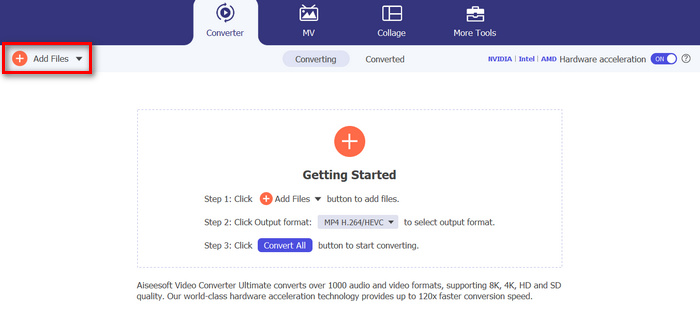
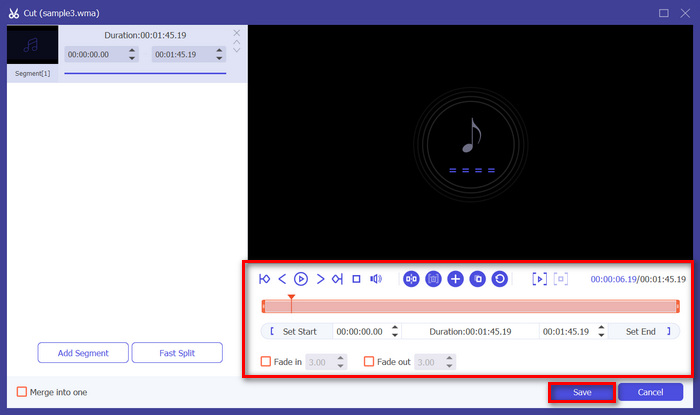
Paso 3. Después de eso, haz clic en el botón Cortar. Esto te llevará a otra ventana donde podrás editar archivos WMA, como dividir, recortar, aplicar fundidos de audio y más.
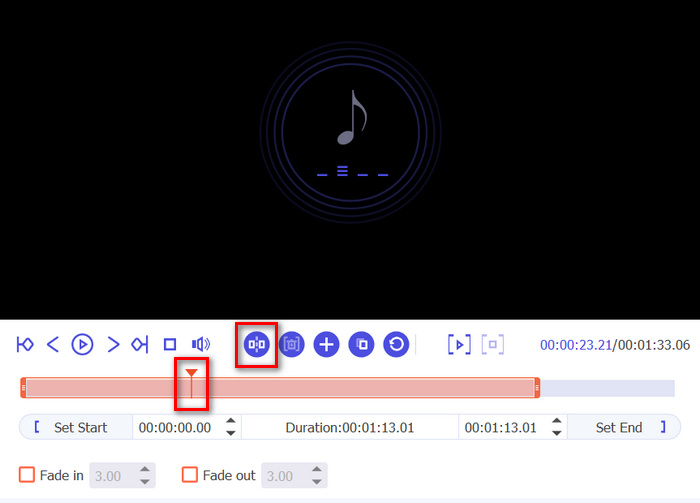
Paso 4. Si quieres dividir archivos de audio, solo tienes que mover la línea roja, colocarla en la parte de la pista donde quieras dividirla y hacer clic en el botón Dividir. Lo mismo se aplica para cortar una parte del audio.
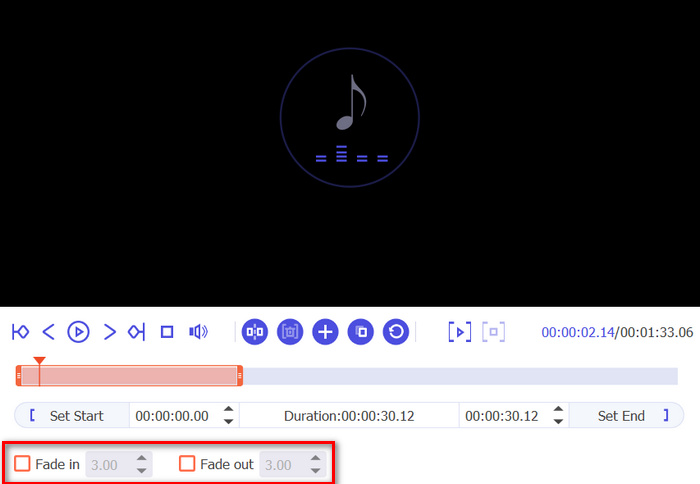
Paso 5. Asimismo, si necesitas aplicar fundidos a tu audio, simplemente haz clic en Fundido de entrada y Fundido de salida, marca la casilla inferior y establece el momento en el que quieres que el audio WMA entre o salga con fundido.
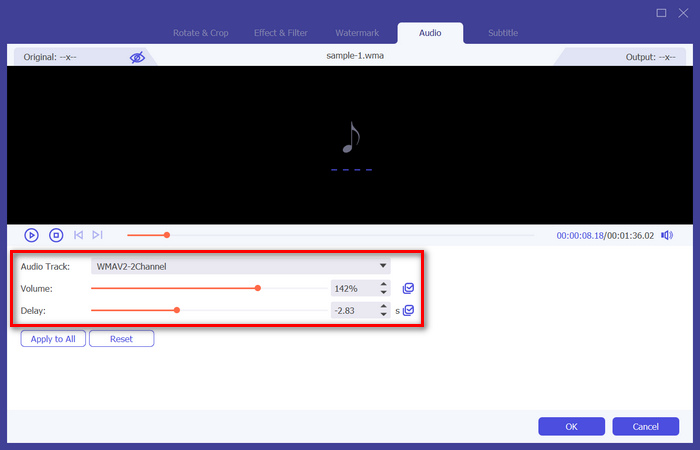
Paso 6. Mientras tanto, si quieres aumentar el volumen y añadir retardos, haz clic en el botón Editar y, desde ahí, podrás modificarlos ajustando sus respectivos niveles.
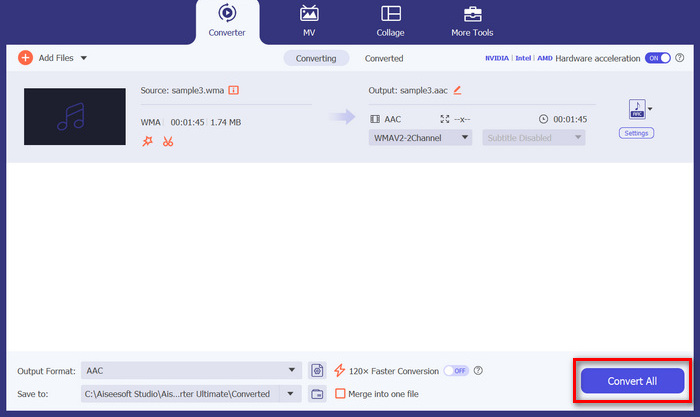
Paso 7. Una vez terminado, simplemente haz clic en el botón Guardar. Después podrás previsualizar tus archivos WMA y, cuando todo esté a tu gusto, haz clic en el botón Convertir todo.
Para editar archivos WMA, es importante contar con una herramienta confiable que combine funcionalidad y facilidad de uso. Video Converter Ultimate es una de las mejores opciones debido a sus funciones de edición integrales y a su salida de alta calidad. La capacidad de manejar varios formatos de audio garantiza versatilidad, lo que lo convierte en una solución integral para todas sus necesidades de edición de audio. Además, su rápida velocidad de procesamiento ahorra tiempo, mientras que la interfaz intuitiva garantiza una experiencia de edición fluida para usuarios de todos los niveles. Ya sea que esté realizando ediciones básicas o modificaciones más complejas, esta herramienta proporciona una plataforma poderosa pero sencilla para mejorar sus archivos WMA.
Parte 2: Editar archivos WMA en Audacity
Audacity también es una gran herramienta para editar archivos WMA. Esta herramienta es gratuita y es tan buena como muchas herramientas de prepago. Puedes usar esta herramienta para editar cualquier archivo de audio cortándolo, fusionándolo y mucho más. Incluso puedes eliminar el ruido o las voces de tus archivos WMA si lo deseas. Sin embargo, esta aplicación puede ser demasiado compleja para algunos usuarios, pero aun así, esta herramienta es excelente para manejar archivos WMA.
Paso 1. Primero, tienes que importar tus archivos WMA arrastrándolos a la línea de tiempo de la herramienta.
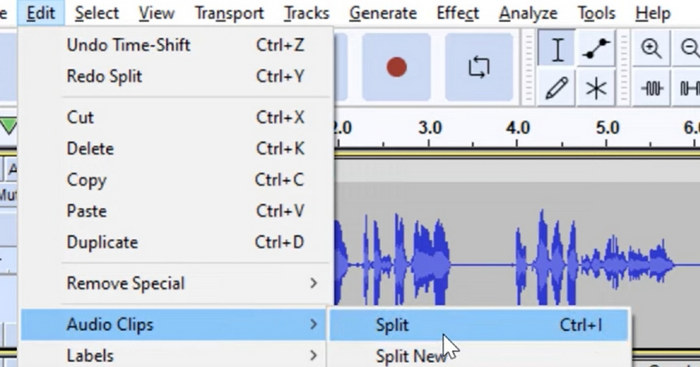
Paso 2. Haz clic en la herramienta de Edición para editar tus archivos WMA. Con ella podrás dividir, recortar o hacer más cosas con tus archivos.
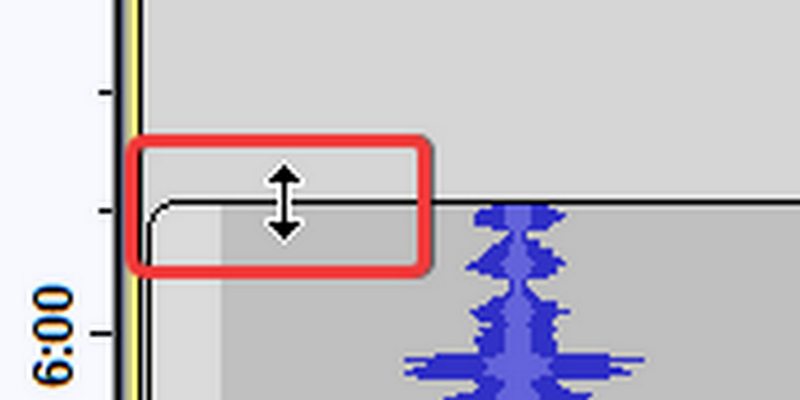
Paso 3. Para recortar archivos WMA, sitúa el cursor aproximadamente en el tercio superior del borde izquierdo o derecho del clip.
Paso 4. Mientras tanto, si quieres dividir tus archivos WMA, haz clic en la parte de la pista donde quieras dividir el clip, haz clic con el botón derecho y selecciona Dividir clip.
Paso 5. Cuando hayas terminado de editar tus archivos WMA, ve a la pestaña Archivo y elige Guardar proyecto para exportar el archivo editado.
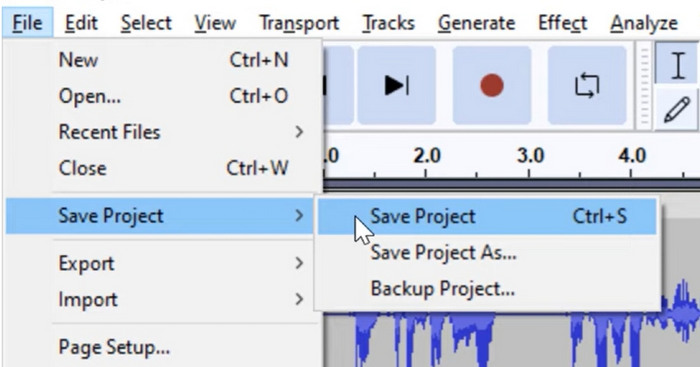
Audacity es una excelente herramienta para editar archivos WMA. Las únicas desventajas son su complejidad para los nuevos usuarios y los requisitos del sistema para los dispositivos, lo que puede ralentizar su rendimiento general en comparación con otras herramientas.
Parte 3: Editar archivos WMA en línea
Apps123 es una plataforma en línea que ofrece un conjunto de herramientas para editar archivos multimedia, incluidos archivos WMA. Este servicio basado en la web permite a los usuarios realizar diversas tareas de edición de audio directamente desde su navegador sin necesidad de descargar o instalar software. Con esta herramienta, los usuarios pueden editar archivos WMA utilizando funciones como recortar audio, cambiar el volumen, cambiar la velocidad, el tono y más.
Para utilizar esta herramienta:
Paso 1. Ve a su página web oficial.
Paso 2. En su interfaz principal, haz clic en Herramientas de audio y elige la función de edición que quieras utilizar para tus archivos WMA.
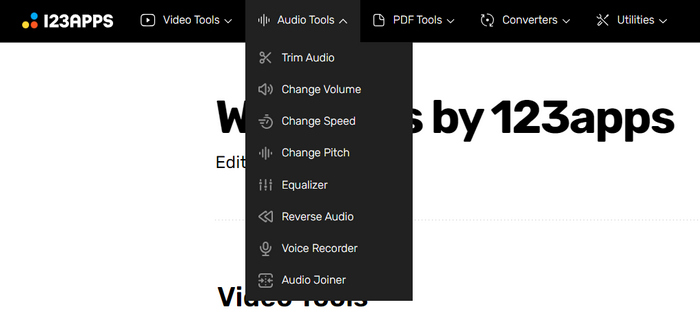
Paso 3. Desde ahí, puedes recortar, cambiar el volumen, la velocidad, el tono, unir audios y mucho más. Para usarlas, haz clic en la función de edición de audio correspondiente que quieras emplear e importa el archivo WMA.
Paso 4. Después de eso, sigue las instrucciones que aparecen en pantalla.
Paso 5. Por último, para exportar tu archivo WMA editado, haz clic en el botón Guardar.
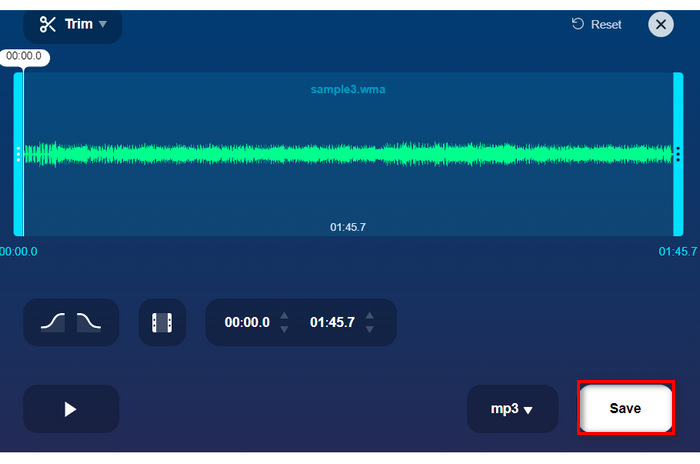
El uso de una herramienta en línea como Apps123 ofrece una forma cómoda de editar archivos WMA y hay muchas funciones entre las que elegir. Sin embargo, no se pueden aplicar todas esas funciones de edición a la vez, ya que se crearon por separado en función de sus diversas funciones. Además, la velocidad de importación y procesamiento lleva tiempo. Puede que para otros esto no sea un problema, pero para algunos la velocidad y la eficiencia sí importan. No obstante, esta herramienta es una gran alternativa para los usuarios que buscan un método en línea para editar archivos WMA.
Parte 4: Preguntas frecuentes sobre la edición de archivos WMA
¿WMA funciona con Mac?
Sí, los archivos WMA son compatibles con los sistemas operativos Mac. Sin embargo, es posible que algunas aplicaciones predeterminadas de Mac no admitan la reproducción de WMA sin complementos adicionales o software de terceros.
¿Con qué programa puedo abrir archivos WMA?
Los archivos WMA se pueden abrir con varios programas en diferentes plataformas. Para los usuarios de Mac, aplicaciones como Audacity, VLC Media Player o QuickTime con complementos adicionales pueden manejar archivos WMA. En Windows, programas nativos como Windows Media Player pueden abrir archivos WMA, junto con opciones de terceros como VLC y Audacity.
¿Qué aplicación convierte WMA a WAV?
Existen varias aplicaciones para convertir WMA a WAV, como Video Converter Ultimate, que se menciona en el artículo. Esta herramienta ofrece una interfaz sencilla y admite la conversión por lotes para mayor comodidad.
Conclusión
En resumen, la necesidad de una herramienta fiable para editar WMA es fundamental, ya que otras herramientas o plataformas no admiten este formato de archivo. Por lo tanto, utilizar cualquiera de las herramientas mencionadas en este artículo, como Video Converter Ultimate, Audacity y Apps123, ofrece distintas formas y funciones para editar archivos WMA según tus preferencias y necesidades. Así que, ¿a qué esperas? Prueba cualquiera de estas herramientas ahora y edita tus archivos sin complicaciones.
-
 Los 5 mejores editores de vídeo con IA para perfeccionar tus imágenes
 Conozca el pináculo de la tecnología de edición de video, nuestro mejor editor de video con IA. Combine a la perfección creatividad y eficiencia mientras edita videos con herramientas impulsadas por IA.
-
 Compresores de audio eficaces para usuarios en línea y sin conexión
 ¿Tiene algún problema con archivos de audio grandes? Hay muchos compresores de archivos de audio disponibles para usuarios en línea y sin conexión. Échales un vistazo aquí.
-
 7 editores de etiquetas de música populares en Windows, Mac y dispositivos móviles
 Las etiquetas de música son populares para organizar la música de su biblioteca de acuerdo con los datos que contiene. ¿Qué pasa si quieres cambiarlo? Lea los detalles a continuación para saber más.
