


 Video Converter Ultimate
 Grabador de pantalla
 Reparación de vídeo
 Descarga segura
Cómo convertir sus archivos TS a formato FLV sin pérdida de calidad
Esta guía se centra en cómo convertir TS a FLV. En términos generales, existen dos tipos de formatos de vídeo: los de uso común y los demás. FLV es uno de los formatos de vídeo más habituales desarrollados para Internet, mientras que TS pertenece al segundo grupo. TS, que significa Video Transport Stream, se utiliza para almacenar datos de vídeo MPEG-2. A menudo se ve en DVD. En fin, empecemos ya el proceso.

Parte 1: Las 3 mejores formas fáciles de convertir TS a FLV en el escritorio
Forma 1: Convierta TS a FLV con Free FLV Converter
Como indica su nombre, FVC Free FLV Converter es precisamente el conversor FLV que necesitas para pasar TS a FLV, de modo que puedas ver tus archivos o compartirlos en redes sociales. Es totalmente gratuito, sin marca de agua ni otros límites. Incluso ofrece algunas funciones que solo se encuentran en programas de pago.
Características principales del mejor convertidor FLV
- 1. Convierta fácilmente entre FLV y otros formatos de video.
- 2. Proteja la calidad de video y audio durante la conversión.
- 3. Maneja por lotes múltiples archivos de video TS al mismo tiempo.
Descarga gratuitaPara Windows 7 o posteriorDescarga segura
Descarga gratuitaPara macOS 10.7 o posteriorDescarga segura
Cómo convertir archivos TS a FLV de forma gratuita
Paso 1: Importar archivos TS
Inicie el mejor convertidor FLV después de instalarlo en su computadora. Luego haga clic en el botón Agregar archivo (s) para importar todos los archivos TS desde su DVD o computadora. Luego, los videos aparecerán en el área de la biblioteca.

Paso 2: Configurar el formato de salida
Si necesitas editar los vídeos, haz clic en el botón Editar para abrir la ventana del editor de vídeo. Si no, ve a la parte inferior, haz clic y despliega la opción Formato de salida. Después busca FLV en la pestaña Vídeo general y selecciónalo.

Paso 3: Convertir TS a FLV
A continuación, establece una carpeta específica para guardar los archivos FLV de salida pulsando el botón Examinar. Por último, haz clic en el botón Convertir en la esquina inferior derecha para empezar a convertir TS a FLV.

Forma 2: Cómo convertir TS a FLV por VLC
VLC es otra forma de convertir TS a FLV de forma gratuita, ya que es un proyecto de código abierto. Está disponible para PC, Mac y Linux. Los costos son obviamente. La calidad de salida no es muy buena y el procedimiento es complejo. Si no le importa, siga los pasos a continuación.
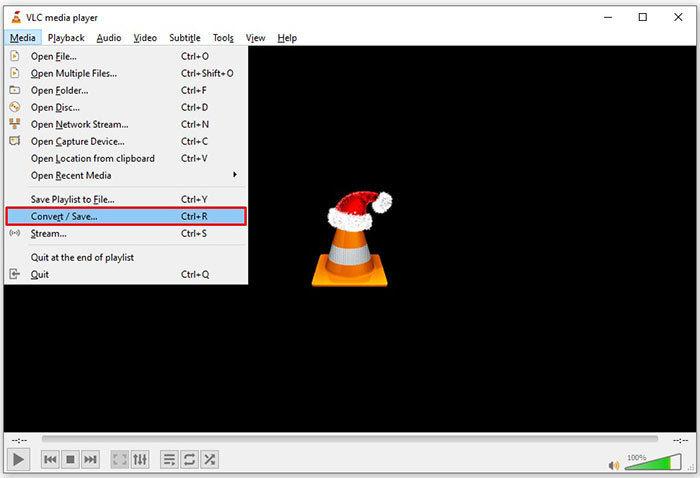
Paso 1: Abre VLC, haz clic en el menú Medio y elige Convertir/Guardar. Aparecerá el cuadro de diálogo de apertura de medios.
Paso 2: Haz clic en el botón Añadir y agrega un archivo TS a VLC. Pulsa el botón Convertir/Guardar para continuar.
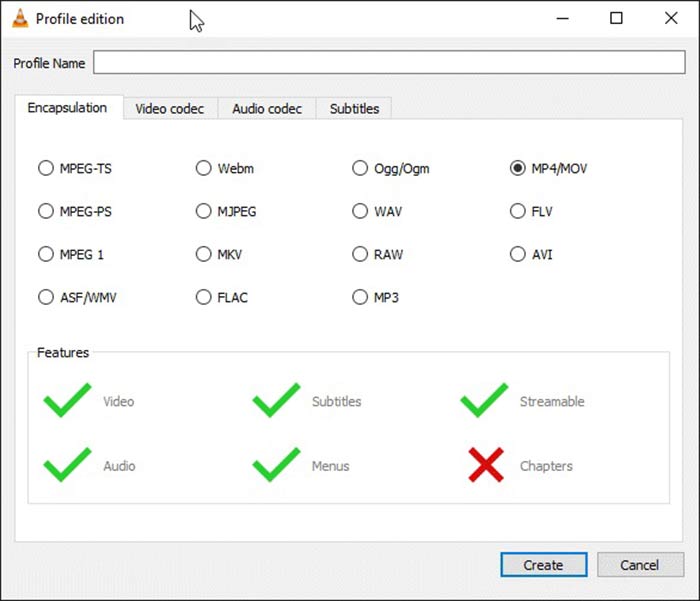
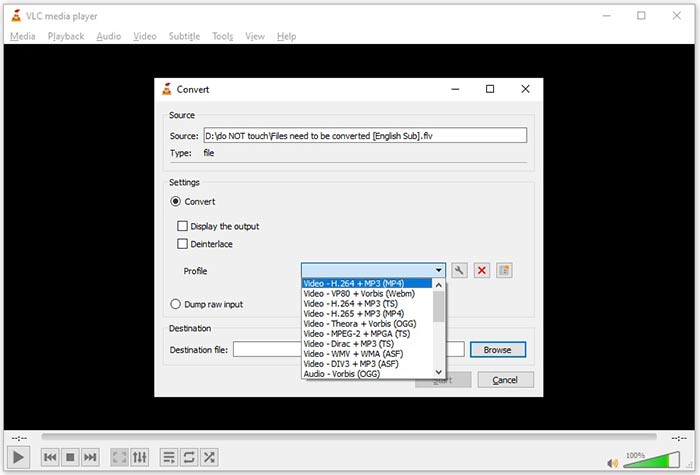
Paso 3: Abre la opción Perfil y elige el formato de salida. Si no encuentras FLV en Perfil, haz clic en el botón Editar perfil, introduce FLV en el cuadro Nombre del perfil, selecciona FLV y haz clic en Crear. Después selecciona FLV en Perfil.
Paso 4: Pulsa el botón Examinar para establecer la carpeta de destino y haz clic en el botón Iniciar.
Forma 3: Cómo convertir TS a FLV a través de FormatFactory
FormatFactory es un programa de conversión de archivos gratuito para PC. Le permite convertir archivos TS a FLV sin pagar un centavo. Sin embargo, solo admite conversión con pérdida. Significa que la calidad de su video se reducirá. Además, no está disponible para Mac o Linux.
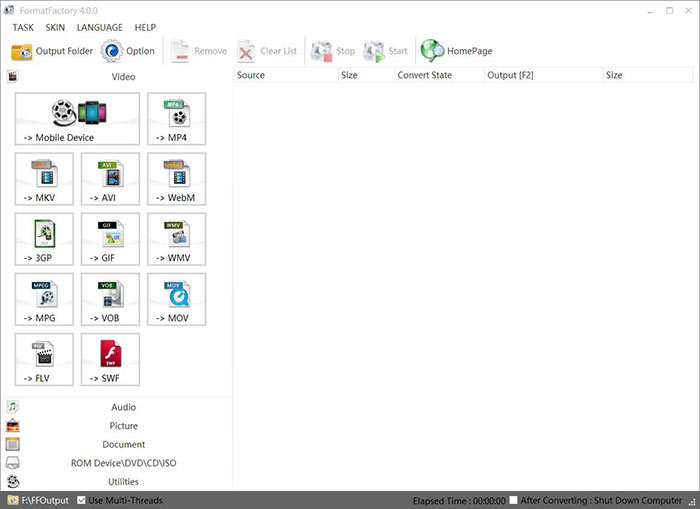
Paso 1: Ejecuta el conversor gratuito de TS a FLV, ve a la sección Vídeo y selecciona FLV.
Paso 2: Haz clic en el botón Añadir archivo e importa los archivos de vídeo TS desde tu ordenador. Pulsa Aceptar para confirmarlo.
Paso 3: A continuación, haz clic en el botón Iniciar para comenzar a convertir TS a FLV en el PC. Tarda un rato, ya que el programa gratuito es bastante lento. Cuando termine, podrás ir al directorio que aparece en la sección Salida para encontrar los archivos FLV.
Parte 2: Cómo convertir TS a FLV en línea
VLC y otros programas de conversión de vídeo requieren que los instales en tu disco duro. Ocupan espacio en la memoria interna. Puede que te preguntes si es posible convertir TS a FLV sin instalar software. La respuesta es FVC Free Online Video Converter. Funciona en línea y es gratuito. Aunque no ofrece funciones adicionales, es suficiente para cubrir tus necesidades básicas de conversión de vídeo.
Paso 1: Abre https://www.free-videoconverter.net/free-online-video-converter/ en un navegador web y haz clic en el botón Add Files to Convert para descargar el lanzador.

Paso 2: Una vez finalizada la descarga, se abrirá el lanzador. Haz clic en el botón Add File para subir los archivos TS. Esta aplicación web admite la conversión por lotes. Ve a la parte inferior y selecciona FLV al final.
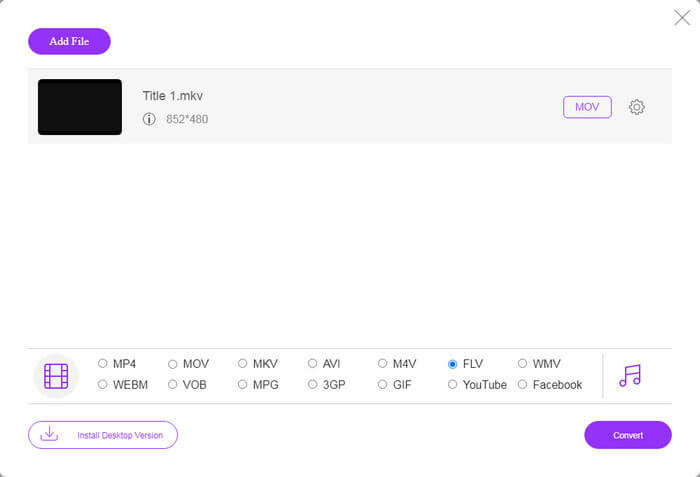
Paso 3: Cuando estés listo, haz clic en el botón Convert para iniciar la conversión de TS a FLV. La aplicación funciona rápido, pero el tiempo real depende de tu conexión a Internet. Espera a que termine la conversión y descarga el archivo FLV de salida.
No te lo pierdas:
- • Guía completa sobre cómo convertir TS a MP4
- • Cómo convertir archivos TS a MP3, AIFF, ALAC, FLAC y más formatos de audio en Windows / Mac
Parte 3: Preguntas frecuentes sobre la conversión de TS a FLV
¿Por qué no puedo convertir TS a otros formatos?
TS es el formato de archivo de video para DVD. La mayoría de los DVD comerciales están encriptados y protegidos por derechos de autor. Eso también le impide convertir archivos TS si no tiene el software de conversión de video adecuado.
¿Puedo abrir TS en Windows Media Player?
El Reproductor de Windows Media no puede abrir archivos de DVD o TS, por lo que no puede reproducir TS en WMP. Alternativamente, puede usar un reproductor de video de terceros, como VLC. O necesita instalar un paquete de códec adicional para WMP.
¿Cómo ver archivos TS?
Solo unos pocos reproductores multimedia admiten archivos TS, como VLC. Los reproductores multimedia integrados en PC y Mac, Windows Media Player y QuickTime Player, no son compatibles con TS. Otra forma de ver archivos TS es grabarlos en DVD.
Conclusión
Ahora, debe aprender al menos cuatro formas de convertir archivos TS a videos FLV para compartirlos en línea o reproducirlos en dispositivos digitales. Como formato de video para películas en DVD, TS no se usa ampliamente en computadoras o dispositivos móviles. Tiene sentido que la mayoría de los reproductores multimedia no puedan abrirlo. Convertidor FLV gratuito de FVC; sin embargo, le ayuda a cambiar de TS a FLV fácilmente. ¿Más preguntas? Escríbalos debajo de esta publicación y le responderemos.
-
 3 sencillos pasos para grabar archivos / carpetas de video _TS en DVD en Mac / Windows
 ¿Cómo convierto y grabo archivos TS en un disco DVD? Esta guía paso a paso le mostrará cómo copiar archivos y carpetas TS a DVD en Windows / Mac para que pueda ver archivos TS en un reproductor de DVD o TV.
-
 6 formas sencillas de convertir TS a AVI / MKV / MOV / WMV en Windows / Mac
 ¿Quiere convertir archivos TS a AVI / MKV / MOV / WMV rápidamente? Este artículo muestra convertidores de video en línea y fuera de línea con una guía completa. Tal vez puedas obtener el mejor conversor TS gratuito aquí.
-
 Comprimir archivos de video TS: cómo comprimir archivos TS en tamaños más pequeños
 Cuando desee guardar los archivos de video TS de alta definición en sus dispositivos, debe obtener más información sobre cómo comprimir archivos de video TS en tamaños más pequeños en este artículo.
