


 Video Converter Ultimate
 Grabador de pantalla
 Reparación de vídeo
 Descarga segura
Cómo convertir y cargar cualquier archivo de video FLV a YouTube
“Acabo de subir un archivo de vídeo con extensión .flv, pero recibí un mensaje de advertencia que decía formato de archivo no válido, ¿cómo subir FLV a YouTube?” FLV no es solo una extensión de archivo, sino también un contenedor de vídeo. Esto significa que un archivo de vídeo FLV puede almacenar varios códecs de vídeo y audio, y algunos de ellos no son compatibles con YouTube. En este artículo encontrarás todo lo que necesitas saber para subir archivos FLV a YouTube sin problemas.

Parte 1: Qué códecs de audio y video admite YouTube
Según Google, YouTube prefiere el formato de transmisión, así como las transmisiones MPEG-2 compatibles con DVD con extensión .mpg. Los códecs compatibles con YouTube incluyen:
- MPEG-2
- Códec de audio: MPEG Layer II o Dolby AC-3
- Tasa de bits de audio: 128 kbps o mejor
- MPEG-4
- Códec de vídeo: H.264
- Códec de audio: CAA
- Tasa de bits de audio: 128 kbps o mejor
Además, YouTube solo admite contenedores WAV con audio MP3 o PCM, MOV con audio AAC y audio FLAC. YouTube admite WMV, AVI, MOV, MP4 y FLV con los códecs adecuados.
Cuando se trata de FLV, YouTube accede a videos codificados con el códec de video Adobe-FLV1 junto con audio MP3 y AAC. Si su video FLV contiene audio sin comprimir o audio ADPCM, YouTube no lo aceptará.
Además, existen más reglas para subir FLV a YouTube:
- Recomendar velocidad de fotogramas: 24 hasta 60
- Recomendar resolución: 1080p
- Duración mínima: 33 segundos
Parte 2: Formas más fáciles de convertir FLV a YouTube
Forma 1: convertir FLV a YouTube en el escritorio
Si encuentras un error al subir FLV a YouTube, lo primero es buscar un conversor FLV, como FVC Free FLV Converter. Te permite ajustar los códecs de vídeo y audio, así como otros parámetros, de modo que puedas adaptar tus archivos FLV a las normas de YouTube. Además, utiliza aceleración por hardware y multihilo para mejorar el rendimiento.
Características clave del mejor convertidor FLV para YouTube
- 1. Ajuste fácilmente los códecs de audio y video de FLV.
- 2. Procese por lotes videos FLV ilimitados a la vez.
- 3. Proteja la calidad del video automáticamente durante la conversión.
Descarga gratuitaPara Windows 7 o posteriorDescarga segura
Descarga gratuitaPara macOS 10.7 o posteriorDescarga segura
Cómo convertir FLV para YouTube en el escritorio
Paso 1: Añadir archivos FLV
Inicie el mejor convertidor FLV una vez que lo instale en su computadora. Haga clic en el menú Agregar archivo (s) en la parte superior izquierda y agregue los archivos FLV que desea cargar en YouTube.

Paso 2: Cambiar los códecs
Haz clic en el menú desplegable junto a Formato de salida en la parte inferior para abrir el cuadro de diálogo de perfiles. Escribe FLV en la casilla Buscar perfil y pulsa la tecla Intro en tu teclado. Luego selecciona el formato FLV con los códecs de vídeo y audio adecuados.
Si tu vídeo FLV es demasiado largo, es mejor dividirlo en clips y después subirlos a YouTube. Puedes hacer clic en el menú Editar para abrir la ventana del editor de vídeo.

Paso 3: Convertir FLV para YouTube
A continuación, ve a la parte inferior y haz clic en el botón Abrir carpeta. Elige una carpeta específica para guardar los vídeos de salida. Por último, haz clic en el botón Convertir para empezar a convertir FLV para YouTube de inmediato.

Forma 2: Convierta FLV a YouTube en línea
Si no quieres instalar un conversor de vídeo en tu disco duro, FVC Free Online Video Converter es una buena solución alternativa. Es gratuito y no tiene ningún tipo de límite, como marcas de agua. Además, no impone restricciones en el tamaño de archivo. Estos son los pasos:
Paso 1: Visita https://www.free-videoconverter.net/free-online-video-converter/ en un navegador y haz clic en el botón Add Files to Convert para obtener el lanzador.

Paso 2: Haz clic en el botón Add File para subir varios archivos FLV. Después, pulsa el icono de engranaje para abrir el cuadro de diálogo de perfiles. Aquí puedes ajustar el codificador de vídeo (Video Encoder) y el codificador de audio (Audio Encoder). Pulsa OK para confirmarlo.

Paso 3: Elige un formato compatible con YouTube en la parte inferior y haz clic en el botón Convertir para iniciar la conversión de FLV para YouTube. Cuando termine, descarga los archivos generados.
No te lo pierdas:
Parte 3: Cómo subir FLV a YouTube
Después de la conversión, puede cargar sus archivos FLV a YouTube en su computadora ahora. Compartimos los pasos aquí, para que no se pierda.
Paso 1: Ve a la página de inicio de YouTube e inicia sesión en tu cuenta.
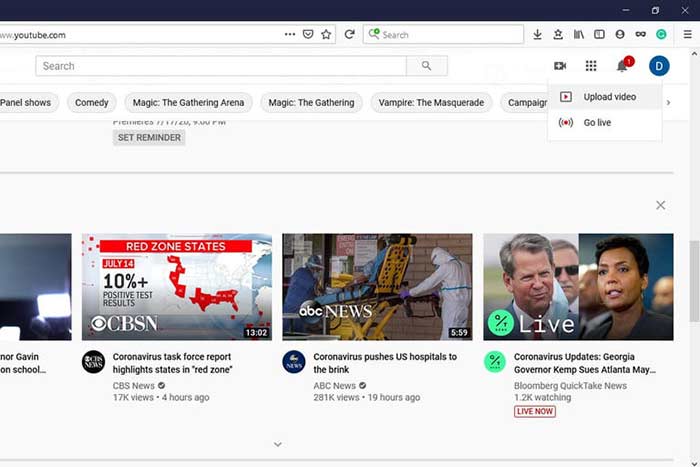
Paso 2: Haz clic en el icono de la videocámara y selecciona Subir vídeo para entrar en la página de subida.
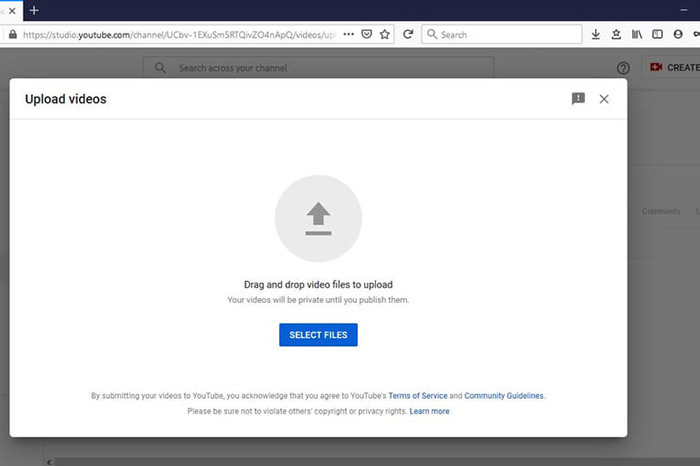
Paso 3: Pulsa el gran botón Seleccionar archivos de la página y abre los archivos FLV ya convertidos para YouTube. O bien arrastra y suelta los archivos FLV en la página para subirlos.
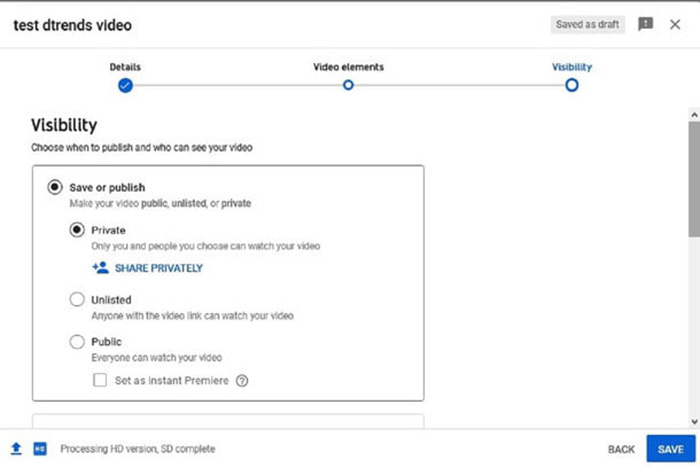
Paso 4: A continuación, decide la configuración de privacidad. De forma predeterminada es Pública, pero puedes cambiarla a Privada, Programada o No listada.
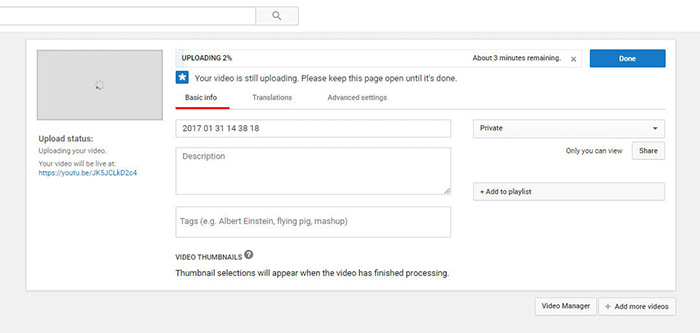
Paso 5: Haz clic en el botón Guardar o Publicar después de la configuración. Luego se te llevará a la página del Panel de control (Dashboard). Aquí podrás ver los archivos FLV subidos a tu cuenta de YouTube.
Parte 4: Preguntas frecuentes sobre FLV en YouTube
¿Puedes subir FLV a YouTube?
Si y no. YouTube admite el formato de video FLV, pero como contenedor de video, solo puede cargar archivos FLV con códecs de audio y video compatibles; de lo contrario, será un fracaso.
¿Puedo descargar videos de YouTube en FLV?
Si el video de YouTube ofrece el botón de descarga, puede hacer clic en él y seleccionar FLV como formato de salida.
¿Qué formato de video es mejor para YouTube?
MP4 es el mejor formato de video para YouTube. Google recomienda usar MP4 con códec de video H.256 y códec de audio AAC. Esto se debe a que produce alta calidad con archivos de menor tamaño. Además, YouTube también admite MOV, WMV, AVI, FLV y 3GPP.
Conclusión
Esta guía le ha dicho qué formatos de video acepta YouTube y cómo cargar FLV en YouTube sin fallas. FVC Free FLV Converter puede ayudarlo a convertir FLV para YouTube y le permite ajustar fácilmente los códecs de video y audio. Incluso no requiere ninguna habilidad técnica, por lo que los principiantes pueden dominar rápidamente. Si encuentra otros problemas al subir videos a YouTube, deje un mensaje debajo de esta publicación.
-
 Cómo convertir sus archivos de video FLV a MP4 sin pagar un centavo
 Esta guía comparte cuatro métodos gratuitos para convertir sus archivos de video FLV a formato MP4 en Windows 10/8/7 / XP y Mac OS X, para que pueda disfrutar de los videos en cualquier dispositivo.
-
 Cómo convertir sus videos FLV a archivos de audio MP3 en el escritorio y en línea
 ¿Cómo convertir un archivo FLV a MP3? Todo lo que necesita hacer es leer este artículo detenidamente, encontrar su método favorito y seguir nuestra guía paso a paso para obtener lo que desea.
-
 3 formas gratuitas de convertir FLV a WAV
 ¿Cómo convierto un archivo FLV? ¿Puede VLC convertir YouTube FLV a WAV? Esta publicación cuenta 3 formas gratuitas de convertir FLV a WAV sin pérdida de calidad.
