


 Video Converter Ultimate
 Grabador de pantalla
 Reparación de vídeo
Comprenda el software de conversión que puede utilizar para convertir MPEG a FLV
MPEG es el formato estándar para transferir datos por internet o en distribuciones en DVD. Bueno, lo es porque el formato existe desde 1988. Pero ¿sabías que este archivo es un sistema asimétrico? Porque tarda más tiempo en comprimir un vídeo que en descomprimirlo. Además, mientras se comprime el archivo, se eliminan algunos fotogramas. Así que la calidad de este formato es inferior a la de otros formatos como FLV. ¿Quieres saber cómo convertir tu MPEG a FLV y comprimir los datos sin perder la calidad de imagen de tu vídeo? Entonces lee este artículo para hacerte una idea de qué conversores MPEG puedes usar.

Parte 1. Convierta MPEG a MOV en Mac y Windows con FVC Video Converter Ultimate
FVC Video Converter Ultimate es aún más capaz de manejar este problema de conversión. Es más que un conversor de MPEG a FLV porque esta herramienta puede gestionar por sí sola la conversión de más de 200 formatos de forma instantánea. ¿No es increíble? Además, si quieres insertar muchos archivos y convertirlos aquí a diferentes formatos, puedes hacerlo fácilmente con una conversión por lotes muy eficaz. ¿Quieres saber qué más ofrece esta herramienta? Bien, lee las funciones clave a continuación.

FVC Video Converter Ultimate
5,689,200+ Descargas- Admite todos los formatos y codificadores en MP4, MOV, MPEG, FLV, AVI y muchos más.
- Es conocido como el convertidor más rápido y seguro que puede descargar en su escritorio.
- Conversión por lotes con aceleración de hardware y conversión rápida.
- Este convertidor admite funciones importantes y extensas, como potenciador de video, compresor de video, etc.
- Admite ambos sistemas operativos con la misma funcionalidad en Windows y Mac.
Descarga gratuitaPara Windows 7 o posteriorDescarga segura
Descarga gratuitaPara macOS 10.7 o posteriorDescarga segura
Entonces, ahora que tiene una idea sobre la función de la herramienta, es hora de aprender cómo convertir MPEG a FLV con los pasos detallados a continuación.
Paso 1. Para poder usar la herramienta, primero debes descargarla en tu PC o Mac. Después, instálala y realiza la configuración rápida; la herramienta se iniciará automáticamente cuando termine todo el proceso.
Descarga gratuitaPara Windows 7 o posteriorDescarga segura
Descarga gratuitaPara macOS 10.7 o posteriorDescarga segura
Paso 2. Vamos a insertar aquí tu archivo .mpeg haciendo clic en el signo + en la parte central de la interfaz. Después de hacer clic, aparecerá una carpeta en tu escritorio, selecciona el archivo y haz clic en Open.
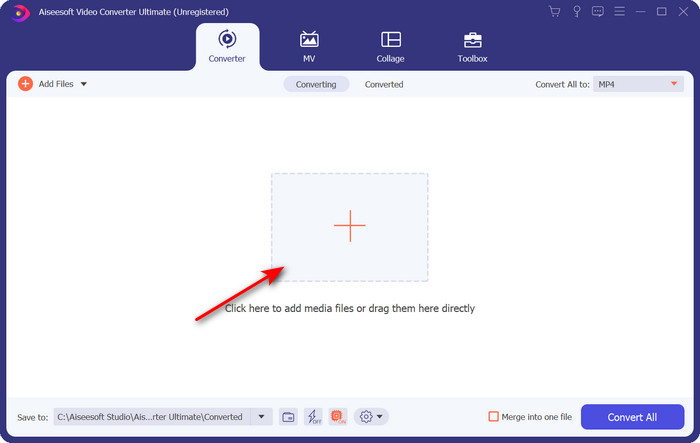
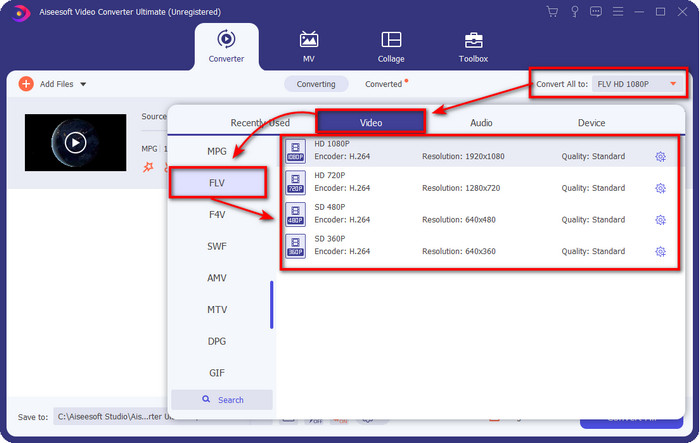
Paso 3. Cambia el formato a FLV haciendo clic y desplegando el menú Convert All to en la parte superior derecha de la interfaz del conversor.
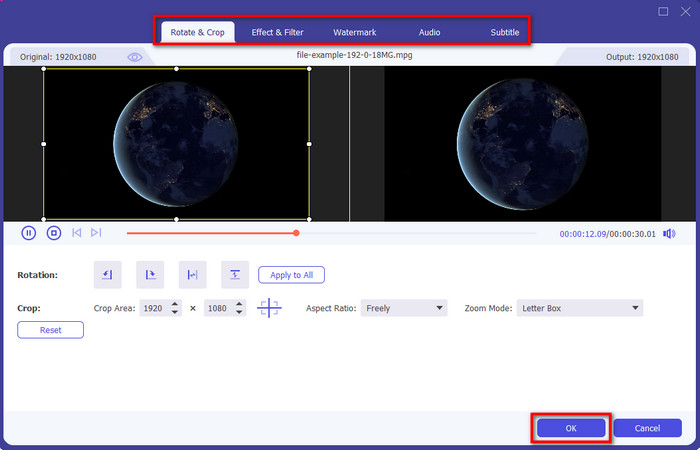
Paso 4. Antes de convertir tu archivo, puedes editar el vídeo aquí primero haciendo clic en el botón de varita. En la sección de edición, puedes girar y recortar el vídeo, añadir efectos y filtros, aplicar la marca de agua, ajustar el audio y añadir subtítulos. Una vez editado y listo para guardar, haz clic en OK.
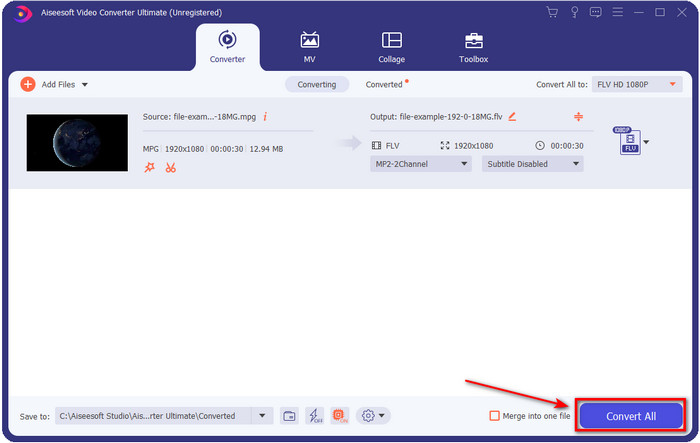
Paso 5. Pulsa Convert All para empezar a convertir MPEG a FLV. Este proceso tardará menos de un minuto porque la Aceleración por Hardware y la Conversión Rápida están activadas. Después de la conversión aparecerá la carpeta de archivos en tu pantalla.
Parte 2. Convierta MPG a MOV usando FFmpeg
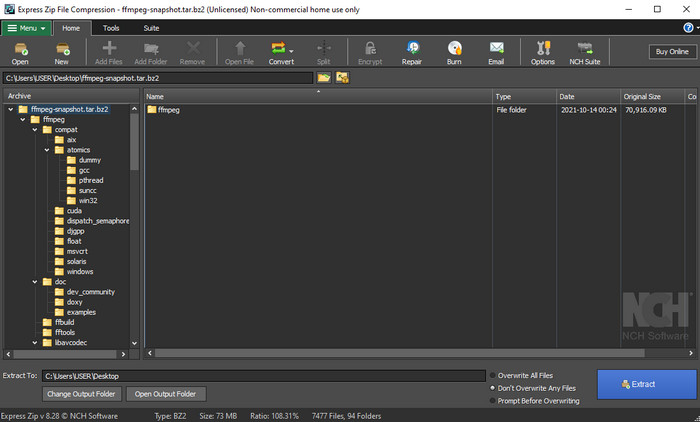
Uno de los editores más conocidos con el que probablemente ya te hayas encontrado es FFmpeg. Si este conversor te resulta nuevo, entonces hagamos una breve introducción al software. Este conversor es conocido como uno de los más complicados que se pueden usar. Porque, antes de realizar la conversión aquí, tendrás que comunicarte mediante texto en el CMD. Aunque la herramienta es compleja, el rendimiento es extraordinario, especialmente en la conversión. En lugar de buscar por internet cómo usar FFmpeg para pasar de MPEG a FLV, los pasos siguientes te ayudarán a utilizar esta herramienta.
Paso 1. Descarga FFmpeg en tu escritorio.
Paso 2. Abre el CMD en tu escritorio para abrir la ventana de comandos.
Paso 3. Busca la ubicación de tu archivo .mpeg utilizando el CMD. Luego introduce esto en la ventana de comandos: ffmpeg -i input.mpeg -vn -ar 44100 -ac 2 -b:a 192k output.flv, pulsa la tecla Enter en tu teclado para iniciar el proceso.
Pros
- La descarga es gratuita.
- Se desempeña bien al convertir el formato a una nueva versión.
- Disponible en Windows y Mac.
Contras
- No es fácil de usar.
- No es su convertidor típico.
Parte 3. Convierta MPG a MOV utilizando un convertidor gratuito de MPEG a MOV en línea
Si quieres convertir MPEG a FLV gratis, usa FVC Free Video Converter Online. Esta herramienta online está disponible en todos los motores de búsqueda para ayudarte con tu problema de conversión. Aunque el conversor online es gratuito, sus funciones y características no son tan amplias como las de FVC Video Converter Ultimate. Pero aquí puedes convertir archivos .mpeg o .mpg de forma más sencilla y mejor que con FFmpeg. Otra cosa buena de esta herramienta web es que no necesitas descargarla en tu ordenador. Ahorras espacio de almacenamiento si utilizas esta herramienta. ¿Quieres saber cómo usarla? Si es así, sigamos con los pasos.
Paso 1. Para abrir el conversor online de MPEG a FLV, debes hacer clic en este enlace.
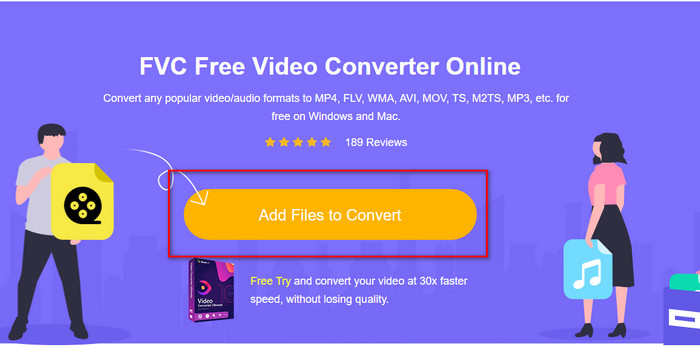
Paso 2. Una vez que la página web esté abierta, haz clic en Add Files to Convert para abrir la herramienta web. Aparecerá una carpeta en tu pantalla; en ella podrás buscar el archivo .mpeg que quieres convertir y después pulsar Open.
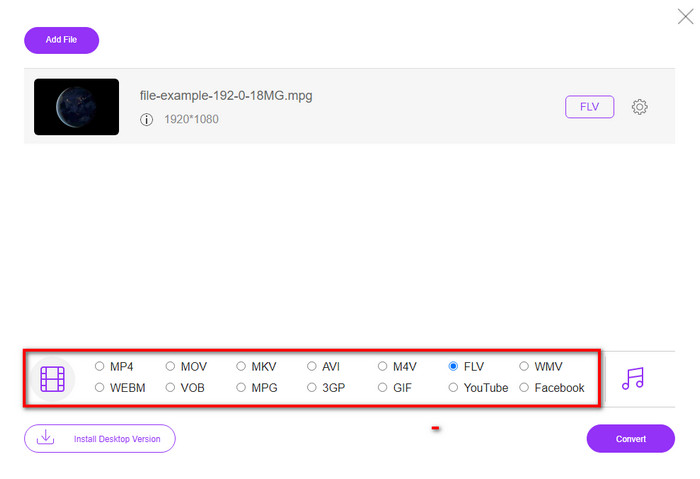
Paso 3. Aparecerá una nueva interfaz; elige el formato FLV en la parte inferior.
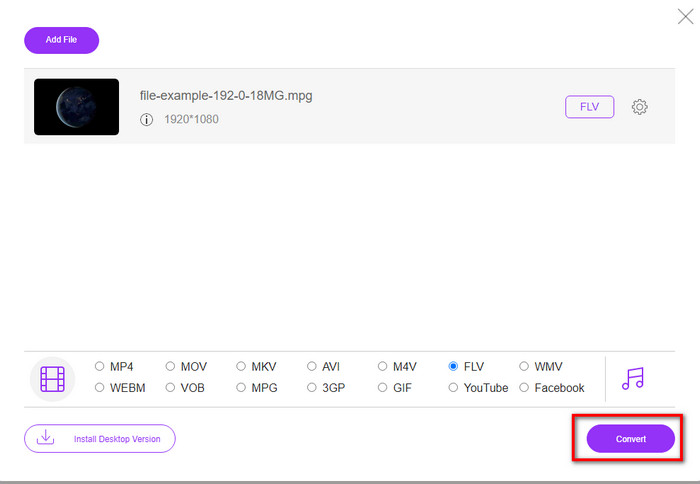
Paso 4. Cuando termines de seleccionar el formato, haz clic en Convert para iniciar el proceso.
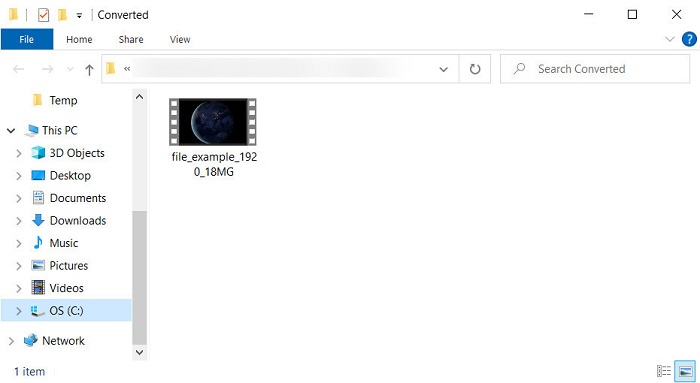
Paso 5. La carpeta del archivo aparecerá después de la conversión.
Parte 4. Conocimiento extendido de MPEG y MOV
Moving Pictures Experts Group o MPEG es uno de los formatos estándar que surgieron a fines de 1988. Este formato comprime significativamente el archivo en MPEG-1 o MPEG-2 y luego los distribuye en Internet o DVD. Aunque MPEG usa una compresión particular, la extensión de este formato aún podría ser .mpg o el .mpeg original, pero los archivos y la calidad almacenados no se verán afectados. Aunque la calidad no se verá afectada, aún no puede almacenar videos y metadatos de alta definición.
Antes mencionado, Flash Video o FLV es como MPEG pero desde una perspectiva diferente. Estos dos formatos son los mejores para transferir el archivo de video a través de Internet. Sin embargo, los archivos FLV están mucho más comprimidos y tienen una calidad mucho mejor en comparación con MPEG. Ahora es el formato de video estándar en contenido HTML 5 en la World Wide Web para transmisión.
Dado que el formato MPEG tiene una calidad y una compresión más bajas, debe reconsiderar la posibilidad de convertir el archivo a formato FLV si desea una mejor calidad y compresión. Por lo tanto, elegir el convertidor de MPEG a FLV en línea o fuera de línea adecuado es imprescindible para lograr una mejor versión de FLV.
Parte 5. Preguntas frecuentes sobre la conversión de MPEG a FLV
¿Cómo fusionar varios archivos MPEG en uno?
Combinar o unir dos o más archivos en uno solo es fácil si utilizas la herramienta adecuada. ¿No tienes ni idea de qué usar para unir los archivos de vídeo en uno? ¿O de cómo conectar los archivos? Si es así, lee este artículo para saber qué usar y cómo combinar archivos MPEG en uno solo.
¿Dónde puedo reproducir archivos MPEG?
Aunque el formato MPEG es el más conocido para películas y el apoyo que recibe este formato es enorme, algunos reproductores multimedia no reproducen el vídeo con fluidez cuando la extensión del archivo es .mpeg. Si estás buscando un reproductor multimedia eficaz, haz clic inmediatamente en este enlace y lee la información detallada sobre los reproductores MPEG.
¿Puedo comprimir archivos MPEG?
Sí, puedes comprimir tus archivos MPEG si su tamaño es demasiado grande para cargarlos. De hecho, puedes leer este artículo y saber cómo comprimir tus archivos MPEG a tamaños más pequeños sin destruir la calidad del vídeo.
Conclusión
Al final, tenemos un conocimiento sólido de cómo convertir MPEG a FLV con las herramientas útiles de arriba. Si quieres convertir tu MPEG gratis, entonces utiliza FVC Free Video Converter Online. Pero si ya tienes y quieres usar FFmpeg, entonces lee los detalles anteriores. En cualquier caso, el rendimiento del conversor más destacado es el de FVC Video Converter Ultimate. Así que ahora, elige la mejor herramienta que creas que se adapta a tus necesidades de conversión de archivos y consigue una conversión eficaz.
-
 [2021] Mejores herramientas y formas fáciles de convertir MPEG a MP3
 Este artículo habla principalmente sobre cómo puede convertir sus videos MPEG a MP3 con el uso de las herramientas más confiables de la lista.
-
 Las 5 mejores opciones para convertir MPEG a formato AVI [en línea y fuera de línea]
 ¿Tiene dificultades para buscar un convertidor para MPEG? Luego, intente leer este artículo mientras aprendemos cómo cambiar el formato MPEG a AVI con pasos detallados.
-
 3 métodos eficientes para convertir MPEG a MOV [sin conexión y en línea]
 ¿Está cansado de encontrar un reproductor multimedia para reproducir su formato de video MPEG? Intente convertirlo a otros formatos que probablemente se reproducirán, especialmente en Mac, por ejemplo, un formato de video MOV. Lea este artículo para saber más.
