Empezar
FVC Free FLV to Audio Converter es el mejor conversor de video a audio gratuito. Puede extraer pistas de audio del archivo de video FLV. Además, admite la conversión de archivos de audio entre diferentes formatos de audio.
Descargar e instalar
Descargue el paquete de instalación según el sistema operativo de su computadora. Luego, haga doble clic en el archivo de instalación y siga las instrucciones en pantalla para instalar el programa.
Preferencias
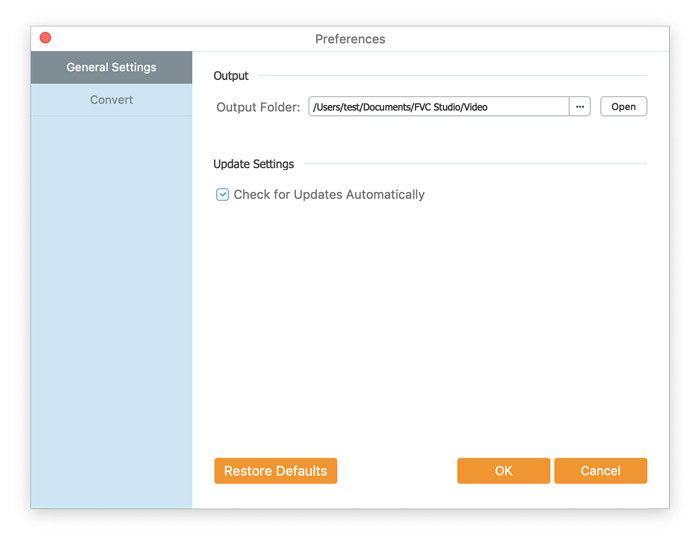
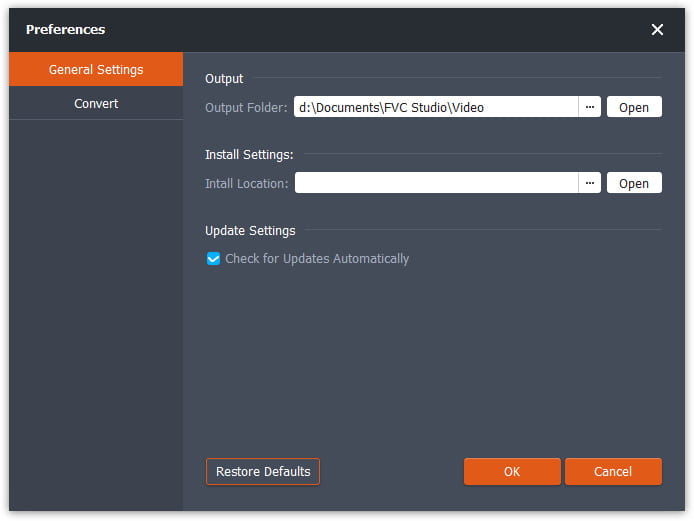
Antes de iniciar la conversión, se recomienda ajustar la configuración predeterminada. Puedes hacer clic en el icono de Menú y luego en Preferencias… para configurar los ajustes específicos. Por ejemplo, puedes elegir libremente la carpeta de salida donde se guardarán tus archivos convertidos.
Convertir FLV a audio
Ahora puede seguir estos pasos para convertir archivos FLV a formatos de audio.
Paso 1. Iniciar FVC Free FLV to Audio Converter
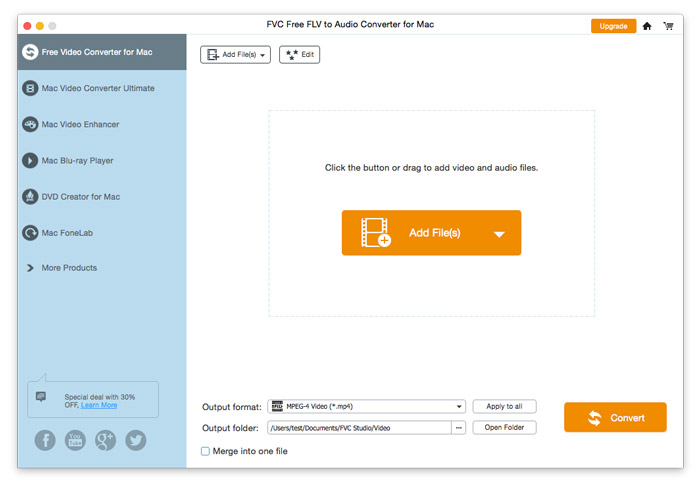
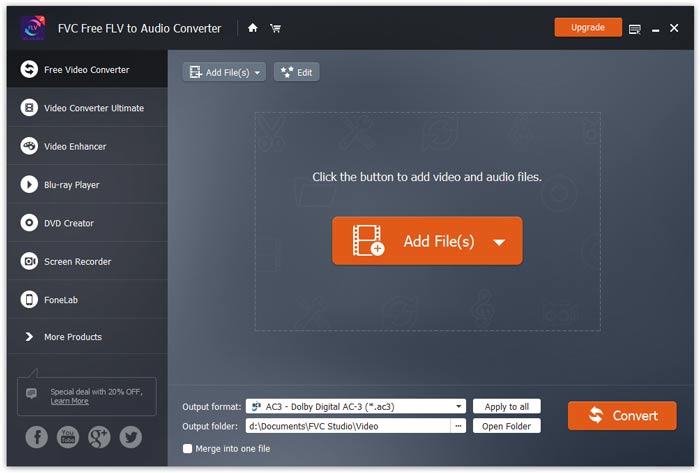
Inicie FVC Free FLV to Audio Converter y verá su interfaz limpia.
Paso 2. Añadir un archivo FLV al programa
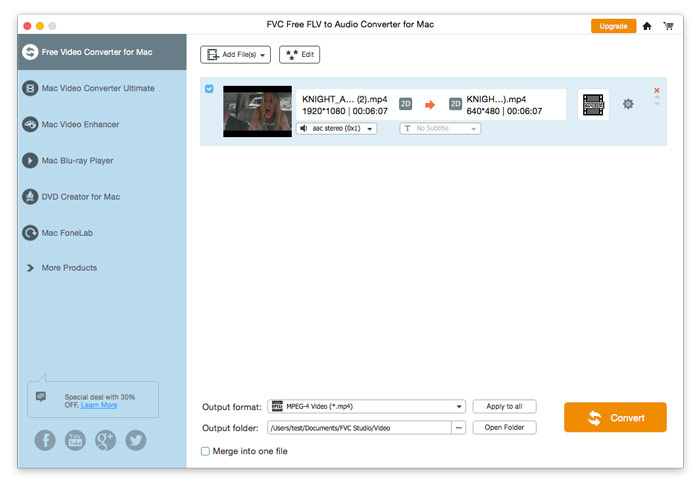
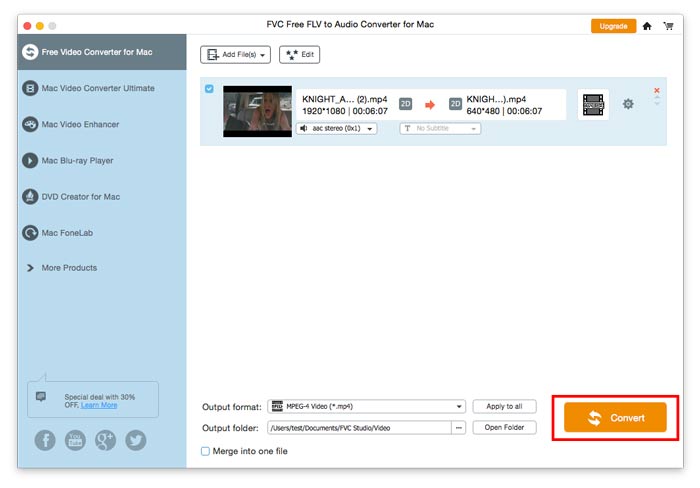
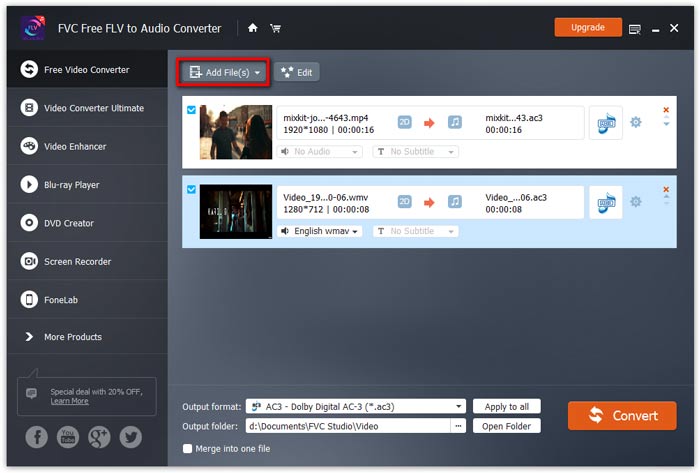
Haz clic en el botón Add File(s) y elige los archivos FLV que quieras procesar en el cuadro de diálogo que se abrirá a continuación. Una vez añadidos los archivos al programa, aparecerán en la lista de archivos.
Paso 3. Seleccionar el formato de salida
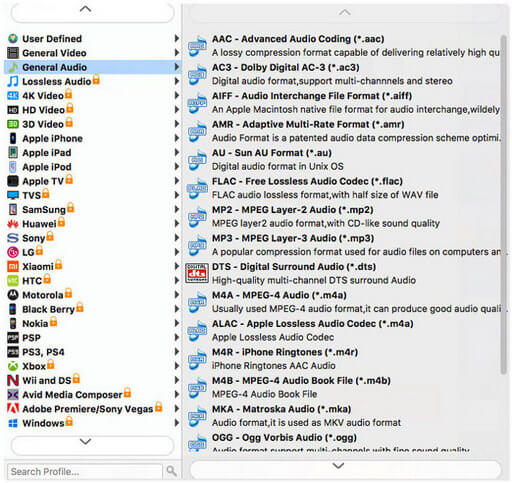
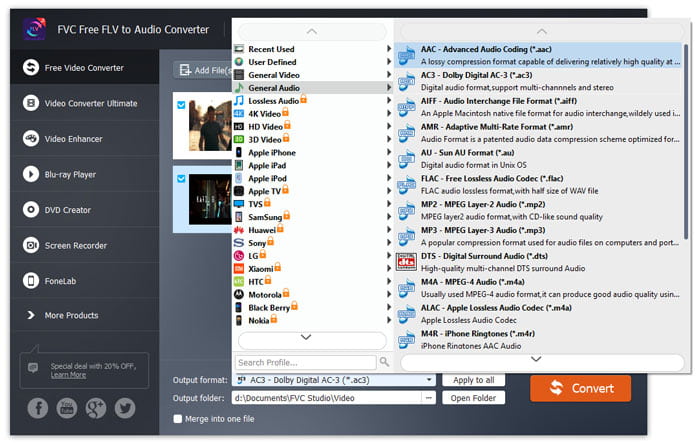
Haz clic para abrir la lista desplegable de Output format y, a continuación, elige el formato de audio en la lista de perfiles General Audio. Puede convertir tus archivos FLV a MP3, WMA, AAC, M4A, etc.
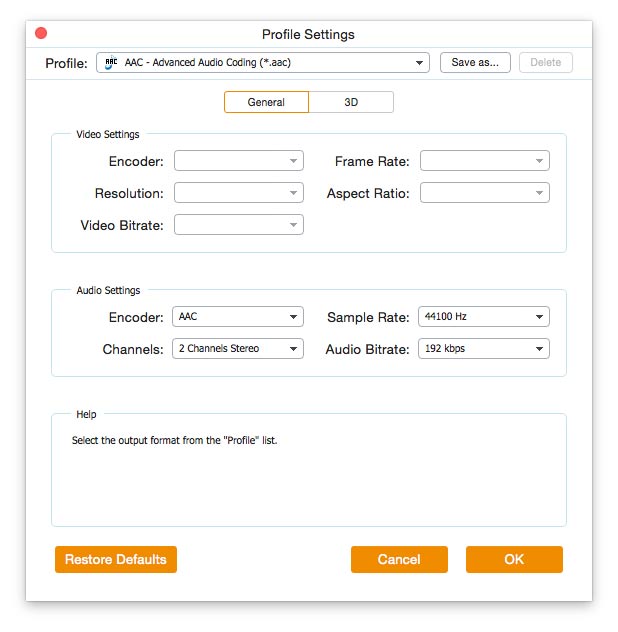
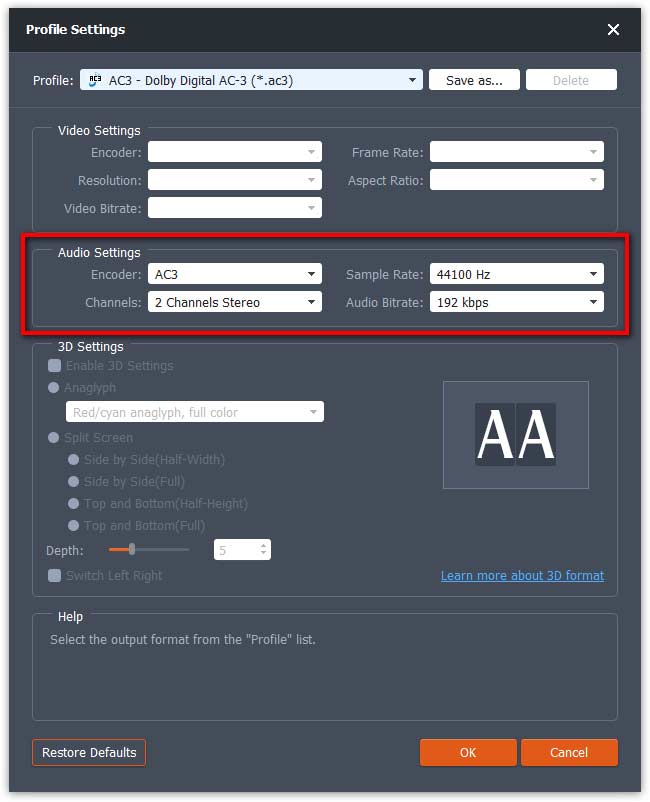
Si no estás satisfecho con la configuración de los parámetros del perfil original, puedes hacer clic en el icono de Engranaje y ajustar el códec, el canal, la frecuencia de muestreo y la tasa de bits de audio en la ventana de Profile settings.
Paso 4. Empezar a convertir FLV a audio
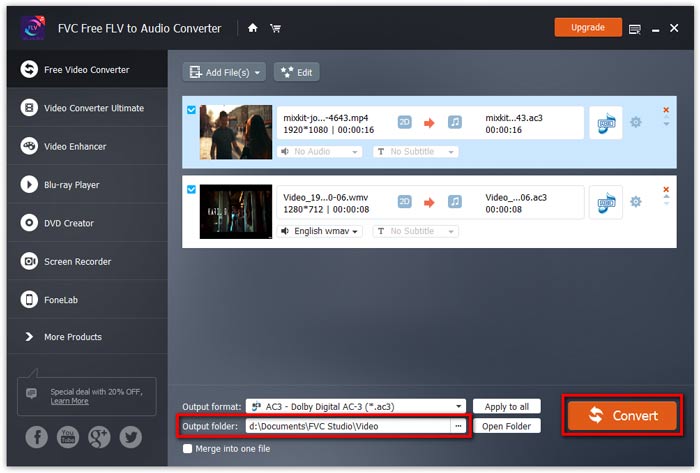
Ve a Output folder para elegir la carpeta de destino donde se guardarán los archivos de salida y, a continuación, haz clic en el botón OK para volver a la ventana principal. Finalmente, haz clic en el botón Convert para iniciar la conversión.


 Video Converter Ultimate
 Grabador de pantalla
 Reparación de vídeo