


 Video Converter Ultimate
 Grabador de pantalla
 Reparación de vídeo
Cómo recortar un GIF con la ayuda de los mejores recortadores de GIF
Elegir los GIF adecuados para el mensaje es imprescindible para transmitir el tono correcto de lo que quieres expresar. Pero algunos GIF deben recortarse para mostrar la verdadera intención de los mismos. Además, si alguna vez intentas recortar tus GIF, la calidad no debe verse afectada y deben mantener los mismos fps. En cierto momento, elegir el recortador adecuado para recortar tu GIF puede resultar un poco difícil, ya que no todas las herramientas te ofrecen la función de recorte. Y algunas de las herramientas que sí permiten recortar hacen que los GIF pierdan calidad y fps. En este artículo podrás elegir el mejor recortador de GIF; todas las herramientas que se enumeran ya han sido probadas por nosotros para ofrecerte pruebas fiables. Asimismo, te presentamos el mejor recortador de GIF disponible en todas las plataformas y cómo usarlo. Sigue leyendo este artículo para saber más al respecto.

Parte 1. El mejor recortador de GIF compatible con los sistemas operativos Windows y Mac
1. FVC Free Video to GIF Maker
Esta herramienta está disponible en todas las plataformas como Windows y Mac. Es el mejor recortador de GIF animados desarrollado por FVC: se trata de FVC Free Video to GIF Maker. Este software permite a sus usuarios explorar y mejorar sus GIF ya creados o, si lo desean, crear otros nuevos. Así que, si quieres recortar tu GIF, esta herramienta te ayuda a hacerlo incluso sin conexión a Internet. Recorta tu GIF para que sea más reconocible de manera sencilla y eficaz. Para saber cómo recortar tu GIF, sigue los pasos que encontrarás a continuación.
Paso 1. Instala la herramienta en tu disco y ajusta las preferencias según tus necesidades.
Descarga gratuitaPara Windows 7 o posteriorDescarga segura
Descarga gratuitaPara macOS 10.7 o posteriorDescarga segura
Paso 2. Tras iniciar la herramienta, aparecerá en tu pantalla una pequeña interfaz como esta.
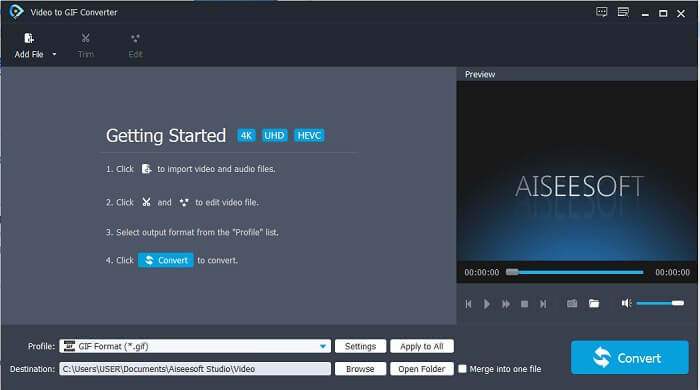
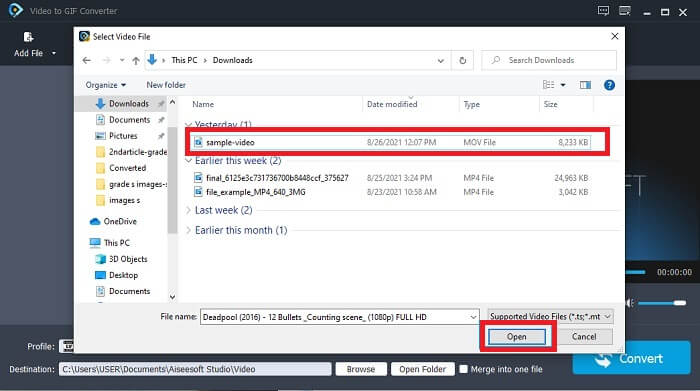
Paso 3. Haz clic en Añadir archivo o también puedes arrastrar y soltar el archivo de vídeo en la interfaz de la herramienta.
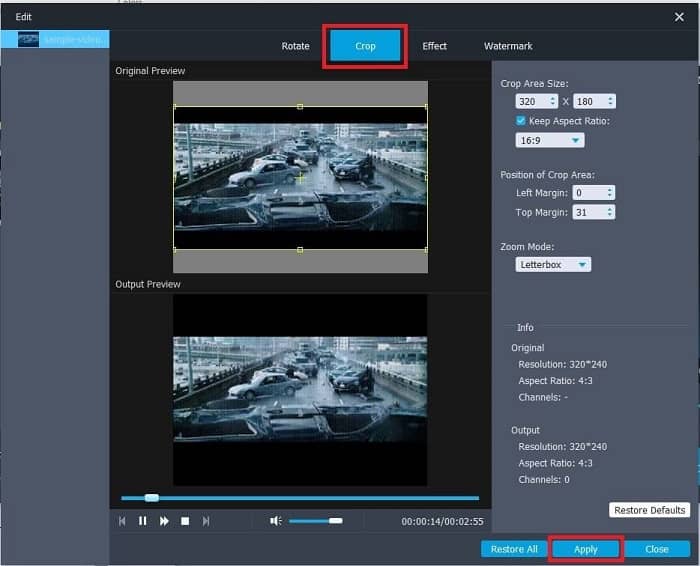
Paso 4. Pulsa en Editar para mejorar tu GIF. Ve a Recortar y ajusta el tamaño de tu GIF. También puedes cambiar la Relación de aspecto y el Modo zoom. Haz clic en Aplicar para guardar los ajustes realizados.
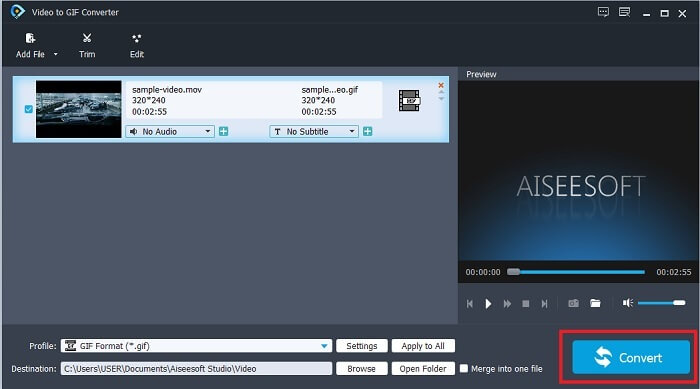
Paso 5. Haz clic en Convertir para iniciar la conversión de tu vídeo a GIF. Cuando la conversión haya terminado, podrás comprobar el resultado final en el explorador de archivos escribiendo el nombre del vídeo.
Pros
- Todas las funciones menores están disponibles aquí.
- Es mucho mejor que la herramienta en línea y también algunas de las herramientas descargables.
- Crea tu GIF fácilmente con esta herramienta.
Contras
- No puede utilizar las principales funciones que ofrece la versión Ultimate.
- Es compatible con videos de menor formato en lugar de la versión premium.
2. Video Converter Ultimate
La versión gratuita de esta herramienta puede hacer el trabajo simple, pero su versión premium es la mejor recortadora de GIF. Video Converter Ultimate no es solo de nombre, sino también de que esta herramienta es lo último en convertir cualquier video a un archivo GIF. A diferencia de su versión gratuita y la herramienta a continuación, esta herramienta puede hacer que su GIF simple sea más espléndido. Transforme su GIF en uno excepcional agregando efectos que esta herramienta solo puede proporcionar. También proporciona conversión de un video a GIF, como MP4 a GIF, fusionando videos en uno, creador 3D y muchos más. Por lo tanto, use esta herramienta como su recortador personal y nunca lo decepcionará. Además, continúe leyendo los pasos a continuación para saber cómo recortar su GIF para entregar un mensaje más específico a su receptor.
Paso 1. Antes de poder usar esta herramienta, tendrás que descargarla. Instálala en tu disco, cambia las preferencias según tus necesidades y haz clic en Finalizar para empezar a ejecutar la herramienta en tu pantalla.
Descarga gratuitaPara Windows 7 o posteriorDescarga segura
Descarga gratuitaPara macOS 10.7 o posteriorDescarga segura
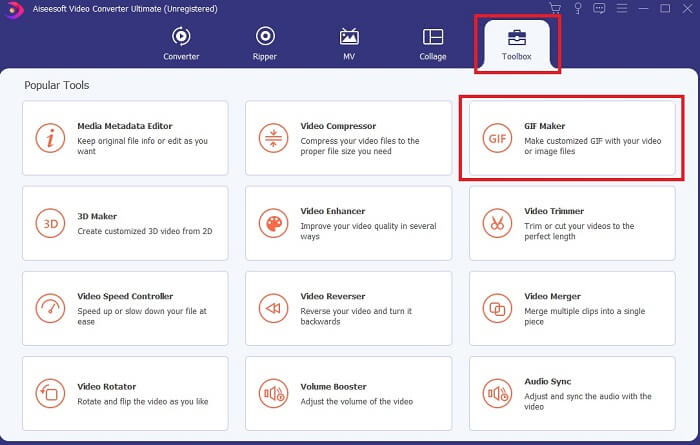
Paso 2. Cuando la herramienta se haya descargado completamente en tu disco, aparecerá en tu pantalla una interfaz manejable como esta. Haz clic en la barra de herramientas y, en la barra de herramientas, haz clic en GIF Maker.
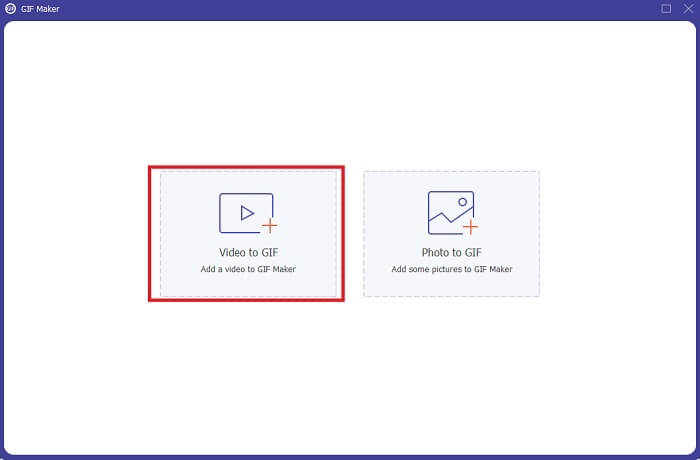
Paso 3. Para añadir el vídeo, haz clic en Vídeo a GIF y localiza el GIF que quieres recortar o editar. Después de seleccionar el vídeo, haz clic en Abrir para iniciar GIF Maker.
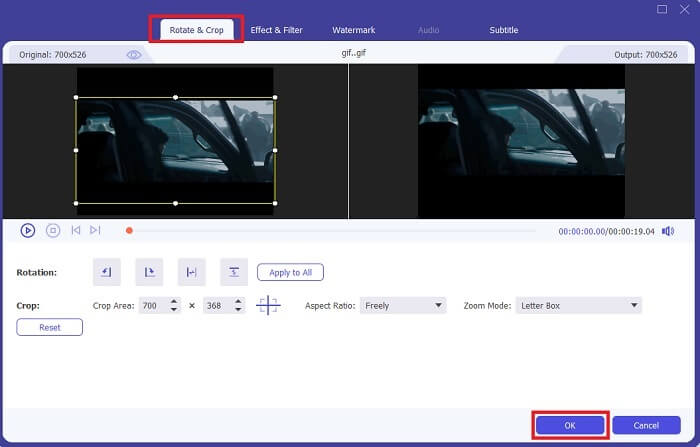
Paso 4. Haz clic en el botón con una imagen de estrella para comenzar a editar. Haz clic en Girar y recortar para empezar a recortar el GIF. También puedes añadir efectos y filtros, marca de agua y subtítulos. Cuando hayas terminado de ajustar todo, pulsa en Aceptar para guardar los cambios.
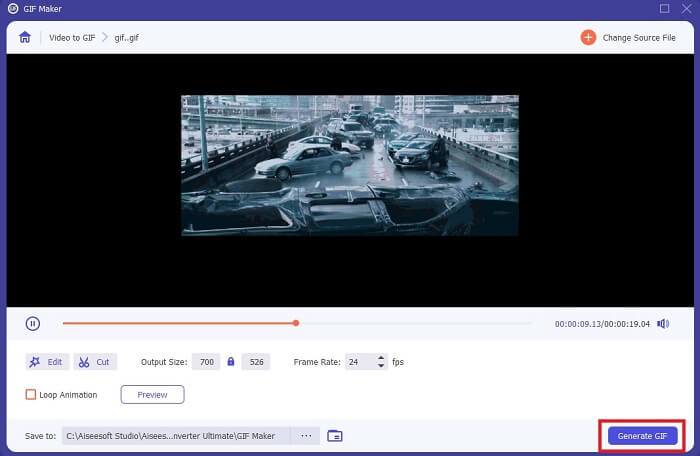
Paso 5. Cambia la ubicación donde quieres guardar el resultado final para poder encontrarlo más fácilmente. Haz clic en Generar GIF para iniciar la conversión. Cuando la conversión se haya completado al 100 %, busca el archivo final en la carpeta donde decidiste guardarlo o en el administrador de archivos.
Pros
- Su herramienta de uso general si desea mejorar su GIF en uno mucho más interactivo. Usa tu imaginación para darle vida a las cosas en tus GIF.
- Puede convertir su GIF en una salida impresionante mediante el uso de las principales funciones que proporciona que la otra versión premium no puede proporcionar.
- Más de un millón de usuarios eligen esta herramienta como su herramienta de versión premium de primera elección.
Contras
- Para utilizar la herramienta, primero debe realizar el pago, pero seguro que no es tan caro. Por lo tanto, no debe esperar menos si compró esta herramienta.
- Descargue la herramienta antes de ejecutarla. Incluso si no tiene Internet, aún puede usar esta herramienta porque no depende de Internet.
Parte 2. Los 5 mejores recortadores de GIF a los que puede acceder a través de Internet
1. iLoveIMG
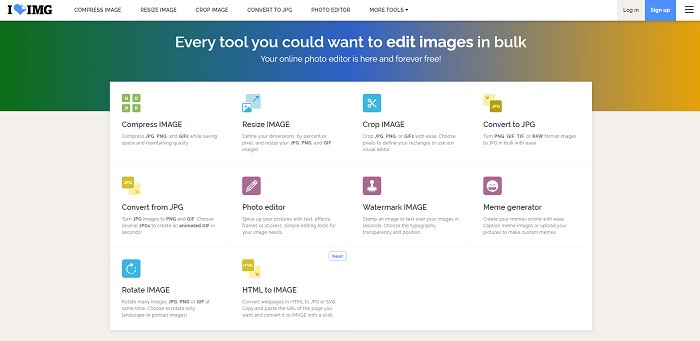
Recorta tu GIF con la ayuda de este recortador de GIF en línea. iLoveIMG es conocido como el mejor recortador en línea de GIF, JPG y PNG. Aunque la herramienta no puede convertir vídeos al formato GIF porque solo se centra en mejorar tus GIF, JPG y PNG, la interfaz de la web supera las expectativas, ya que no es solo simple, sino también muy interactiva. Así que no esperes aburrirte mientras usas el sitio. En una escala de valoración, obtiene un 7 sobre 10, lo cual está muy bien para una aplicación web en línea.
Pros
- Lo mejor es mejorar su GIF, JPG y PNG.
- La interfaz del sitio web es increíblemente hermosa.
- No es necesario descargar.
Contras
- Existe la posibilidad de que se produzcan pérdidas de datos si se interrumpe la conexión.
- No puede convertir el formato de video a un formato GIF.
2. RedKetchup
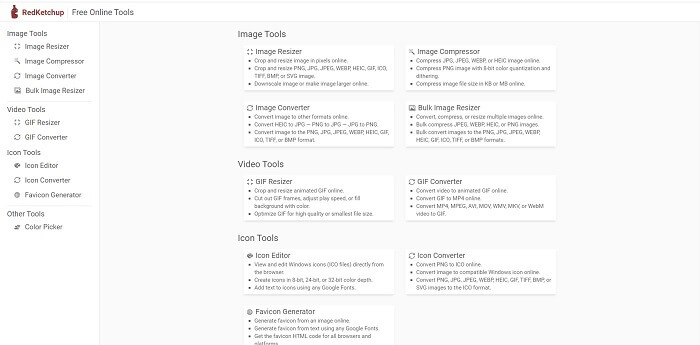
Si iLoveIMG no es para ti, entonces deberías probar este recortador de GIF en línea. RedKetchup es muy informativo por la descripción que ofrece de cada una de las herramientas de edición que incluye. De este modo te resulta más fácil entender cómo funciona cada función si no tienes idea de ello. Además, puedes convertir tus imágenes en GIF, PNG, JPG, WEBP y más. Admite más formatos que iLoveIMG, pero el inconveniente de esta herramienta es que la interfaz de la página web es muy aburrida. Todo el fondo del sitio es de color blanco y lo único que tiene color es el nombre y el icono de RedKetchup.
Pros
- Admite más formatos de imagen que iLoveIMG.
- Cada característica de la herramienta tiene una breve descripción para que el usuario pueda comprender sus funciones.
- Es una herramienta en línea gratuita.
Contras
- La página web de esta herramienta es tan aburrida de ver debido a su color monótono.
- Existe la posibilidad de que el archivo no se guarde correctamente si su Internet es inestable.
3. Kapwing
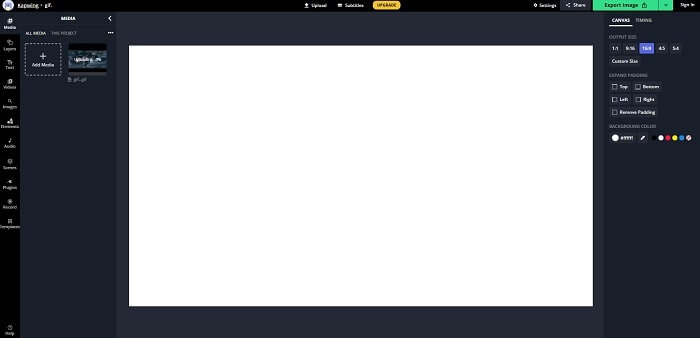
Esta herramienta tiene casi las mismas funciones que Photoshop, pero es en línea. Es el mejor recortador de fotogramas de GIF online. Kapwing es conocido por crear los mejores GIF que quieras compartir con tus amigos. A diferencia de las dos primeras herramientas mencionadas, esta admite algunos formatos de vídeo para convertirlos a formato GIF. Aunque aprender a usarla te llevará algo de tiempo, merecerá la pena. Si lo que quieres es crear un GIF sencillo, esta herramienta es la mejor para ello. Esta herramienta tiene casi las mismas funciones que Photoshop, pero es en línea. Es el mejor recortador de fotogramas de GIF online. Kapwing es conocido por crear los mejores GIF que quieras compartir con tus amigos. A diferencia de las dos primeras herramientas mencionadas, esta admite algunos formatos de vídeo para convertirlos a formato GIF. Aunque aprender a usarla te llevará algo de tiempo, merecerá la pena. Pero si quieres crear un GIF sencillo, esta herramienta es la mejor para hacerlo.
Pros
- La interfaz del sitio web de la herramienta le dará casi la misma vibra con Photoshop.
- Convierte tu video a formato GIF.
- Se proporcionan funciones de edición básicas.
Contras
- El procesamiento de la salida final del video siempre dependerá de la velocidad de Internet. Por lo tanto, se necesita mucha paciencia para producir el resultado final.
- Deberá registrarse para eliminar la marca de agua de su salida. Por lo tanto, espere un correo con cada actualización que diga y algunos anuncios molestos. Porque les dejas acceder a tu cuenta.
4. GIFGIF
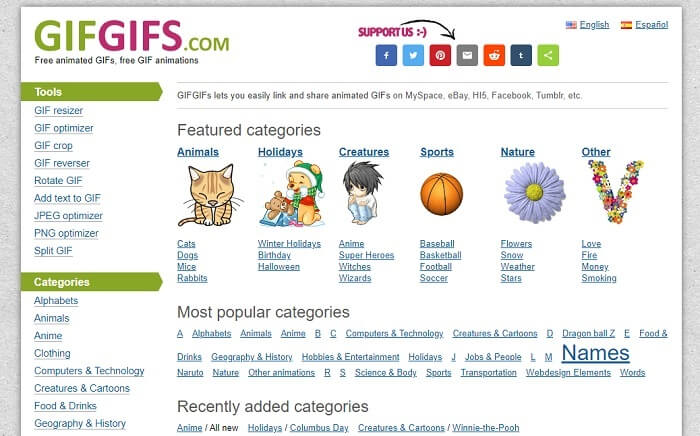
Puedes recortar tus GIF con este recortador de GIF sin pérdida de calidad. GIFGIFs te ofrece los mejores GIF ya creados en línea. Puedes elegir entre las categorías que ofrece, como alfabeto, deportes, anime, ropa, etc. Además, esta herramienta no solo proporciona las mejores funciones para mejorar tus GIF, sino que también permite optimizar JPG y PNG.
Pros
- Es una buena opción mejorar tu GIF para convertirlo en uno mejor.
- Admite la optimización de JPEG, PNG y GIF.
- Elija GIF ya hechos en las secciones de su categoría.
Contras
- No proporciona una barra de búsqueda, por lo que es difícil encontrar el GIF perfecto que desea usar.
- La interfaz está bien. No es nada especial o deberíamos decir que no es bueno pero tampoco malo.
5. VEED.IO
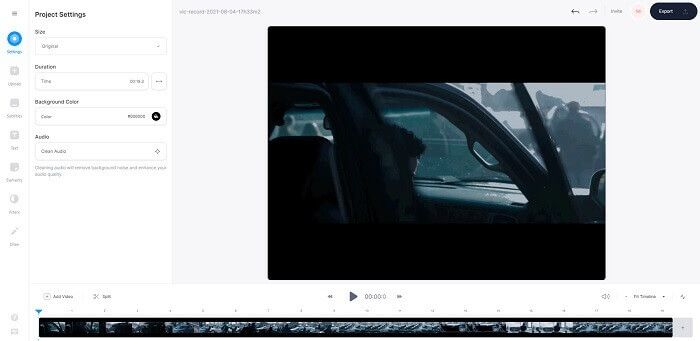
Elija este como su primer recortador GIF gratuito en línea, pero también se puede actualizar a una versión premium si lo desea. VEED.IO es una de las mejores herramientas en línea para mejorar sus GIF y convertirlos en uno mejor. Pero la versión gratuita de la herramienta solo admite 50 MB de tamaño de archivo GIF y para agregar más tamaño de archivo, debe comprar la versión premium de la herramienta.
Pros
- Proporciona una excelente función de edición para mejorar su GIF.
- Interfaz de usuario sencilla.
- También puede agregar subtítulos si lo desea.
Contras
- No proporciona un creador 3D para mejorar sus imágenes 2D.
- En algunas ocasiones, el software falla cuando intenta hacer zoom en la línea de tiempo.
Parte 3. Preguntas frecuentes sobre GIF Cropper
¿Existe algún formato mejor que el formato GIF?
Aunque es bien sabido que GIF es el mejor formato de imagen en movimiento de la web. ¿Pero sabías que hay un formato mejor que el GIF? Este es el APNG. Este formato proporciona una paleta de colores más que el GIF y también es mejor en compresión. Pero también puede utilizar WEBP, MNG, FLIF y AVIF.
¿Cuál es la razón por la que se crean los GIF?
A finales de 1987, un hombre llamado Steve Wilhite se preguntó si existía la posibilidad de crear un archivo de imagen de pequeño tamaño para mostrarlo en el ordenador y, en ese mismo momento, nació el GIF. Para saber más sobre los GIF, puedes hacer clic aquí.
¿Cuál es mejor? JPG o GIF?
El formato JPG le proporciona una imagen más detallada porque admite una amplia gama de colores, por lo que es el mejor para tomar fotografías. El GIF proporciona una pequeña cantidad de paleta de colores, pero es bueno para hacer una imagen estática.
Conclusión
Para concluir, debes elegir el mejor recortador de GIF que te proporcione el recorte que necesitas sin afectar a la calidad del GIF en sí, aunque lo recortes. Pero queda claro que debes elegir la herramienta definitiva desarrollada por FVC, porque te ofrece las mejores funciones de GIF que quieras añadir al tuyo para que tenga un aspecto más llamativo que otros GIF. Así que recortar tu GIF es más fácil que nunca si usas Video Converter Ultimate.
-
 Tutorial para comprimir GIF y reducir su tamaño de archivo con alta calidad
 Aquí hay 2 formas sencillas de comprimir GIF en su computadora o teléfono móvil. Puede utilizar FVC Free Online Video Compressor y Photoshop para reducir el tamaño del archivo GIF en diferentes aspectos.
-
 GIF Player: los 5 mejores reproductores GIF para PC con Windows, Mac, Android y iPhone
 ¿Qué programa abre archivos GIF? ¿Cómo veo GIF en Android? ¿El iPhone tiene un reproductor de GIF para abrir GIF? Esta publicación comparte los 5 mejores reproductores GIF para ti.
-
 Cómo convertir videos AVI a archivos GIF animados en Windows / Mac
 ¿Quiere seleccionar los segmentos AVI interesantes para crear memes GIF? Este artículo le dirá los 2 mejores métodos para recortar los videos AVI y convertir AVI a archivos GIF animados de forma gratuita.
