


 Video Converter Ultimate
 Grabador de pantalla
 Reparación de vídeo
 Descarga segura
Cómo comentar GIF en el suministro de noticias y carretes de Instagram
Los GIF o Graphic Interchange Format son imágenes animadas y combinadas o vídeos comprimidos que puedes usar para añadir diversión y entretenimiento a tu interacción en las redes sociales. Algunos incluso usan estos formatos de imagen como memes o para mostrar reacciones a las publicaciones de forma cómica. Pero ¿sabías que, antes de hacerse populares en 2012, los GIF estuvieron a punto de desaparecer del mundo de Internet? Afortunadamente, a medida que crecían los usuarios de las redes sociales, estas imágenes animadas se han salvado de la extinción porque muchos usuarios las utilizan para dar más vida a la comunicación virtual. Han llegado a dominar las apps de redes sociales, incluido el buzón y las cajas de comentarios de Instagram. Por lo tanto, en este artículo aprenderás cómo comentar con GIF en Instagram.

Parte 1. ¿Instagram admite GIF?
Instagram es una de las aplicaciones de redes sociales más populares donde las personas pueden compartir y mostrar sus fotografías estéticas con subtítulos breves. Esta plataforma para compartir fotografías ha evolucionado continuamente para mejorar la experiencia del usuario. Una de esas mejoras es el uso de GIF, que permite a los usuarios agregar una capa adicional de creatividad y expresión a sus interacciones. Inicialmente, la aplicación estaba destinada únicamente a enviar un mensaje utilizando GIF divertidos o creando lindas historias de IG. Pero ahora ya puedes comentar GIF en carretes y publicaciones de noticias.
¿Cuándo lanzó Instagram esta función?
El GIF en la sección de comentarios de Instagram fue lanzado el pasado mayo de 2023 por Adam Mosseri, el director de la empresa, junto con el director ejecutivo de Meta, Mark Zuckerberg. Se afirmó que la introducción de esta última característica era uno de los hitos para los fundadores y copropietarios de Instagram. Incluso abordaron cómo esperan que esté en IG, ya que comentar GIF ha sido habitual en la sección de comentarios de Facebook durante años. Se espera que este logro fomente una mayor participación entre los usuarios de IG, ya que pueden usar GIF para comentar publicaciones y carretes de noticias.
¿El soporte tiene alguna restricción regional?
La función de comentarios GIF de IG estuvo limitada a Argentina, Irlanda, Italia, Japón, México y Estados Unidos durante su período de prueba. Aunque Meta no reveló cuándo estará disponible esta función para todos, prometen que si esta nueva función ha ganado mucha participación en la plataforma, la implementarán lentamente para los usuarios de todo el mundo. En consecuencia, tampoco hay datos que indiquen su restricción regional.
Parte 2. Cómo comentar GIF en Instagram
Si es nuevo en el descubrimiento de esta nueva función, a continuación se detallan los pasos que puede seguir sobre cómo comentar GIF en una publicación de Instagram (siempre que ya haya actualizado su cuenta de Instagram):
Cómo comentar GIF en Instagram Reels:
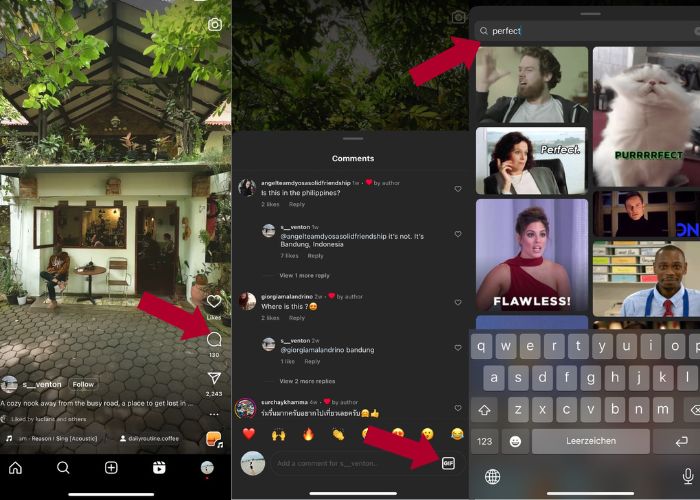
Paso 1. Primero, ve al reel con el que quieras interactuar y toca Comentar.
Paso 2. A continuación, toca la casilla GIF para comentar con un GIF.
Paso 3. Después, elige entre la colección de GIF el que quieras comentar. Puedes explorar a fondo o escribir la palabra clave del elemento visual que quieras añadir.
Paso 4. Cuando termines de seleccionar, puedes tocar el GIF y se enviará al instante.
Cómo publicar GIF en comentarios de Instagram:
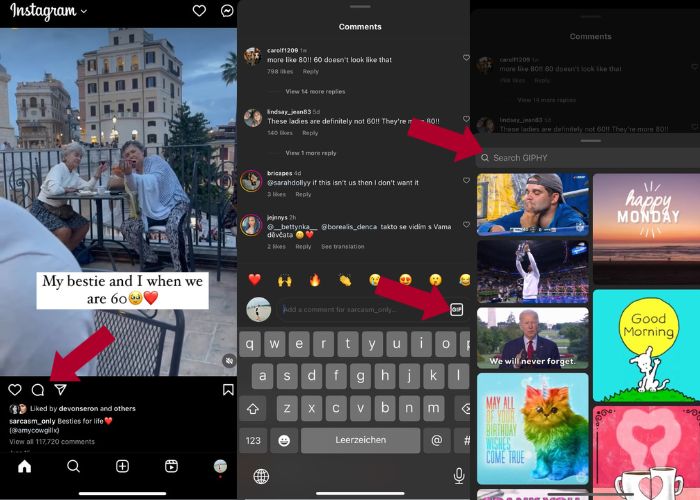
Paso 1. Ve al feed de noticias de tus amigos u otros usuarios de IG y toca la foto a la que quieras añadir tu GIF, luego pulsa el icono de Comentario.
Paso 2. A continuación, toca el icono de GIF en la caja de comentarios.
Paso 3. Busca un GIF o desplázate hacia abajo para ver más GIF y, una vez que hayas seleccionado el GIF, vuelve a la sección de comentarios y comprueba si se ha añadido correctamente.
Parte 3. ¿Por qué no puedo comentar GIF en Instagram?
Si no puede agregar un comentario en su Instagram usando GIF, puede intentar actualizar su aplicación. Si, por casualidad, todavía no puedes encontrar el botón GIF, es posible que tu país se encuentre entre esas regiones donde Meta aún no ha lanzado esta nueva función. Entonces tendrás que esperar hasta que llegue a tu país.
Parte 4. Cómo hacer un GIF para Instagram con Best GIF Maker
Para personalizar tus GIF, debes convertir tu vídeo en formato MP4 a GIF. También tienes que animar varias imágenes para crear archivos GIF. Con esto, deja que Video Converter Ultimate te ayude. Este software es una completa herramienta de edición de vídeo que facilita la edición y conversión de vídeos. Dispone de una herramienta GIF Maker, con la que los usuarios pueden crear al instante GIF para su Instagram. Y con la ayuda de la función Loop Animation, te sorprenderá cómo esta aplicación puede convertir imágenes estáticas en GIF.
Además, esta herramienta también viene con herramientas de edición esenciales para mejorar tus GIF: edita su contraste, saturación, brillo y tono. También puedes usar su filtro para establecer el ambiente de tu GIF. Y si tienes un vídeo largo, también puedes recortarlo con este Creador de GIF. Además, este software te permite modificar el formato de salida y la velocidad de fotogramas de tu GIF. Y lo mejor es que esta aplicación tiene una interfaz intuitiva para principiantes.
Y si este conversor de vídeo te resulta intimidante, vamos a mostrarte cómo Video Converter Ultimate es tan fácil de usar. Simplemente siga los pasos a continuación:
Paso 1. Instalar e iniciar Video Converter Ultimate
Para comenzar el proceso de conversión, descarga el software haciendo clic en el botón de Descarga gratuita que aparece a continuación y, después, instálalo. Una vez finalizada la instalación, puedes iniciar el programa en tu ordenador, esperar al proceso de configuración y hacer clic en Empezar ahora para iniciar.
Descarga gratuitaPara Windows 7 o posteriorDescarga segura
Descarga gratuitaPara macOS 10.7 o posteriorDescarga segura
Paso 2. Subir archivos multimedia
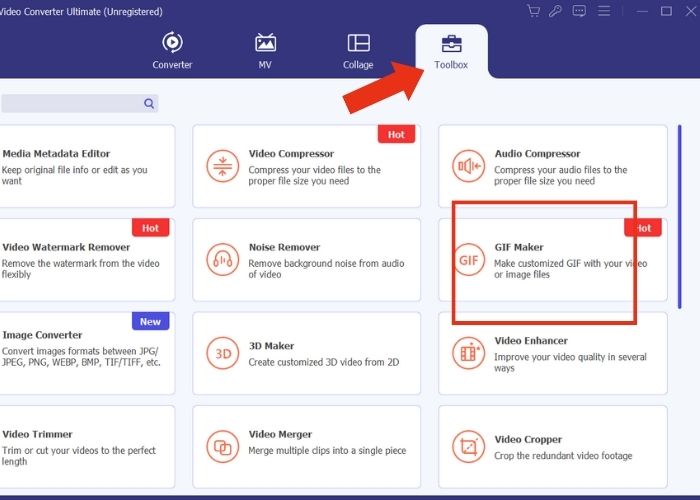
En la interfaz de la aplicación, ve a la pestaña Toolbox y explora bien el conjunto de herramientas para buscar la herramienta GIF Maker. Desde aquí, pulsa Video to GIF si deseas convertir un vídeo o Photo to GIF si quieres convertir varias imágenes en un GIF.
Paso 3. Modificar archivo
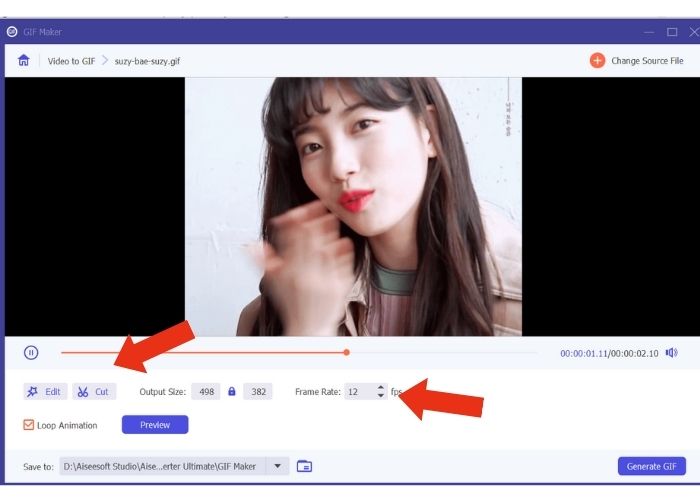
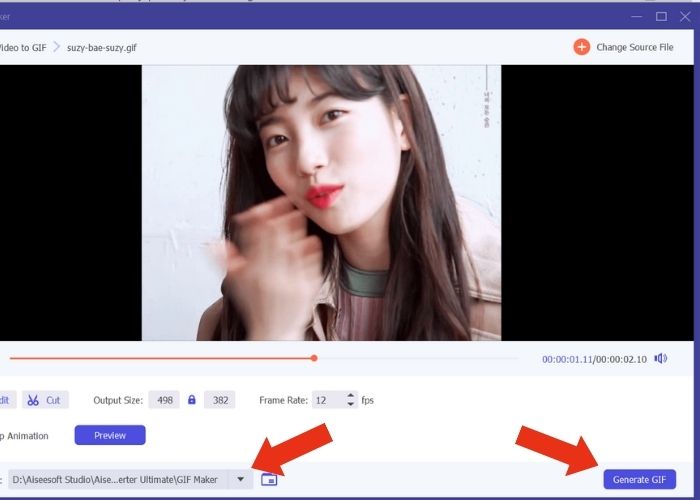
Después de añadir el archivo, configura las propiedades del GIF modificando el tamaño de salida (Output Size) y la velocidad de fotogramas (Frame Rate). Luego, pulsa Edit para controlar la intensidad del color del vídeo o añadir un filtro para mejorarlo. A continuación, haz clic en Cut para recortar la duración de los archivos originales, ya que la mayoría de los GIF no deberían durar más de 6 segundos.
Paso 4. Exportar y guardar el resultado
Antes de exportar el archivo multimedia, elige el archivo o la carpeta donde quieres guardar tu resultado. Luego, exporta el GIF haciendo clic en el botón Generate GIF. Espera un momento mientras la herramienta procesa tu GIF. Una vez terminado, aparecerá una nueva ventana donde podrás ver el resultado final.
Parte 5. Cómo subir el GIF al comentario de Instagram
Ahora que ya tienes tu propio GIF, esta parte te mostrará cómo subirlo al sitio web de GIPHY. Estos son los pasos que debes seguir:
Paso 1. Crea una cuenta en GIPHY.
Paso 2. Importa tu GIF ya creado.
Paso 3. Añade etiquetas y haz clic en el botón Upload to GIPHY.
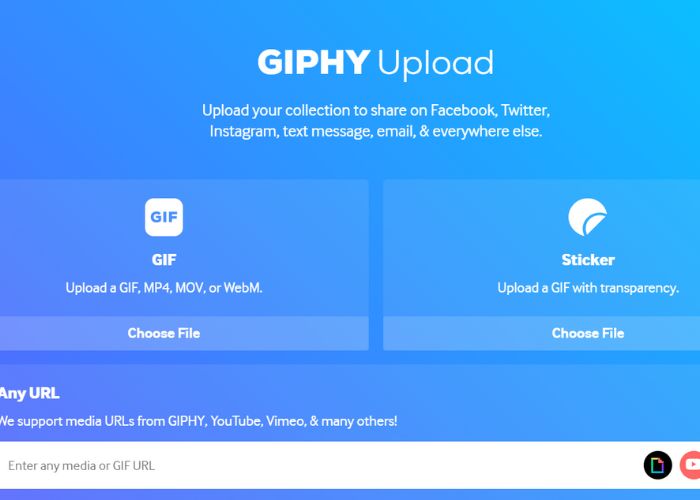
Espere días antes de que su GIF se cargue en la biblioteca GIPHY de su Instagram. Esta es una actividad de prueba y error, aunque es posible que este método no funcione en su país.
Lecturas recomendadas:
Redimensionar fotos para Instagram en ordenador, iPhone o Android
Repite GIF con el mejor reproductor de GIF animados en bucle para Windows y Mac
Parte 6. Preguntas frecuentes sobre cómo publicar GIF en comentarios de Instagram
¿Puedes usar GIF para la foto de perfil de Instagram?
No. Actualmente, los GIF en Instagram solo se limitan a sus Historias, Mensajes, cuadro de comentarios en carretes y publicaciones de noticias.
¿Se muestran los GIF en los mensajes de Instagram?
Sí. Los GIF también funcionan en los mensajes de Instagram.
¿Puedes responder con imágenes en Instagram?
Para mensajería, sí, se puede. Sin embargo, aún no se permite responder a historias y cuadros de comentarios en Reels y Newsfeed.
¿Cómo pones un GIF del carrete de tu cámara en tu historia de Instagram?
Así es como se publica un GIF en una historia de Instagram:
Convierte tu vídeo en GIF usando Video Converter Ultimate y guarda el resultado en el carrete de tu cámara. Luego, súbelo al sitio de GIPHY y espera unos días hasta que aparezca en la biblioteca. Usa la etiqueta que introdujiste para buscar tu GIF ya creado.
¿Por qué no puedo responder a un comentario en Instagram?
Por ahora, Instagram solo admite comentarios de GIF en publicaciones de noticias y carretes. Desafortunadamente, no permite a sus usuarios responder a un comentario utilizando GIF.
Conclusión
Ahora que sabes cómo comentar con GIF en una publicación de Instagram, puedes interactuar más con tus amigos de Instagram comentando con GIF divertidos en sus feeds y reels. También puedes crear algunos usando el mejor conversor de vídeo, Video Ultimate Converter. Pero recuerda comentar con GIF con moderación, o de lo contrario podrías ser marcado como spam.
-
 Los 5 mejores sitios sobre cómo guardar un GIF en iPhone como video
 ¿No puedo guardar un GIF en mi iPhone? Quédese en esta publicación y le brindaremos las posibles soluciones para guardar GIF en iPhone.
-
 [Gratis y de pago] GIF Speed Changer: Hot Picks de 2023
 ¿No está satisfecho con el GIF que hizo en línea, ya que es tedioso y lento? Este será tu día de suerte porque te presentamos un artículo sobre el cambiador de velocidad GIF y los detalles que te ayudarán a usarlo y dominarlo.
-
 Cómo agregar y hacer un filtro de Instagram antes de publicar imágenes y videos
 ¿Qué son los filtros en Instagram? ¿Cómo aplicarlo? ¿Cómo hacer uno? Estas preguntas tendrán respuestas directas en esta publicación, así que léalas.
