


 Video Converter Ultimate
 Grabador de pantalla
 Reparación de vídeo
 Descarga segura
Divisores de GIF: las mejores herramientas para dividir y personalizar imágenes animadas
Si alguna vez quiso usar una parte en particular de un GIF pero se quedó atascado con toda la animación, no está solo. Los GIF son populares por su capacidad de transmitir emociones y reacciones en un corto período de tiempo, pero a veces solo necesitamos una parte para transmitir nuestro mensaje. Aquí es donde entra en juego la importancia de dividir archivos GIF.
Con la ayuda de divisores de GIF, puedes extraer fácilmente la parte exacta del GIF que necesitas y usarla en tu proyecto o publicación en redes sociales. Esta publicación te mostrará algunas de las mejores herramientas para dividir GIF disponibles actualmente en el mercado.

Parte 1. Manera fácil de dividir GIF
1. FVC Video Converter Ultimate
Si solo necesitas recortar una pequeña parte de un GIF, entonces puedes usar FVC Video Converter Ultimate. Es una herramienta de software versátil que ofrece una serie de funciones para la conversión y edición de vídeo. Además, la herramienta es compatible con una amplia gama de formatos de vídeo y permite a los usuarios ajustar parámetros como la resolución, la tasa de bits y la velocidad de fotogramas. Aunque no tiene una función específica para dividir archivos GIF, la función de recorte de vídeo puede realizar esta tarea.
FVC Video Converter Ultimate puede ser una herramienta valiosa para aquellos que buscan una forma simple y directa de dividir archivos GIF. Con su interfaz intuitiva y su función de recorte de video fácil de usar, brinda una solución conveniente para los usuarios que solo necesitan realizar ediciones menores en sus GIF. Además, viene con una gama de otras características, como el procesamiento por lotes y la aceleración de GPU, que lo convierten en una herramienta integral de conversión y edición de video. Si desea aprender a dividir GIF sin conexión, estos son los pasos que puede seguir:
Paso 1. Consigue el software
Para empezar, simplemente selecciona un enlace de la lista de botones de Descarga gratuita que aparece a continuación. Después, solo sigue las indicaciones en pantalla para terminar de configurar el programa en tu dispositivo. Una vez completada la instalación, podrás ejecutar la aplicación y acceder a su menú principal.
Descarga gratuitaPara Windows 7 o posteriorDescarga segura
Descarga gratuitaPara macOS 10.7 o posteriorDescarga segura
Paso 2. Añade un archivo de imagen GIF
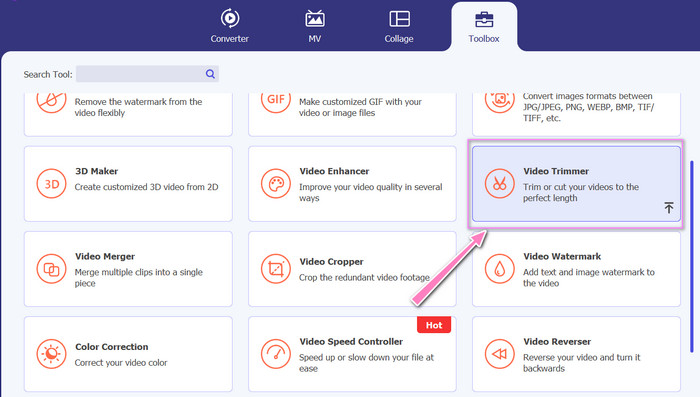
Elige la herramienta Video Trimmer en el menú Toolbox. Una vez hecho esto, selecciona el botón + para subir un GIF.
Paso 3. Divide el archivo GIF
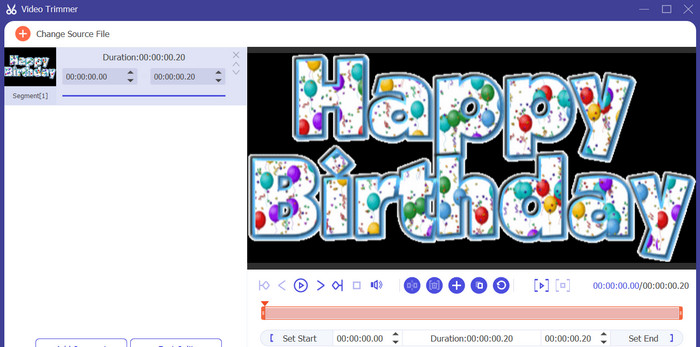
Una vez que se haya subido el GIF, se mostrará en la interfaz del programa para realizar cambios. Elija los puntos de inicio y final del GIF que desea eliminar usando el control deslizante.
Paso 4. Conserva el GIF que has creado
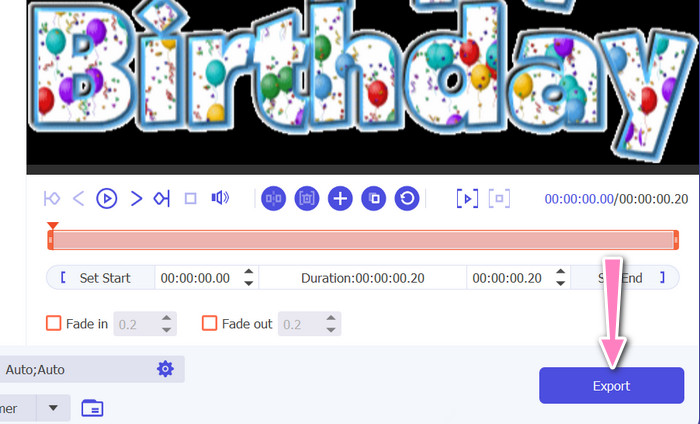
Cuando termines de personalizar el GIF, haz clic en el botón Export situado en la esquina inferior derecha de la herramienta para iniciar el proceso de renderizado.
2. EZGIF
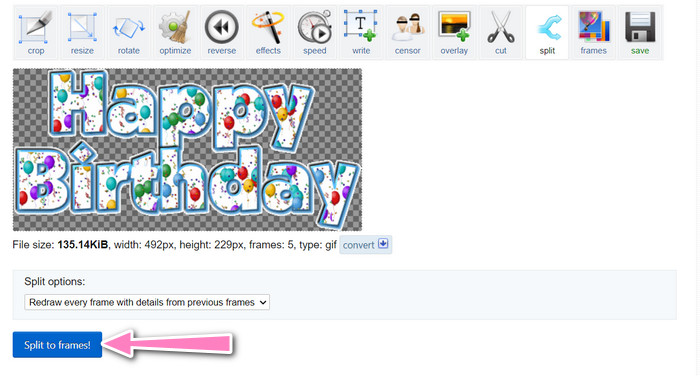
EZGIF es una herramienta en línea que ofrece una serie de funciones para trabajar con archivos GIF. El sitio web proporciona diversas utilidades para crear, editar y optimizar GIF, incluyendo redimensionar GIF, recortar y dividir. También incluye opciones para añadir texto y efectos especiales a tus GIF, e incluso te permite convertir vídeos e imágenes al formato GIF. Por lo tanto, si deseas dividir GIF en fotogramas en línea, esta es una opción perfecta. Además, EZGIF es una plataforma fácil de usar que no requiere descargas ni instalación, por lo que se puede acceder a ella cómodamente desde cualquier navegador web. Descubre cómo funciona esta herramienta y divide GIF en imágenes.
Paso 1. Para dividir un GIF con Ezgif, abre la página web de EZGIF en tu navegador.
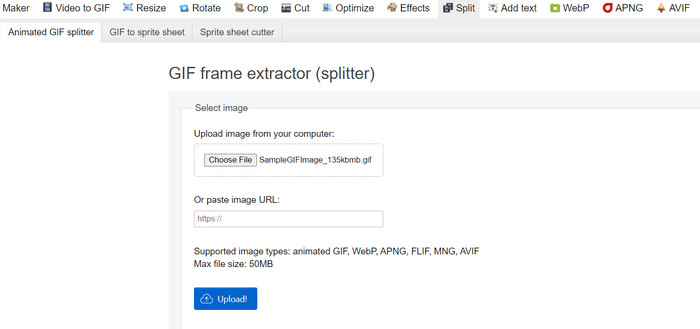
Paso 2. Selecciona la opción Split en el menú superior y luego ajusta la configuración según sea necesario.
Paso 3. Haz clic en el botón Choose File para subir el archivo GIF que quieres dividir. Como alternativa, puedes arrastrar y soltar el archivo en la interfaz de EZGIF.
Paso 4. A continuación, elige el método de división que quieras utilizar. Puedes dividir el GIF por un número concreto de fotogramas, por intervalos de tiempo específicos o seleccionando los fotogramas concretos que desees conservar.
Paso 5. Ajusta la configuración del método de división que hayas elegido. Haz clic en el botón Split to frames para iniciar el proceso. También hay opciones disponibles para dividir el GIF en PNG o JPG, según tus necesidades.
Parte 2. Forma profesional de dividir archivos GIF
Dividir un GIF en fotogramas en Photoshop es totalmente posible. Ofrece mucha flexibilidad y control al trabajar con GIF animados. Con Photoshop, puedes abrir un archivo GIF y editar cada fotograma individual de la animación, lo que te permite hacer ajustes y añadir filtros a cada fotograma por separado. Esto significa que puedes crear animaciones complejas, añadir texto o gráficos y ajustar el tiempo de cada fotograma para obtener una animación fluida y pulida. Para saber más sobre las opciones de edición disponibles en Photoshop para GIF, consulta los pasos que aparecen a continuación:
Paso 1. Abre el archivo GIF en Photoshop yendo a File > Open y seleccionando el archivo.
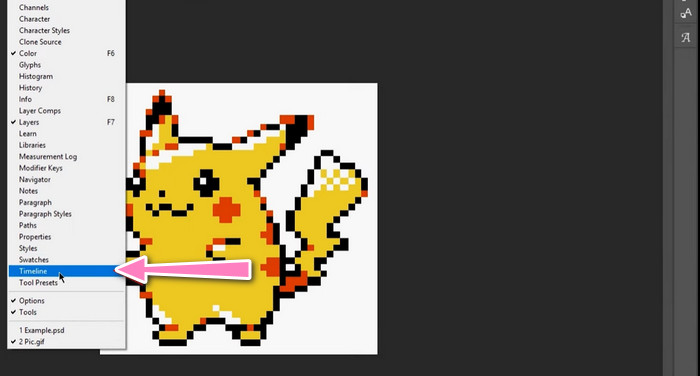
Paso 2. Una vez abierto el archivo, ve a Window > Timeline para abrir el panel Timeline.
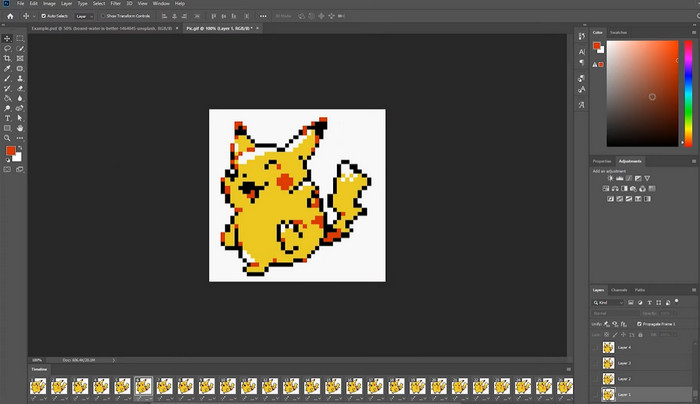
Paso 3. En el panel Timeline, deberías ver cada fotograma de la animación representado como una capa independiente. Si no ves el panel Timeline, haz clic en el botón de menú en la esquina superior derecha del panel y selecciona Create Frame Animation.
Paso 4. Para dividir el GIF, haz clic en el botón de menú del panel Timeline y selecciona Make Frames From Layers. Esto creará un fotograma independiente para cada capa de la animación.
Paso 5. Ahora puedes editar cada fotograma de forma individual seleccionándolo en el panel Timeline y realizando los cambios que desees.
Paso 6. Ve a File > Export > Layers to Files para exportar cada fotograma como un archivo independiente. En el cuadro de diálogo de exportación, selecciona el formato de archivo y la carpeta de destino que prefieras y luego haz clic en Run para exportar los archivos.
Parte 3. Preguntas frecuentes sobre la división de GIF
¿Puedo dividir un GIF en secciones o intervalos de tiempo específicos?
Sí, puede dividir un GIF en secciones específicas o intervalos de tiempo utilizando herramientas en línea o software de edición de imágenes.
¿Puedo usar software de edición de video para dividir GIF?
Sí, muchas aplicaciones de software de edición de video se pueden usar para dividir GIF. Por ejemplo, FVC Video Converter Ultimate, Adobe Premiere Pro y Final Cut Pro X son opciones populares.
¿Cómo ajusto el tiempo de fotogramas individuales en un GIF?
Puede ajustar el tiempo de los fotogramas individuales en un GIF utilizando una herramienta en línea o un software de edición de imágenes como Photoshop.
Conclusión
Dividir un archivo GIF puede ser una técnica útil para crear nuevas animaciones, editar las existentes o compartir fotogramas o secciones concretas. Tanto si prefieres usar herramientas en línea como si optas por software de edición de imágenes como Photoshop, hay varias opciones disponibles para dividir GIF. Siguiendo los pasos descritos en este artículo y explorando las distintas herramientas disponibles, podrás dividir fácilmente tus GIF y crear nuevas animaciones.
-
 Métodos destacados sobre cómo dividir videos de manera efectiva
 Este artículo explicará cómo dividir un video en partes. Entonces, si está interesado, haga clic en esta publicación, ya que le ofrecemos las formas más sencillas de probar.
-
 Aprenda 4 formas de crear GIF a partir de imágenes [en línea y fuera de línea]
 ¿Quieres saber cómo crear GIF a partir de la recopilación de tus imágenes? Luego haga clic en este enlace y lea los siguientes ejemplos.
-
 Las 3 formas más fáciles de agregar una marca de agua a un GIF en línea y fuera de línea
 Agregar una marca de agua a un GIF puede ser tan fácil como 1-2-3 si usa correctamente la herramienta adecuada. Las herramientas en el mercado son demasiado amplias, pero le presentaremos las tres herramientas en las que puede confiar.
