


 Video Converter Ultimate
 Grabador de pantalla
 Reparación de vídeo
 Descarga segura
Pasos rápidos y sencillos Cómo rotar y voltear GIF usando fuera de línea y en línea
Estás editando un vídeo en formato horizontal y quieres añadir algunos efectos de vídeo usando GIF. Sin embargo, el GIF que has creado o descargado está en formato vertical y, al ser vertical, no encaja bien. Ahora quieres girarlo y voltear parte de él. Mientras tanto, descargar desde sitios no fiables en línea te complica las cosas y puede meter virus en tu dispositivo. ¡No temas! Porque este artículo te ayudará a usar las mejores herramientas para rotar y voltear GIF tanto en línea como sin conexión.

Parte 1: Cómo rotar y voltear GIF con las mejores herramientas [sin conexión]
1. Video Converter Ultimate
Esta es una de las mejores herramientas que este artículo recomienda entre todas las opciones y programas en línea para ayudarte con el problema. Instala en tu ordenador FVC Video Converter Ultimate, un programa con muchas funciones de mejora de vídeo. Una de las funciones que ofrece permite rotar y voltear GIF con el patrón que quieras sin perder calidad. Echa un vistazo a los pasos siguientes para aprender a usar el software:
Paso 1. Consigue el programa
Haz clic en el botón Descarga gratuita para descargar el software en tu ordenador. Luego instálalo y personaliza la configuración como desees. Si todo está en orden, inicia el programa después de instalarlo y haz clic en Start Now.
Descarga gratuitaPara Windows 7 o posteriorDescarga segura
Descarga gratuitaPara macOS 10.7 o posteriorDescarga segura
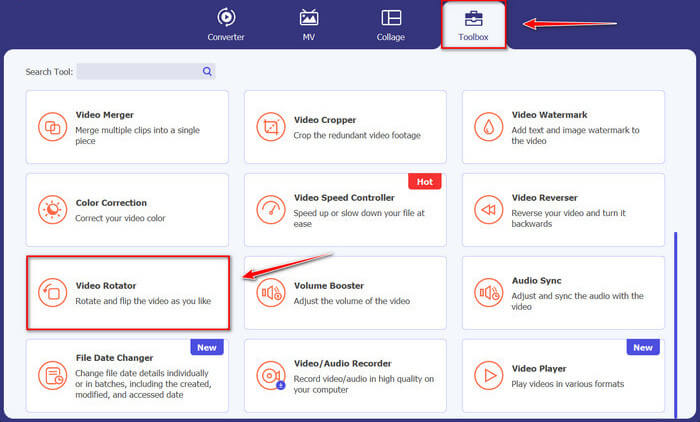
Paso 2. Accede al Rotador de Vídeo
Después, haciendo clic en la función Caja de herramientas, desplaza la pantalla hacia abajo y selecciona Video Rotator.
Paso 3. Importa un archivo GIF
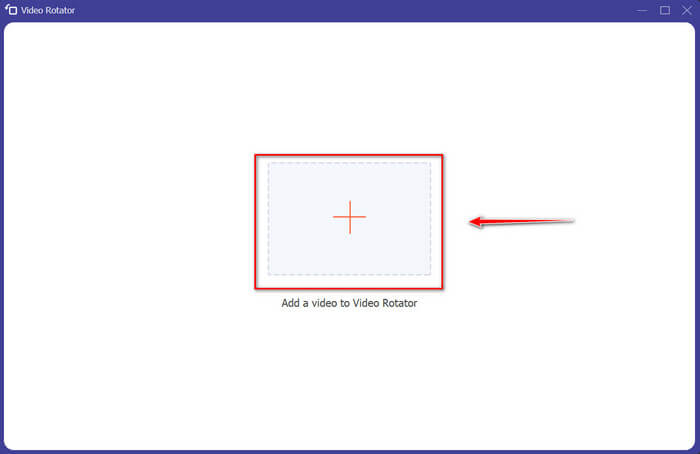
Importe los archivos que desea rotar y voltear arrastrándolos a la interfaz, también puede hacer clic en el botón + y seleccionar archivos en su computadora.
Paso 4. Rota el GIF
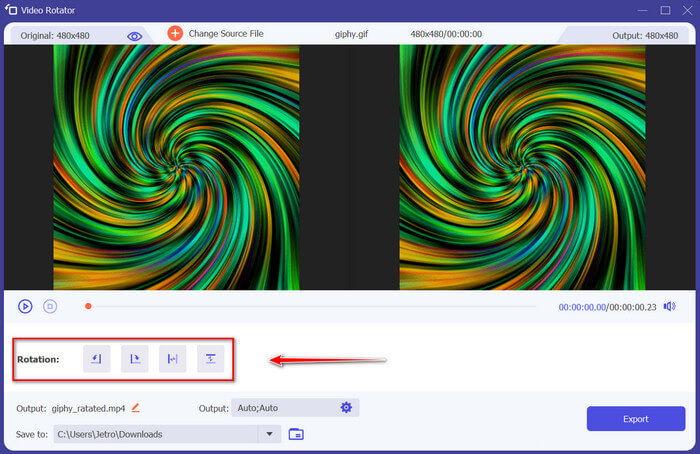
Elige cómo voltearás y rotarás tu GIF. Puede girarlo 90 grados hacia la izquierda o hacia la derecha y voltearlo vertical u horizontalmente.
Paso 5. Descarga el GIF rotado
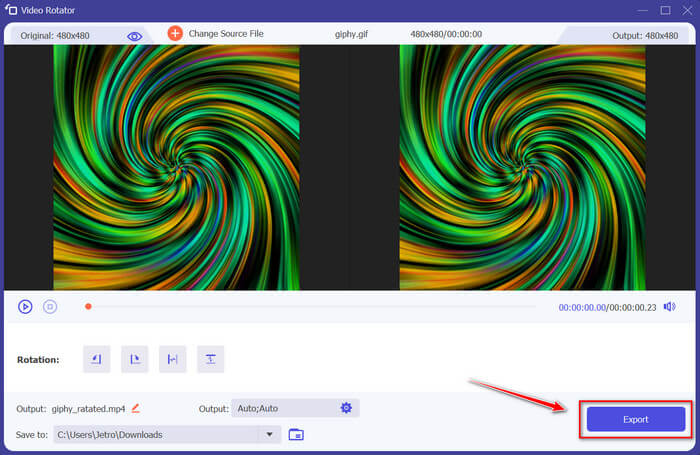
Descarga tu archivo haciendo clic en Exportar en la esquina inferior derecha de la interfaz. Después, aparecerá una ventana en la pantalla. Haz clic en Rotate Again para rotar otro videoclip o en Okay si has terminado.
2. Photoshop
Otra gran herramienta fuera de línea que se recomienda usar lo ayudará a aprender cómo rotar y voltear GIF. Esta herramienta es grande en tamaño y más complicada de usar, pero tiene las mismas características que FVC Video Converter Ultimate. Con Photoshop, puede rotar y voltear archivos GIF como un profesional sin desintegrar su calidad. Siga los métodos dados a continuación para obtener conocimiento sobre sus características y tecnicismos.
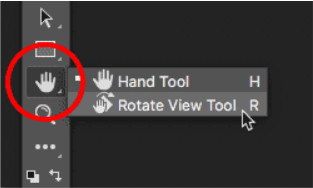
Paso 1. Descarga y abre Photoshop en tu ordenador. Después, haz clic en Hand Tool en la lista de funciones de la Toolbar. La herramienta Hand Tool es visible por defecto, con la Rotate View Tool oculta detrás. Mantén pulsado el icono de Hand Tool hasta que aparezca un menú desplegable para seleccionar Rotate View Tool. Luego, en el menú, selecciona la Rotate View Tool.
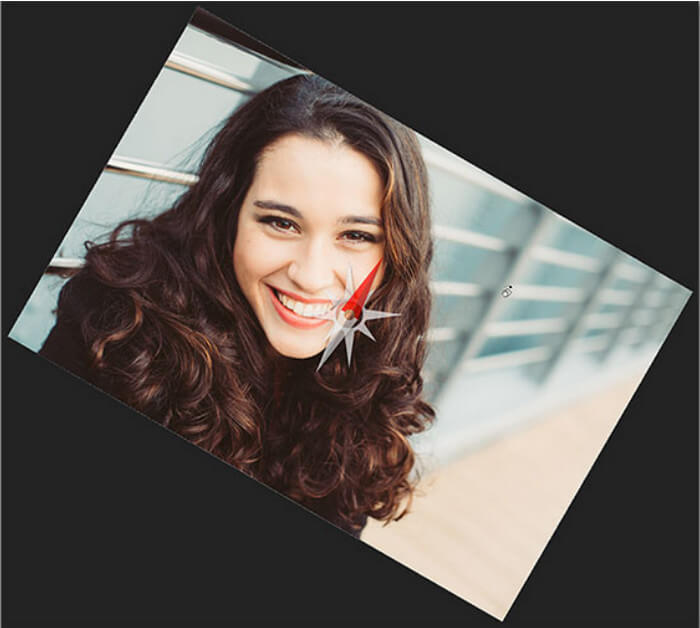
Paso 2. Mantén pulsado el botón izquierdo del ratón mientras haces clic en la imagen con la Rotate View Tool. Entonces aparecerá una brújula en el centro. Después, el marcador de dirección rojo en la parte superior de la brújula apunta siempre a la parte superior real de la imagen, de modo que, aunque gires el ángulo, siempre sabrás cuál es la parte de arriba.

Paso 3. Mantén pulsado el botón del ratón y arrastra la imagen para rotar la vista. Arrastra en el sentido de las agujas del reloj o en sentido contrario, según lo necesites. A medida que gires la vista, la brújula apuntará a la parte superior real de la imagen. Photoshop permite rotar el ángulo libremente por defecto. Sin embargo, si mantienes pulsada la tecla Shift mientras arrastras, la vista girará en incrementos de 15 grados.
3. Fotos
A veces, los problemas simples solo necesitan soluciones simples. Con esta herramienta, no tiene que descargar software e instalar aplicaciones en su dispositivo solo para rotar y voltear GIF. Usando su teléfono Android, ahora puede rotar y voltear GIF a su conveniencia. Si no está seguro de cómo hacerlo, siga todos los pasos que se indican a continuación:
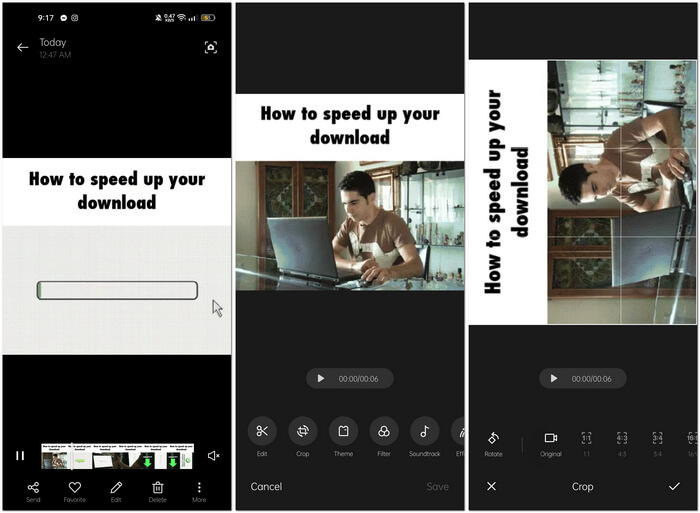
Paso 1. Abre tu teléfono y busca la carpeta de Fotos o Imágenes. Selecciona un GIF que quieras rotar y voltear. Elige Editar para empezar a editar tu GIF.
Paso 2. En la parte inferior de la pantalla, elige Recortar después de seleccionar un clip.
Paso 3. Rota tu GIF haciendo clic en Girar. Solo puedes ajustar el GIF vertical u horizontalmente. Después, haz clic en el icono de Check para guardar el GIF ajustado.
Parte 2: las mejores herramientas alternativas en línea para rotar y voltear GIF
1. LunaPic
Esta herramienta web es un editor de bajo presupuesto que cubre varias herramientas disponibles para una herramienta web de uso gratuito que puede brindarle una perspectiva de edición profesional. Debido a que esta herramienta web cubre la mayoría de los formatos y medios sociales disponibles, la edición se convierte en pan comido, brindando una excelente experiencia para algunos editores profesionales. Verá herramientas que otras herramientas web no proporcionan, especialmente aquellas que lo ayudan a rotar y voltear GIF. La interfaz es sencilla y puede adaptarse a las preferencias de cada usuario. Siga los pasos que se proporcionan a continuación para utilizar esta excelente herramienta en línea.
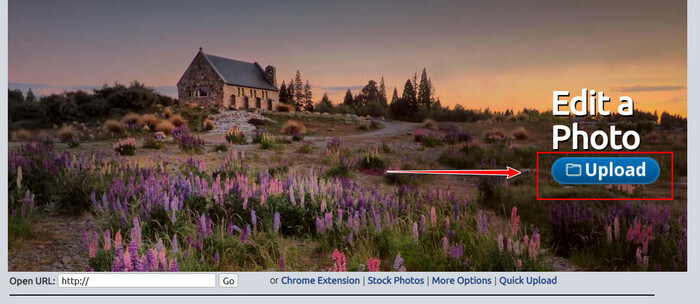
Paso 1. Haz clic en la pestaña Upload en la esquina superior izquierda de la interfaz web y añade archivos haciendo clic en Choose file.
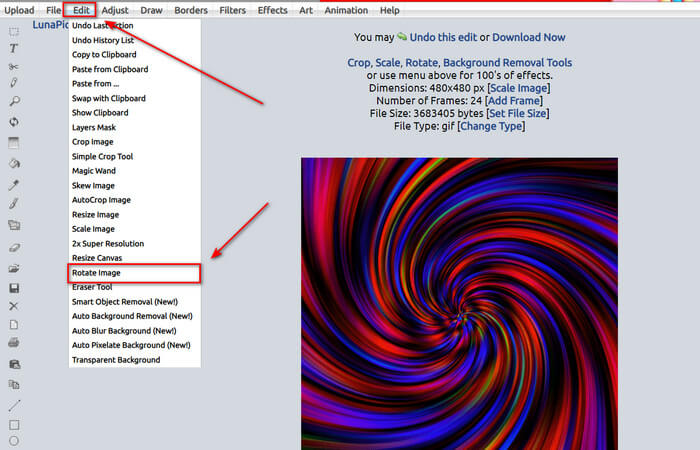
Paso 2. Puedes editar tu GIF en la primera interfaz después de subir tu archivo. Pero si quieres ajustar la rotación de tu GIF, continúa haciendo clic en la pestaña Edit y luego en Rotate Image.
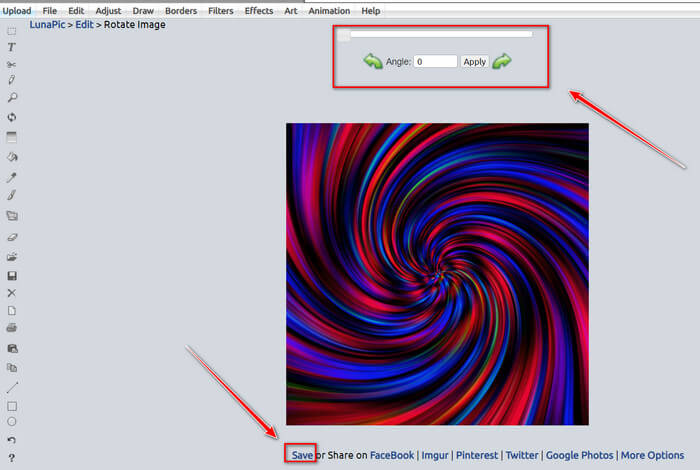
Paso 3. Ajusta la rotación de tu GIF introduciendo un grado concreto o haciendo clic en las flechas izquierda y derecha. Luego descárgalo haciendo clic en Save, situado en la parte inferior de la pantalla.
2. Ezgif
Ezgif.com es un sencillo creador de GIF en línea y un conjunto de herramientas para crear y modificar GIF animados básicos. Con Ezgif se pueden redimensionar, recortar, mejorar, optimizar y revertir GIF usando esta herramienta. Una de sus mejores funciones es que puedes rotar GIF con unos pasos muy simples. Para aprender a usarla, sigue los pasos que se indican a continuación:
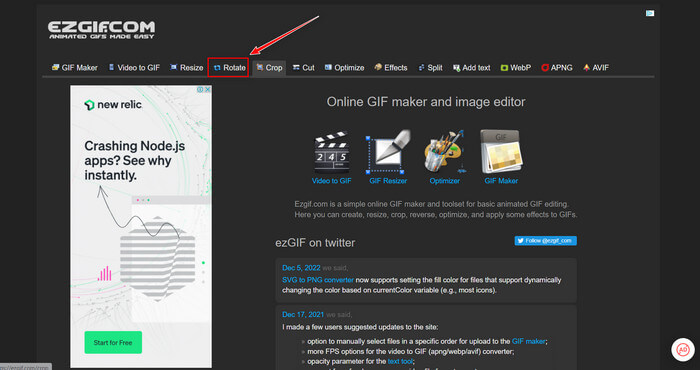
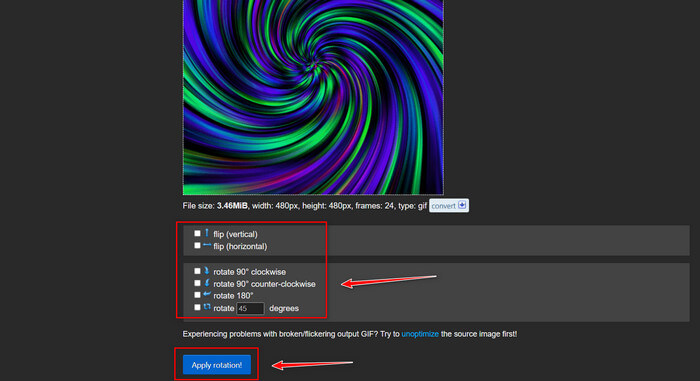
Paso 1. Elige Rotate en la Toolbar de la parte superior de la pantalla.
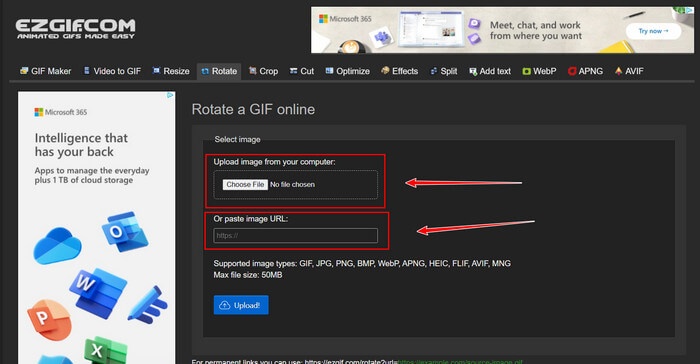
Paso 2. Importa un archivo haciendo clic en Upload File o copia la URL de un GIF y pégala en la interfaz. Luego haz clic en Upload.
Paso 3. Marca la dirección en la que vas a rotar tu GIF. También puedes introducir una cantidad concreta de grados para inclinar o girar tu GIF según tu preferencia. Después, haz clic en Apply Rotation y en el icono Save para descargar el GIF ajustado.
Parte 3. Preguntas frecuentes sobre cómo rotar y voltear GIF
¿Puedo rotar GIF en mi iPhone?
En comparación con un teléfono Android, es imposible rotar los GIF con un iPhone. Solo puede rotar GIF en iPhone descargando una aplicación de terceros en línea.
¿Puedes convertir videos GIF de iPhone?
En la App Store hay varias aplicaciones de terceros que te permiten crear GIF a partir de vídeos, como MP4 to GIF. Es posible que ya hayas probado alguna en tu dispositivo. La diferencia de esta técnica es que usaremos la app integrada Atajos (Shortcuts) en tu iPhone o iPad. Si no lo sabías, Atajos da acceso a herramientas que no están disponibles de forma nativa en iOS y iPadOS.
¿Cómo no puedes usar GIF en la configuración del iPhone?
Desplácese hacia abajo en la página de la aplicación Configuración y toque 'Accesibilidad'. En la parte superior de la pantalla, toque 'Movimiento' y asegúrese de que 'Reducir movimiento' no esté seleccionado. Si este es el caso, desactívelo y vea si los GIF funcionan nuevamente.
Conclusión
A lo largo del artículo hemos visto que el formato GIF necesita que se rote y cambie su orientación, algo necesario al editar vídeos. Hay muchas formas de hacerlo, ya sean gratis o de pago, sin conexión o en línea; estas herramientas web y este software llevan la edición al siguiente nivel. Pero si quieres acceder al programa de edición sin que la conexión a internet pueda causarte problemas al usarlo, descarga Video Converter Ultimate y utilízalo como editor y como herramienta fiable para otros formatos de videoclips. Te ayuda a editar videoclips de forma profesional, especialmente al rotar y voltear GIF.
-
 Loop GIF con el mejor GIF Looper animado en Windows y Mac
 ¿Quieres saber el secreto del mejor GIF en bucle? ¿Quieres hacer uno? Si es así, estás en el lugar correcto. Por lo tanto, aprenda a crear un bucle con el mejor looper disponible.
-
 Las 4 mejores formas de eliminar la marca de agua de un GIF [en línea y fuera de línea]
 ¿Necesitas eliminar la marca de agua de un GIF? Con la herramienta de este artículo, aprenderá los diferentes estilos con los diferentes eliminadores de marcas de agua disponibles en su plataforma.
-
 Los 4 mejores ampliadores de GIF sin conexión y en línea que no debe perderse
 Esta publicación es para ti si estás buscando las mejores ampliadoras de GIF. Enumeramos las ampliadoras de GIF en línea y fuera de línea de mejor rendimiento para su computadora.
