


 Video Converter Ultimate
 Grabador de pantalla
 Reparación de vídeo
 Descarga segura
Formas definitivas de convertir PNG a JPG usando convertidores notables
El formato de archivo PNG tiene un tamaño de archivo mayor que otros formatos. Una desventaja es al subir, descargar o compartir archivos en sitios web. El proceso de carga es demasiado lento, lo que lo hace muy laborioso. En cambio, un archivo JPG tiene un tamaño de archivo más pequeño en comparación con PNG. De este modo, es más rápido guardar y subir imágenes en la web. También será más fácil abrirlas en otras aplicaciones y dispositivos. Afortunadamente, este artículo te proporcionará información suficiente sobre cómo convertir PNG a JPG. Para convertir, necesitarás la ayuda de conversores de imágenes fiables. Además, conocerás la definición de estos formatos. Lee esta publicación si quieres cambiar tus imágenes PNG al formato JPG.

Parte 1. Introducción a PNG y JPG
¿Qué es PNG?
PNG, o Portable Network Graphics, es un formato de trama sin pérdida. Es una nueva variación del formato GIF. Hay disponibles profundidades de color más altas, que muestran millones de matices. Uno de los formatos de imagen predominantes en la actualidad es PNG. Guardar los formatos de imagen RGBA y RGB en función de la paleta es una de las características de PNG. Además, intenta transferir fotografías en línea. PNG también se usa a menudo para imprimir. La mayoría de la gente utiliza este archivo en particular. Además, este formato de imagen es comúnmente utilizado por expertos en gráficos web. Para fondos con colores transparentes, también emplean el formato PNG. El tamaño de archivo reducido de este formato es otra ventaja. Aún así, apenas hay degradación de la calidad visual. Puede producir la misma calidad que el original. PNG ofrece muchas ventajas. Gracias a la compresión, se garantiza una excelente calidad de imagen.
¿Qué es JPG?
El Grupo Conjunto de Expertos en Fotografía crea el formato de archivo JPEG. Es uno de los formatos de archivo de imagen estándar en Internet y otros dispositivos. 10:1 a 20,1 es la relación de compresión. La extensión con pérdida se realiza con la extensión. Pero, la relación de compresión es ajustable. Esto logrará un equilibrio entre la calidad de la imagen y el espacio de almacenamiento. Las plataformas para compartir fotografías y las cámaras digitales usan la extensión JPEG. JPEG tiene varias ventajas. Puede usarlo tanto para obras de arte como para fotografías. Es debido a la adaptabilidad en la edición de tramas. Es posible imprimir ilustraciones y fotografías en alta resolución y baja compresión.
Parte 2. Cómo convertir PNG a JPG en línea
Convierta PNG a JPG usando FVC Free Image Converter
FVC Free Image Converter es una de las herramientas definitivas que puedes utilizar. Es capaz de convertir PNG a JPG sin esfuerzo. Ofrece una interfaz y unos pasos fáciles de entender, lo que la hace perfecta para los usuarios. Además, si quieres convertir varios archivos PNG a JPG, es posible. Este conversor de imágenes puede realizar un proceso de conversión por lotes. También puedes guardar varios archivos convertidos con un solo clic. Aparte de eso, admite otros formatos de archivo de entrada, incluidos PNG, BMP, TIFF, GIF y más. Una de las ventajas de esta herramienta es que no tiene anuncios molestos. Su interfaz es limpia, por lo que puedes concentrarte en convertir archivos. Tampoco necesitas instalar este conversor. Puedes usarlo directamente en tu navegador. Además, la calidad de la imagen se mantendrá igual que el archivo original después de la conversión. De esta manera, puedes asegurarte de que tu resultado final es satisfactorio de ver y usar. FVC Free Image Converter protege tu privacidad. No guardará tus datos después del proceso de conversión.
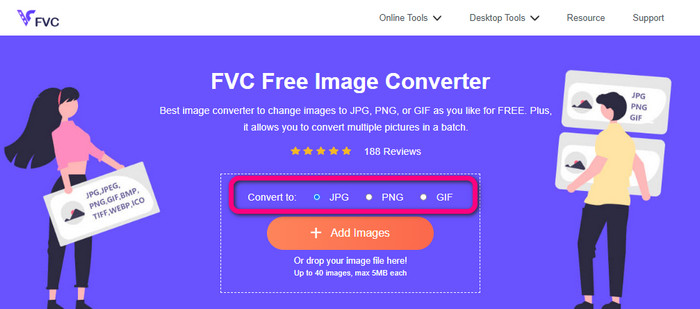
Paso 1: Visita la página web de FVC Free Image Converter en tu navegador. Haz clic en el formato de archivo JPG en la opción de formato.
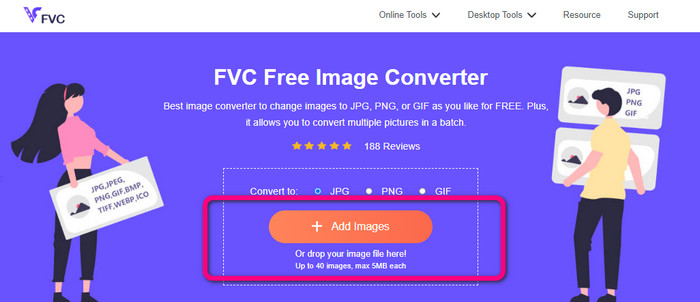
Paso 2: Haz clic en el icono Más o en el botón Add Images para añadir la imagen PNG. También puedes soltar el archivo de imagen en el recuadro. Después de eso, convertirá la imagen automáticamente.
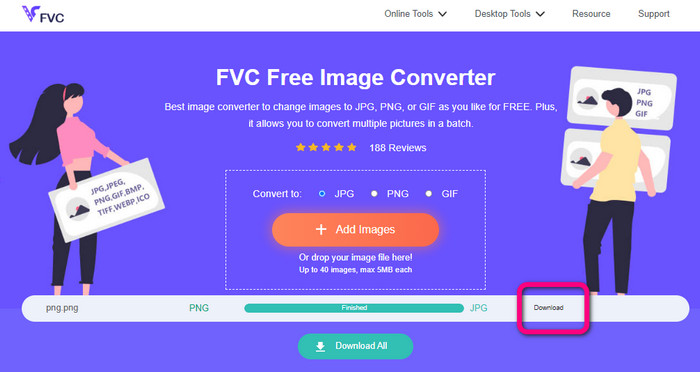
Paso 3: Para el último paso, haz clic en el botón Download para guardar tu imagen final en tu ordenador.
Convierte PNG a JPG usando Canva
Otro método en línea para convertir PNG a JPG es usando Canva. Esta herramienta online tiene una interfaz fácil de usar, lo que la hace sencilla de entender. El proceso de conversión también es fácil de seguir, por lo que es adecuado para principiantes. Puede proporcionar un proceso de conversión rápido, convirtiendo tantos archivos como quieras. Canva es accesible en todos los navegadores, incluidos Google, Firefox, Edge y más. Además, mientras conviertes imágenes, hay más cosas que puedes hacer. Puedes recortar y cambiar el tamaño de tu foto. También puedes añadir iconos, pegatinas, etc. De este modo, puedes mejorar tus imágenes mientras cambias el formato de archivo. Sin embargo, aunque Canva es una gran herramienta, tiene desventajas. Usar la versión gratuita tiene muchas restricciones. Hay funciones limitadas, almacenamiento en la nube, herramientas de edición y más. Necesitas comprar un plan de suscripción para disfrutar de funciones ilimitadas y avanzadas. Además, como es un conversor de imágenes online, necesitas conexión a Internet.
Paso 1: Abre Canva en tu navegador web o aplicación para acceder al conversor de PNG a JPG. Utiliza una plantilla prediseñada o un diseño en blanco para comenzar tu proyecto de diseño.
Paso 2: Arrastra y suelta el archivo PNG que quieras usar en la página o elígelo desde tu dispositivo.
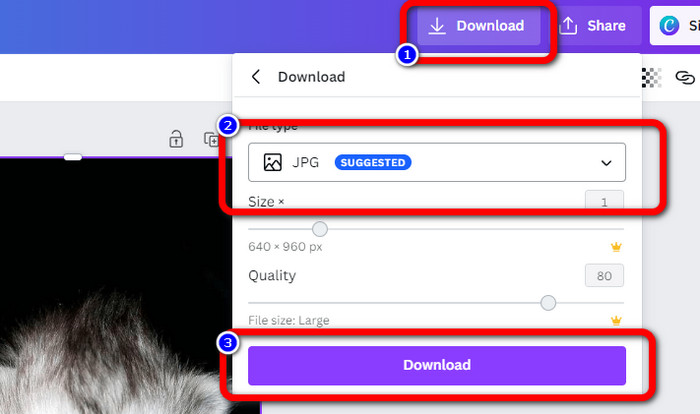
Paso 3: Ve a la esquina superior derecha del panel y haz clic en el botón Download. Luego, selecciona el formato JPG como formato de salida deseado. Después, haz clic de nuevo en el botón Download para guardar tu imagen en tu ordenador.
Convierte PNG a JPG usando Convertio
Convertio también es capaz de convertir PNG a JPG. Con la ayuda de este conversor de imágenes online, puedes convertir rápidamente tu PNG en JPG. Convertio te ofrece una forma sencilla de convertir imágenes. Su interfaz fácil de usar lo hace más comprensible para todos los usuarios, especialmente los principiantes. Además, admite varios formatos de imagen, como PNG, GIF, BMP, SVG y más. Este conversor de imágenes también permite un proceso de conversión por lotes. Con esta excelente función, puedes convertir al instante varias imágenes de forma simultánea. Además, aparte de imágenes, también puedes convertir archivos de vídeo, audio y documentos. De este modo, no necesitas buscar otra herramienta online. Sin embargo, usando la versión gratuita solo se pueden subir hasta 100 MB. Necesitas comprar un plan de suscripción para aumentar el tamaño máximo de archivo. También puedes adquirir el plan más caro para disfrutar de uso ilimitado.
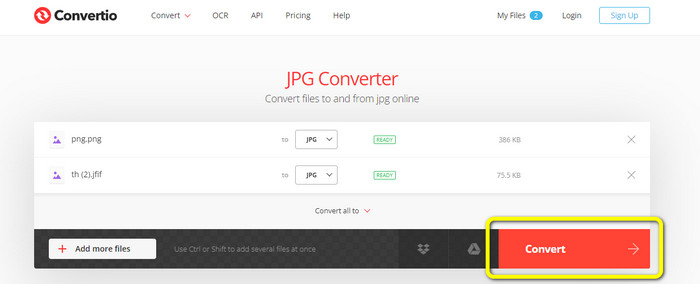
Paso 1: Ve a tu navegador y busca Convertio. Cuando estés en la página principal, haz clic en el botón Choose Files. Abre la foto PNG desde los archivos de tu ordenador para subirla.
Paso 2: Si quieres realizar un proceso de conversión por lotes, haz clic en el botón Add more files. Te permite subir más archivos de imagen. Luego, en las opciones de formato, selecciona el archivo JPG como formato de salida.
Paso 3: Después de subir y configurar el formato de salida, haz clic en el botón Convert. El proceso de conversión comenzará de inmediato. Tras el proceso, haz clic en el botón Download para guardarlos en la ubicación de archivos que hayas asignado.
Parte 3. Cómo convertir PNG a JPG sin conexión
Convierta PNG a JPG usando Video Converter Ultimate
Video Converter Ultimate es uno de los conversores de imágenes sin conexión más destacados. Este conversor descargable te permite convertir PNG a JPG rápidamente. Ofrece una velocidad de conversión rápida para que puedas convertir numerosos archivos en un corto período de tiempo. Además, puedes convertir varios archivos a la vez porque tiene un proceso de conversión por lotes. Video Converter Ultimate también admite varios formatos de imagen. Incluye PNG, BMP, WEBP, TIF y más. Este conversor de imágenes offline tiene una interfaz intuitiva y pasos sencillos para la conversión. De este modo, tanto usuarios profesionales como no profesionales pueden convertir imágenes sin esfuerzo. Además, puedes acceder a este conversor tanto en ordenadores Mac como Windows. Usa los sencillos pasos que aparecen a continuación para convertir PNG a JPG en Mac o Windows usando Video Converter Ultimate.
Paso 1: Descarga Video Converter Ultimate en tu Windows o Mac. Ejecuta el programa después del proceso de instalación. Puedes pulsar el Download button de abajo para acceder al conversor.
Descarga gratuitaPara Windows 7 o posteriorDescarga segura
Descarga gratuitaPara macOS 10.7 o posteriorDescarga segura
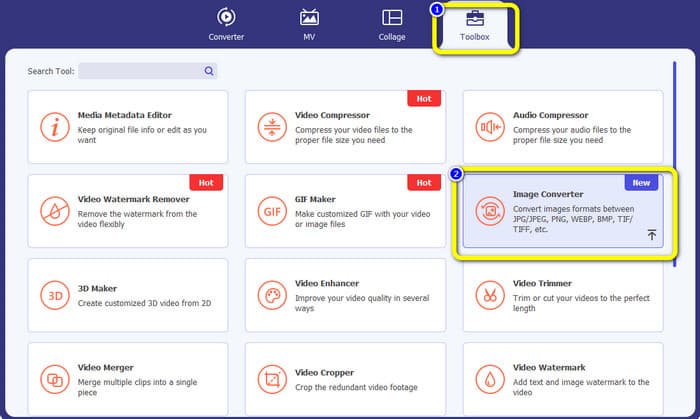
Paso 2: Selecciona el panel Toolbox cuando la interfaz aparezca en la pantalla. Luego, elige la herramienta Image Converter. Después de hacer clic, aparecerá otra interfaz.
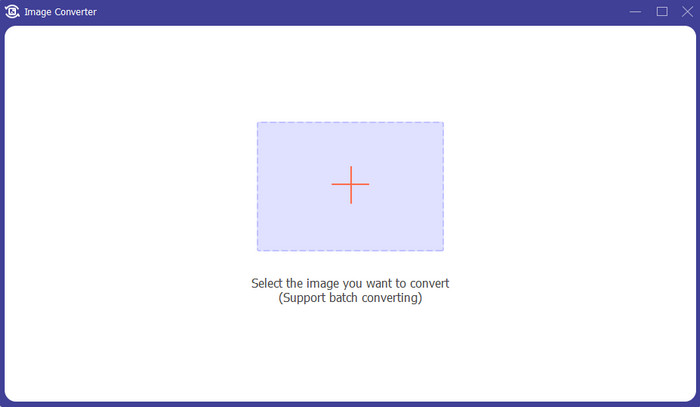
Paso 3: Haz clic en el icono +. Luego, elige la imagen PNG cuando la carpeta de tu ordenador aparezca en la pantalla.
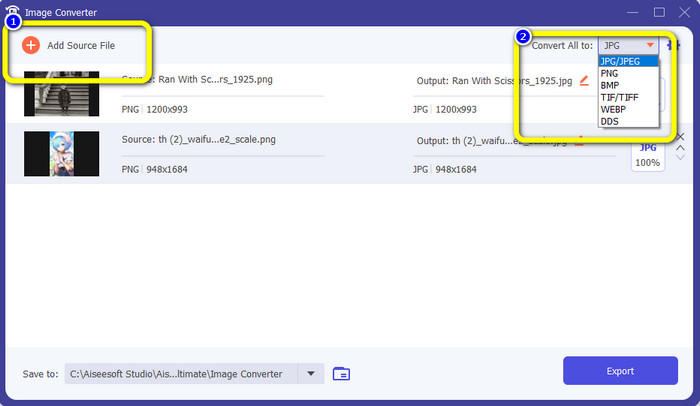
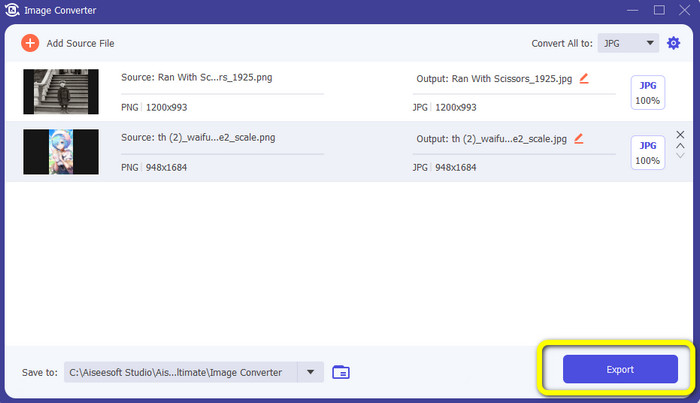
Paso 4: Si quieres realizar un proceso de conversión por lotes, haz clic en el botón Add Source File. Después, ve a la opción Convert All to y selecciona el formato de archivo JPG.
Paso 5: Haz clic en el botón Export para guardar tu foto final después de convertirla. Luego, puedes abrir tu foto JPG desde tu carpeta de archivos.
Parte 4. Convertir PNG a JPG usando un dispositivo móvil
Convertir PNG a JPG usando PNGtoJPG
Si desea aprender cómo convertir PNG a JPG usando iPhone y Android, use la aplicación PNGtoJPG. Esta es una aplicación de descarga gratuita adecuada para iPhone y Android. Le permite convertir sus archivos de imagen de manera fácil e instantánea. También tiene un procedimiento esencial para convertir. De esta forma, todos los usuarios pueden utilizar esta aplicación, principalmente los usuarios no profesionales. Además, la aplicación PNGtoJPG ofrece un proceso de conversión rápido, lo que lo hace conveniente. Desafortunadamente, a diferencia de otros convertidores de imágenes, no es compatible con el proceso de conversión por lotes. Por lo tanto, debe convertir las imágenes manualmente, lo que lleva mucho tiempo.
Paso 1: Instala la aplicación PNGtoJPG desde la App Store o Play Store. Luego, ábrela.
Paso 2: Pulsa la opción Load a photo en el centro de la interfaz tras iniciar la aplicación. Entonces, tus fotos aparecerán en la pantalla. Elige la foto PNG que quieras convertir.
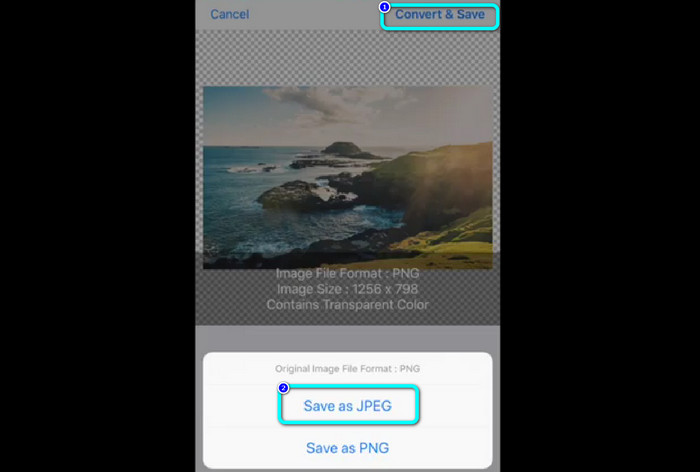
Paso 3: Ve a la esquina superior derecha de la pantalla y haz clic en el botón Convert & Save. Luego, cuando aparezca otra opción en la pantalla, selecciona la opción Save as JPEG. De este modo, podrás convertir tu PNG al formato de archivo JPG. Haz clic aquí para aprender cómo convertir JPG a PNG.
Parte 5. Preguntas frecuentes sobre la conversión de PNG a JPG
1. ¿Cómo convertir un PDF en un JPEG?
El mejor método para convertir PDF a JPG es usar el software online PDF Simpli. Haz clic en el botón Upload PDF to Upload. Luego, elige el archivo PDF desde tu carpeta. Ve a la parte superior derecha de la interfaz y haz clic en el botón Convert. Por último, selecciona el formato JPG en la opción de formato.
2. ¿Cómo abro archivos PNG en Windows 11/10?
La mejor manera es abrir la carpeta de tu ordenador. Ve a la carpeta donde se encuentra la imagen PNG. Luego, haz clic con el botón derecho en la imagen y selecciona la opción Open.
3. ¿Cómo puedo convertir archivos JPG gratis?
Puedes usar FVC Free Image Converter para convertir archivos JPG de forma gratuita. No importa cuántas imágenes necesites convertir, no te cobrará nada.
Conclusión
Estas son las mejores maneras de convertir PNG a JPG usando conversores de imágenes online y offline. Pero, si prefieres un conversor de imágenes accesible, usa FVC Free Image Converter.
-
 Convierta JPEG a JPG de manera eficiente [Cinco métodos enumerados]
 Ven y obtén los tutoriales más sencillos sobre cómo convertir el formato de archivo de imagen JPEG a JPG. Haga clic en esta guía y comience a aprender sus métodos preferidos.
-
 Detalles completos sobre las diferencias de JPEG frente a JPG frente a PNG
 Esta publicación le brindará suficiente información sobre las diferencias entre JPEG, JPG y PNG. Además, aprenderá cómo convertir imágenes a estos archivos.
-
 8 asombrosos convertidores de imágenes [Información completa]
 Esta revisión le informará sobre los mejores convertidores de archivos de imagen que puede usar para convertir archivos de imagen. Lea esta publicación para conocer el mejor convertidor de imágenes para usted
