


 Video Converter Ultimate
 Grabador de pantalla
 Reparación de vídeo
 Descarga segura
Aprenda cómo convertir HEIC a JPG en Google Drive y alternativas
HEIC es el formato de archivo más reciente de Apple. Este nuevo formato de imagen es una mejor manera de guardar sus imágenes en su dispositivo. Además, HEIC hace que su imagen sea más pequeña mientras mantiene su alta calidad. Además, a mucha gente le encanta el formato HEIC porque es un excelente formato de imagen para fotos en vivo. Sin embargo, HEIC es compatible con dispositivos Apple; por lo tanto, no es compatible en muchas plataformas. Por lo tanto, si desea usar archivos HEIC o cargar HEIC en otras plataformas compatibles con Windows, debe convertirlo al formato de archivo JPG, que es compatible con muchas plataformas y sitios web.
¿Y lo sabías? Google Drive empezó a ser compatible con formatos HEIC para que los dispositivos iOS puedan hacer copias de seguridad de sus archivos usando este servicio en la nube. Y si te estás preguntando si puedes convertir HEIC a JPG en Google Drive, sigue leyendo para conocer la respuesta.

Parte 1. Cómo convertir HEIC a JPG en Google Drive sin pérdidas
Google Drive es probablemente el servicio de almacenamiento en la nube más conocido disponible. Con este programa, puede almacenar y recuperar cualquier imagen o video que desee cargar. Además, muchos usuarios de dispositivos Apple prefieren usar Google Drive para almacenar sus fotos o videos. Además, este programa puede liberar espacio en su dispositivo que ocupa un archivo de gran tamaño. Sin embargo, Google Drive no puede convertir imágenes o videos. Por lo tanto, si cargó un archivo HEIC en su disco, no puede convertirlo a un formato de archivo JPG.
Pero en esta parte, le mostraremos un método para cargar su imagen HEIC a JPG en Google Drive. Tenga en cuenta que esto solo está disponible en la versión web de Google Drive, no en la versión de la aplicación.
Cómo convertir HEIC a JPG en Google Drive descargando HEIC como JPG:
Paso 1. Para empezar, ve a la app Fotos y selecciona el archivo HEIC que quieras convertir. Luego, toca el icono de Compartir y selecciona la opción Google Drive.
Paso 2. Conecta tu iPhone a una red para que las fotos se suban a tu cuenta.
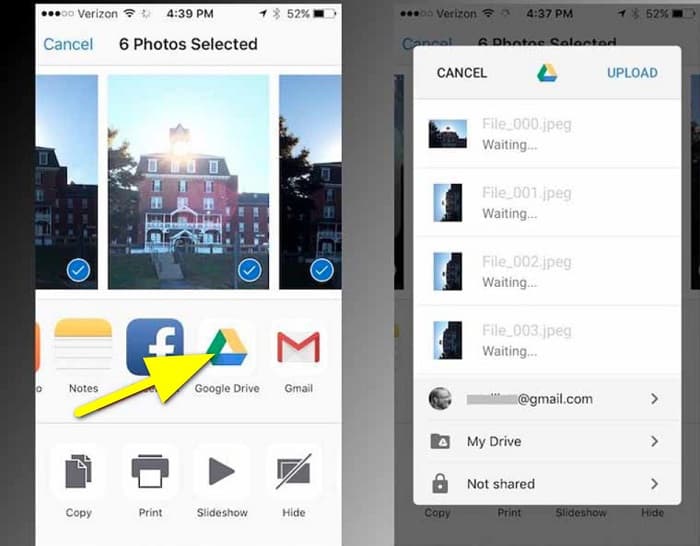
Paso 3. A continuación, abre un ordenador, abre tu navegador y busca Google Drive en el cuadro de búsqueda. Inicia sesión en la cuenta que usaste para hacer la copia de seguridad de tu imagen HEIC.
Paso 4. Luego, haz clic en la imagen HEIC de tu Google Drive y ábrela a máxima resolución. Después, haz clic con el botón derecho en la foto y selecciona Guardar imagen como.
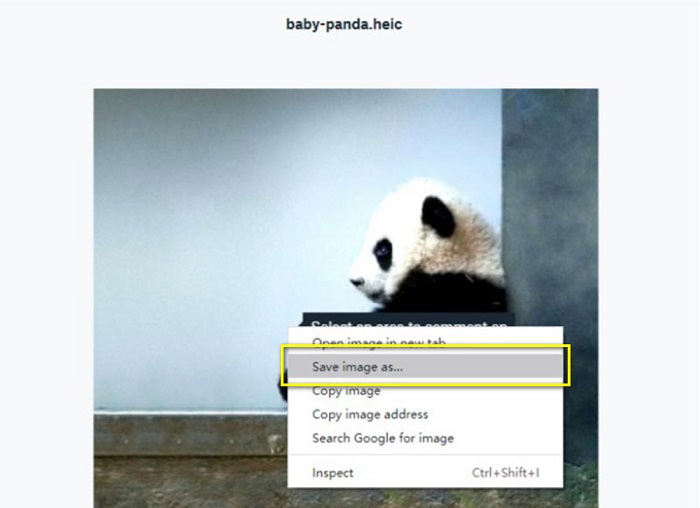
Paso 5. En el menú emergente, busca la carpeta donde quieres guardar tu imagen. Establece la extensión del archivo como .jpg y, a continuación, haz clic en el botón Guardar para aplicar los cambios.
Parte 2. Cómo convertir HEIC a JPG en la alternativa de Google Drive
Dado que Google Drive no tiene una función para convertir imágenes o videos, buscamos que pueda usar para convertir sus imágenes HEIC. Sin embargo, muchas herramientas de conversión están disponibles en el mercado, no todas son compatibles con el formato HEIC. Por lo tanto, buscamos en la web el convertidor más sorprendente que admita formatos de imagen HEIC. Además, discutiremos el uso de este convertidor de imágenes para convertir HEIC a JPG sin pérdidas.
Convertidor HEIC a JPG gratuito de FVC
FVC Free HEIC to JPG Converter es un conversor HEIC en línea al que puedes acceder desde cualquier navegador web, como Google, Internet Explorer y Safari. Esta aplicación en línea admite el proceso de conversión de HEIC a JPG, algo que muchas aplicaciones no permiten. Además, puedes convertir tu HEIC a JPG conservando los datos EXIF, como las dimensiones, el formato, el tamaño, la fecha y hora de captura, la exposición y más. Este programa te permite convertir tu imagen HEIC sin pérdida de calidad. Además, utiliza un método de conversión por IA que convierte automáticamente las imágenes sin pérdidas. Otra ventaja de usar esta herramienta en línea es que puedes convertir por lotes dos o más imágenes al mismo tiempo.
FVC Free HEIC to JPG Converter no requiere que se registre, se suscriba o use complementos de terceros para usarlo. Y no necesita preocuparse por la seguridad de sus datos porque es 100% seguro de usar. Lea los sencillos pasos a continuación para aprender cómo convertir HEIC a JPG usando FVC Free HEIC to JPG Converter.
Cómo convertir HEIC a JPG en la alternativa de Google Drive:
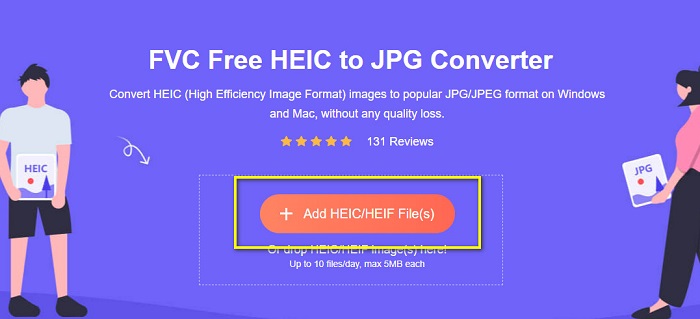
Paso 1. Primero, abre tu navegador web y busca FVC Free HEIC to JPG Converter en el cuadro de búsqueda.
Paso 2. Luego, inicia la aplicación antes de usarla. Después, haz clic en el botón Add HEIC/HEIF Files en la misma interfaz para añadir la imagen HEIC que deseas convertir.
Paso 3. FVC Free HEIC to JPG Converter convertirá automáticamente tu imagen después de subir tu archivo HEIC. Verás el icono Finished en la parte inferior de la interfaz.
Paso 4. Por último, descarga tu imagen convertida haciendo clic en el botón Download. Después, localiza tu archivo de salida en las carpetas de tu ordenador.
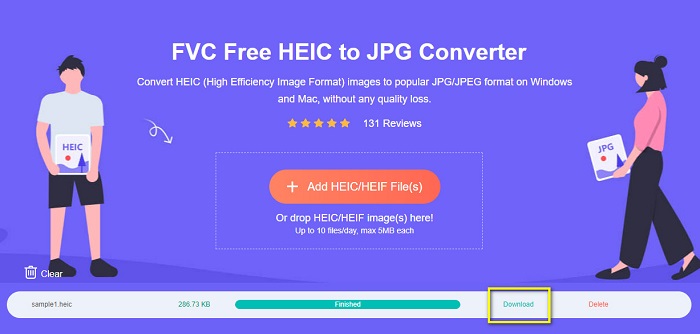
Así de fácil, puede convertir su HEIC a JPG fácilmente en su computadora.
Convertidor Aiseesoft HEIC
Aiseesoft HEIC Converter es una aplicación gratuita que puedes descargar si estás buscando el mejor conversor HEIC. Además, este programa te permite convertir HEIC a JPG conservando los datos EXIF de tu imagen. También puedes modificar la calidad de tu imagen si quieres reducir su tamaño. Asimismo, admite la conversión por lotes, lo que te permite convertir dos o más archivos HEIC al mismo tiempo. Y, por si fuera poco, puedes descargarlo gratis en todas las plataformas, como Windows, Mac y Linux.
Aiseesoft HEIC Converter es una herramienta fácil de usar porque tiene una interfaz de usuario intuitiva. Además, admite formatos de archivo estándar, como HEIC, JPG y PNG. Sin embargo, primero debe comprar la aplicación antes de poder usar sus otras funciones.
Cómo convertir HEIC a JPG usando Aiseesoft HEIC Converter:
Paso 1. Descarga Aiseesoft HEIC Converter en tu ordenador. Después de instalar la aplicación, ejecútala en tu dispositivo.
Paso 2. Haz clic en el botón Add HEIC en la interfaz principal para importar la imagen HEIC que quieres convertir.
Paso 3. A continuación, selecciona JPG/JPEG como formato de salida en la opción Format. Recuerda marcar la casilla junto a Keep EXIF Data.
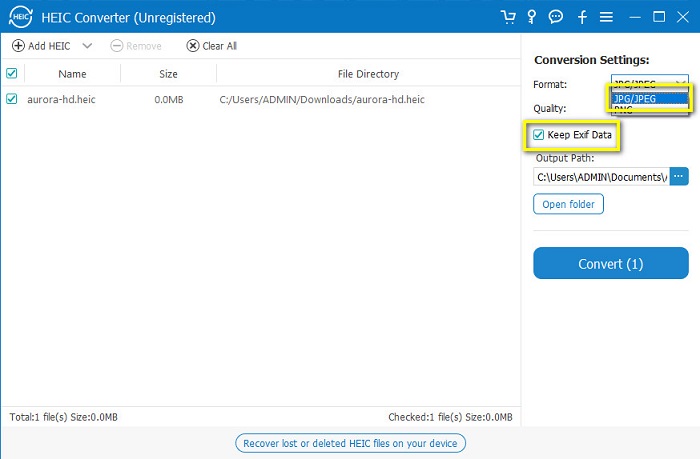
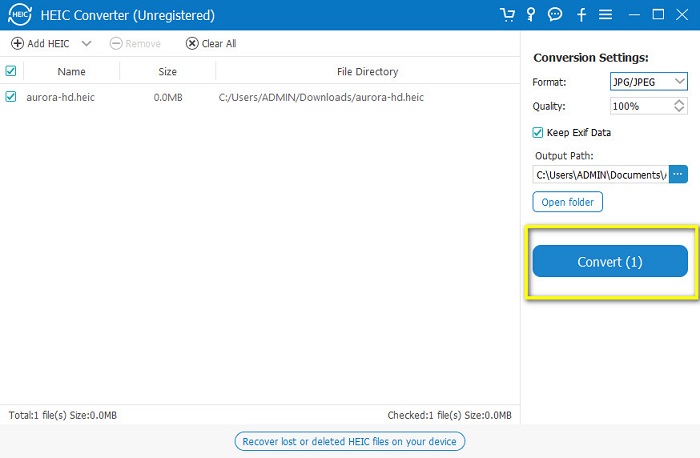
Paso 4. Por último, haz clic en el botón Convert para empezar a convertir tu HEIC a JPG. Espera a que finalice la conversión y ¡listo! Tu imagen HEIC ya es una imagen JPG.
Parte 3. Preguntas frecuentes sobre la conversión de HEIC a JPG en Google Drive
¿Cómo administrar imágenes HEIC en Google Drive?
Puedes gestionar tus imágenes HEIC en Google Drive a través de Google Fotos. Desde que Google introdujo la tecnología de IA en Google Fotos, ahora puedes organizar tus fotos por persona, categoría o tema.
¿Por qué mis fotos se suben a Google Drive como HEIC?
Google Drive guarda sus archivos cargados como HEIC porque su navegador solo guarda la copia de vista previa de su imagen en su computadora.
¿Es HEIC mejor que el formato JPG?
En cuanto a la compresión y la calidad de la imagen, HEIC es mejor que los formatos JPG. HEIC le permite mejorar la calidad de su imagen con transparencia y una dinámica más amplia.
Conclusión
Ahora que sabes que no puedes convertir HEIC a JPG en la app de Google Drive, puedes usar el método con el que puedes guardar tu imagen HEIC como JPG en la versión web de Google Drive. Sin embargo, solo puedes procesar una imagen cada vez y tienes que trabajar desde el navegador. Por ello, te recomendamos usar FVC Free HEIC to JPG Converter, que es gratuito y fácil de usar.
-
 Convierta HEIC a PDF usando las 4 formas mejoradas principales en 2022
 Para obtener más información sobre el mejor convertidor de HEIC a PDF, puede descargar este 2022. Puede leer este artículo ya que proporcionamos una revisión sobre ellos.
-
 5 de las mejores selecciones de convertidores de HEIC a JPG este 2022
 Con el convertidor HEIC a JPC, puede cambiar fácilmente el formato de la imagen a un JPG portátil. ¿Quieres saber cuáles son estas 5 herramientas? Lee este artículo.
-
 El mejor convertidor HEIC gratuito y de pago que debe conocer [Actualizado en 2022]
 ¿Quieres saber qué es el conversor HEIC? Si es así, incluimos los 5 principales convertidores HEIC gratuitos y de pago que puede usar para cambiar el formato HEIC.
