


 Video Converter Ultimate
 Grabador de pantalla
 Reparación de vídeo
 Descarga segura
Adobe Resize Images: las formas más sencillas de cambiar el tamaño de una imagen en línea y sin conexión
Si quieres redimensionar imágenes en Adobe, tenemos la solución que estás buscando. Adobe es un nombre muy conocido en el mundo de las aplicaciones de edición de imagen y vídeo. Adobe cuenta con muchas aplicaciones con las que puedes mejorar, recortar, editar y mucho más; ¡lo que se te ocurra! Adobe tiene casi todas las apps necesarias para la edición de fotos y vídeos. Pero ¿sabías que Adobe también tiene una aplicación con la que puedes cambiar el tamaño de una imagen? ¡Has leído bien! Adobe Express es una herramienta online para redimensionar imágenes. Y si quieres redimensionar sin conexión, puedes usar Adobe Photoshop. A continuación hablaremos de estas herramientas y te enseñaremos cómo cambiar el tamaño de imágenes con Adobe Express y Adobe Photoshop.
Parte 1. Cómo cambiar el tamaño de la imagen en Adobe Express Online
Si le gusta usar un cambio de tamaño de imagen en línea, hay muchas herramientas que puede buscar en Internet. Sin embargo, buscar en Internet a veces no será la mejor opción porque hay herramientas que no brindan resultados de gran calidad. Además, muchas personas están buscando imágenes de cambio de tamaño en línea de Adobe Photoshop. El problema es que Adobe Photoshop no tiene una versión en línea. Entonces, presentaremos otra herramienta de Adobe para cambiar el tamaño de una imagen.
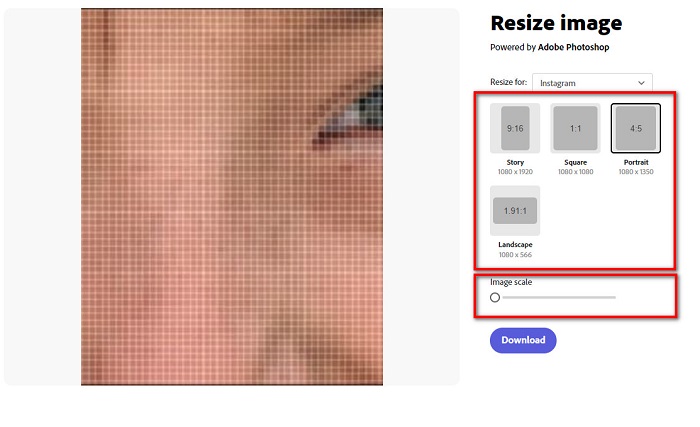
Adobe Express es probablemente el mejor redimensionador de imágenes online que puedes encontrar en Internet. Esta aplicación online te permite cambiar el tamaño de una imagen eligiendo un ajuste preestablecido de escala entre las opciones. Puedes elegir entre 9:16 (Story), 1:1 (Cuadrado), 4:5 (Vertical) y 1.91:1 (Horizontal). Además, tiene una interfaz sencilla, lo que la convierte en una aplicación fácil de usar. También puedes escalar tu imagen manualmente manteniendo pulsado y arrastrando el control deslizante. Asimismo, si quieres cambiar el tamaño de una imagen para Instagram, Facebook, Twitter o Pinterest, Adobe Express te ayudará con ello. Sin embargo, a diferencia de otras apps de edición de Adobe, esta herramienta no cuenta con más funciones de edición.
Cómo cambiar el tamaño de una imagen con Adobe Express:
Paso 1. Abre tu navegador y busca el redimensionador de imágenes de Adobe Express en el cuadro de búsqueda. A continuación, haz clic en el botón Upload your Photo en la interfaz principal para subir la imagen que quieres redimensionar.
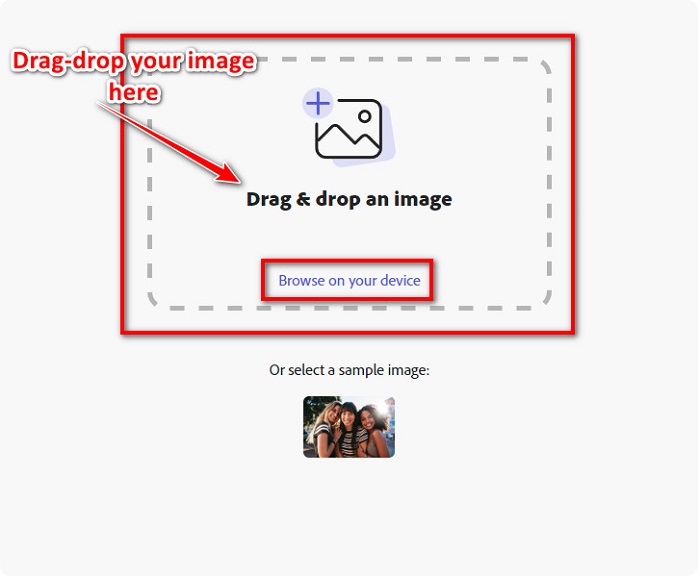
Paso 2. Después, arrastra y suelta tu imagen desde las carpetas de tu ordenador. También puedes simplemente hacer clic en el botón Browse on your device para subir una imagen.
Paso 3. Por último, elige para qué la quieres redimensionar haciendo clic en la flecha desplegable junto a Resize for. Luego selecciona el tamaño que prefieras en el lado izquierdo de la interfaz, donde aparece tu imagen. También puedes cambiar el tamaño manualmente manteniendo pulsado y arrastrando el control deslizante que hay debajo de los tamaños preestablecidos.
Paso 4. Haz clic en el botón Download para descargar tu imagen redimensionada.
Parte 2. Cómo cambiar el tamaño de la imagen usando Adobe Photoshop sin conexión
A pesar de eso, es bueno usar una herramienta en línea porque le permite ahorrar espacio en su dispositivo, pero sigue siendo la mejor opción para usar una herramienta fuera de línea. La mayoría de los redimensionadores de imágenes sin conexión contienen muchas funciones de edición. Además, la ventaja de usar herramientas sin conexión es que no necesita acceder a Internet para cambiar el tamaño de su imagen. En esta parte, presentaremos el redimensionador de video sin conexión más destacado.
Adobe Photoshop es la mejor aplicación de edición de fotos que puedes tener en tu PC. Esta app de edición fotográfica dispone de muchas herramientas y funciones que puedes usar para editar tus imágenes. Además, puedes utilizarla para cambiar el tamaño de cualquier imagen. Esta aplicación te permite mejorar imágenes digitales, dibujos, pinturas y animaciones que puedes usar con fines comerciales. Asimismo, muchos profesionales utilizan esta aplicación de edición de imágenes por sus funciones y por la calidad que ofrece.
Además, puede usar esta aplicación para agregar texto, crear 3D y agregar nitidez a su imagen. Pero la desventaja de Adobe Photoshop es que debe comprar la aplicación antes de usarla. Y también es difícil de usar, especialmente para principiantes. No obstante, esta aplicación vale su precio y seguramente disfrutará usándola.
Cómo cambiar el tamaño de las imágenes usando Adobe Photoshop sin conexión:
Paso 1. Descarga Adobe Photoshop en tu dispositivo. Luego, sigue el proceso de instalación de la app y ejecútala en tu dispositivo.
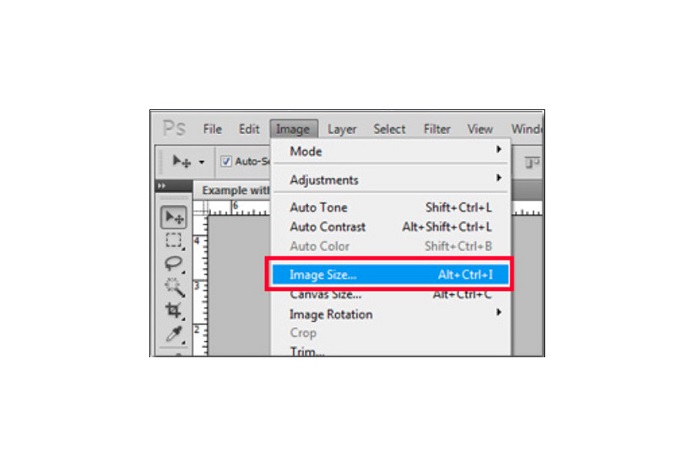
Paso 2. Abre tu imagen en Photoshop y dirígete a Image en la parte superior izquierda de la interfaz. Después, selecciona Image Size.
Paso 3. A continuación, se abrirá una nueva ventana en la que deberás marcar la casilla situada junto a Constrain Proportions.
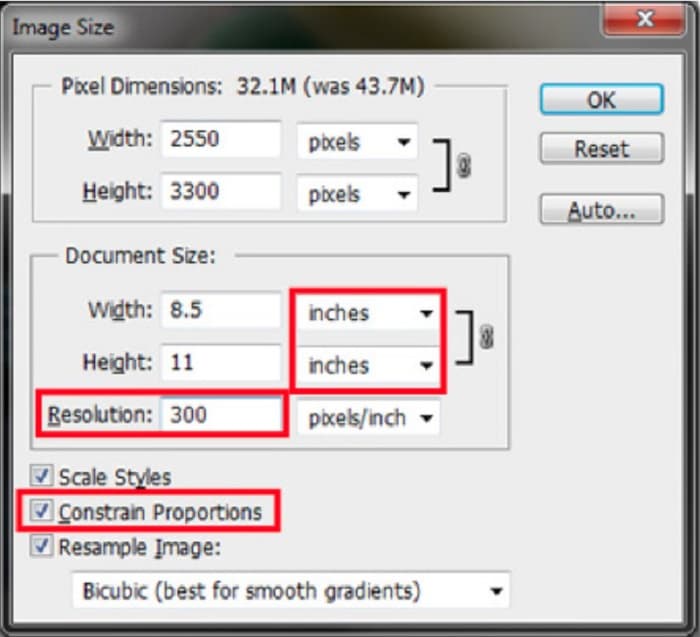
Paso 4. Y, en Document Size, selecciona pulgadas como unidad de medida. Asegúrate de que la resolución no sea inferior a 200 píxeles por pulgada.
Paso 5. Escribe el width y el height que prefieras para tu imagen. Luego marca el botón OK para guardar los cambios.
Paso 6. Por último, guarda tu archivo en tu ordenador.
Ahora que has aprendido a cambiar el tamaño de una imagen usando el mejor redimensionador de fotos de Adobe, te mostraremos un redimensionador de imágenes alternativo que puedes usar.
Parte 3. Alternativa a Adobe Photoshop para cambiar el tamaño de las imágenes
Dado que Adobe Photoshop no es una herramienta fácil de usar, buscamos una alternativa que pueda usar para cambiar el tamaño de su imagen. Por lo tanto, presentaremos una aplicación de software que puede descargar en su dispositivo Windows o Mac. También le enseñaremos cómo cambiar el tamaño de una imagen usando esta aplicación definitiva.
FVC Free Image Resizer es otro potente redimensionador de imágenes online que puedes usar si quieres cambiar el tamaño de tu imagen. También puedes utilizar aplicaciones para redimensionar imágenes a fin de corregir la calidad de tu foto, y eso es precisamente lo que hace FVC Free Image Resizer. Esta herramienta online puede ampliar tu imagen hasta 2x, 4x, 6x y 8x. Además, es compatible con todos los formatos de imagen, como JPG, JPEG, PNG y BMP. Lo mejor de esta aplicación es su interfaz de software fácil de usar. Asimismo, utiliza tecnología de IA que detecta automáticamente las zonas borrosas de una imagen y luego las mejora.
Cómo cambiar el tamaño de una imagen usando FVC Free Image Upscaler:
Paso 1. Busca FVC Free Image Upscaler en tu navegador y ve a la página principal de la aplicación. Pulsa el botón Upload Photo en la interfaz principal para subir la imagen cuyo tamaño quieres cambiar.

Paso 2. Después de subir tu imagen, selecciona el nivel de ampliación que quieres para tu foto. Puedes elegir entre 2x, 4x, 6x y 8x. Cuanto mayor sea el número, mejor será la calidad.
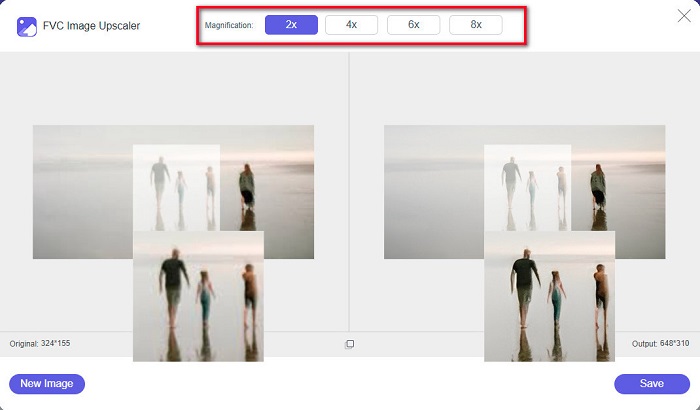
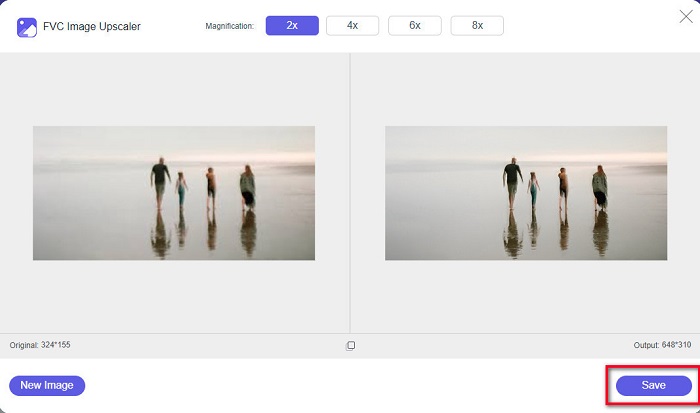
Paso 3. Luego, haz clic en el botón Save para guardar el resultado en tu dispositivo.
Parte 4. Preguntas frecuentes sobre cómo cambiar el tamaño de la imagen en Adobe Photoshop
¿Adobe cambia el tamaño de las imágenes sin pérdidas?
Con Adobe Photoshop, puede cambiar el tamaño de sus imágenes sin perder calidad. Además, produce resultados de alta calidad.
¿Qué formatos de archivo admite Adobe Photoshop?
Adobe Photoshop acepta casi todos los formatos de imagen conocidos, como JPG, JPEG, PNG, BMP, TIFF, EPS, PDF y más.
¿Cuál es el precio de Adobe Photoshop?
Puede comprar Adobe Photoshop por $19.99 por mes. Puede usar su prueba gratuita de 30 días para probar la aplicación primero.
Conclusión
Ahora que tu duda sobre redimensionar imágenes con Adobe ha quedado resuelta, puedes cambiar el tamaño de una imagen usando Adobe Express o Adobe Photoshop. Elijas la aplicación que elijas entre las herramientas mencionadas, podrás redimensionar tu imagen con éxito. Pero si quieres una forma más fácil y eficiente de cambiar y mejorar el tamaño de una imagen, entonces utiliza FVC Free Image Upscaler.
-
 Cómo hacer más nítida la imagen en línea y sin conexión con 4 formas sencillas
 Hay muchos métodos que puede utilizar si desea mejorar la nitidez de una imagen. Discutiremos a continuación las mejores y más fáciles formas de mejorar la nitidez de las imágenes en línea y fuera de línea.
-
 Restauración de fotos antiguas en línea y fuera de línea [Pasos sencillos]
 ¿Quieres restaurar una foto antigua? Con estas herramientas, conocerá el proceso de restauración de fotos antiguas. Lea esta publicación para conocer los métodos más sencillos.
-
 Cómo cambiar el tamaño de una foto para Facebook [Pasos rápidos y sencillos]
 Si tiene problemas para cargar una imagen de gran tamaño en Facebook, tenemos una solución para usted. Termina este artículo para aprender cómo cambiar el tamaño de las fotos para Facebook.
