


 Video Converter Ultimate
 Grabador de pantalla
 Reparación de vídeo
 Descarga segura
3 formas de comprimir fotos fácilmente para enviarlas por correo electrónico [Guía]
El correo electrónico es una excelente plataforma para enviar mensajes con fotografías adjuntas y otros archivos necesarios. Sin embargo, algunos usuarios tienen dificultades para enviar fotografías de gran tamaño, ya que esto provoca tiempos de carga lentos, entregas fallidas o excede los límites de tamaño de los archivos adjuntos impuestos por los proveedores de correo electrónico. Para evitar estos problemas, es fundamental cambiar el tamaño de las fotografías antes de enviarlas.
Con todo esto, en este artículo vamos a guiarte a través de 3 métodos sobre cómo comprimir fotos para correo electrónico, garantizando que tus archivos adjuntos de fotos sean fáciles de enviar y recibir sin comprometer la calidad.

Parte 1. Beneficios de comprimir fotos para enviarlas por correo electrónico
En general, comprimir fotos tiene muchos beneficios, incluso para el uso por correo electrónico. A continuación, se enumeran las ventajas que puede obtener al cambiar el tamaño de las fotos para enviarlas por correo electrónico:
• Dado que la compresión de imágenes implica redimensionar la foto a un tamaño más pequeño, puedes enviar fácilmente varios archivos de fotos adjuntos en un correo electrónico en comparación con las fotos sin comprimir.
• A menudo, los proveedores de correo electrónico imponen límites al tamaño de los archivos adjuntos que puedes enviar. Al comprimir tus fotos para el correo electrónico, puedes mantenerte dentro de estos límites y asegurarte de que tu mensaje se entregue sin problemas. Esto es útil cuando envías correos a varios destinatarios o cuando incluyes otros tipos de archivos adjuntos junto con tus fotos.
• Cuando las fotos se comprimen, simplemente ocupan menos espacio, lo que te permite aprovechar mejor tu cuota de almacenamiento de correo electrónico.
• Los archivos adjuntos de gran tamaño a veces pueden ser marcados por los servidores de correo, dando lugar a errores de entrega o a que los correos se marquen como spam. Comprimir tus fotos para el correo ayuda a evitar estos problemas, garantizando que tus archivos adjuntos lleguen a sus destinatarios sin inconvenientes.
• En determinadas situaciones en las que los usuarios consultan su correo desde el móvil, las fotos comprimidas son más fáciles de descargar y visualizar en dispositivos móviles que las no comprimidas.
Parte 2. Comprimir fotos para enviarlas por correo electrónico mediante la conversión del formato de imagen
Si desea comprimir fotografías para enviarlas por correo electrónico, el primer método que puede probar es utilizar una herramienta de conversión de imágenes. Con ella, convertirá su imagen al formato que desee y el proceso de conversión también optimizará su fotografía a un tamaño deseable y más manejable.
FVC Free Image Converter es una herramienta de conversión gratuita que permite a los usuarios convertir sus fotos a varios formatos de archivo de imagen, como JPG, PNG y GIF. Por tanto, si estás enviando por correo electrónico un archivo de imagen en un formato que contiene más datos y hace que el tamaño del archivo sea mayor, puedes aprovechar sin duda esta herramienta. Además, es ideal cuando quieres enviar varios archivos grandes, ya que puede convertir por lotes hasta 40 imágenes de una sola vez. Aquí te explicamos cómo utilizar esta herramienta para comprimir tus fotos para correo electrónico:
Paso 1. Primero, en tu navegador, busca FVC Free Image Converter para poder acceder a la herramienta online.
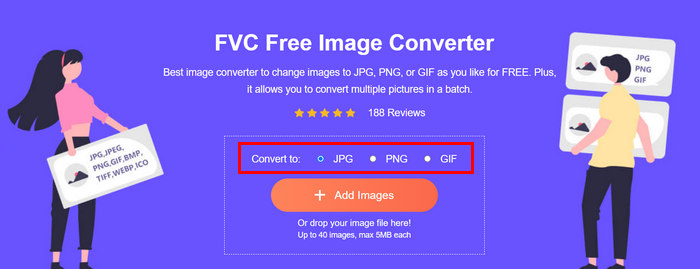
Paso 2. A continuación, elige el formato de archivo de salida que prefieras en la opción Convert to. Después, haz clic en el botón Add Images para importar las imágenes que quieres convertir.
Paso 3. Una vez terminado, haz clic en el botón Download All.
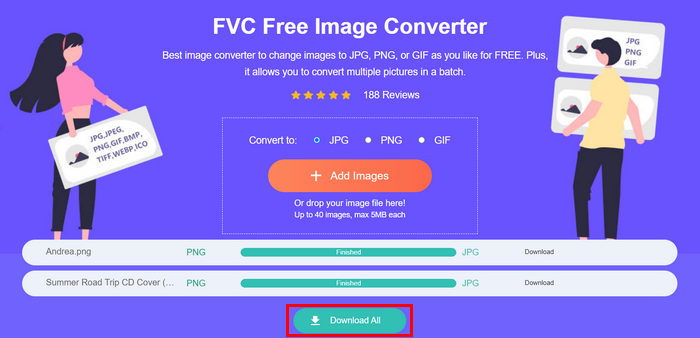 Con la herramienta gratuita FVC Free Image Converter, se garantiza que sus fotos convertidas ahora estarán comprimidas y tendrán su tamaño reducido, lo que es perfecto para usarlas por correo electrónico.
 Parte 3. Reducir el tamaño de las fotografías para enviarlas por correo electrónico con una herramienta de compresión en línea
FVC Free Image Compressor es una herramienta gratuita de compresión online que simplifica el proceso de comprimir fotos para correo electrónico. Solo necesitan subir o importar los archivos de imagen y dejar que la herramienta los comprima automáticamente. Si te preocupa perder calidad, esta herramienta utiliza la mejor optimización y algoritmos de compresión avanzados. Esto garantizará que se mantenga la calidad de tu imagen al comprimirla para enviarla por correo.
Además, si tienes que comprimir una imagen por lotes, esta herramienta te permite comprimir simultáneamente 40 imágenes a la vez. Por último, es compatible con varios formatos de imagen populares, como JPEG, PNG, SVG y GIF animados.
Paso 1. En tu navegador, accede a su página web oficial.
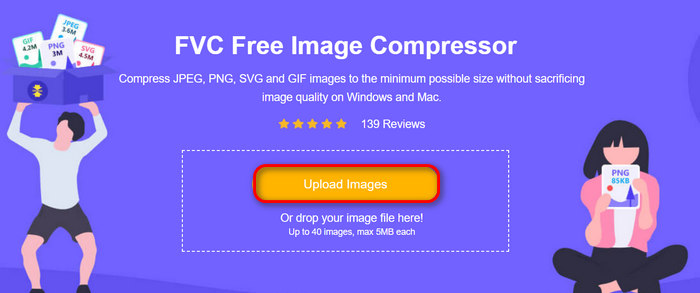
Paso 2. Después, haz clic en Upload Images para importar las imágenes que quieres comprimir para la web. Ten en cuenta que esta herramienta comprimirá automáticamente tus fotos en cuanto las selecciones y pulses en abrir.
Paso 3. Tras comprimir tus imágenes, puedes previsualizarlas revisando su nuevo tamaño después de la compresión. Por último, haz clic en Download All para guardar tu imagen.
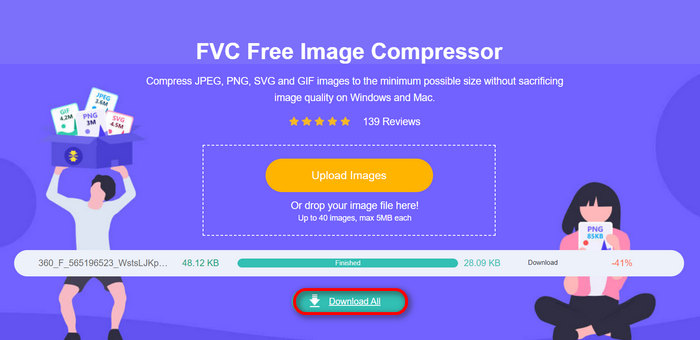
Este método puede ayudarte a comprimir fotos para enviarlas por correo electrónico sin tener que soportar pasos complejos ni pagar tarifas de suscripción. Además, su interfaz intuitiva y fácil de usar lo convierte en una herramienta ideal para cualquier nivel de usuario. Por lo tanto, si quieres optimizar tus fotos para enviarlas por correo electrónico, prueba este método ahora.
Parte 4. Cambiar el tamaño de las fotos para enviarlas por correo electrónico a un tamaño específico
Si desea cambiar el tamaño de las fotos para enviarlas por correo electrónico a un tamaño específico, puede probar la herramienta IMGonline. Esta herramienta de compresión de imágenes le permite cambiar el tamaño de su imagen al tamaño que desee. A continuación, le indicamos cómo hacerlo:
Paso 1. En su sitio web, haz clic en el botón Choose File para añadir la foto que quieres comprimir.

Paso 2. A continuación, configura los ajustes para la compresión del archivo JPEG. Introduce el tamaño que deseas, en KB o MB, según tu preferencia.

Paso 3. En el menú Size Reducing in Megapixel, elige cuánto quieres comprimir tu foto o cómo quieres limitar la compresión de tu foto.
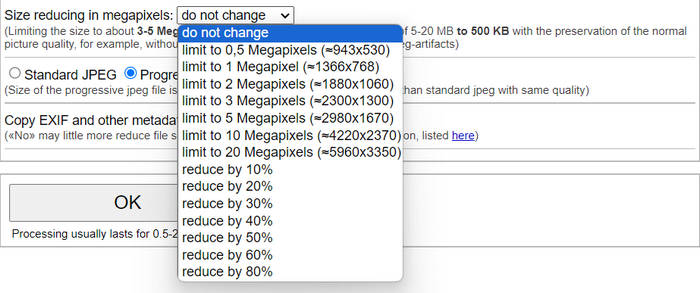
Paso 4. Después de eso, elige entre Standard JPG o Progressive JPG.

Paso 5. Una vez hecho esto, simplemente haz clic en el botón OK.
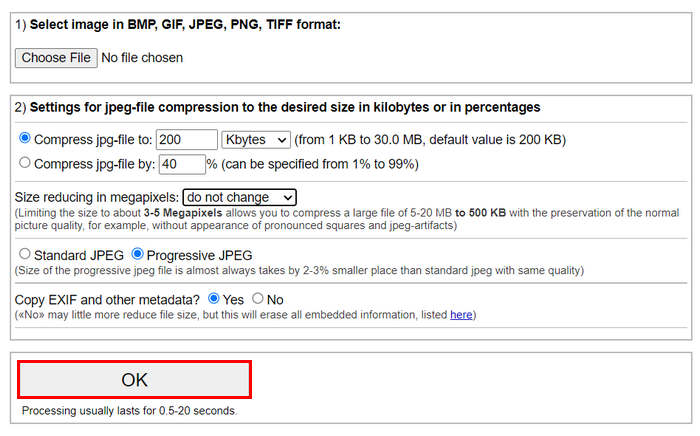
En relación a la elección entre el JPG estándar y el JPG progresivo, tenga en cuenta que el tamaño del archivo jpeg progresivo siempre ocupa un lugar 2-3% menor que el jpeg estándar con la misma calidad.
Parte 5. Preguntas frecuentes sobre la compresión de fotografías para enviarlas por correo electrónico
¿Qué tamaño debo cambiar de mis fotos para enviarlas por correo electrónico?
En lo que respecta al tamaño ideal para enviar fotos por correo electrónico, si bien no hay restricciones, generalmente se recomienda cambiar el tamaño de las fotos a un máximo de 1024 x 768 píxeles. Además, mantener el tamaño de la imagen por debajo de 1 MB ayuda a evitar problemas con los límites de archivos adjuntos y facilita que los destinatarios descarguen y vean las imágenes.
¿Cómo comprimir imágenes para Gmail?
Comprimir imágenes para Gmail puede hacerse mediante varios métodos. Una de las formas más sencillas es utilizar herramientas de compresión online como la herramienta gratuita FVC de compresión de imágenes. Para usarla, solo tienes que subir tus archivos de imagen y los comprimirá automáticamente.
¿Qué tipo de imagen es mejor para los correos electrónicos?
Los mejores tipos de imagen para correos electrónicos son JPEG y PNG. JPEG se utiliza ampliamente debido a su buena tasa de compresión y a su equilibrio entre tamaño de archivo y calidad, lo que lo hace ideal para fotos e imágenes con muchos colores. PNG se prefiere para imágenes que requieren transparencia o que contienen texto, logotipos o gráficos con bordes definidos, porque mantiene una calidad superior para estos elementos, aunque el tamaño del archivo puede ser mayor en comparación con JPEG.
Conclusión
Es realmente importante saber comprimir fotos para correo electrónico para evitar tiempos de subida lentos, errores de entrega y límites de tamaño de los archivos adjuntos. Siguiendo los métodos que se han expuesto detalladamente en este artículo, podrás asegurarte de que tus archivos adjuntos de fotos sean manejables y rápidos de enviar y recibir.
¿A qué estás esperando? Comienza hoy mismo a optimizar los archivos adjuntos de tus correos electrónicos con estas tres sencillas formas.
-
 Fotos demasiado comprimidas: cómo solucionarlas fácilmente
 ¿Te preguntas qué hacer cuando tu imagen está demasiado comprimida? Lee este artículo y descubre por qué ocurre este problema con las imágenes y aprende dos métodos para solucionarlo.
-
 Cambiar el tamaño de una imagen a 100 KB: las 3 mejores formas de lograr una compresión eficiente
 ¿Buscas una herramienta que te ayude a reducir el tamaño de una imagen a 100 KB? Lee este artículo y descubre tres métodos para reducir el tamaño de tus imágenes al tamaño de archivo que desees.
-
 Cómo comprimir imágenes en Word [Windows y Mac]
 ¿Quiere saber cómo puede aprovechar Word para comprimir imágenes? Esta guía le enseñará cómo comprimir imágenes en Word para lograr una compresión perfecta.
