


 Video Converter Ultimate
 Grabador de pantalla
 Reparación de vídeo
Cómo recortar una imagen en Photoshop
Puedes hacer muchísimas cosas en Photoshop; es como una herramienta todo en uno para editar imágenes. Si llevas tiempo usando Photoshop y todavía recuerdas bien todas sus funciones, o si eres alguien que está intentando explorar las opciones de recorte que ofrece, ¡estamos aquí para ayudarte! Aprende y entiende rápidamente y sin complicaciones cómo recortar una imagen en Photoshop. Además, descubre otros métodos para recortar imágenes online si Photoshop no se adapta a tus recursos ni a tus habilidades.

Parte 1. Cómo recortar una imagen en Photoshop
Aprender a cortar imágenes en Photoshop es importante porque permite a las personas separar y manipular con precisión diferentes elementos dentro de una imagen. Esta habilidad es fundamental para tareas como eliminar fondos, crear collages y realizar mejoras específicas durante la edición de imágenes. Ya sea en diseño gráfico, fotografía de productos o arte digital, la capacidad de cortar imágenes proporciona flexibilidad y control creativo, lo que permite a profesionales y entusiastas lograr los resultados visuales deseados en diversos proyectos.
A continuación se explica cómo cortar una imagen en Photoshop:
Paso 1. Abre una imagen en Photoshop yendo a la pestaña Archivo.
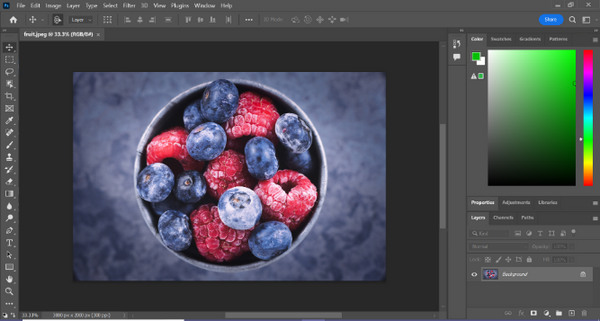
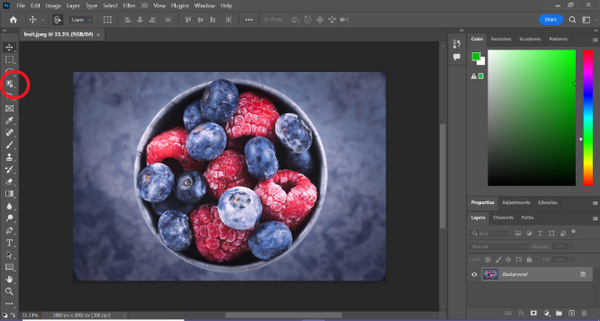
Paso 2. Elige la herramienta Selección de objeto y arrastra el ratón sobre tu objeto para seleccionar el área que quieres recortar.
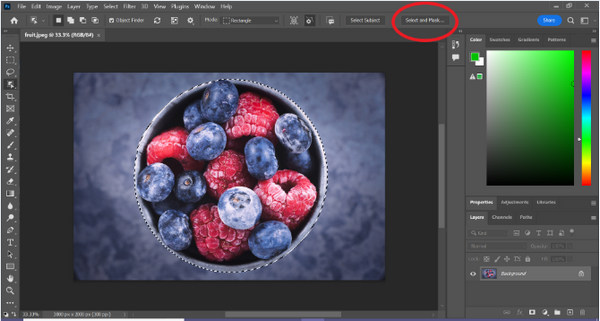
Paso 3. Haz clic en Seleccionar y aplicar máscara.
Paso 4. Ajusta la configuración de la selección, como el desvanecimiento (feather), si es necesario.
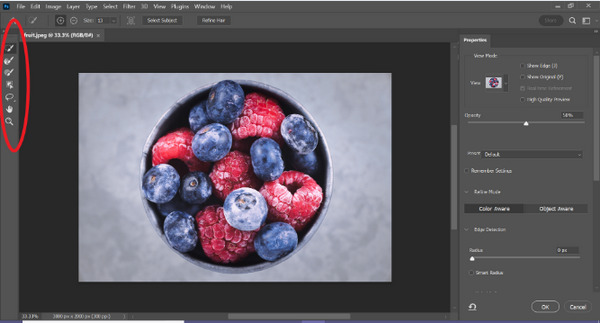
Paso 5. Haz clic en el icono de Máscara para recortar tu imagen y guarda la imagen modificada.
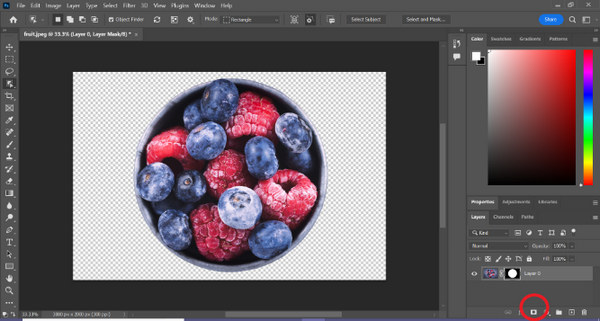
Con esta sencilla guía, ahora puedes recortar una imagen en Photoshop de forma rápida y sencilla. Solo tienes que seguir los pasos y disfrutar de un proceso de edición precisa sin complicaciones. Además, puedes cambiar el color de la imagen para reemplazar la parte recortada.
Parte 2. ¿Cómo recortar una imagen sin Photoshop en línea?
Si no tiene Photoshop instalado en su computadora, existe una manera de recortar una imagen en línea. Si bien Photoshop es una herramienta de calidad para editar imágenes, especialmente para recortar una imagen a la perfección, se necesitaron habilidades y práctica para dominarla. Entonces, si esta herramienta está fuera de tu alcance, puedes usar estos métodos para recortar una imagen fácilmente.
Método 1: Eliminador de fondo en línea FVC
El eliminador de fondo online FVC es versátil y fácil de usar, diseñado para eliminar automáticamente fondos de imágenes en formatos como PNG, JPG y JPEG. Esta herramienta simplifica el proceso de crear fondos transparentes y ofrece opciones de personalización, permitiendo a los usuarios usar un pincel para seleccionar áreas específicas que quieren eliminar o conservar.
Además, FVC Free Background Remover permite a los usuarios cambiar el fondo de la imagen a un color sólido de su elección o incluso reemplazarlo con otra foto. La herramienta va más allá de la eliminación del fondo y ofrece funciones de edición simples como recortar, reubicar, voltear y rotar, lo que permite a los usuarios mejorar el atractivo general de sus imágenes. A continuación se detallan los pasos sobre cómo utilizar esto.
Paso 1. Primero, ve a su página web oficial y haz clic en Subir imagen.
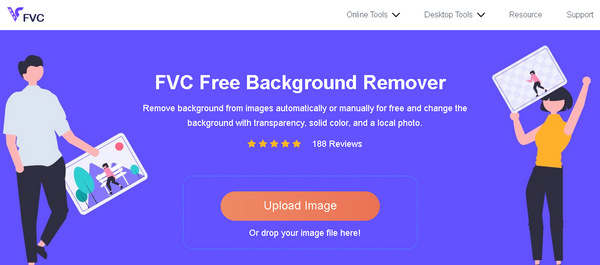
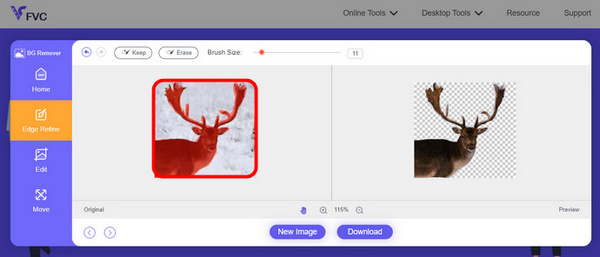
Paso 2. Espera a que termine el proceso. Después, puedes editar tu imagen afinando los bordes y moviendo el sujeto.
Paso 3. Para guardar el resultado, haz clic en el botón Descargar.
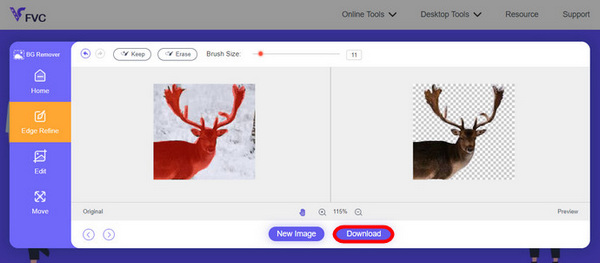
FVC Image Background Remover es realmente una herramienta de referencia para recortar una imagen. Además de ser gratis, la herramienta es muy fácil de usar para añadir el fondo a una imagen. Como ves, solo tienes que seguir unos pocos pasos sencillos y podrás eliminar el fondo de tus fotos con total facilidad.
Método 2: uso de la función iPhone iOS 16
iPhone iOS 16 trae varias funciones y actualizaciones nuevas. Uno de los cuales es la imagen recortada. Esta función de recorte de imágenes permite a los usuarios aislar el tema de una foto y crear recortes de fotografías directamente en sus iPhones.

Paso 1. Abre una foto en Fotos.
Paso 2. Mantén pulsado el sujeto de la foto y aparecerá un contorno blanco brillante.
Paso 3. Ahora, copia y pega la imagen en tus notas, aplicaciones de mensajería o mensajes. También puedes enviarla directamente por AirDrop a otro dispositivo iPhone.
Esta función de recorte de fotografías solo está disponible en iOS 16 y versiones posteriores, en iPhone XS, iPhone XR y versiones posteriores.
Parte 3. Preguntas frecuentes sobre cómo recortar una imagen en Photoshop
¿Cómo recortar a alguien de una imagen y ponerlo en otra en Photoshop?
Para recortar a alguien de una foto en Photoshop y colocarlo en otra, sigue estos pasos:
1. Usa la herramienta Lazo o Pluma para perfilar a la persona con cuidado.
2. Haz clic derecho y elige Capa vía copiar para duplicar el área seleccionada.
3. Abre la imagen de destino, crea una capa nueva y pega en ella la capa copiada.
4. Ajusta el tamaño y la posición según sea necesario, afinando los bordes para lograr una integración perfecta.
¿Cómo se recorta algo en Photoshop y se vuelve transparente?
Para recortar algo en Photoshop y hacerlo transparente:
1. Utiliza la herramienta Pluma o Varita mágica para seleccionar el objeto.
2. Pulsa Supr para eliminar el área seleccionada.
3. Guarda la imagen en PNG.
4. Asegúrate de que la zona eliminada aparezca con un patrón de tablero de ajedrez, lo que indica transparencia.
¿Cómo se resta una forma en Photoshop?
Para restar una forma en Photoshop:
1. Crea dos formas usando la herramienta de Formas o cualquier herramienta de selección.
2. Asegúrate de que ambas formas estén en capas separadas.
3. Selecciona la capa superior, ve a Operaciones de trazado en la barra de herramientas y elige Restar forma frontal.
4. La forma superior se restará de la forma inferior, creando una nueva forma con el área recortada.
¿Puedo recortar objetos complejos con detalles finos en Photoshop?
Sí, Photoshop ofrece herramientas avanzadas como la herramienta Pluma para selecciones precisas de objetos complejos. Haga zoom para mayor precisión, cree puntos de anclaje alrededor del objeto y refine el trazado para obtener recortes detallados.
¿Cuál es la diferencia entre Capa mediante Corte y Capa mediante Copia al cortar una imagen en Photoshop?
Capa vía Cortar elimina el área seleccionada y la coloca en una nueva capa. Mientras que Capa mediante Copia duplica el área seleccionada en una nueva capa, dejando el original intacto. Elija en función de si desea conservar el original o no durante el proceso de corte.
Conclusión
Es fácil, ¿verdad? Ahora que ya sabes cómo recortar una imagen en Photoshop, potencia esa habilidad y explora otras funciones de Photoshop. Además, puedes probar otros métodos para recortar una imagen online usando el eliminador de fondo online FVC o a través de tu dispositivo iPhone. Recortar una imagen ahora es más fácil que nunca, así que no pierdas la oportunidad y potencia tu creatividad siguiendo esta guía.
-
 Cómo quitar la marca de agua de una foto en Photoshop [Pasos]
 Photoshop es una de las herramientas de edición populares. Obtenga el tutorial gratuito aquí usando Photoshop para eliminar la marca de agua de las fotos. Además, descubre formas alternativas.
-
 Cómo recortar en Photoshop: Guía para principiantes [2025]
 Descubra cómo recortar imágenes en Photoshop con esta guía fácil de seguir. Además, aprenda cómo seleccionar áreas, ajustar las relaciones de aspecto y más para recortar fotografías.
-
 Cómo cambiar el color en Photoshop | Guía completa (2025)
 ¿Quieres llevar tu creatividad al siguiente nivel aprendiendo cómo cambiar el color de fondo en Photoshop? Este artículo tiene todo lo que necesitas saber. ¡Léelo ahora!
