


 Video Converter Ultimate
 Grabador de pantalla
 Reparación de vídeo
 Descarga segura
Pasos sencillos sobre cómo cambiar el tamaño de la foto para Facebook
Muchos millennials y adultos usan Facebook como la plataforma de redes sociales más popular. Facebook es una aplicación donde puedes subir imágenes y compartirlas o enviarlas a tus amigos. Y muchas personas quieren tener una imagen de gran calidad para subir a Facebook. Si tú también quieres subir fotos en alta resolución y alta calidad, tenemos la herramienta para ayudarte. Por suerte, hemos encontrado aplicaciones para iPhone, Android y en línea que pueden redimensionar imágenes de forma rápida y eficaz. Así que abróchate el cinturón, porque en esta publicación aprenderás rápidamente cómo redimensionar fotos para Facebook.

Parte 1. Cómo cambiar el tamaño de una foto en iPhone para Facebook
Si está utilizando un dispositivo iPhone, puede descargar aplicaciones en su AppStore para ayudarlo a cambiar el tamaño de su foto. Además, hay aplicaciones gratuitas que puede usar en su dispositivo iPhone. Sin embargo, no todas las aplicaciones producen resultados de alta calidad. Es por eso que buscamos la mejor aplicación para cambiar el tamaño de las imágenes al instante.
Remini es la aplicación de cambio de tamaño de fotos más popular que puedes descargar en tu iPhone. Esta app tiene una interfaz fácil de usar porque sus funciones son intuitivas. Además, Remini puede mejorar tu imagen utilizando su potenciador de IA (Inteligencia Artificial), que redimensiona tu imagen automáticamente y la mejora con la máxima calidad posible. Y no solo eso: con esta app también puedes mejorar tus vídeos gracias a su función de mejora de vídeo. Asimismo, es compatible con todos los formatos de imagen más comunes, como JPEG, JPG y PNG. Lo que también es fantástico de esta aplicación es que puedes descargarla gratis en la App Store. Así que, si quieres usar esta app para redimensionar una foto para la portada de Facebook, sigue los pasos que indicamos a continuación.
Cómo cambiar el tamaño de una imagen usando la aplicación Remini:
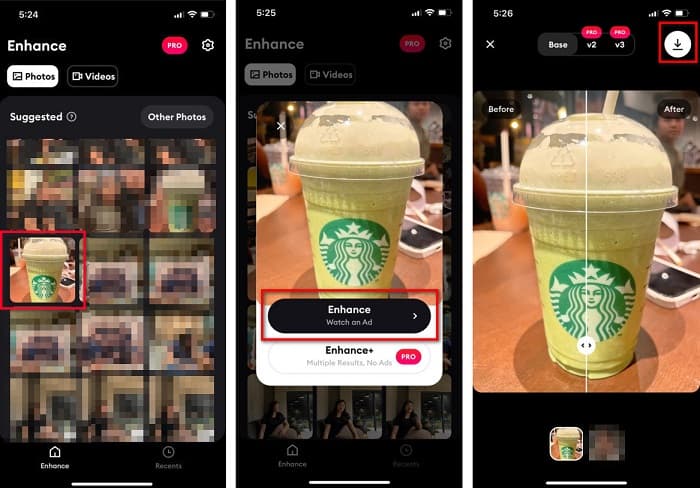
Paso 1. Abre la App Store, busca la aplicación Remini y descárgala en tu dispositivo. Después de instalar la app, ábrela.
Paso 2. Tras abrir la aplicación, verás tus fotos y podrás seleccionar la imagen que quieras mejorar. Luego, pulsa el botón Enhance para ir a la siguiente interfaz.
Paso 3. Antes de pasar a la siguiente interfaz, primero debes ver un anuncio. A continuación, verás el antes y el después de tu imagen. Pulsa el icono de descarga en la parte superior derecha de la pantalla.
Parte 2. Cómo cambiar el tamaño de una foto en Android para Facebook
¿Eres usuario de Android? No te preocupes; también presentaremos una aplicación que puede usar para cambiar el tamaño de una imagen. Aunque hay muchas aplicaciones que puede descargar desde PlayStore, elegimos las mejores para presentárselas. Lea a continuación para aprender cómo cambiar el tamaño de las imágenes para Facebook en Android.
AI Photo Enhancer & PixelLeap es otra excelente aplicación que te ayudará a redimensionar tu imagen para obtener una mejor calidad. Este redimensionador de fotos se puede descargar gratis desde la Play Store y es seguro de usar. Además, si quieres mejorar o restaurar una foto antigua, entonces AI Photo Enhancer & PixelLeap es una buena opción. Y gracias a su tecnología de IA, solo tienes que subir la imagen que quieras redimensionar y la aplicación mejorará tu imagen automáticamente. Además, tiene una interfaz sencilla, lo que la convierte en una app muy buena si eres principiante. También dispone de otras funciones de edición que puedes usar, como corregir, colorear, animar, añadir expresividad y aclarar tu imagen. Sin embargo, el problema de esta app es que contiene muchos anuncios que tardan en terminar y deja una marca de agua en tu resultado. No obstante, esta aplicación es la solución si quieres redimensionar una foto para Facebook sin recortarla.
Cómo cambiar el tamaño de una imagen usando AI Photo Enhancer y PixelLeap:
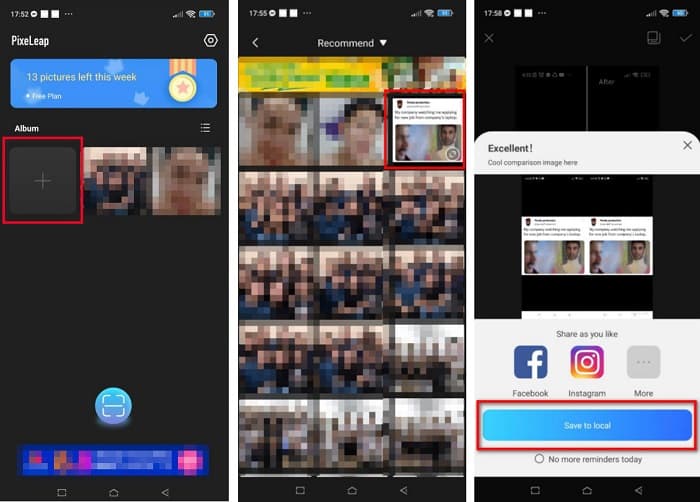
Paso 1. Instala AI Photo Enhancer & PixelLeap en tu dispositivo Android.
Paso 2. Luego, en la interfaz principal de la aplicación, pulsa el cuadro con el signo + para subir la imagen que quieres redimensionar. Después, la app te hará ver un anuncio antes de pasar a la siguiente interfaz.
Paso 3. Busca la imagen que quieras redimensionar y tócala. Tras seleccionar la imagen, pulsa la opción Enhance. Entonces, la aplicación mejorará tu imagen automáticamente. Pulsa Save to local para descargar tu resultado.
Parte 3. Cómo cambiar el tamaño de una foto en línea para Facebook
La ventaja de usar una aplicación en línea es que le permite ahorrar espacio en su dispositivo. Además de eso, hay muchas aplicaciones web de acceso gratuito que puede usar en su navegador. Entonces, si desea usar una aplicación en línea para cambiar el tamaño de una imagen para cargar en Facebook, le mostraremos cómo cambiar el tamaño de una foto para Facebook.
FVC Free Image Upscaler es el mejor redimensionador de fotos en línea, que te permite ampliar tu imagen hasta 2x, 4x, 6x y 8x. Con su interfaz sencilla, los principiantes pueden cambiar el tamaño de una imagen fácilmente. Además, es compatible con todos los formatos de imagen, incluidos JPEG, JPG, PNG y BMP. Lo que resulta aún más impresionante de esta aplicación es que utiliza tecnología de IA que detecta automáticamente la parte de baja resolución de una imagen y luego la mejora. Además, puede reparar por completo y de forma perfecta los píxeles perdidos, las texturas de color y más detalles. También es accesible en todos los navegadores web, incluidos Google, Firefox y Safari. Por lo tanto, si quieres usar FVC Free Image Upscaler para redimensionar o mejorar tu imagen, sigue los sencillos pasos que indicamos a continuación.
Cómo cambiar el tamaño de una imagen para Facebook usando FVC Free Image Upscaler:
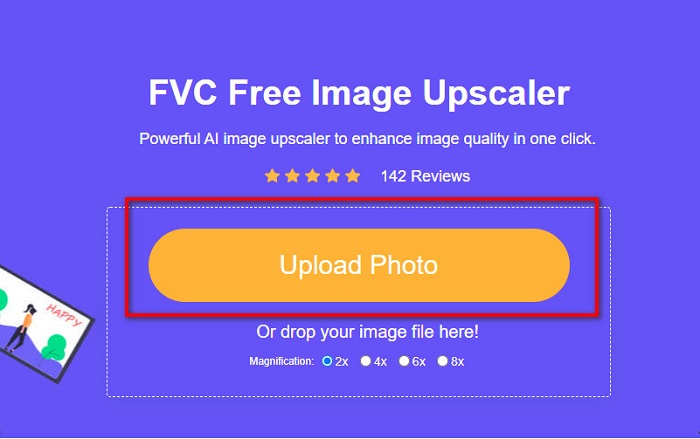
Paso 1. Abre tu navegador y escribe FVC Free Image Upscaler en la barra de búsqueda. Puedes hacer clic en el enlace proporcionado para ir directamente al sitio web. Haz clic en Upload Photo para iniciar la aplicación.
Paso 2. En la interfaz principal del software, haz clic en Upload Photo para importar la imagen que quieras redimensionar.
Paso 3. En la siguiente interfaz, selecciona el nivel de ampliación que quieres para la imagen de salida. Puedes elegir entre aumentos de 2x, 4x, 6x y 8x. Luego pasa al siguiente paso.
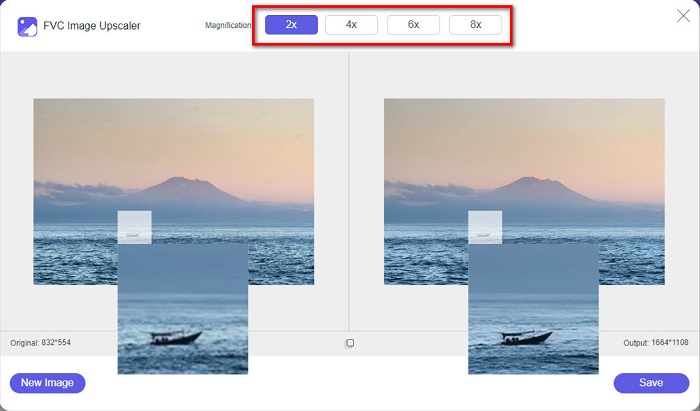
Paso 4. Por último, marca el botón Save para guardar tu resultado en tu ordenador. Y verás la diferencia entre tu archivo original y la imagen redimensionada. En solo un segundo, tu imagen se guardará.
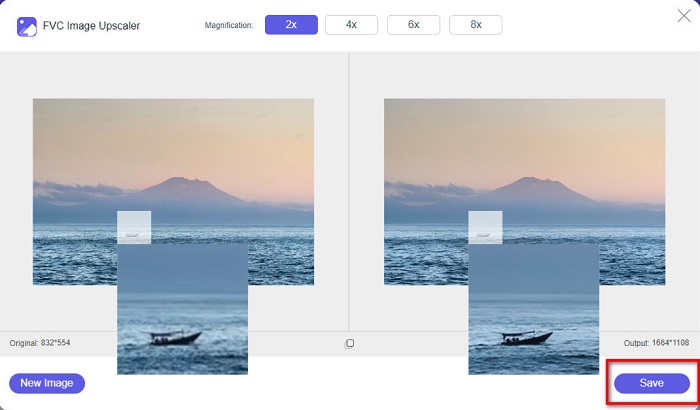
¡Y eso es! Tan fácil como ABC, su imagen ahora está mejorada y redimensionada.
Relacionado con:
Cómo enfocar una imagen en línea y sin conexión con 4 métodos sencillos
Cómo redimensionar una imagen – Adobe Resize Image [en línea y sin conexión]
Parte 4. Preguntas frecuentes sobre cómo cambiar el tamaño de una foto para Facebook
¿Cuál es la mejor proporción de fotos para Facebook?
En cuanto a la relación de la foto, lo mejor es utilizar una imagen vertical con una relación de aspecto de 4:5 y 1200 x 1500 px. Y si quieres una imagen cuadrada, la resolución debe ser de 1080 x 1080 px.
¿Cuál es el tamaño de una publicación de Facebook?
El tamaño de imagen recomendado para una publicación de Facebook es de 1200 x 630 píxeles para evitar la pixelación y tener un tiempo de carga más rápido.
¿Cuál es el mejor formato de imagen para subir a Facebook?
El mejor y más recomendado formato de imagen para subir a Facebook es el formato JPG. Lo mejor es subir un formato JPG con un color RGB de menos de 15 MB.
Conclusión
Contamos con las soluciones anteriores si quieres redimensionar una foto para Facebook. Tras leer detenidamente este artículo, esperamos que hayas aprendido todo lo necesario que debes hacer. Sin duda podrás redimensionar cualquier imagen que quieras usando aplicaciones para iPhone, Android o en línea. Pero para obtener mejores resultados, utiliza FVC Free Image Upscaler, que además te permitirá ahorrar espacio en tu dispositivo.
-
 La mejor aplicación de cambio de tamaño de fotos en línea, sin conexión, Android y iPhone
 ¿Cuáles son las mejores aplicaciones para cambiar el tamaño de fotos? Haga clic en la página para conocer las cinco aplicaciones de cambio de tamaño de fotos más poderosas que puede usar para mejorar o cambiar el tamaño de su archivo.
-
 Cómo cambiar el tamaño de la imagen - Adobe Resize Image [En línea y sin conexión]
 Si está buscando una imagen de cambio de tamaño de Adobe, entonces tenemos la solución para usted. Vea esta publicación a fondo para aprender cómo cambiar el tamaño de las imágenes usando Adobe en su PC.
-
 Los 4 mejores ampliadores de GIF sin conexión y en línea que no debe perderse
 Esta publicación es para ti si estás buscando las mejores ampliadoras de GIF. Enumeramos las ampliadoras de GIF en línea y fuera de línea de mejor rendimiento para su computadora.
