


 Video Converter Ultimate
 Grabador de pantalla
 Reparación de vídeo
 Descarga segura
Imagen mejorada a 4k con el mejor escalador del mercado
Upscale image to 4k became in demand on many software, whether professional or not. Users believe a higher resolution like 4k will make their picture detailed, sharp, clear, and better. Yet, you can enjoy the 4k images if you use them for advertising outdoors, printing high-quality tarpaulin, viewing them on large digital screens, most digital cinematography, and more. The PPI or image resolution purpose is to project a precise number of pixels depending on the width and height of the image. Do you want to know how to turn your photo into a 3840 x 2160? Or do you prefer the DCI 4k, which is 4069 x 2160? This article includes the information you’ll need to know to achieve the UHD resolution known as 4k.

Parte 1. Cómo mejorar la imagen a 4k gratis con la mejor solución [Servicio web]
FVC Free Image Upscaler is the most simplistic 4k image upscaler you can use to achieve the 4k resolution. This tool doesn’t only upscale your image, but it also corrects the PPI on your photo to make it match the resolution of your choice. It is an upscaler, which means the image you upload here will never be stretched out or lose some quality, all thanks to the best AI tech the FVC ads on it. Do you need a demonstration of how to use this? If so, follow the complete steps we add below and start upscaling the image you want.
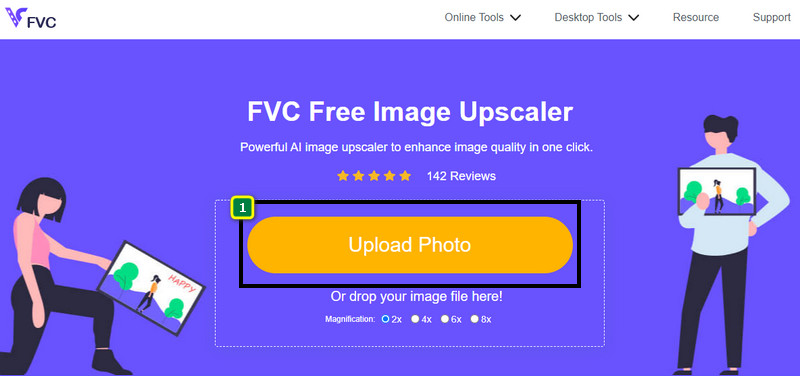
Step 1. You must click this link to open the tool on a new tab. It will direct you to the official tool you’ll use to change the upscale image you want.
Step 2. Hit the Upload Photo to add the JPG, JPEG, PNG, GIF, BMP, or SVG you want to upscale into a 4k resolution.
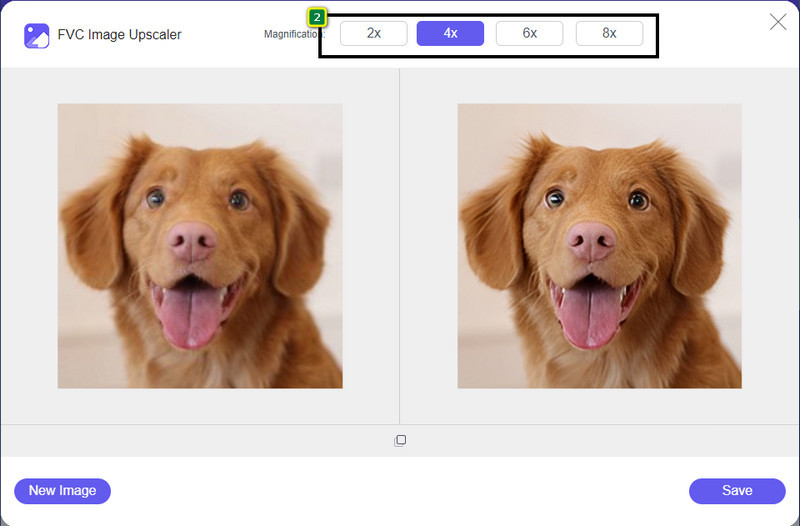
Step 3. After that, the image you upload will load up to the tool. Then, choose the options from 2x, 4x, 6x, and 8x above to achieve the 4k resolution.
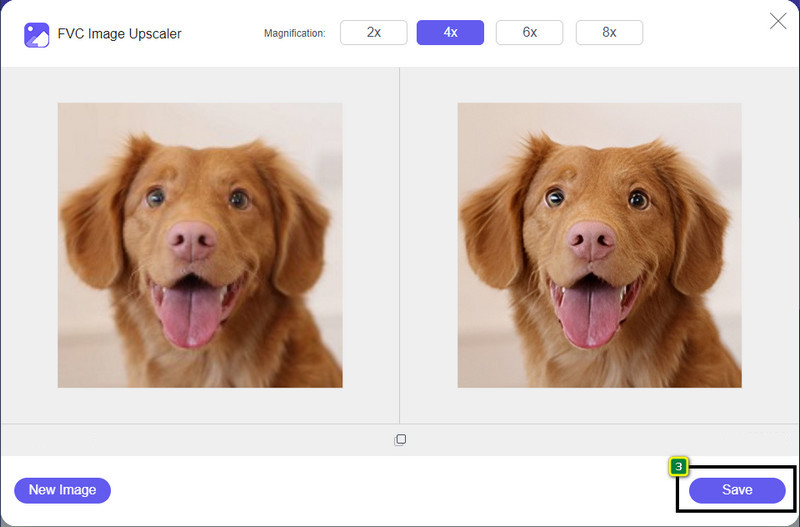
Step 4. To export the 4k image you improve here, click the Save button; it will automatically be saved to your file folder.
Parte 2. Cómo mejorar la imagen a 4k sin conexión en el editor gráfico predeterminado de Windows [gratis]
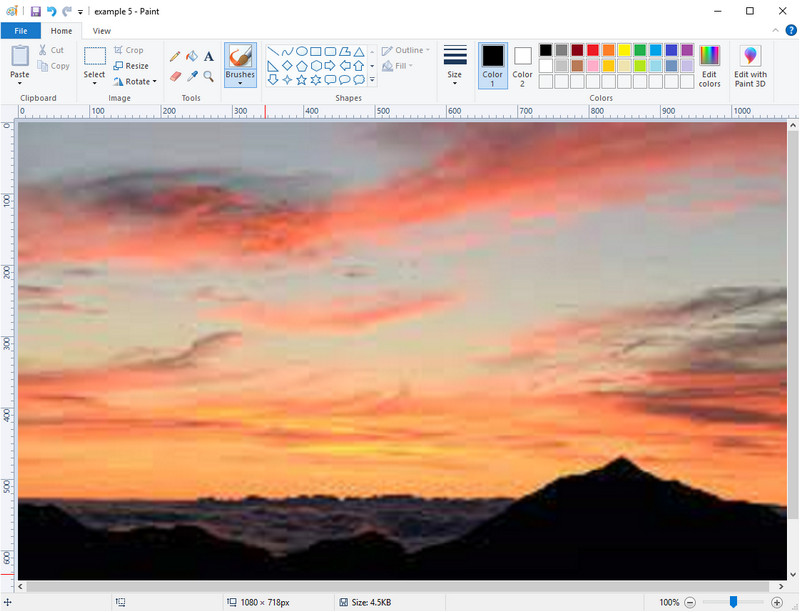
Paint is a default graphics editor you can use on your Windows to upscale an image to 4k by changing its dimension. This software became popular among many Windows users because of what you can do here. You can start a blank canvas and paint it like you usually do on a canvas, but this is digital. It has a lock-in feature so that when you adjust the height of the image, the width of it will follow or vice versa. Also, you can use percentages to tweak the dimension of your image.
Aunque puede usar esta herramienta como su editor, aún es insuficiente en otras áreas de edición. Por ejemplo, no es compatible con el modo de escala de grises. Entonces, si desea utilizar esta herramienta, siga los pasos que agregamos.
Step 1. Click the Window icon on your screen and type the tool's name, Paint.
Step 2. After you open it, click the File, then Open, and add the image file you want to upscale here. You can drag and drop the image into this tool if you want to.
Step 3. Go to the Resize option and click the Pixel. Change the measurement of the height or width to the standard 4k.
Es mejor si cambias una sola medida; no importa si es alto o ancho y siempre marque la relación de aspecto principal para que encaje. Algunas imágenes se estiran si las redimensionas a 4k.
Step 4. With that, click the Save button to download the image you upscale here.
Parte 3. Cómo mejorar la imagen a 4k usando un software profesional en Windows y Mac [Pagado]
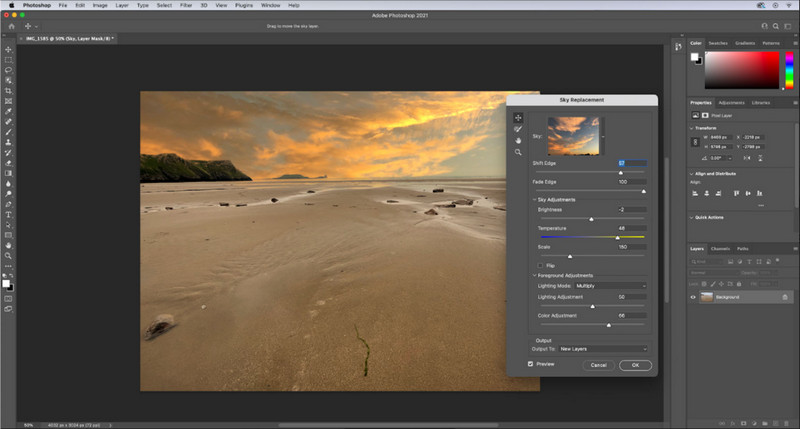
Adobe Photoshop allows its user to experience a new height of image editing and upscaling, but for now we will be more detailed with its upscaling function. We can’t argue that it's an expert choice of software because of how immersive this tool is in image editing. Also, this tool creates new PPI data to the image once you upscale them in here with the help of the algorithm that is accumulated on your file. You can change the resolution to 4k without making it stretched out or pixelated.
Sin embargo, deberá comprar el plan si ya ha consumido la versión de prueba gratuita que ofrece esta aplicación. Aunque tendrá que pagar, el conjunto de este software es excelente para ser utilizado por editores profesionales y de nivel medio. Para los principiantes, puede aprender a escalar la imagen a 4k con las instrucciones a continuación.
Step 1. Download the official version of this software on Adobe, but if you already have the app, you can open it directly to start using it.
Step 2. To upload the image you want to upscale, click File then Open, and a folder will show on your screen. Select the image file name and press Open to upload the image.
Step 3. On the upper section, click the Image option and select the Image Size.
Step 4. A dialogue box will adjust the measurement for your image's height, width, and resolution.
For a smoother result, you will need to tick the box of Resample and click the drop-down button. Instead of selecting automatic click, the Bicubic Enlargement for it is a method that allows you to make the image enlargement result better. Click OK to save the adjustment you’ve changed.
Step 5. To download the image you upscale into 4k, click the File and go to Save.
Relacionado:
Simple Guide on How to Add Watermark to a Video in Photoshop Quickly
Improve Image Quality Using These Quick and Easy Methods
Parte 4. Preguntas frecuentes sobre cómo mejorar la imagen a 4k
¿Existen restricciones para escalar imágenes a 4k?
Hay restricciones que deberá seguir. Por ejemplo, si su monitor solo puede procesar 1080p, entonces es mejor que use el tamaño estándar de 1080p en lugar de 4k porque la mejora que agregará no tendrá efecto.
¿Mejorará mi imagen después de escalar a 4k?
No espere que suceda un milagro, pero verá que habrá un resultado si abre la imagen en la pantalla correcta, como los televisores 4k, por ejemplo.
¿Por qué mis imágenes se vuelven borrosas después de verlas en un televisor 4k?
Las imágenes tienden a estirarse cuando la dimensión y el PPI no cumplen con el estándar de televisión digital que está utilizando, especialmente 4k. Puede evitar esto si mejora la imagen a una resolución de 4k con la aplicación que agregamos aquí.
Conclusión
Por lo general, necesitará un escalador de imágenes de 4k para ajustar la imagen a una resolución de 4k. Puedes hacerlo fácilmente con las herramientas que agregamos aquí y el tutorial. Puede comenzar a usar el servicio en línea para mejorar la imagen que desea y se sorprenderá con el resultado.
-
 Restauración de fotos antiguas en línea y fuera de línea [Pasos sencillos]
 ¿Quieres restaurar una foto antigua? Con estas herramientas, conocerá el proceso de restauración de fotos antiguas. Lea esta publicación para conocer los métodos más sencillos.
-
 Los 7 principales potenciadores de píxeles para todos los navegadores web que debe usar
 Si desea conocer los mejores potenciadores de píxeles para usar, es mejor que consulte esta publicación. Este artículo enumera los siete mejores potenciadores de píxeles de fotos para todos los navegadores web.
-
 La mejor aplicación de cambio de tamaño de fotos en línea, sin conexión, Android y iPhone
 ¿Cuáles son las mejores aplicaciones para cambiar el tamaño de fotos? Haga clic en la página para conocer las cinco aplicaciones de cambio de tamaño de fotos más poderosas que puede usar para mejorar o cambiar el tamaño de su archivo.
