


 Video Converter Ultimate
 Grabador de pantalla
 Reparación de vídeo
 Descarga segura
Cómo convertir MP3 a tono de llamada en iPhone sin esfuerzo
¿Las melodías predeterminadas de tu iPhone no son precisamente tus favoritas y te gustaría que alguna de tus canciones en MP3 se convirtiera en tono de llamada? ¿Y si te dijéramos que es posible convertir un MP3 en tono de llamada en un iPhone?
En este artículo, aprenderá tres formas diferentes de convertir sus archivos de música MP3 en su iPhone en un tono de llamada. Convertirlos es un poco complicado, pero con la herramienta y el método adecuados, haremos que esto sea lo más simple y conveniente posible para usted. ¿A qué espera? ¡Vamos a sumergirnos en ello!

Parte 1. Convertir MP3 a tono de llamada para iPhone en Mac/Windows
Una de las formas más fáciles y rápidas de convertir MP3 a tono de llamada en iPhone es usando el Video Converter Ultimate recomendado por FVC en tu ordenador Windows o macOS. Esta herramienta de conversión todo en uno admite hasta 300 formatos distintos, incluido el formato M4R, lo que la convierte en una opción fiable para transformar archivos de música MP3 en tonos de llamada para iPhone. Además, este conversor es hasta 120 veces más rápido que otras herramientas, de modo que el proceso de conversión es rápido y sin complicaciones.
A continuación te mostramos cómo usar el Video Converter Ultimate recomendado por FVC para convertir tu MP3 en un tono de llamada:
Paso 1. Primero, descarga e instala la herramienta en tu ordenador, ya sea Windows o Mac.
Paso 2. Inicia la herramienta y, una vez en la interfaz principal, haz clic en el botón Add Files. Esto te permitirá importar el archivo MP3 que quieres convertir en tono de llamada para iPhone.
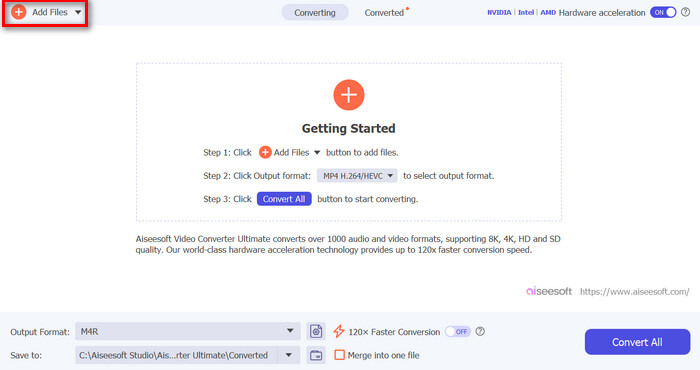
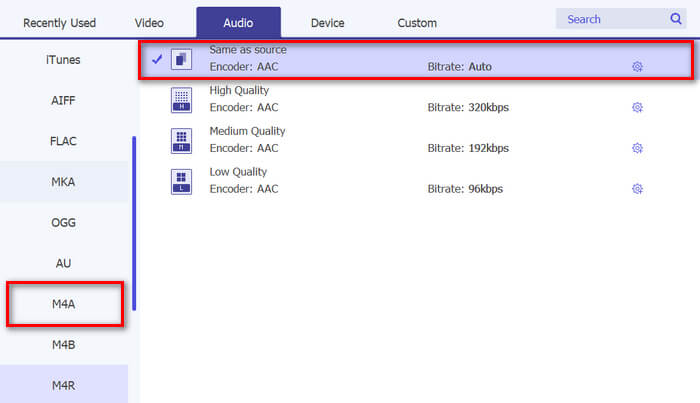
Paso 3. Ahora ve a Output format y, en la lista de formatos de audio disponibles, elige M4R. M4R es el formato de archivo de los tonos de llamada del iPhone.
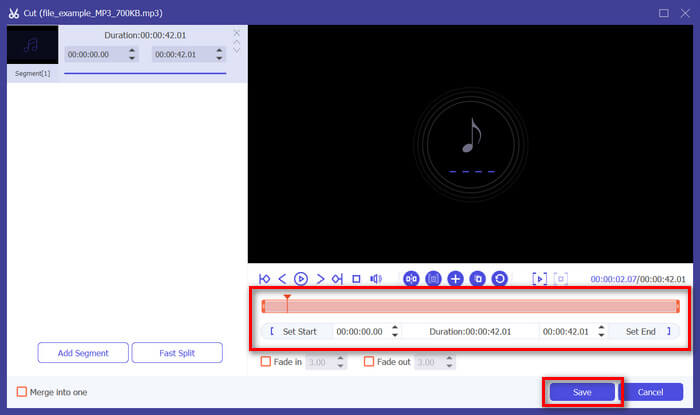
Paso 4. Después, asegúrate de que tu archivo MP3 tenga solo 30 segundos de duración. Si supera ese límite, ve al botón Cut y ajusta la duración del archivo moviendo la barra en la línea de tiempo o estableciendo manualmente el tiempo de finalización en 30 segundos.
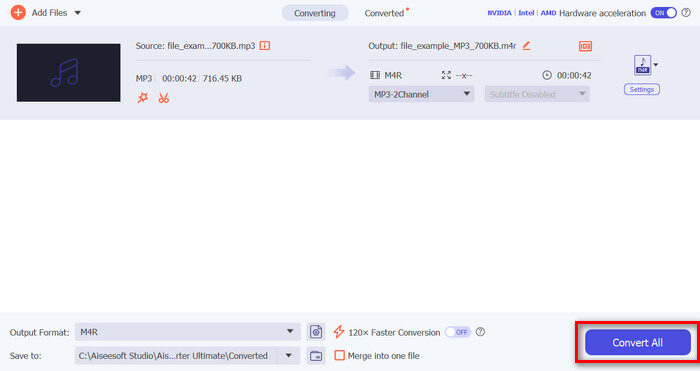
Paso 5. Ahora haz clic en el botón Convert All para empezar a convertir tus archivos MP3 en tonos de llamada para iPhone. Los archivos convertidos se guardan directamente en una carpeta de tu ordenador.
Es rápido, ¿verdad? Es realmente increíble cómo esta herramienta Video Converter Ultimate seleccionada por FVC hace que la conversión de MP3 a un tono de llamada de iPhone sea fácil y rápida. Por lo tanto, si está buscando una herramienta de conversión que le permita ahorrar tiempo, pruebe esta herramienta ahora.
Parte 2. Convertir MP3 a tono de llamada en iPhone
Si prefieres un método directo sin usar una computadora, GarageBand ofrece una solución conveniente para convertir MP3 a tonos de llamada directamente en tu iPhone. Esta herramienta es una poderosa aplicación de creación de música que viene preinstalada en la mayoría de los iPhones. Esta herramienta no solo es fácil de usar, sino que también ofrece varias funciones para personalizar tus archivos de audio de manera efectiva.
A continuación te mostramos cómo usar GarageBand para convertir tu MP3 en un tono de llamada:
Paso 1. Primero, abre la app GarageBand en tu iPhone. Si no la tienes instalada, ve a la App Store e instálala.
Paso 2. Toca el icono Project y luego el icono Loop situado cerca de la esquina superior derecha.
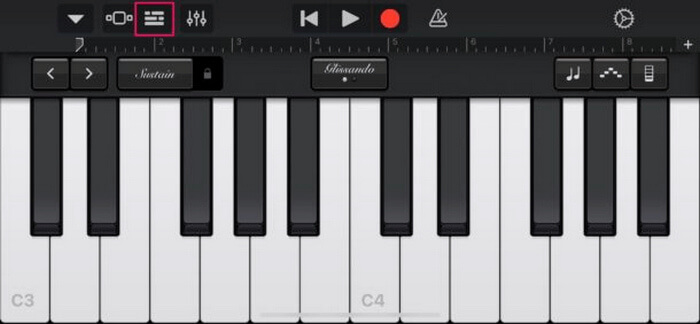
Paso 3. Ahora toca Music or Files para elegir el archivo MP3 y manténlo pulsado para importarlo a GarageBand.
Paso 4. Después, toca la pista y arrastra ambos extremos para recortar el audio. Asegúrate de que el tono de llamada dure menos de 30 segundos.
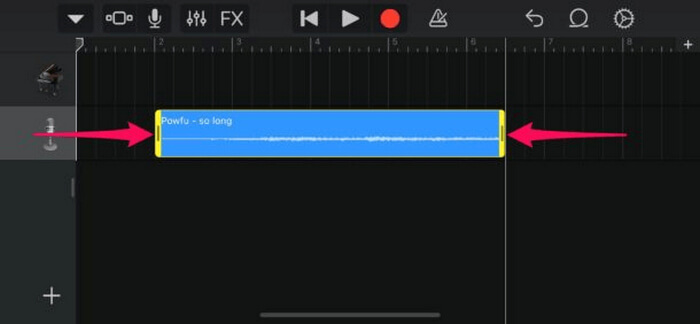
Paso 5. Verás una Flecha hacia abajo en la esquina superior izquierda. Tócala y luego elige My Songs para guardar el clip.
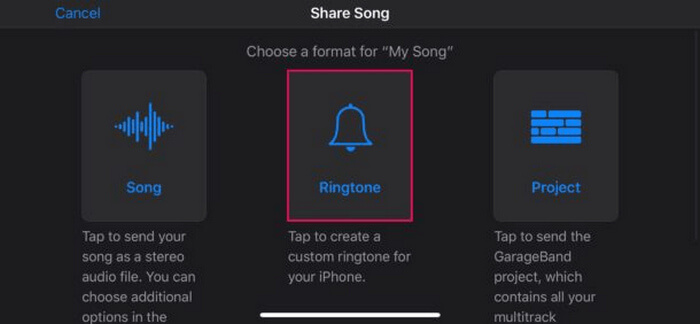
Paso 6. Busca el clip que has creado, manténlo pulsado, toca Share y elige la opción Ringtone. No olvides ponerle un nombre al tono y tocar Export.
Paso 7. Para usar el archivo MP3 convertido como tono de llamada en tu iPhone, toca Use Sound As para establecerlo como tono predeterminado de mensaje de texto o para un contacto específico. Como alternativa, ve a Settings, Sounds & Haptics y Ringtone para cambiar el tono de llamada de tu iPhone.
Si prefieres convertir archivos MP3 directamente a tonos de llamada en tu iPhone, este método es perfecto para ti. Sin embargo, los usuarios nuevos necesitarán algo de tiempo para aprender a utilizarlo, ya que contiene funciones complejas que pueden abrumarlos al principio.
Parte 3. Convertir MP3 a tono de llamada para iPhone [en línea y gratis]
Por otro lado, si prefieres un método gratuito y en línea para convertir MP3 en tono de llamada para iPhone, el FVC Free Audio Converter es la opción adecuada para ti. Con esta herramienta, puedes convertir fácilmente cualquier formato de archivo de audio, en especial de MP3 a M4R, ya que admite los formatos MP3, AAC, AC3, WMA, WAV, AIFF, FLAC, MKA, M4A, M4B y M4R. Además, esta herramienta es perfecta para quienes necesitan un conversor de audio sobre la marcha gracias a su interfaz muy intuitiva y sencilla.
A continuación te mostramos cómo usar FVC Free Audio Converter para convertir tu MP3 en un tono de llamada:
Paso 1. Haz clic en el botón Add Files para importar los archivos MP3 que quieres convertir en tono de llamada.
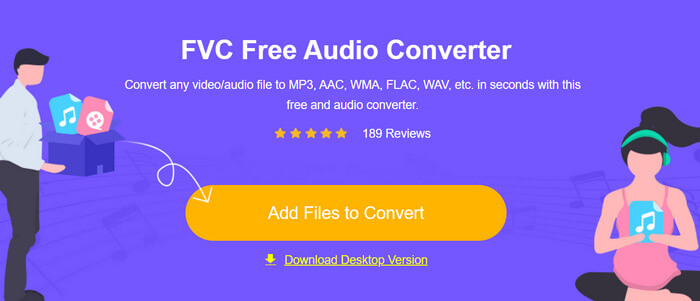
Paso 2. Elige M4R como formato de salida de audio.
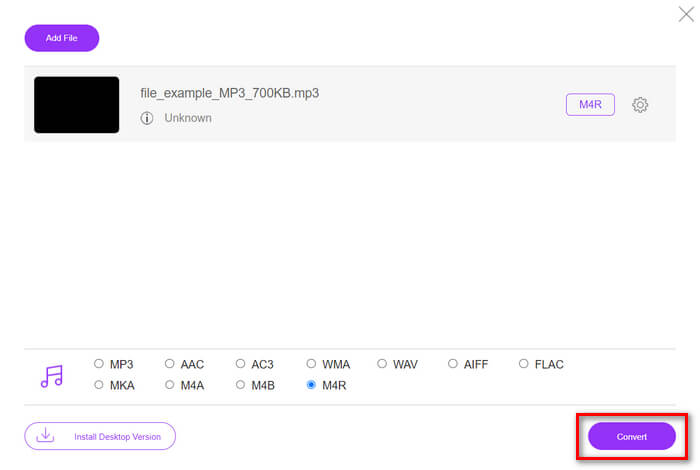
Paso 3. Por último, para llevar a cabo la conversión de tu archivo MP3 a tono de llamada, haz clic en el botón Convert. El archivo convertido se guardará directamente en tu ordenador.
Si buscas un método alternativo, gratuito y en línea para convertir MP3 a M4R como tono de llamada en un iPhone, FVC Free Audio Converter es una solución perfecta. Su interfaz intuitiva simplifica el proceso de conversión y admite una gran variedad de formatos de audio, garantizando la compatibilidad con distintos tipos de archivo.
Parte 4. Cómo transferir tonos de llamada convertidos a iPhone desde una computadora
Ahora que finalmente has convertido tus archivos MP3 en tonos de llamada en tu computadora, la forma más rápida de transferirlos a tu iPhone es usando iTunes.
A continuación te mostramos cómo transferir tonos de llamada convertidos al iPhone usando iTunes:
Paso 1. Abre iTunes en tu ordenador y conecta tu iPhone con un cable USB.
Paso 2. Arrastra el archivo de tono de llamada convertido a la biblioteca de iTunes. Asegúrate de que aparezca en la sección Tones.
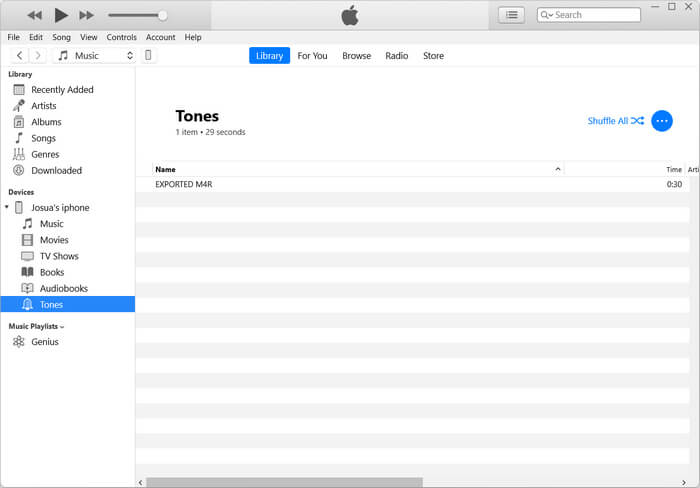
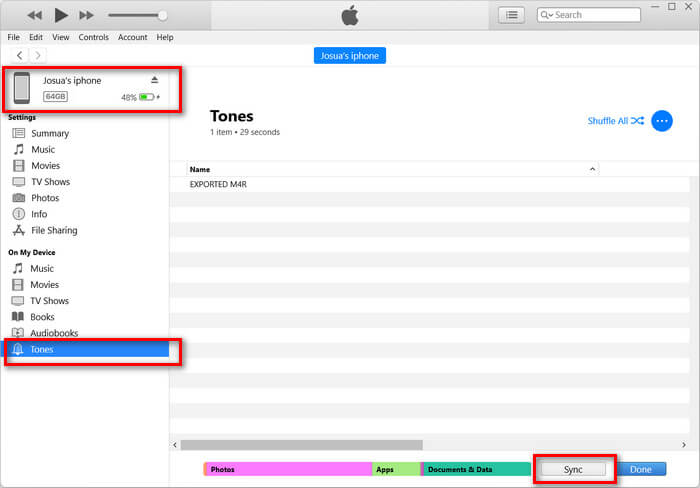
Paso 3. Selecciona el icono de tu iPhone en iTunes, ve a la pestaña Tones y marca Sync Tones. Después, elige el archivo de tono de llamada que has importado y haz clic en Apply para sincronizar.
Paso 4. Ahora, en tu iPhone, ve a Ajustes, elige Sonidos y vibraciones, toca Tono de llamada y selecciona tu nuevo tono.
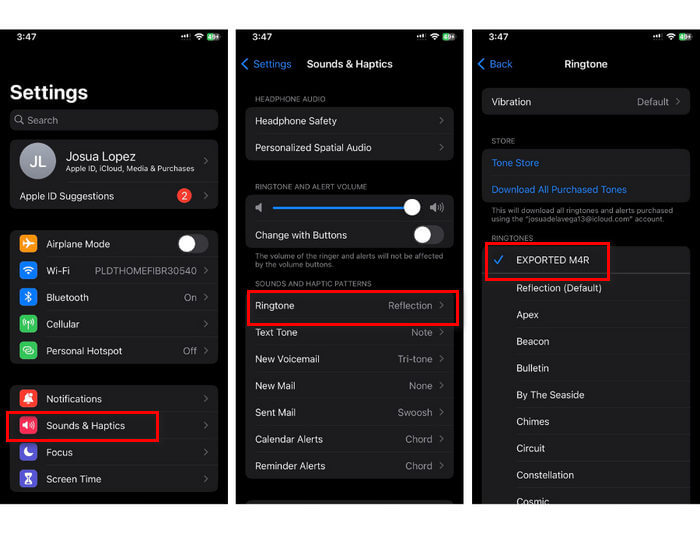
Y ya está. Ahora puedes transferir y usar fácilmente el MP3 convertido como tono de llamada en tu iPhone, dándole a tu dispositivo un toque personal con tus sonidos favoritos.
Parte 5. Preguntas frecuentes sobre la conversión de MP3 a tono de llamada
¿Cuál es el mejor sitio de tonos de llamada gratuitos?
Muchos sitios web ofrecen tonos de llamada gratuitos, pero algunos de los más populares y confiables son Zedge, Mobile9 y Tones7. Estos sitios ofrecen una amplia variedad de tonos de llamada que puedes descargar y usar en tu teléfono.
¿Qué formato tiene el MP3 para el tono de llamada de iPhone?
El formato de tono de llamada del iPhone es M4R. Al convertir un archivo MP3 para usarlo como tono de llamada en un iPhone, debe guardarlo en formato M4R.
¿Cómo añadir MP3 al tono de llamada del iPhone?
Para agregar MP3 a tu tono de llamada de iPhone, primero debes convertir el archivo MP3 a M4R usando una herramienta de conversión como Video Converter Ultimate, elegida por FVC. Una vez que hayas convertido el archivo MP3, usa iTunes para transferirlo a tu iPhone y usarlo como tu nuevo tono de llamada.
Conclusión
Ahora puedes usar tus archivos MP3 favoritos y crear un tono de llamada para tu iPhone. Solo tienes que elegir la herramienta de conversión que mejor se adapte a tus necesidades. Todas ofrecen una forma sencilla de convertir MP3 en tono de llamada en iPhones. ¿A qué esperas? ¡Empieza a crear tu tono de llamada único y haz que tu iPhone sea realmente tuyo!
-
 MOV VS MP4 - ¿Cuál eliges?
 MOV VS MP4, ¿cuál es mejor? Esta publicación indica la diferencia entre MP4 y MOV, para que pueda obtener la mejor opción para usar en sus archivos de video.
-
 FLAC vs. MP3: ¿Qué formato de archivo de audio reina supremamente?
 Esta publicación comparará las diferencias clave entre FLAC y MP3. Eso incluye su calidad de sonido, tamaño de archivo, compatibilidad y más.
-
 Cómo convertir MP3 a M4A para una calidad de sonido mejorada
 Mejore la calidad de sus archivos de música convirtiendo MP3 a M4A con los consejos y trucos de nuestros expertos. Nuestra guía ofrece instrucciones paso a paso y software recomendado.
