


 Video Converter Ultimate
 Grabador de pantalla
 Reparación de vídeo
Formas más convenientes sobre cómo convertir MP3 a M4R para dispositivos Apple
¿Alguna vez has pensado en convertir tu música favorita en tono de llamada en tu iPhone? ¿Sería siquiera posible? Por supuesto que sí. Solo necesitas convertir el archivo para conseguirlo. ¿Por qué es necesario convertirlo primero? ¿Para poder configurarlo como tono de llamada? Principalmente porque, para establecer un archivo concreto como tono de llamada, este debe estar en formato M4R. Dicho esto, necesitas encontrar el mejor conversor de MP3 a M4R para iTunes que se adapte a ti. Este artículo ofrece diferentes métodos para convertir tu archivo MP3, e incluso para hacer una conversión por lotes para convertir MP3 a M4R, leyendo el contenido que aparece a continuación.

Parte 1. La forma más factible de convertir MP3 a M4R
Video Converter Ultimate es, con mucho, la herramienta más convincente que puede usar para convertir MP3 a M4R. No solo un archivo, sino que también puede realizar la conversión por lotes de MP3 a MP4. Es un convertidor que puede producir videos HD y audio sin pérdidas. De hecho, es ideal y recomendable que convierta el archivo sin perder su calidad original. La velocidad es 30 veces más rápida que el convertidor normal que existe. Además, si está convirtiendo una lista de reproducción para guardarla en su teléfono, definitivamente esta herramienta puede hacer el trabajo por usted. Sin esfuerzo y sin sudor. Mientras tanto, estas son algunas de las otras características que también puede disfrutar además de convertir audio. Además, a continuación se escribió una guía paso a paso para su referencia si decide usarla.
◆ Editar metadatos.
◆ Aceleración de GPU de alta velocidad.
◆ Soporte técnico en tiempo real.
◆ Se admite la compresión de video.
Paso 1. Para usarlo, obtén la aplicación haciendo clic en el botón de descarga de abajo. Una vez que la aplicación se haya descargado en tu Windows o Mac, iníciala.
Descarga gratuitaPara Windows 7 o posteriorDescarga segura
Descarga gratuitaPara macOS 10.7 o posteriorDescarga segura
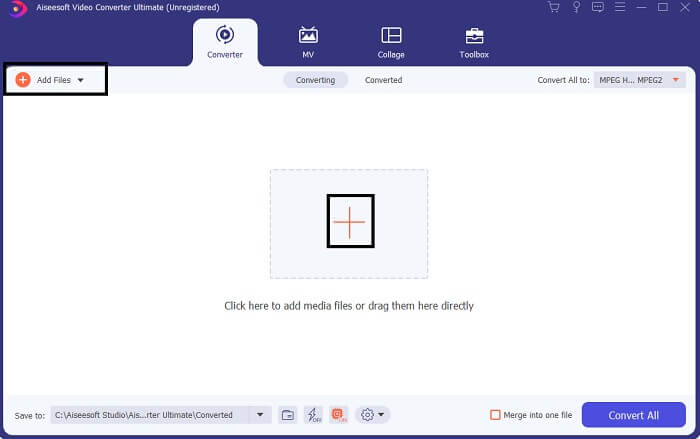
Paso 2. En la interfaz principal de la herramienta, verás dos opciones para subir el archivo. Puedes hacer clic en el icono del signo Más en el centro o en el botón Añadir archivos en la parte superior izquierda. Elige el archivo de destino y súbelo.
Paso 3. Para obtener el resultado que deseas, cambia el formato haciendo clic en el menú desplegable situado en la parte superior derecha de la interfaz.
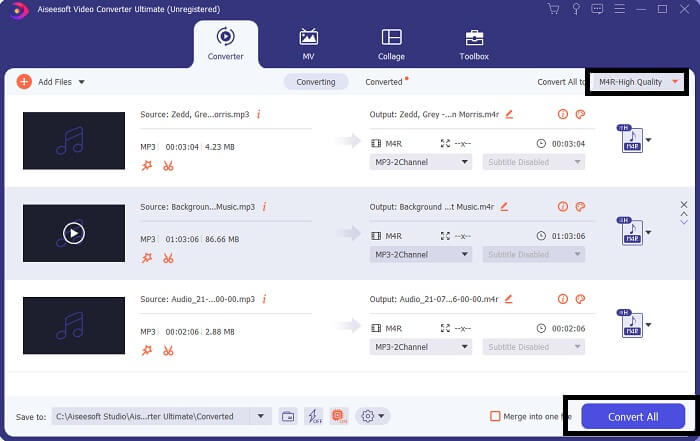
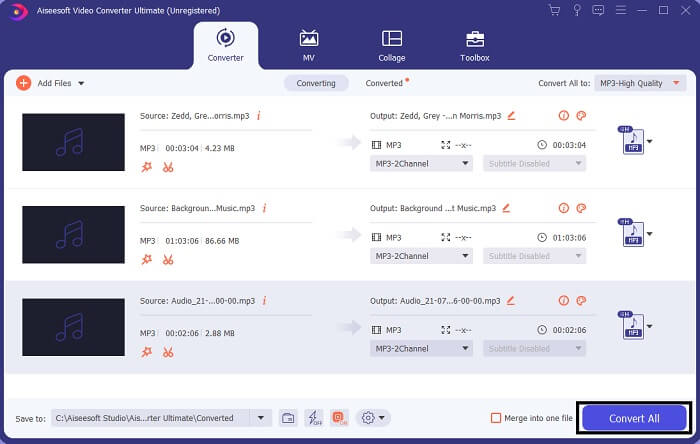
Paso 4. Por último, haz clic en el botón Convertir todo en la parte inferior derecha de la interfaz principal. Después espera a que el archivo se convierta.
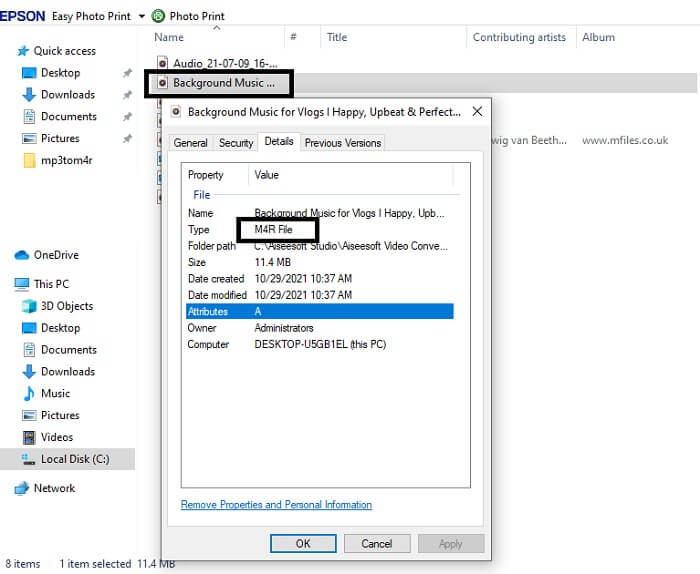
Paso 5. Finalmente, abre la carpeta donde se ha guardado el archivo de audio de salida y transfiérelo a tu iPhone. Puedes usar una herramienta o aplicación de transferencia para hacerlo. Puedes encontrar recomendaciones en Internet. Solo tienes que buscar y seguir el proceso para configurarlo como tono de llamada de tu iPhone.
Parte 2. Algunas de las mejores herramientas para convertir MP3 a M4R en línea
Convertidor de audio en línea gratuito FVC
Una herramienta de pago para convertir es buena, pero nada supera a una herramienta práctica. Teniendo en cuenta tus necesidades, FVC ha creado una versión gratuita de la herramienta. FVC Free Audio Converter es tu herramienta de acceso gratuito en cualquier momento y lugar. Solo necesitas una conexión a Internet funcional y un navegador compatible. Este convertidor de MP3 a M4R para tonos de iPhone puede producir audio sin pérdidas y de alta calidad. El resultado es satisfactorio y sin tener que gastar dinero. Y aún hay más: ¿sabías que también permite la conversión por lotes? Sí, ¡puedes hacerlo! Además, aquí tienes algunas funciones destacadas que también obtendrás si la utilizas. Por otro lado, también se ha redactado una guía para tu comodidad.
◆ El archivo convertido tiene una calidad similar al original.
◆ 100% gratuito y seguro de usar.
◆ Sin límite de tamaño tras la conversión.
◆ Se admite la conversión por lotes.
Paso 1. Para acceder a la herramienta, visita la página oficial de FVC Free Audio Converter.
Paso 2. Desde allí, haz clic en Add Files to Convert. Si es la primera vez que la utilizas, tendrás que conceder permisos haciendo clic en Open FVC Launcher. Después aparecerá una ventana en tu pantalla que te permitirá localizar el archivo que quieres convertir.
Descarga la versión de escritorio para convertir archivos por lotes.
Paso 3. Tras subir el archivo, verás que aparece otra ventana. En la parte inferior, cambia el formato del archivo de salida marcando M4R.
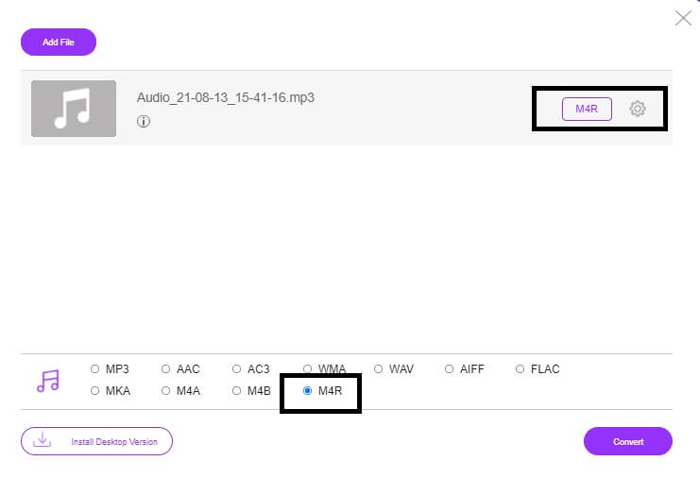
Paso 4. Luego haz clic en el botón Convert para iniciar la conversión.
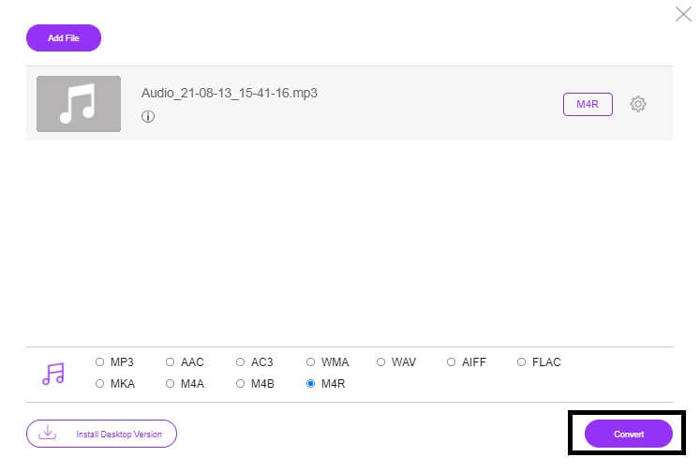
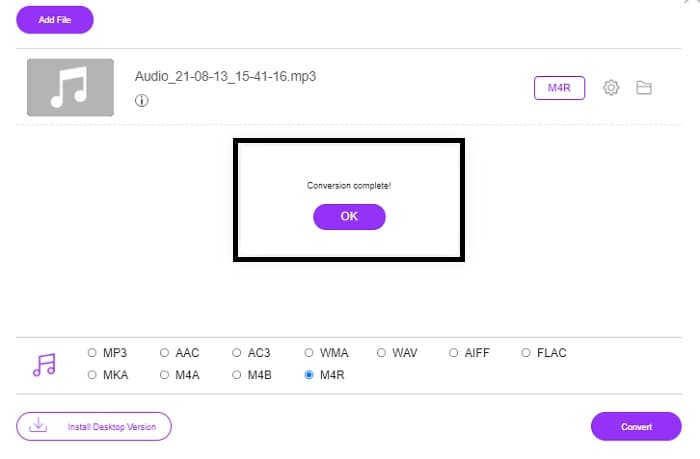
Paso 5. Por último, selecciona una carpeta en la que quieras guardar el archivo, y el archivo se guardará automáticamente. Después transfiérelo a tu iPhone. Ten en cuenta que puedes hacer conversiones por lotes, así que no te limites.
Relacionado:
M4ROnline por convertidor de archivos
Sencilla pero fiable: así describen sus usuarios esta herramienta en línea. Por defecto, está específicamente diseñada para convertir MP3 a M4R. Como su nombre indica, para eso se ha creado esta herramienta. Funciona en distintos navegadores web, de modo que no tendrás que descargarla ni comprarla. Si visitas la web, notarás la sencillez de la interfaz de la herramienta. Es muy intuitiva: solo tienes que hacer clic en el botón Browse para comenzar el proceso de subida y conversión. Si quieres probarla, se recomienda visitar la página oficial y experimentar por ti mismo. Por tanto, esta herramienta es una buena alternativa. También puedes consultar los pasos que se indican a continuación para conocer el proceso de uso de la herramienta.
Paso 1. Lo primero que tienes que hacer es ir a la página oficial de M4R Online y hacer clic en Browse.
Paso 2. Elige el archivo desde tu carpeta y haz clic en el botón Upload File.
Paso 3. Cuando veas el mensaje de finalización, haz clic en el archivo para descargarlo.
Online-convert.com
Esta es una herramienta que lleva prestando servicio ya bastante tiempo. Se puede decir que muchos usuarios han encontrado esta herramienta en línea muy útil para sus necesidades de conversión. De lo contrario, no seguiría existiendo hasta el día de hoy si no hubiera demostrado ser útil. Al visitar la página de inicio del sitio, verás todas las herramientas disponibles. Desde conversor de audio, conversor de vídeo, conversor de imágenes, conversor de documentos, conversor de libros electrónicos: todo junto en la página principal. Al reunirlos, se facilita que el usuario encuentre las herramientas necesarias que necesita. Por ello, merece ser incluida en esta lista de convertidores de MP3 a M4R para iTunes. Por otro lado, aquí tienes cómo puedes usar la herramienta como referencia.
Paso 1. Visita el sitio oficial de la herramienta y elige Audio Converter.
Paso 2. Haz clic en el menú desplegable y elige el formato de salida, luego haz clic en GO.
Paso 3. Aparecerá entonces una nueva ventana. Desde allí, haz clic en el botón Choose Files y sube el archivo. Para iniciar el proceso de conversión, haz clic en Start Conversion. Cuando el archivo esté listo, se descargará automáticamente en tu PC.
MP3 frente a M4R
El formato MP3 fue lanzado en 1993 por Moving Picture Experts Group (MPEG). Era el estándar para almacenar música, ya que podía comprimir audio a un tamaño mucho más pequeño que otros formatos sin comprimir. Todavía se usa ampliamente hoy en día, especialmente para distribuir audio en línea.
Se utiliza un archivo M4R para guardar un tono de llamada de iPhone personalizado creado con Apple iTunes. Normalmente, puede ver este formato al transferir un tono de llamada desde la computadora a un dispositivo iOS. Los archivos M4R creados con iTunes suelen incluir protección de derechos de autor.
Parte 3. Preguntas frecuentes sobre la conversión de MP3 a M4R
¿Qué es M4R?
Es una extensión de archivo creada específicamente por Apple y estrictamente utilizada como tono de llamada para iPhone y otros dispositivos Apple. Esto es tan bueno como M4A y MP4 cuando se trata de calidad.
¿Hay un convertidor de MP3 a M4R además de iTunes?
Definitivamente, los hay. Puede elegir entre las herramientas anteriores o considerar usar Windows Media Player extrayendo. Si no desea pasar por todos los procesos, puede usar las herramientas gratuitas disponibles en línea. Convierten directamente el audio al formato deseado en lugar de pasar por el largo proceso de extracción.
¿Por qué necesito convertir mi archivo de MP3 a M4R para usarlo como tono de llamada?
Es un deber. Para que un archivo se considere un tono de llamada, el archivo debe estar en formato M4R predeterminado para reproducirse como su tono de llamada.
Conclusión
Con todo eso, seguramente puede confiar en las herramientas enumeradas anteriormente. Solo tienes que acceder a qué herramienta puede serte de ayuda en función de tus necesidades. Si es un estudiante y un ciudadano normal que quiere convertir MP3 a M4R en Mac de forma gratuita o en cualquier dispositivo que esté utilizando, puede consultar las herramientas gratuitas. Para uso profesional, se recomienda utilizar Video Converter Ultimate. Siempre puedes volver a esta página si quieres saber más sobre más herramientas para convertir.
-
 [Gratis y en línea] 3 métodos para convertir MP3 a MP4 con imagen
 ¿Cómo convertir MP3 a MP4 en alta calidad? Esta publicación muestra 3 métodos eficientes y gratuitos para cambiar MP3 a MP4 con imágenes en Windows y Mac.
-
 Descubra cómo convertir MP3 a formato WAV
 ¿Quieres saber cómo convertir MP3 a WAV? Determine cuál de las herramientas produce la conversión de mejor calidad que puede obtener.
-
 Directrices sobre cómo convertir M4A a WAV [PC y Mac]
 Obtenga más información sobre cómo convertir M4A a WAV con pasos detallados y diferentes herramientas entre las que puede elegir.

