


 Video Converter Ultimate
 Grabador de pantalla
 Reparación de vídeo
 Descarga segura
Los 3 mejores métodos para convertir fácilmente H.264 a MP4 [2024]
¿Tiene problemas para reproducir sus vídeos en formato H.264 debido a problemas de incompatibilidad? No está solo. Muchos usuarios experimentan el mismo problema y optan por convertir el archivo a un formato que sea ampliamente compatible con varios dispositivos, como MP4.
Así que, si eres uno de ellos y estás buscando formas de convertir este archivo para disfrutar de una reproducción fluida en tu dispositivo, este artículo te ofrecerá los mejores métodos para convertir fácilmente H.264 a MP4. ¿Listo para hacer que tus vídeos sean universalmente compatibles? ¡Vamos allá!

Parte 1: ¿H.264 es lo mismo que MP4?
Tanto H.264 como MP4 son formatos de vídeo, pero tienen distintas finalidades. H.264, también conocido como AVC (Advanced Video Coding), es un estándar de compresión de vídeo que se utiliza habitualmente para grabar, comprimir y distribuir contenido de vídeo de alta definición. Por otro lado, MP4 (MPEG-4 Part 14) es un formato contenedor que puede almacenar varios tipos de datos, incluidos vídeo, audio, subtítulos e imágenes fijas.
Si bien H.264 se refiere específicamente a la tecnología de compresión de video, MP4 abarca una gama más amplia de contenido multimedia. En términos más simples, H.264 es como el método de codificación utilizado para comprimir datos de video, mientras que MP4 es como el contenedor que contiene el video comprimido junto con otros componentes multimedia.
Parte 2: Una forma rápida y sencilla de convertir H.264 a MP4
La forma más rápida y sencilla de convertir H.264 a MP4 es utilizando FVC Video Converter Ultimate. Esta herramienta de escritorio está diseñada para gestionar diversos archivos de vídeo y audio como MP4, MKV, MOV, AVI, FLV, WMV, WEBM, M4V, TS, MXF, MPG, 3GP, VOB y muchos más. Con esto, dispones de un amplio abanico de opciones para elegir a qué formato quieres convertir tu archivo H.264. Además, también cuenta con un perfil personalizado que puedes usar para editar los ajustes de salida, como el códec de vídeo, la resolución, la tasa de fotogramas, el bitrate y más. Por último, puedes garantizar un proceso de conversión rápido y una salida sin pérdida de calidad, ya que admite hasta resolución 4K con una velocidad de conversión 30× superior a otras herramientas de conversión.
Paso 1. Primero, descarga la herramienta de software e instálala en tu ordenador.
Descarga gratuitaPara Windows 7 o posteriorDescarga segura
Descarga gratuitaPara macOS 10.7 o posteriorDescarga segura
Paso 2. En la pestaña Convertidor, haz clic en el botón Añadir archivos e importa tus archivos H.264.
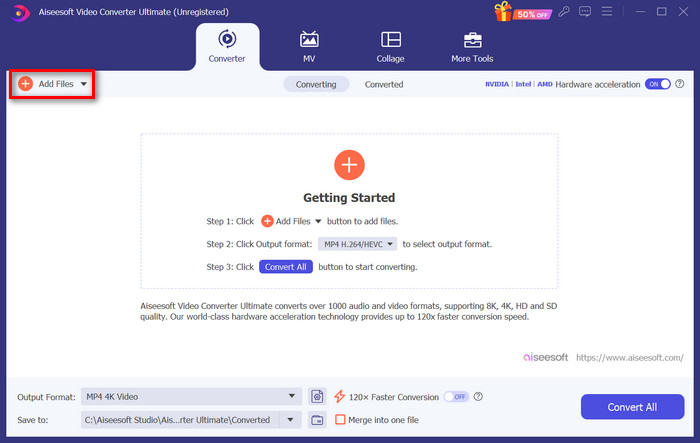
Paso 3. Una vez importado el archivo de vídeo H.264, selecciona MP4 de la lista de formatos haciendo clic en el botón Formato de salida.
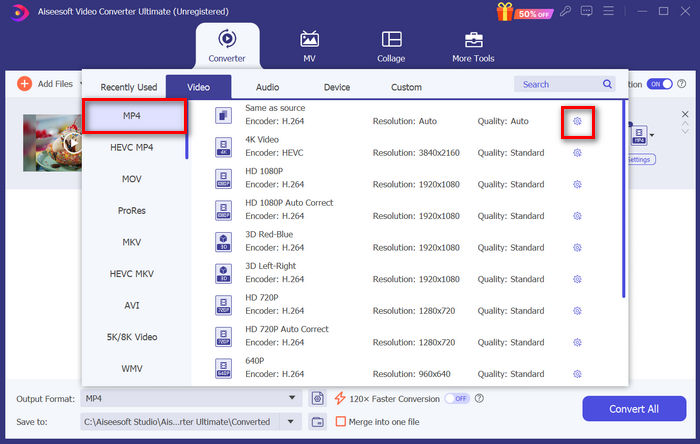
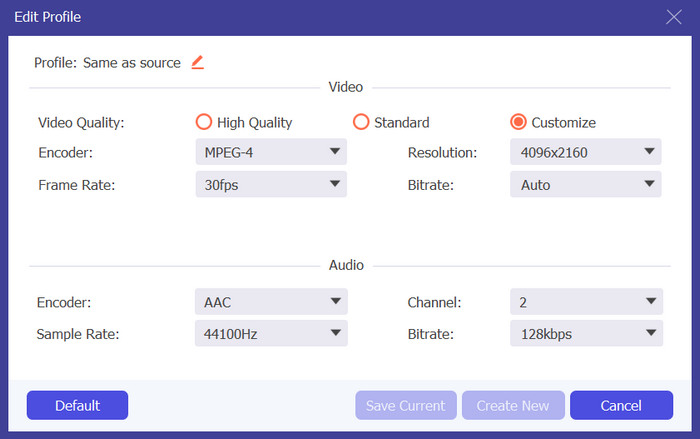
Mientras tanto, si quieres personalizar el Perfil personalizado, ve al cuadro de diálogo Configuración. Desde ahí, puedes editar el códec de vídeo, la calidad, el nombre del archivo, etc. Cuando termines, solo tienes que hacer clic en el botón Crear nuevo para guardar.
Paso 4. Cuando termines, simplemente haz clic en el botón Convertir todo.
Con FVC Video Converter Ultimate, la conversión de H.264 a MP4 puede realizarse rápidamente sin consumir mucho tiempo ni esfuerzo. Además, puedes convertir otros formatos como H.265 y AVCHD a MP4. Por otro lado, puedes estar seguro de mantener una alta calidad de salida durante todo el proceso.
Parte 3: Convertir H.264 a MP4 con FFmpeg
FFmpeg es una herramienta de línea de comandos que se utiliza para gestionar archivos multimedia y ofrece funciones que van desde la reproducción hasta la conversión y edición. Gracias a sus funciones versátiles, esta herramienta permite a los usuarios convertir de forma eficiente H.264 a formato MP4, lo que proporciona una solución conveniente para quienes se sienten cómodos con las interfaces de línea de comandos.
Paso 1. Primero, necesitas obtener los ejecutables de FFmpeg en tu ordenador.
Paso 2. A continuación, abre la ventana de línea de comandos en la carpeta con los ejecutables. Se abrirá una ventana de terminal emergente.
Paso 3. Después de eso, añade el archivo H.264 que quieras convertir a MP4.
Paso 4. Por último, introduce el comando: ./ffmpeg.exe -i inputfilename.mkv outputfilename.mp4 y pulsa Intro.
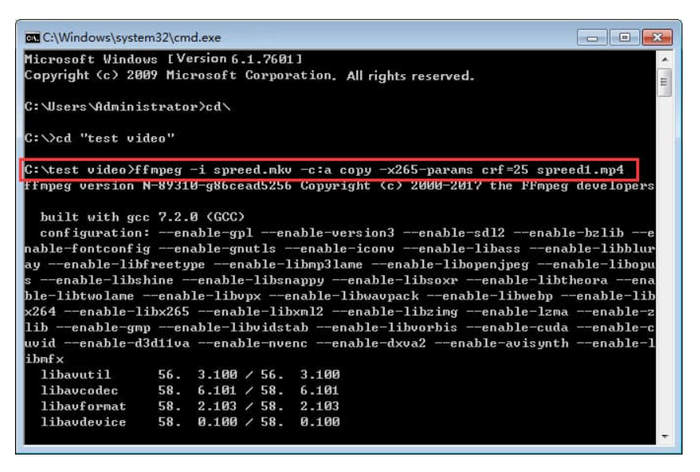
Si está familiarizado con las líneas de comandos, FFmpeg podría funcionar mejor para usted cuando esté convirtiendo H.264 a MP4. Sin embargo, si no lo está, le resultará difícil navegar por esta herramienta, lo cual es uno de sus puntos débiles en lo que respecta a la usabilidad para los nuevos usuarios.
Parte 4: Convertir H.264 a MP4 en línea
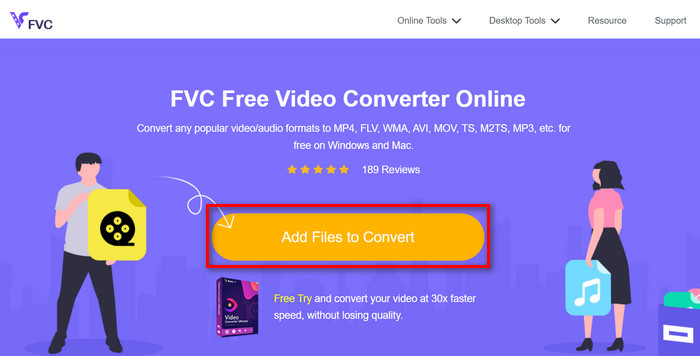
Si buscas una herramienta para convertir H.264 a MP4 en línea, la mejor que puedes utilizar es FVC Free Video Converter Online. Esta herramienta ofrece una forma rápida y muy intuitiva de convertir archivos H.264 al formato que quieras, ya que solo se te pide importar el archivo y seleccionar tu formato preferido, ¡y el resto es cosa de magia!.
Paso 1. Primero, tienes que importar el archivo H.264 que quieras convertir haciendo clic en el botón Añadir archivos para convertir.
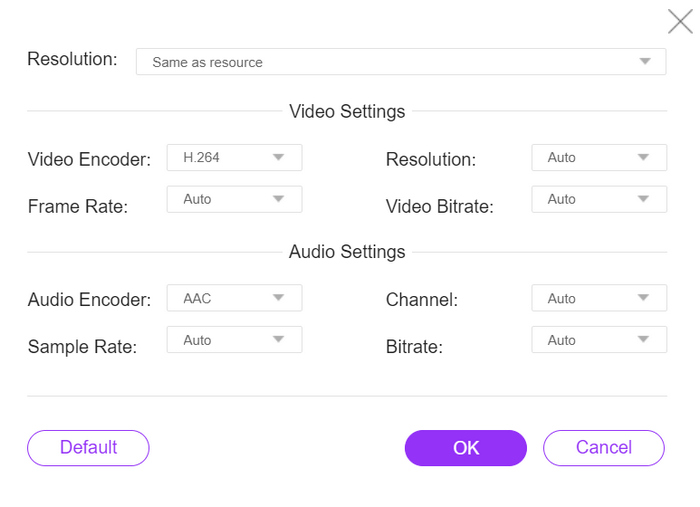
Paso 2. Ahora, para el formato de salida, elige MP4. Además, si quieres configurar manualmente la resolución, los codificadores de vídeo, el bitrate, etc., solo tienes que hacer clic en el icono de engranaje al lado del formato de salida. Cuando termines, haz clic en el botón Aceptar.
Paso 3. Por último, para iniciar el proceso de conversión, simplemente haz clic en el botón Convert.
No tiene de qué preocuparse con respecto a la calidad de salida del archivo H.264 convertido, ya que esta herramienta admite una resolución de video de hasta 1080P. Además, la velocidad de conversión no será tan larga, ya que es 30 veces más rápida en comparación con otras herramientas de conversión.
Parte 5. Preguntas frecuentes sobre la conversión de H.264 a MP4
H264 vs mp4, ¿cuál es mejor?
En lo que respecta a la compatibilidad, MP4 parece ser excelente, dado que la gente suele optar por convertir H.264 a MP4 para mejorar la compatibilidad con dispositivos y la experiencia de reproducción. Sin embargo, ambos formatos tienen sus puntos fuertes y sirven para distintos propósitos de manera eficaz.
¿Puedo conservar la calidad original de mi vídeo H.264 al convertirlo a MP4?
Sí, puedes conservar la calidad original de tu video H.264 al convertirlo a MP4, especialmente si utilizas una herramienta de conversión confiable como FVC Video Converter Ultimate o FFmpeg. Estas herramientas ofrecen opciones para ajustar configuraciones como la resolución, la tasa de bits y el códec para garantizar una salida de alta calidad.
¿Qué reproductores de vídeo son compatibles con el formato H.264?
Numerosos reproductores de vídeo son capaces de reproducir el formato H.264, incluidos VLC Media Player, Windows Media Player y QuickTime Player.
Conclusión
¡Eso es todo! Ahora ya tienes todas las herramientas y métodos para convertir H.264 a MP4 sin esfuerzo. Ya prefieras un programa de escritorio, una herramienta de línea de comandos o un conversor en línea, la elección es tuya. ¡Empieza hoy mismo y asegúrate la compatibilidad con cualquier dispositivo!
-
 El mejor conversor gratuito de MPG a MP4 en 2024 (revisión en profundidad)
 ¿Por qué necesita cambiar MPG a MP4? Obtenga la respuesta en esta publicación y conozca el convertidor de MPG a MP4 de alto rango en el mercado.
-
 Audio a MP4: convertir cualquier archivo de audio a formato MP4
 Convierta sus canciones, podcasts y grabaciones favoritas al formato MP4 para obtener una combinación única de audio e imágenes. Descubra cómo convertir WMA a MP4 u otro audio en formato de video.
-
 Los 5 mejores convertidores de FLV a MP4 gratuitos y de pago (Reseñas de 2024)
 Permanezca en esta publicación y conozca las actualizaciones sobre archivos FLV y MP4. Además, hemos seleccionado el conversor de FLV a MP4 más confiable.
