


 Video Converter Ultimate
 Grabador de pantalla
 Reparación de vídeo
 Descarga segura
Cómo convertir MP4 a JPG [método en línea y fuera de línea]
Hay vídeos que queremos convertir en JPG, especialmente aquellos que contienen imágenes con un gran valor para nosotros, o quizá haya solo partes del vídeo que queremos conservar como archivo de imagen. Sea cual sea el motivo, la idea es la misma. Así que, si estás buscando formas de convertir MP4 a JPG, estás en la página adecuada. Descubre 4 métodos distintos, tanto en línea como sin conexión, para convertirlos y conservar esos momentos especiales capturados en tus vídeos. ¿A qué esperas? ¡Vamos allá!

Parte 1: Cuándo necesitas convertir MP4 a JPG
La conversión de MP4 a JPG se vuelve esencial cuando se desea extraer imágenes o fotogramas específicos de un vídeo. Esto resulta útil cuando se desea capturar y guardar momentos del vídeo en un formato que sea fácil de compartir o imprimir.
Además, convertirlos permite flexibilidad en el uso del contenido, ya que las imágenes suelen ser más compatibles con las plataformas y aplicaciones en comparación con los archivos de video. Ya sea que se trate de crear miniaturas para videos que comparten momentos en plataformas de redes sociales que priorizan lo visual o simplemente se necesita una representación del contenido de video, convertir MP4 a JPG brinda una solución conveniente.
Por último, convertir vídeos al formato JPG también puede ser beneficioso para reducir el tamaño del archivo o mejorar la calidad de la imagen en ciertos casos, lo que lo convierte en una solución práctica para diversas necesidades multimedia.
Parte 2: Convierte MP4 a JPF en línea gratis
Existen varias formas de convertir MP4 a JPG en línea. La razón por la que es mejor optar por un método en línea es que es cómodo de usar, se necesita menos almacenamiento para la instalación y más. Los siguientes son los métodos que puede usar y elegir para convertir MP4 a JPG fácilmente:
Método 1: Utilizando Online-Convert.com
Online-Convert es una plataforma de conversión en línea muy utilizada que ofrece una amplia gama de tipos y formatos de archivos, incluida la conversión de MP4 a JPG. Lo único que tiene este programa es que siempre toma una foto cada dos o tres segundos. Por lo tanto, no puedes controlar la cantidad de imágenes JPG que captura. Sin embargo, sigue siendo una herramienta perfecta para convertir MP4 a JPG.
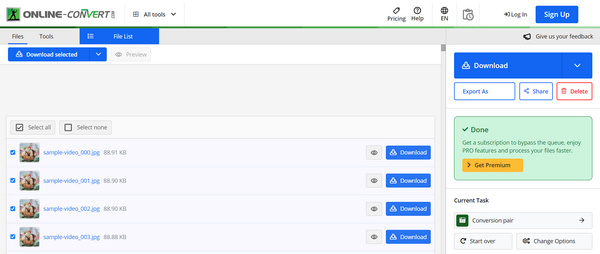
Paso 1. Abre una pestaña nueva en tu navegador y busca el sitio MP4 to JPG Online Convert.com.
Paso 2. Una vez en su sitio, sube el archivo MP4 que quieres convertir haciendo clic en el botón desplegable Choose File. Desde ahí puedes importar tus archivos de vídeo MP4 desde tu dispositivo, Dropbox, Google Drive e incluso desde una URL.
Paso 3. Una vez que hayas importado el archivo MP4 a la herramienta, tendrás la opción de mejorar la calidad de la imagen de salida del archivo MP4 cambiando el tamaño de la imagen, aplicando un filtro de color y más.
Paso 4. Cuando todo esté configurado, haz clic en el botón Start para convertir tu archivo de MP4 a JPG.
Paso 5. Por último, descarga tu archivo JPG haciendo clic en el botón Download.
Esta herramienta convierte videos de menos de 100 MB y empaqueta los archivos JPG convertidos en una carpeta zip para que puedas descargarlos en un solo lugar fácilmente.
Método 2: Utilizar Ezgif
Si bien esta herramienta es conocida por su función para hacer regalos, Ezgif también es una excelente herramienta para convertir archivos MP4 a JPG en línea. Los usuarios solo necesitan cargar sus archivos MP4 a su sitio web, seleccionar la opción de conversión deseada y hacer clic en convertir. Además, al igual que cualquier herramienta de conversión, esta herramienta ofrece varias opciones de personalización, lo que permite a los usuarios ajustar configuraciones como la calidad de la imagen, el tamaño y el recorte para satisfacer sus necesidades específicas.
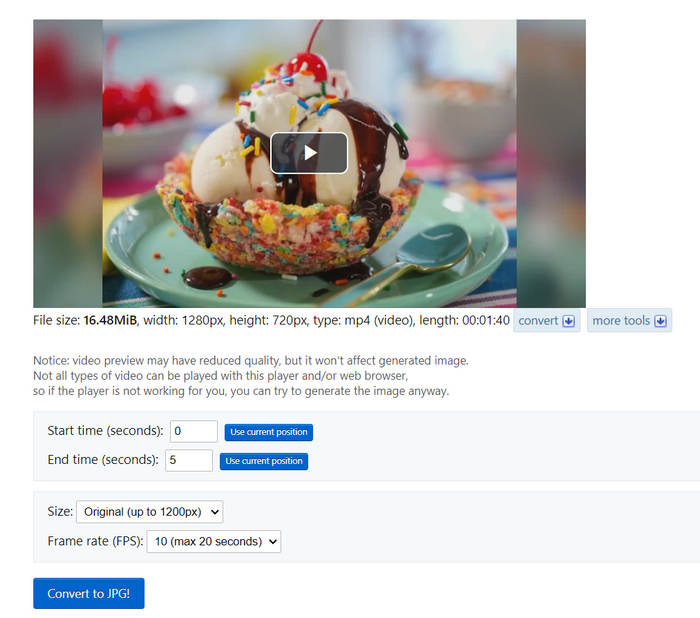
Paso 1. Visita su página web oficial.
Paso 2. Cuando estés en la interfaz de la herramienta, haz clic en el botón Choose File e importa el archivo MP4 que quieres convertir a JPG.
Paso 3. No olvides seleccionar JPG. Después, para iniciar la conversión, haz clic en el botón Convert to JPG.
Paso 4. Utiliza el botón Save para descargar el archivo JPG.
Ezgif es una herramienta de conversión en línea muy versátil que permite a los usuarios convertir archivos MP4 a JPG fácilmente. Sin embargo, esta herramienta limita el tamaño de archivo a 100 MB. Si va a convertir archivos MP4 con un tamaño de archivo de más de 100 MB, esta herramienta no es para usted.
Parte 3: Convertir MP4 a JPG Windows 10/ macOS
Si no prefiere una herramienta de conversión en línea y prefiere usar una aplicación de escritorio en sus computadoras Windows o macOS, existen herramientas que puede usar.
Método 3: FFmpeg
FFmpeg es una solución multiplataforma completa que incluye la conversión de archivos MP4 a JPG. Esta herramienta es de código abierto, lo que significa que los usuarios tienen la libertad de modificar su código fuente según sus necesidades.
Paso 1. Para poder usar FFmpeg en tu ordenador Windows o Mac, primero tienes que descargar e instalar la herramienta.
Paso 2. Cuando termine la instalación, ábrelo.
Ahora, para convertir a archivos JPG usando FFmpeg, puedes seguir estos comandos, pero primero debes abrir una terminal y navegar a la carpeta que contiene el video.
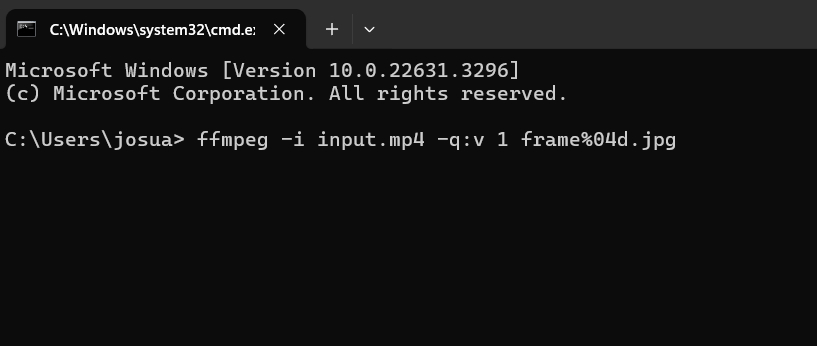
• Generar una imagen por segundo: ffmpeg -i input.mp4 -vf fps=1 out%d.jpg
• Generar una imagen cada minuto: ffmpeg -i input.mp4 -vf fps=1/60 thumbd.jpg
• Generar una imagen cada 10 minutos: ffmpeg -i input.mp4 -vf fps=1/600 thumbd.jpg
Esta herramienta es genial, pero su uso es complicado. Sin embargo, puede facilitar la conversión de archivos MP4 a JPG.
Método 4: VLC
El reproductor multimedia VLC o VideoLAN Client es un reproductor multimedia gratuito de código abierto compatible con distintas plataformas que puede convertir archivos MP4 a JPG mediante su función de captura de pantalla. El único inconveniente de esta herramienta es que no se puede utilizar la opción de captura de pantalla cuando el vídeo no se está reproduciendo en la aplicación. Pero aquí se explica cómo utilizar VLC para convertir archivos MP4 a JPG.
Paso 1. Primero, descarga e instala VLC en tu ordenador Windows o macOS.
Paso 2. Ahora ve a Tools, luego a Preference, selecciona Video y elige JPG en la opción de capturas (snapshots).
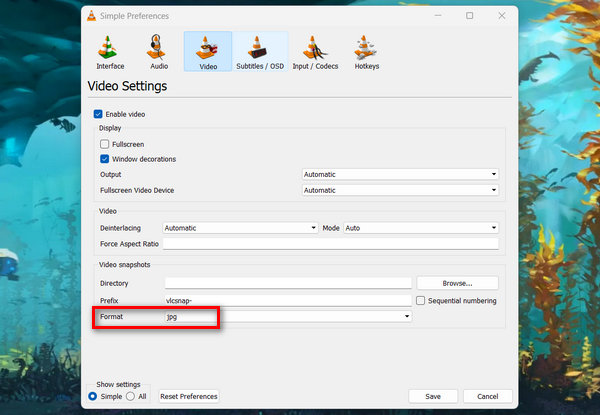
Paso 3. Después, importa el vídeo MP4 que quieres convertir a JPG. Para ello, haz clic en Media y ve a Open File.
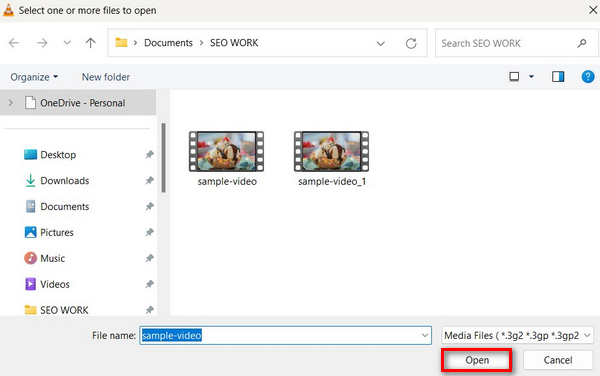
Paso 4. Mientras se reproduce el vídeo, despliega la opción Video y elige Take Snapshot. Entonces, VLC guardará una imagen en formato JPG.
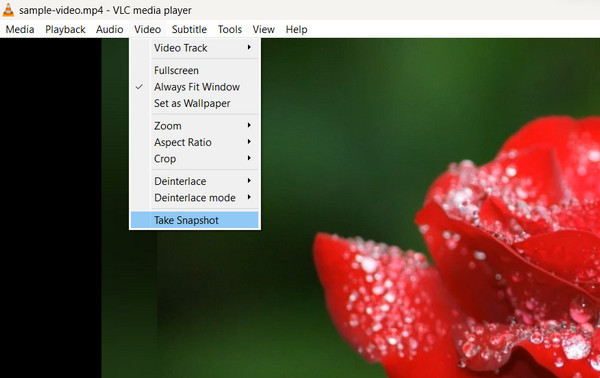
Paso 5. Solo tienes que repetir este paso y podrás convertir más archivos MP4 a JPG.
VLC Media Player quizá no sea la opción más sencilla ni la más cómoda para convertir MP4 a JPG, pero gracias a algunas de sus funciones esenciales sigue siendo una de las alternativas para convertir este tipo de archivos. Además, VLC puede reparar vídeos cuando están dañados o no se pueden reproducir.
Parte 4: Preguntas frecuentes sobre la conversión de MP4 a JPG
¿Puedo convertir MP4 a otros formatos de imagen como PNG o GIF?
Definitivamente sí. Simplemente elija el formato de imagen que prefiera durante el proceso de conversión o utilice otras herramientas de conversión para convertir estos archivos JPG convertidos a formato PNG o GIF.
¿Cómo convertir archivos MP4 en un iPhone?
La única forma de convertir archivos MP4 en un iPhone es mediante la función de captura de pantalla. Por lo tanto, cuando tenga un archivo MP4 en su iPhone, simplemente reprodúzcalo en su dispositivo y tome una captura de pantalla mientras se reproduce.
¿Puedo convertir imágenes JPG a vídeos MP4?
Para convertir imágenes JPG a vídeos MP4 se necesita un proceso diferente y un software especializado. Se recomienda utilizar un software de edición o conversión de vídeo que admita la conversión de imágenes a vídeo.
Conclusión
En conclusión, convertir de MP4 a JPG ofrece una forma práctica de guardar y compartir momentos especiales de tus vídeos en formato MP4. Tanto si eliges herramientas en línea como Online-Convert y Ezgif, como si prefieres aplicaciones de escritorio como FFmpeg y VLC, tienes muchas opciones disponibles. Prueba estos métodos ahora y convierte tus archivos MP4 a JPG sin esfuerzo.
-
 Las 3 formas más fáciles de convertir HEIC a JPG en iPhone como un experto
 ¿No tienes idea de cómo cambiar el HEIC a JPG en iPhone? Si usted es uno de los usuarios que tiene problemas con el HEIC, lea esto.
-
 Cómo convertir GIF a JPG sin perder calidad
 Lea y obtenga los métodos más efectivos para convertir GIF a JPG de manera profesional. Aprenderás a convertir archivos de imagen con la guía de convertidores de imagen perfectos
-
 4 convertidores de MP4 a MP2 increíblemente eficientes que debe usar
 Conserve la calidad de audio de sus videos convirtiendo el formato MP4 a MP2. Comience a convertir sus archivos ahora para una compatibilidad perfecta con aplicaciones y dispositivos.
