


 Video Converter Ultimate
 Grabador de pantalla
 Reparación de vídeo
 Descarga segura
Cómo comprimir archivos PDF para enviarlos por correo electrónico: 3 formas efectivas de elegir
De hecho, enviar archivos grandes por correo electrónico puede ser un fastidio. De hecho, puede causarte algunos problemas o incluso puede que ni siquiera se entregue. Además, muchos proveedores de correo limitan los adjuntos a tamaños de archivo específicos, algo que se supera fácilmente con un PDF complejo. Esto es especialmente cierto en PDFs con muchas imágenes o documentos muy largos. Para solucionarlo, la mayoría de la gente en esta situación recurre a servicios de intercambio de archivos como Dropbox o Google Drive. Sin embargo, casi se olvidan de un truco muy práctico: la compresión de archivos. Muchas herramientas online gratuitas pueden hacerlo, y algunas son bastante populares. Pero, ¿cómo comprimir un PDF para enviar por correo electrónico de forma eficaz? Eso es lo que estás a punto de aprender mientras sigues leyendo todo el contenido a continuación.

Parte 1. ¿Cuál es el mejor tamaño de PDF para enviar por correo electrónico?
Aquí hay un hecho: no existe un número mágico para el tamaño ideal de PDF para correos electrónicos. Lo que hay que tener en cuenta es el límite de archivos adjuntos de la plataforma de correo electrónico. Los servicios más populares limitan los archivos adjuntos a unos 20 MB, lo que puede ser sorprendentemente fácil de alcanzar, especialmente con archivos PDF que contienen muchas imágenes o son documentos muy largos. Por lo tanto, si su PDF es más grande que el límite de 20 MB mencionado, es probable que su correo electrónico no se envíe y recibirá un mensaje de error. Dicho esto, en lugar de apuntar a un tamaño específico o al mejor tamaño de PDF para correo electrónico, es mejor ir a lo seguro y mantenerlo por debajo de los 20 MB. De esa manera, puede estar seguro de que se adjuntará y enviará correctamente.
Parte 2. Comprimir archivos PDF para enviarlos por correo electrónico con un solo clic
Aquí tienes una forma estupenda y rápida de comprimir archivos para correo electrónico. Prepárate para probar esta herramienta gratuita llamada FVC Free PDF Compressor, que puede reducir tus pesados archivos PDF sin estropearlos. Como la mayoría de los servicios de correo solo permiten adjuntar archivos de unos 20 MB, los PDFs con imágenes o mucho texto pueden alcanzar fácilmente ese límite. Este compresor puede hacer que tu PDF sea mucho más pequeño, ¡incluso por debajo de los 100 kilobytes! No necesitas preocuparte por cómo reduce drásticamente los PDFs para correo electrónico, porque sigue manteniendo la calidad de los archivos. De hecho, probablemente ni siquiera notarás la diferencia entre la versión original y la comprimida.
Además, esta increíble herramienta es muy fácil de usar y cualquier persona con cualquier nivel de experiencia puede usarla. Todo lo que tienes que hacer es arrastrar y soltar el archivo PDF en el programa, y este lo reducirá automáticamente. Luego, con solo un clic, puedes guardar el PDF más pequeño en tu computadora. De esta manera, puedes comprimir rápidamente un PDF al tamaño de un correo electrónico en línea a un tamaño que sea perfecto para enviarlo por correo electrónico o cargarlo, todo sin marcas de agua en el documento final. Para comprender mejor su proceso, consulta las pautas detalladas a continuación.
Paso 1. En su interfaz principal, haz clic en la pestaña Añadir archivo PDF y elige el archivo PDF que necesitas comprimir.
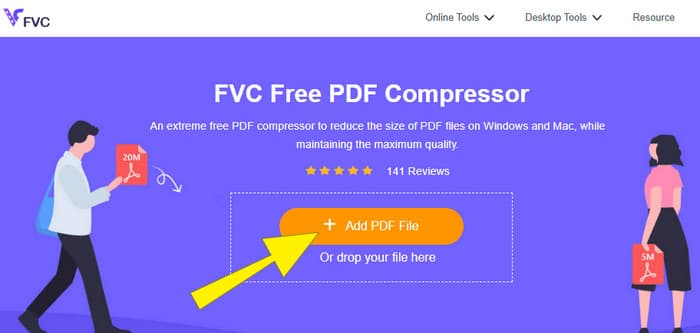
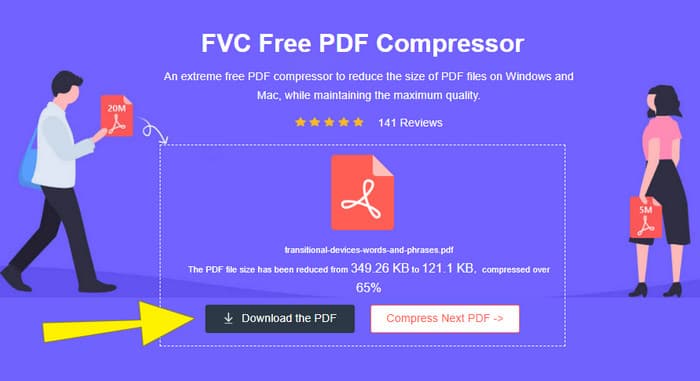
Paso 2. Mientras se carga el archivo PDF, la herramienta también está trabajando en su compresión.
Paso 3. Una vez finalizado, haz clic en el botón Descargar el PDF.
Parte 3. Comprimir archivos PDF para enviarlos por correo electrónico con funciones de edición
Si prefieres una herramienta que incluya funciones de edición, entonces Adobe Acrobat es lo que necesitas para esta tarea. Adobe Acrobat es un programa conocido por crear, editar y gestionar archivos PDF. Es como un potente conjunto de herramientas diseñado específicamente para trabajar con PDFs. Una de sus funciones más útiles es la compresión de PDF, que puedes utilizar cuando tienes un PDF voluminoso que no cabe en tu correo electrónico por las limitaciones de tamaño. Adobe Acrobat, que cuenta con versión online y de escritorio, puede ayudarte a comprimir archivos PDF grandes para correo electrónico sin afectar demasiado a la calidad. Lo hace de varias formas, como reduciendo el tamaño de las imágenes dentro del PDF o eliminando fuentes innecesarias. Sin embargo, conociendo Adobe y sus paquetes, no debe sorprenderte que su curva de aprendizaje sea pronunciada. Por ello, aquí tienes los pasos que te ayudarán a simplificar el proceso.
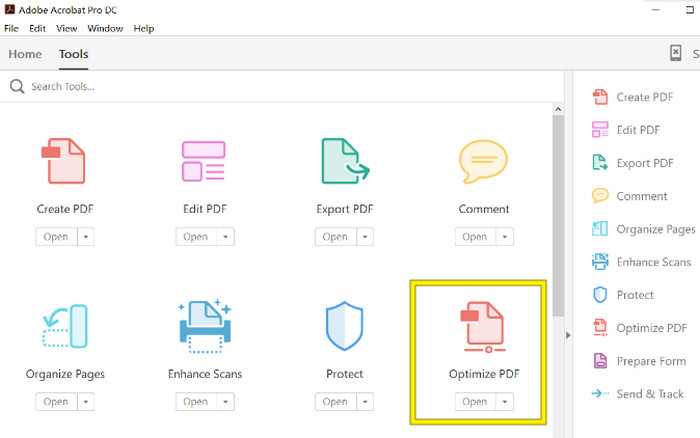
Paso 1. Inicia Acrobat y abre el archivo PDF con el que necesitas trabajar. Para hacerlo, ve a Herramientas-Optimizar PDF-Abrir.
Paso 2. Una vez que abras el archivo PDF, haz clic en la opción Reducir tamaño de archivo del nuevo panel de navegación que aparece. Después, configura o utiliza las opciones de edición disponibles para lograr la compresión y optimización deseadas.
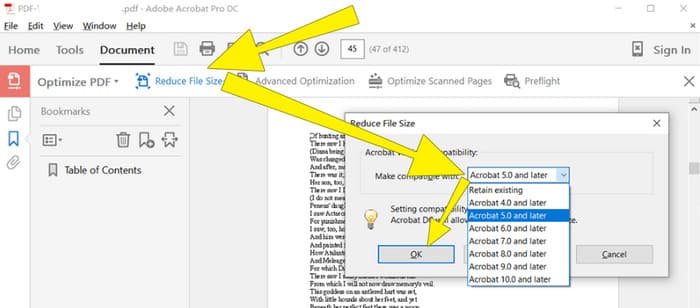
Paso 3. Después de eso, guarda el archivo PDF comprimido.
Parte 4. Comprimir archivos PDF para enviarlos por correo electrónico mediante la conversión
¿Quieres aprender un truco nuevo sobre cómo comprimir un PDF para enviarlo por correo electrónico? Convirtamos el archivo a JPG. Este truco de conversión se puede hacer perfectamente con PowerPoint. PowerPoint es un programa que probablemente utilizas para crear presentaciones. Imagina una presentación de diapositivas con texto, imágenes e incluso vídeos. PowerPoint te permite crear estas presentaciones con diapositivas individuales que vas mostrando a tu audiencia. Es una herramienta popular para profesores, estudiantes, profesionales y cualquier persona que quiera compartir información de forma visual.
Insertar un PDF en una presentación de PowerPoint puede resultar muy práctico, pero puede que no sea el proceso más intuitivo. Una vez que lo hagas, producir un archivo JPG será pan comido. ¡Pero no te preocupes! Podemos guiarte paso a paso para que puedas insertar tu PDF en un abrir y cerrar de ojos.
Paso 1. Inicia PowerPoint en tu PC y selecciona la diapositiva correcta donde puedas abrir el archivo PDF.
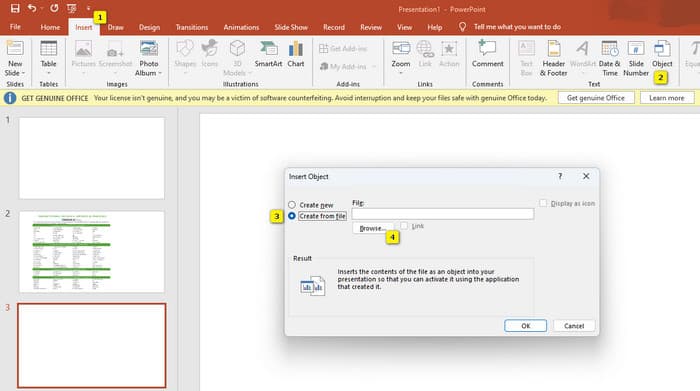
Paso 2. Ahora ve al menú de la pestaña Insertar y busca la opción Objeto en el apartado Texto. Haz clic en la opción y aparecerá una nueva ventana. En esa ventana, marca la opción Crear desde archivo, que se encuentra en el lado izquierdo de la interfaz. Luego haz clic en el botón Examinar, que te permitirá importar el archivo PDF a la diapositiva.
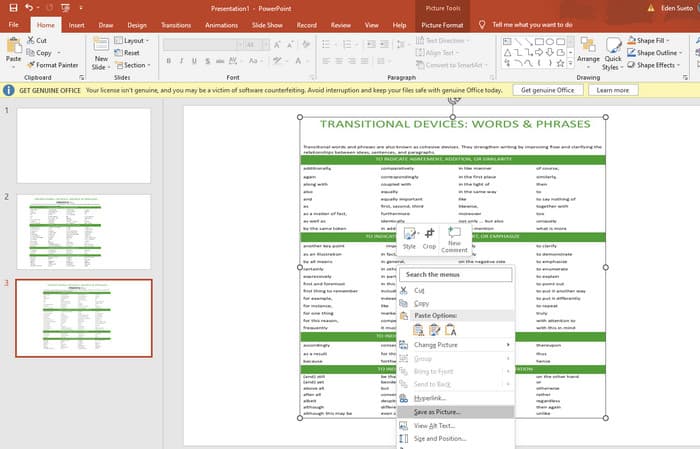
Paso 3. Una vez que se haya subido el archivo PDF, podrás convertirlo a JPG. Para hacerlo, haz clic con el botón derecho en el PDF de la diapositiva, selecciona Guardar como imagen y guárdalo como JPEG.
Parte 5. Preguntas frecuentes sobre PDF y compresión
¿Qué tamaño puede tener un archivo PDF adjunto en un correo electrónico?
Eso depende de su proveedor de correo electrónico, pero la mayoría limita los archivos adjuntos a alrededor de 20 MB.
¿Cuál es el mejor compresor de PDF gratuito?
Existen compresores de PDF gratuitos, pero el mejor siempre depende de las preferencias de los usuarios. Hasta el momento, FVC Free PDF Compressor es la herramienta gratuita en línea más recomendada.
¿Cómo comprimir archivos PDF para enviarlos por correo electrónico?
En realidad, la compresión funciona para los archivos PDF porque ya son archivos comprimidos.
Conclusión
Este artículo trata sobre cómo comprimir archivos PDF para correo electrónico de las mejores maneras. Ahora ya puedes garantizar una forma más fluida y eficaz de enviar tus PDFs por correo electrónico siempre que los reduzcas adecuadamente para ajustarte al límite de tamaño de archivo.
-
 Las 3 mejores soluciones sobre cómo eliminar fácilmente la marca de agua de los videos
 ¿Quieres eliminar la molesta marca de agua en el video? Con este blog, puede aprender las diferentes ideas sobre cómo eliminar la marca de agua en un video.
-
 Las 4 mejores formas de agregar marcas de agua en cualquier video rápidamente
 Aprendamos cómo agregar una marca de agua a cualquier video en Windows, Mac, en línea, iOS y Android con pasos detallados si lee este artículo.
-
 Las 3 formas más fáciles de agregar una marca de agua a un GIF en línea y fuera de línea
 Agregar una marca de agua a un GIF puede ser tan fácil como 1-2-3 si usa correctamente la herramienta adecuada. Las herramientas en el mercado son demasiado amplias, pero le presentaremos las tres herramientas en las que puede confiar.
