


 Video Converter Ultimate
 Grabador de pantalla
 Reparación de vídeo
 Descarga segura
2 pasos para transmitir DVD desde la computadora portátil a la TV usando Chromecast
Es una gran manera de usar Chromecast para reproducir en streaming tu contenido multimedia favorito en un dispositivo de salida HD como un televisor o un monitor. Si buscas disfrutar de DVD en Chromecast, puede que te sientas frustrado, ya que no puede enviar directamente tus películas en DVD desde la unidad de DVD del ordenador ni desde el disco duro. Para transmitir un DVD a Chromecast, tienes que cambiar el formato del archivo del DVD a un archivo compatible, como un vídeo H.264 en un contenedor MP4. Tras la conversión, podrás usar Chromecast para enviar el contenido del DVD desde tu PC o Mac a tu televisor.
Afortunadamente, existen diferentes tipos de herramientas de extracción de DVD con una variedad de opciones diferentes que pueden hacer copias digitales de DVD y convertirlas a un formato reconocido por Chromecast. Para conocer más detalles, puede seguir la guía paso a paso para transmitir y transmitir películas en DVD desde su computadora a la TV a través de Google Chromecast.

Parte 1. Convierta películas en DVD a formatos de archivo compatibles con Chromecast
El primer paso para transmitir su DVD es usar un extractor de DVD profesional para convertir sus películas en DVD a formatos de archivo compatibles con Chromecast. Aiseesoft Video Converter es un excelente convertidor de video multifuncional y convertidor de DVD. Con las últimas técnicas de decodificación avanzadas, puede convertir rápidamente casi todos los tipos de DVD que ve en el mercado a formatos de archivo compatibles con Chromecast.
Además de eso, Aiseesoft Video Converter ofrece más de 500 formatos para elegir, incluidos MP4, AVI, MKV, MPEG, VOB, MP3, AAC, así como formatos de dispositivos como iPhone, iPad, PS4, Xbox One y más. . Simplemente descargue el software de forma gratuita y luego siga las instrucciones a continuación para iniciar el proceso de conversión de DVD a Chromecast.
Descarga gratuitaPara Windows 7 o posteriorDescarga segura
Descarga gratuitaPara macOS 10.7 o posteriorDescarga segura
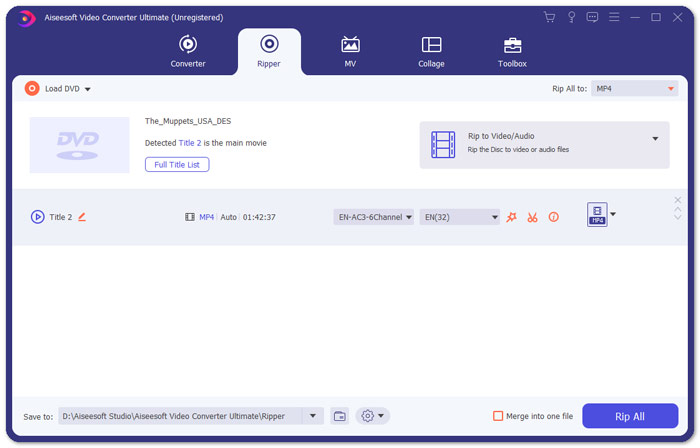
Paso 1. Inserta tu DVD en la unidad de disco y ejecuta Aiseesoft Video Converter en tu Mac o PC. En la interfaz principal, ve a la función Ripper y haz clic en Load DVD, luego elige la película que quieres extraer y convertir. Pulsa en Abrir para iniciar el análisis.
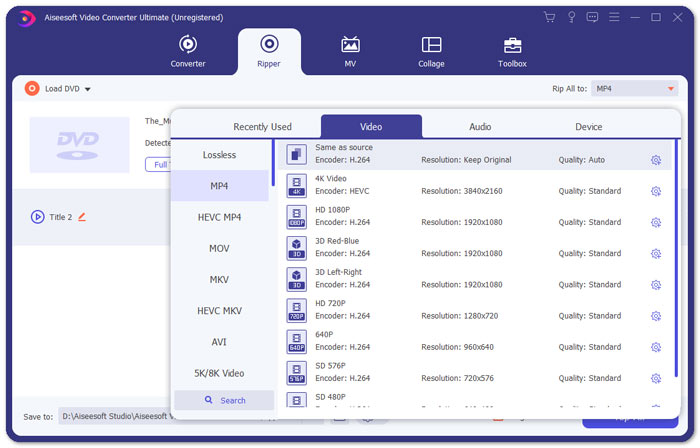
Paso 2. Cuando se hayan añadido los archivos, conviértelos a un formato compatible con Chromecast, como MP4. Despliega la lista del menú desplegable de la opción Rip All to y selecciona MP4 en la pestaña de la categoría Video como formato de salida.
Paso 3. A continuación, dirígete al campo Save to para decidir la ruta en la que se guardará el archivo de la película de DVD convertido y, después, haz clic en el botón Rip All para iniciar el proceso de conversión del DVD para Chromecast.
Parte 2. Transmita contenido de DVD convertido a TV a través de Chromecast
Ahora ha obtenido un archivo de video compatible con Chromecast. Lo siguiente que debe hacer es transmitir el video DVD a la TV usando Chromecast. Esto es lo que debe hacer:
Paso 1. Abre tu navegador Chrome y comprueba que la extensión Chromecast esté instalada en tu ordenador. Si no has instalado la extensión, puedes obtenerla en Chrome Web Store.
Nota: Asegúrate de que estás usando la versión más reciente de Chrome yendo a Configuración y después a Acerca de Chrome.
Paso 2. Ahora, conecta el Chromecast al televisor y luego conecta ambos dispositivos a la misma red Wi‑Fi.
Paso 3. Después, instala la extensión Google Cast en el navegador Chrome. Verás el icono de enviar contenido (cast) en el navegador Chrome. Puedes ajustar la calidad de la transmisión haciendo clic en el icono de cast correspondiente a tu televisor.
Paso 4. Después de eso, arrastra tu película de DVD convertida al navegador Chrome o pulsa Ctrl+O para buscar el archivo multimedia. Ahora ya puedes empezar a enviar tus películas en DVD al televisor con la ayuda de Chromecast.
Parte 3. Preguntas frecuentes sobre la transmisión de DVD a Chromecast
¿Puedo transmitir DVD a TV usando VLC?
Sí. Google ha agregado soporte VLC en Chromecast 3 para una transmisión sin esfuerzo.
¿Hay alguna alternativa al Chromecast?
Si no desea usar Chromecast para transmitir su DVD, puede usar alternativas de Chromecast como Roku, Amazon Fire Stick, Apple TV y otros.
¿Qué formatos admite Chromecast?
Chromecast admite formatos multimedia de audio, video y gráficos como JPEG, GIF, PNG, BMP, WEBP, HE-AAC, LC-ACC, MP3, WAV y muchos más.
Conclusión
Esperamos que, con los pasos anteriores, hayas podido enviar correctamente el DVD a Chromecast. Además de transmitir DVD a Chromecast, existen otras opciones, como enviar DVD a Apple TV o transmitir DVD a Roku. Elige el servicio que mejor se adapte a tus necesidades para facilitar la reproducción en streaming de tus DVD. Si prefieres disfrutar de tus películas en DVD en línea, prueba FVC Reproductor de vídeo gratuito
-
 6 soluciones verificadas para arreglar videos que no se reproducen en Chrome
 Para solucionar el problema de que los videos no se reproducen en Chrome, todo lo que necesita hacer es leer nuestra solución de problemas y realizar las soluciones verificadas una por una.
-
 Soluciones de trabajo 100% para arreglar QuickTime Player que no funciona
 Es posible arreglar que QuickTime Player no funciona si sigue nuestras soluciones paso a paso una por una. Entonces puedes reproducir videos en tu Mac sin problemas.
-
 Reproductor de DVD de Android: cómo reproducir videos de DVD en dispositivos móviles con Android
 ¿Cómo reproducir archivos de DVD en móviles Android? ¿Hay reproductores de DVD de Android? En este artículo, aprenderá acerca de 3 formas de reproducir videos en DVD en móviles Android con o sin el controlador externo.
