


 Video Converter Ultimate
 Grabador de pantalla
 Reparación de vídeo
 Descarga segura
3 consejos para arreglar VLC que no reproduce DVD
VLC Media Player es uno de los programas de reproducción de vídeo y audio más populares. Además de varios formatos de medios digitales, VLC también puede reproducir DVD, CD de audio y VCD. Sin embargo, muchos usuarios se han encontrado con el problema de VLC no reproduce DVD. ¿Te encuentras en la misma situación?

De hecho, muchas razones pueden provocar que VLC Media Player no reproduzca DVD. En esta publicación se explicará cómo solucionarlo de 3 maneras diferentes, tanto si VLC no puede leer el disco DVD, si los archivos de vídeo y audio del DVD se entrecortan, como si VLC no reproduce el DVD completo.
Parte 1. Actualice o reinstale VLC para arreglar VLC que no reproduce DVD
Cuando VLC Media Player no reproduce DVD, primero deberías reiniciar el ordenador y VLC para comprobar si el problema persiste. Si el problema de VLC que no reproduce DVD sigue existiendo, puedes optar por actualizar VLC a su última versión.
Abre VLC Media Player en tu PC con Windows 10/8/7 o en tu Mac. Haz clic en la pestaña Ayuda en la barra de menús superior. En la lista desplegable, elige la opción Buscar actualizaciones. Si hay una disponible, puedes seguir las instrucciones en pantalla para actualizar tu VLC a la versión más reciente.
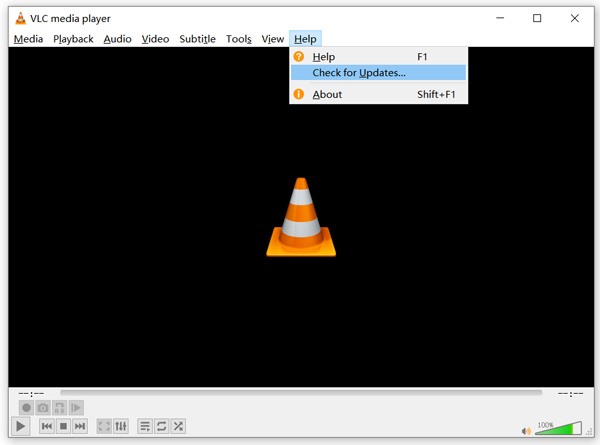
Aquí también puedes desinstalar VLC y volver a instalarlo en tu ordenador. Puedes ir al sitio de VideoLAN para instalar gratis una versión adecuada.
Cuando instale una nueva versión de VLC, puede reproducir su DVD y verificar si puede abrir el DVD normalmente.
Parte 2. Restablecer preferencias para solucionar el problema de que VLC no reproduce DVD
En algunos casos, puede personalizar o restablecer las preferencias de VLC para resolver el problema de que VLC no reproduce DVD. La siguiente guía le mostrará cómo configurar las preferencias de VLC.
Paso 1. Abre VLC y elige el menú Herramientas. Selecciona la opción Preferencias en la lista desplegable.
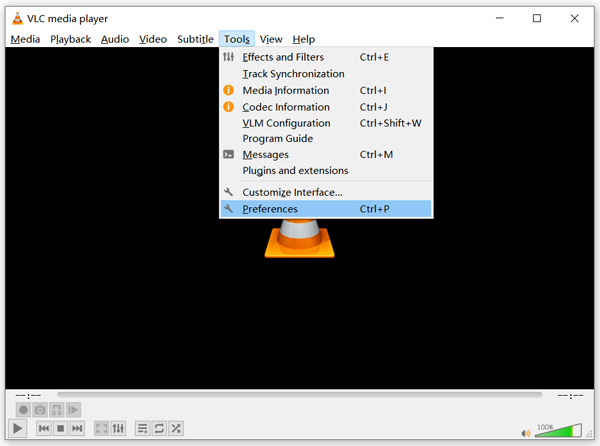
Paso 2. Ahora se te dirigirá a la ventana de Preferencias simples. Marca Todo en Mostrar configuración en la esquina inferior izquierda para entrar en la ventana de Preferencias avanzadas.
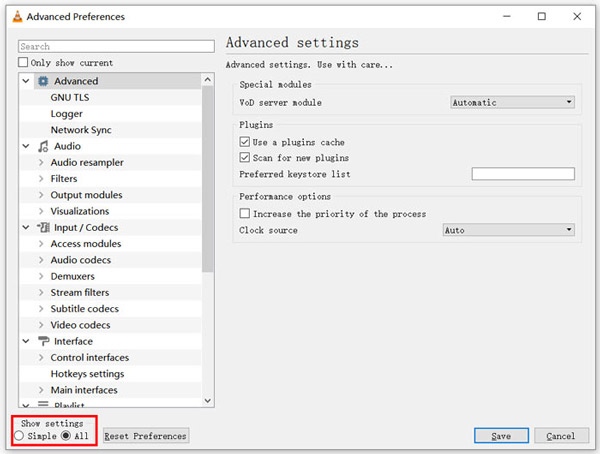
Paso 3. Aquí puedes hacer clic en el botón Restablecer preferencias para intentar solucionar el problema de VLC que no reproduce DVD. Asimismo, puedes ir a la sección Vídeo en la parte izquierda, hacer clic en Filtros y luego seleccionar la opción Filtro de desentrelazado de vídeo en la parte derecha. Haz clic en el botón Guardar para confirmar la operación.
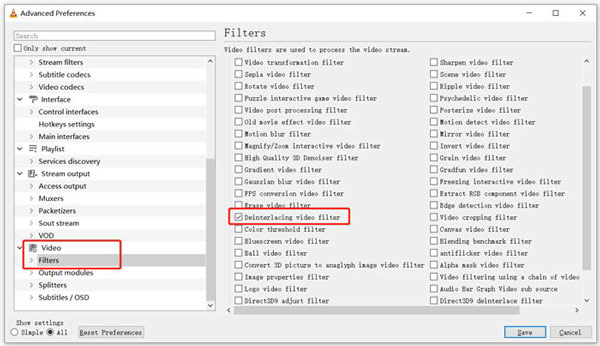
Tanto si eliges restablecer como personalizar las preferencias de VLC, después de todas tus operaciones debes reiniciar VLC y usarlo de nuevo para reproducir DVD.
Parte 3. Obtenga una herramienta alternativa de VLC para reproducir DVD
Si VLC sigue sin reproducir DVD en un PC con Windows 10/8/7 o en un Mac, deberías buscar un reproductor alternativo a VLC que te ayude a ver películas en DVD en el ordenador. Aquí te recomendamos encarecidamente el Reproductor de DVD Online Gratis para que veas cualquier DVD con alta calidad.
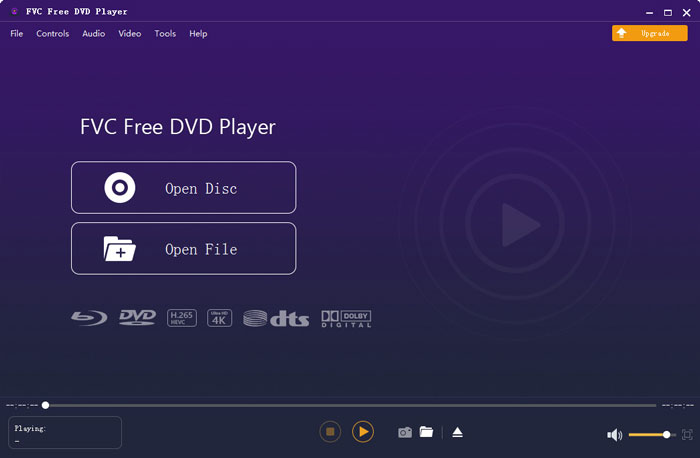
Es un reproductor de DVD totalmente gratuito que le permite reproducir discos DVD, carpetas de DVD y archivos de imagen ISO tanto en Windows 10/8/7 PC como en Mac. Este reproductor de DVD gratuito puede reproducir directamente su DVD en cualquier navegador web como Chrome, IE, Firefox y Safari. Está equipado con todas las funciones de reproducción de DVD que necesita. Además, le permite tomar instantáneas, agregar, ajustar y seleccionar subtítulos y pistas de audio.
Paso 1. Cuando quieras reproducir un DVD, puedes ir a esta página de Reproductor de DVD Online Gratis y hacer clic en el botón Reproducir ahora para instalar un Lanzador para la reproducción del DVD. Una vez finalizada la instalación, el reproductor de DVD se iniciará automáticamente.

Paso 2. Cuando entres en este reproductor de DVD, podrás elegir Abrir disco o Abrir archivo según tus necesidades. Para reproducir un disco DVD, debes insertar tu disco DVD y seleccionar la opción Abrir disco. Para abrir una carpeta de DVD o un archivo ISO de DVD, puedes usar Abrir archivo.
Paso 3. Tienes el control total de la reproducción del DVD. Puedes adelantar, retroceder, pausar y detenerlo cuando quieras. También puedes hacer capturas de pantalla de tus escenas favoritas. Además, puedes cambiar la pista de audio, la pista de vídeo y la pista de subtítulos según tus necesidades.
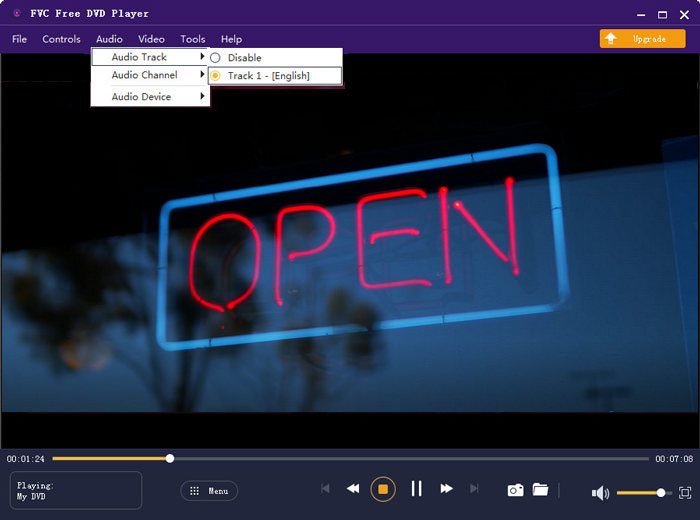
Esta alternativa de VLC Media Player tiene la capacidad de reproducir cualquier película en DVD con alta calidad de imagen y sonido. Está diseñado con la tecnología de codificación de video avanzada y es compatible con DTS-HD y Dolby TrueHD. Entonces, cuando se enfrente al problema de que el VLC no reproduce DVD, puede confiar en este reproductor de DVD para ver sus DVD.
Aquí tienes más alternativas a VLC.
Parte 4. Preguntas frecuentes de VLC Media Player no reproduce DVD
Pregunta 1. ¿Cómo reproducir DVD con VLC?
Para reproducir la película en DVD en VLC Media Player, puede insertar un disco DVD en la unidad de disco de la computadora, abrir VLC Media Player y luego hacer clic en el menú Media. Elija Abrir disco y DVD, y luego haga clic en el botón Examinar para cargar su archivo de DVD. Después de eso, VLC comenzará a reproducir su DVD.
Pregunta 2. ¿Por qué no puedo reproducir DVD en Windows 10?
El soporte de reproducción de DVD integrado de Microsoft ya no está disponible en Windows 10. Es por eso que no puede reproducir DVD en una PC con Windows 10. En cambio, Microsoft ofrece el software Reproductor de DVD de Windows que cuesta $14.99 para que pueda ver DVD.
Pregunta 3. ¿Cómo copiar un DVD a MP4?
Cuando quieras ver DVD en el ordenador, también puedes optar por convertir el DVD a un archivo de vídeo digital como MP4. Puedes confiar en el potente convertidor de DVD a MP4 para ripear tu DVD a MP4 sin pérdida de calidad.
Conclusión
VLC puede funcionar como un reproductor de DVD gratuito para ayudarte a reproducir DVD en ordenadores con Windows 10/8/7, Mac y Linux. Puede acceder fácilmente al menú del DVD, a los capítulos y a otros contenidos relacionados. Sin embargo, muchos usuarios se han quejado del problema de VLC no reproduce DVD.
En esta publicación puedes obtener 3 soluciones efectivas para solucionar el problema de VLC Media Player no reproduce DVD. Esperamos que puedas ver mejor tus películas en DVD después de leer esta página.
-
 Cómo grabar archivos de video _TS en DVD en Mac / Windows 10
 ¿Cómo convierto y grabo archivos TS en un disco DVD? Esta guía paso a paso le mostrará cómo copiar archivos y carpetas TS a DVD en Windows / Mac para que pueda ver archivos TS en un reproductor de DVD o TV.
-
 Cómo grabar video de pantalla con audio con VLC Media Player
 Es una guía paso a paso sobre el uso integral de la función de grabación de pantalla VLC. Puede encontrar el proceso detallado, la solución de problemas y la mejor alternativa en el artículo.
-
 Los 5 mejores reproductores de video para iPhone que no debe perderse en 2021
 Para reproducir videos en todos los formatos y tener una mejor experiencia de visualización en su iPhone, debe leer este artículo y conocer los mejores 5 reproductores de video para iPhone 12/11 / X / 8/7/6.
