


 Video Converter Ultimate
 Grabador de pantalla
 Reparación de vídeo
 Descarga segura
Qué puedes hacer cuando el iPad deja de reproducir videos
Según una encuesta reciente, el iPad es más popular que el smartphone a la hora de reproducir vídeos, en parte por su pantalla grande. Sin embargo, el iPad no es perfecto y muchos usuarios se encuentran con el problema de que el iPad no reproduce vídeos. La gente común no puede averiguar por qué ocurre este problema, y mucho menos cómo solucionarlo. Por lo tanto, este artículo identificará y compartirá 100% soluciones que funcionan, para que puedas volver a disfrutar de tus vídeos favoritos sin problemas.

Parte 1: Por qué el iPad no reproduce videos
Hay muchas razones por las que el iPad deja de reproducir videos en su memoria o en YouTube. Las causas más comunes incluyen:
- 1. El formato de video no es compatible con iPad. Es compatible con H.264, MPEG-4 y Motion JPEG.
- 2. Mala conexión a internet.
- 3. Software o aplicación obsoletos. Apple sigue lanzando actualizaciones para iOS, con el fin de corregir errores e introducir nuevas funciones. Si no ha actualizado su software y aplicación de video, es posible que los videos no se reproduzcan en el iPad.
- 4. No hay suficiente espacio. Se necesita mucha memoria y almacenamiento interno para reproducir videos en iPad, especialmente videos de alta resolución.
- 5. El iPad se congela o se atasca. A veces, el iPad no responde lo suficientemente rápido y el video no se reproduce en absoluto.
Parte 2: 5 soluciones para reparar el iPad que no reproduce videos
Solución 1: convertir a formato de video iPad
Si un vídeo local no se reproduce en el iPad Pro, la causa principal suele ser un problema de compatibilidad. FVC Free FLV Converter puede ayudarte a convertir cualquier vídeo para iPad, como de MP4 a iPad, M2TS a iPad, etc. Aunque es gratuito, el conversor de vídeo te ofrece muchas funciones de nivel profesional de una forma que cualquiera puede aprender rápidamente.
Descarga gratuitaPara Windows 7 o posteriorDescarga segura
Descarga gratuitaPara macOS 10.7 o posteriorDescarga segura
Cómo convertir videos a formato iPad
Paso 1: Añadir vídeos
Ejecuta el mejor conversor de vídeo para iPad una vez que lo hayas instalado en tu ordenador. Después haz clic en el menú Add File(s) e importa el vídeo que no se reproduce en el iPad. Puede convertir varios archivos de vídeo por lotes.
Consejo: Primero tienes que transferir los vídeos desde el iPad a tu ordenador.

Paso 2: Establecer iPad como formato de salida
Haz clic para desplegar la opción Output format, desplázate hacia abajo hasta encontrar Apple iPad y selecciónalo, y luego elige tu modelo de iPad. A continuación, el conversor configurará automáticamente el formato, el códec y más parámetros.

Paso 3: Convertir el vídeo para iPad
Vuelve a la interfaz principal, haz clic en el botón Open Folder y establece una ubicación específica para guardar el archivo de salida. Por último, haz clic en el botón Convert para empezar a convertir los vídeos para reproducirlos en el iPad. Cuando termine, transfiere los resultados a tu iPad y míralos.

Solución 2: reinicie el iPad
El iPad puede atascarse en un modo específico y los videos no se reproducirán. Afortunadamente, es muy fácil deshacerse del problema.
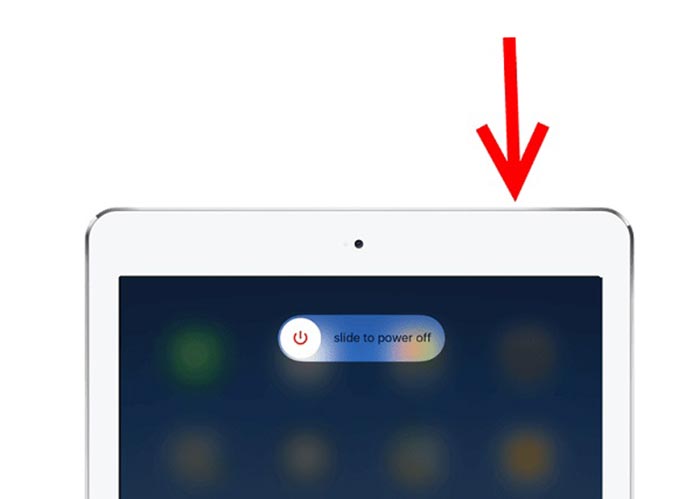
Paso 1: Mantén pulsado el botón Power o Side durante un rato hasta que aparezca la pantalla de apagado.
Paso 2: Desliza el control deslizante hacia la derecha y la pantalla de tu iPad se volverá negra.
Paso 3: Espera al menos 20 segundos y mantén pulsado de nuevo el botón Power hasta que aparezca el logotipo de Apple en la pantalla. Ahora intenta reproducir el vídeo de nuevo.
Solución 3: Borrar la caché del iPad
La falta de almacenamiento es otra razón por la que el iPad no reproduce videos en sitios web. La solución es muy simple, cerrar aplicaciones en segundo plano y borrar el caché en Safari.
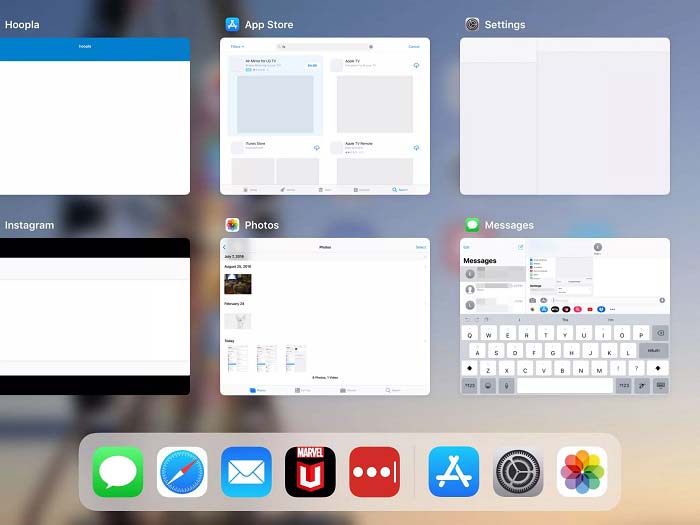
Paso 1: Entra en el modo multitarea con los dedos y cierra todas las apps que se estén ejecutando en segundo plano.
Paso 2: Abre la app Settings, toca Safari y luego Clear History and Website Data.
Paso 3: Vuelve a reproducir el vídeo en el iPad y debería funcionar con normalidad.
Solución 4: Actualice el software
El software desactualizado puede causar muchos problemas, incluidos los videos que dejan de reproducirse en el iPad. De hecho, es fácil actualizar el software.
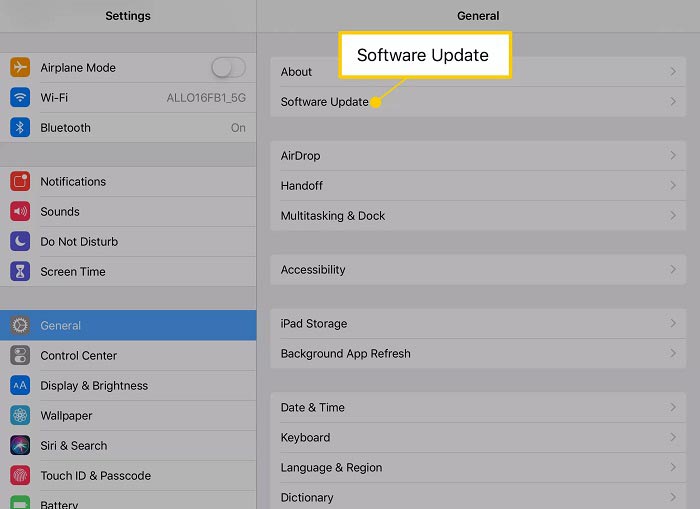
Paso 1: Ejecuta la app Ajustes desde la pantalla de inicio, toca General y Software Update.
Paso 2: Si hay una actualización disponible, toca el botón Download and Install. Cuando se te pida, introduce tu código de acceso.
Paso 3: Espera a que finalice la instalación y vuelve a reproducir tu vídeo.
Solución 5: Verifique el servicio de Apple
Aunque es raro, el servicio de Apple podría estar inactivo y los videos no se reproducirán en el iPad en tal situación. Si ha probado las soluciones anteriores y el problema persiste, realice los pasos a continuación para verificarlo.
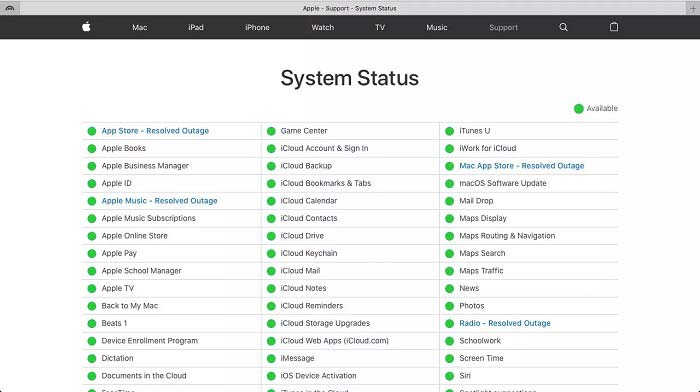
Paso 1: Abre un navegador y visita https://www.apple.com/support/systemstatus/.
Paso 2: Si el icono de estado de un servicio de Apple se vuelve amarillo o rojo, significa que el servicio está caído. Lo único que puedes hacer es esperar a que vuelva a estar operativo.
Parte 3: Preguntas frecuentes sobre el iPad que no reproduce videos
¿Por qué no puedo reproducir MKV en mi iPad?
El iPad no es compatible con la reproducción de vídeos MKV. Tienes que convertir el vídeo MKV a formatos de vídeo compatibles con iPad, como MOV, y después reproducirlos en el iPad. Sigue leyendo 2 formas sencillas de reproducir archivos MKV en iPad para obtener más detalles,
¿Por qué no se reproducen los videos de TikTok?
En primer lugar, verifique su conexión a Internet cuando los videos de TikTok dejen de reproducirse. Luego actualice su aplicación TikTok a la última versión. Además, será mejor que mires TikTok con una red Wi-Fi pero no con datos móviles.
¿Cómo reproducir MP4 en iPad Air?
iPad Air admite videos MP4 con códec de audio AAC. Puede intentar reproducirlo directamente en su teléfono.
Conclusión
Esta solución de problemas lo ayuda a solucionar el problema de que el iPad no reproduce videos en la memoria. FVC Free FLV to MP4 Converter es la mejor solución para los videos locales que no se reproducen. Puede ajustar los códecs de video y ofrecer ajustes preestablecidos para casi todos los dispositivos iPad. Más importante aún, el convertidor es bastante fácil de usar. Si tiene otros problemas, no dude en dejar un mensaje en el área de comentarios debajo de esta publicación.
-
 Las 3 formas principales de reproducir MP4 en Chromebook
 ¿Puedes reproducir videos en Chromebook? ¿Cómo reproducir archivos MP4 desde USB en Chromebook? Esta publicación comparte 3 formas de reproducir MP4 en Chromebook.
-
 Revisión de WebM Player: los 5 mejores programas para reproducir archivos WebM sin problemas
 Si desea reproducir un WebM con éxito en su dispositivo, debe obtener más información sobre los 5 mejores reproductores WebM para Android, iPhone, Windows, Mac en este artículo.
-
 10 mejores reproductores de video FLV para Windows 10/8/7, Mac, iOS y Android que debe probar (2021 más reciente)
 El reproductor FLV le ayuda a acceder fácilmente a sus archivos FLV en su dispositivo Windows, Mac, Android, iOS. Echa un vistazo a los mejores reproductores de archivos FLV que puedes descargar ahora mismo.
