


 Video Converter Ultimate
 Grabador de pantalla
 Reparación de vídeo
 Descarga segura
Los 2 mejores métodos para reproducir videos AVI en iPhone convirtiendo el formato
Cuando ha pasado varias horas enviando películas AVI grandes a su iPhone / iPad y desea ver sus películas favoritas a través de iPhone / iPad, solo puede obtener el error "Este formato de video no es compatible con la reproducción". Debe ser muy frustrante. Esto se debe a que el sistema iOS solo admite la reproducción de videos MP4, MOV y M4V con muchas limitaciones.
En efecto, hay muchos reproductores de vídeo de terceros para iOS que pueden reproducir archivos AVI fácilmente en el iPhone, pero debes tener en cuenta que los archivos de vídeo AVI suelen tener un gran tamaño, lo que ocupará demasiado espacio de almacenamiento en tu iPhone. Por lo tanto, puedes optar por convertir el vídeo AVI a formatos compatibles para reproducirlo en tu iPhone. En este artículo encontrarás 2 formas sencillas de convertir vídeos AVI al formato MP4/MOV/M4V.

Parte 1: ¿Qué es AVI? ¿Por qué los videos AVI no se pueden reproducir en el iPhone?
AVI es la abreviatura de Audio Video Interleaved e incluye archivos de vídeo, audio y subtítulos. Este formato fue creado por Microsoft, por lo que es compatible con Windows Media Player en Windows. Como se comprime con una tasa de compresión baja, los archivos AVI suelen tener un tamaño grande y una alta calidad. Actualmente se utiliza de forma habitual para almacenar películas y series de televisión en CD.
La razón por la que no puede reproducir videos AVI en iPhone es que el sistema iOS solo admite formatos MP4, MOV y M4V. Además, también tiene algunas limitaciones para los videos:
& #8226 Códec: H.264
& #8226 Resolución: 1080p
& #8226 Velocidad de fotogramas: 60 fps
Parte 2: Cómo convertir videos AVI para reproducirlos en su iPhone de forma gratuita
FVC Free Online Video Converter es un potente conversor de vídeo que puede convertir vídeos AVI a más de 10 formatos. Además, permite ajustar el códec de vídeo, la resolución, la tasa de fotogramas y la tasa de bits para cumplir con los requisitos de los vídeos para iPhone.
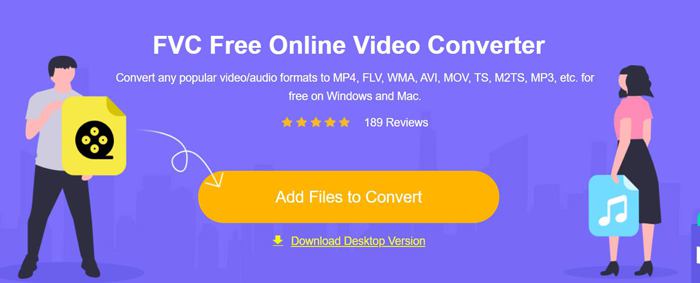
Paso 1: Accede a FVC Free Online Video Converter desde cualquier navegador. Haz clic en el botón Add Files to Convert para instalar el lanzador en unos segundos y, a continuación, vuelve a hacer clic en el botón para elegir los archivos AVI que desees y añadirlos al conversor de vídeo AVI.
Paso 2: Después puedes elegir el formato MP4, M4V o MOV en la lista de vídeo de la parte inferior. Haz clic en el icono de Settings para cambiar el códec de vídeo a H.264 y selecciona la resolución 1920x1080p. Luego haz clic en el botón OK para guardar la configuración. Al volver a la interfaz principal, haz clic en el botón Convert para elegir la ruta de almacenamiento deseada y empezar a convertir los vídeos AVI para reproducirlos en el iPhone.
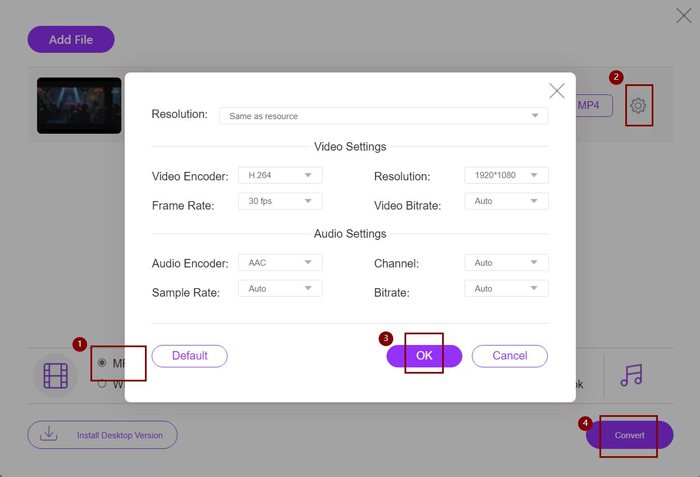
Aunque esta es una forma muy fácil de convertir videos AVI a formatos compatibles para iPhone, aún necesita cambiar los parámetros detallados de acuerdo con la limitación de los videos de iPhone. Y a veces, puede encontrar que los videos aún no se pueden reproducir en su iPhone. Por lo tanto, también existe la forma más fácil de convertir videos AVI para reproducirlos en iPhone con el formato de iPhone preestablecido. Sigue leyendo este artículo.
Parte 3: La mejor manera de convertir videos AVI para reproducirlos en el iPhone
FVC Video Converter Ultimate es la versión Pro de FVC Free Online Video Converter. Admite más de 500 formatos para importar y exportar, incluidos los ajustes preestablecidos para iPhone, iPad y muchos móviles Android. Además, proporciona la función de edición para agregar subtítulos, marcas de agua y temas a los videos.
- 1. Convierta videos AVI a videos MP4, MOV o M4V para reproducirlos en el iPhone.
- 2. Proporcione múltiples formatos preestablecidos para móviles iPhone, iPad y Android.
- 3. Capaz de convertir un lote de videos AVI para reproducirlos en el iPhone.
- 4. Admite la edición de videos AVI como rotar, recortar, filtrar, hacer collage, etc.
Descarga gratuitaPara Windows 7 o posteriorDescarga segura
Descarga gratuitaPara macOS 10.7 o posteriorDescarga segura
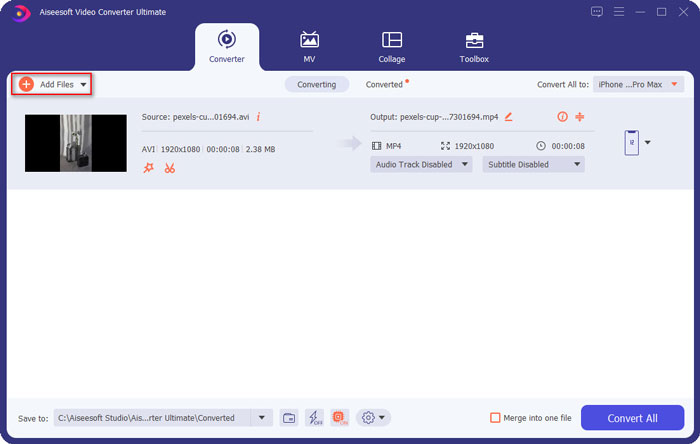
Paso 1: Descarga FVC Video Converter Ultimate en Windows y ejecútalo en el ordenador. Haz clic en el botón Add Files para elegir los vídeos AVI que quieras reproducir en tu iPhone. O simplemente arrastra y suelta los archivos para añadirlos al programa.
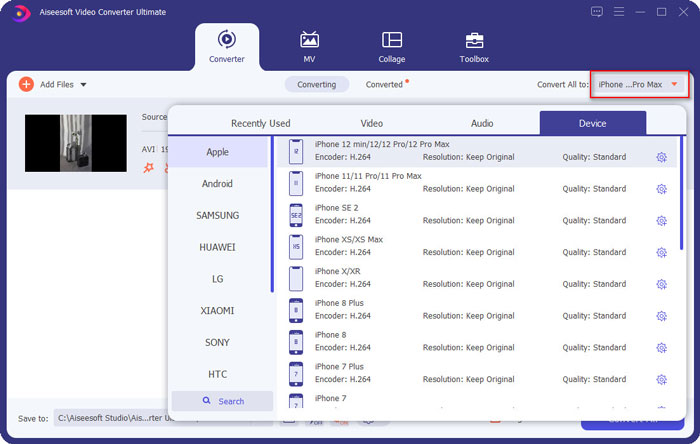
Paso 2: Haz clic en la opción desplegable junto a Convert All to en la parte superior derecha y selecciona la pestaña Device. Luego haz clic en el modelo de iPhone que desees.
Paso 3: Después, vuelve a la interfaz principal y elige la ruta de almacenamiento. Por último, haz clic en el botón Convert All para empezar a convertir los vídeos AVI y poder reproducirlos en el iPhone.
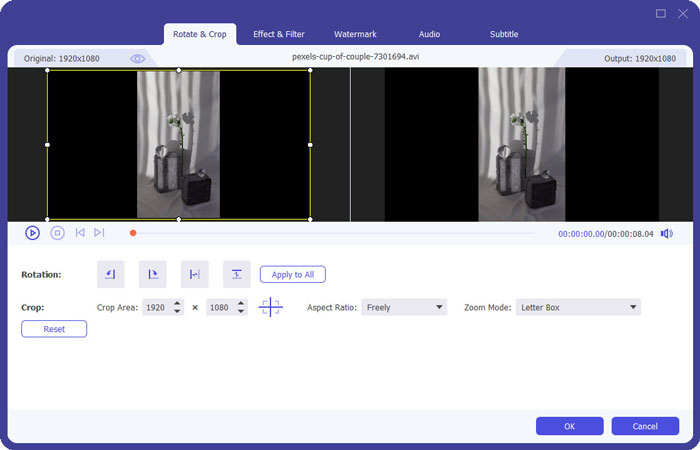
Paso 4: Si quieres editar los vídeos de salida, solo tienes que hacer clic en el icono Edit antes de convertir. Ahí podrás elegir efectos, filtros, marca de agua, subtítulos, etc., para añadir.
Parte 4: Preguntas frecuentes sobre la reproducción de videos AVI en iPhone
1. ¿Puedo reproducir películas AVI en iPhone / iPad sin convertir el formato?
Sí tu puedes. Hay muchos reproductores de video de terceros para iPhone / iPad, y puede buscar directamente el que desee en App Store o Google Play para reproducir videos AVI en el iPhone.
2. ¿Cuál es la mejor configuración de formato y video para reproducir videos en el iPhone?
iPhone admite formatos MP4, MOV y M4V. Y los ajustes recomendados son códec H.264, resolución de 1080p y velocidad de fotogramas inferior a 60 fps.
3. ¿Cómo transferir los videos AVI para reproducirlos en el iPhone gratis?
Hay dos formas mencionadas en este artículo para convertir videos AVI para reproducirlos en el iPhone. Puede utilizar el convertidor de video en línea gratuito y ajustar los parámetros de video. Y también puede utilizar la forma más sencilla de transferir AVI a los formatos compatibles para iPhone a través de FVC Free Video Converter.
Conclusión
La mayoría de las películas y series de televisión siempre se guardan en formato AVI, pero los videos AVI no se pueden reproducir en iPhone o iPad. Para ver sus películas favoritas en cualquier lugar de su iPhone, puede elegir reproductores de video de terceros. Pero la forma más fácil y segura es convertir videos AVI para reproducirlos en el iPhone. Ha aprendido 2 formas sencillas de este artículo. Si tiene alguna otra pregunta, bienvenido a dejar su comentario a continuación.
-
 Cómo comprimir archivos AVI grandes en Windows / Mac / en línea de forma gratuita
 Lea y obtenga 3 formas gratuitas de comprimir archivos AVI en su computadora. Puede reducir el tamaño de archivo de su video AVI sin perder calidad. El tamaño de su video AVI puede ser tan pequeño como imagina.
-
 AVI VS MP4: diferencias y similitudes entre los formatos AVI y MP4
 ¿Cuál es mejor formato de video, AVI o MP4? Si desea obtener la comparación detallada, puede consultar este artículo de AVI VS MP4. Puede conocer las diferencias y similitudes entre AVI y MP4 en muchos aspectos.
-
 Las 6 mejores fusiones de AVI: cómo unir archivos de video AVI en Windows y Mac
 Cuando desee unir videos AVI para un DVD, puede conocer las características de los 6 mejores ensambladores de AVI, incluidas las herramientas en línea gratuitas, así como los programas de escritorio del artículo.
