


 Video Converter Ultimate
 Grabador de pantalla
 Reparación de vídeo
 Descarga segura
Las mejores soluciones para vídeos que no se reproducen en Chrome: 4 soluciones
Cuando has abierto tu navegador como de costumbre, listo para disfrutar de una película o un vídeo corto desde una página web, descubres que los vídeos no se reproducen en Chrome. En ese momento, sin duda te pondrás nervioso y no dejarás de refrescar la página o cambiar de sitio web para ver cuál es el problema. No te preocupes, este tipo de problema es muy habitual y muchos usuarios han experimentado fallos de reproducción de vídeo por diversos motivos. Lo que tenemos que hacer es averiguar la causa del problema y, después, encontrar la solución adecuada. En este artículo, te ofrecemos cuatro maneras de arreglar este fallo y te recomendamos las mejores herramientas de reparación de vídeo. Esperamos que este pequeño contratiempo no afecte demasiado a tus ganas de ver vídeos.

Parte 1. ¿Qué vídeos puede reproducir el iPhone?
El iPhone puede reproducir una amplia gama de vídeos en distintos formatos, especialmente los archivos codificados en H.264 y MPEG-4 con audio AAC en los formatos MP4, M4V y MOV, así como M-JPEG con audio estéreo en formato AVI. Además, los iPhone admiten los siguientes formatos de vídeo:
Reparación de vídeo FVC
¿Te das cuenta de que los videos no se reproducen en Chrome y la página de tu navegador indica que el video está dañado? Por mucho que actualices la web o cambies de reproductor, no solucionará el problema. Ahora solo tienes que encontrar la manera de reparar el video dañado.
Esta operación no requiere que seas un profesional ni que tengas profundos conocimientos de programación; solo necesitas encontrar un software de reparación de vídeo fiable y dejarle todos los problemas a él. Te recomendamos FVC Video Repair, una herramienta todoterreno que puede reparar vídeos dañados por dispositivos corruptos, ataques de virus, bloqueos del sistema, etc.
Ahora es compatible con formatos de video como MP4, MOV y 3GP. Solo necesita subir el video dañado junto con un video de muestra, y FVC Video Repair restaurará todos los parámetros del video dañado según los estándares del video de muestra, incluyendo resolución, tasa de bits, codificador y velocidad de fotogramas. No se requieren conocimientos especializados; solo haga clic en tres pequeños para obtener el video completo.
Descarga gratuitaPara Windows 7 o posteriorDescarga segura
Descarga gratuitaPara macOS 10.7 o posteriorDescarga segura
Tomaremos un video de YouTube dañado descargado como ejemplo y le mostraremos cómo arreglar los videos de YouTube que no se reproducen en Chrome usando FVC Video Repair.
Paso 1. Descarga e instala FVC Video Repair en tu ordenador. Ábrelo y entra en la interfaz principal. Prepara tu vídeo dañado y un vídeo de muestra.
Es recomendable asegurarse de que el video de muestra y el video dañado provengan de la misma fuente y tengan una similitud en cuanto a formato, nitidez, velocidad de fotogramas, velocidad de bits y otros parámetros. Si no sabe cómo encontrar un video de muestra, puede consultar los consejos de ayuda en la interfaz.
Paso 2. Haz clic en el botón rojo + para subir tu vídeo dañado y haz clic en el botón morado + para subir el vídeo de muestra.
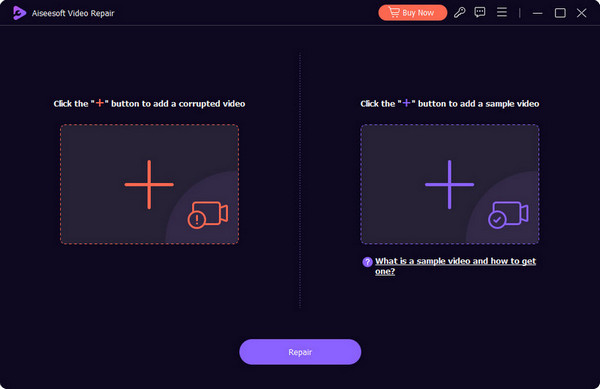
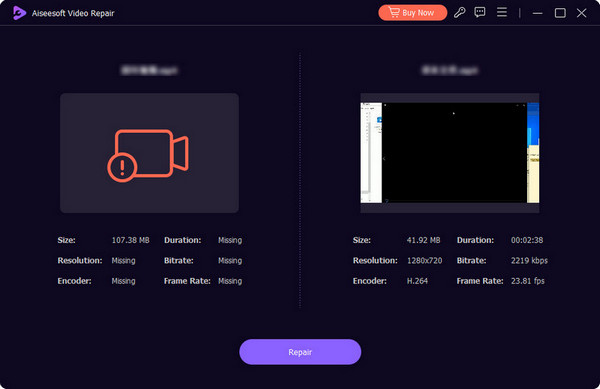
Paso 3. Tras subir tus vídeos, todos sus parámetros se mostrarán en la interfaz. A continuación, haz clic en Repair para empezar a reparar tu vídeo.
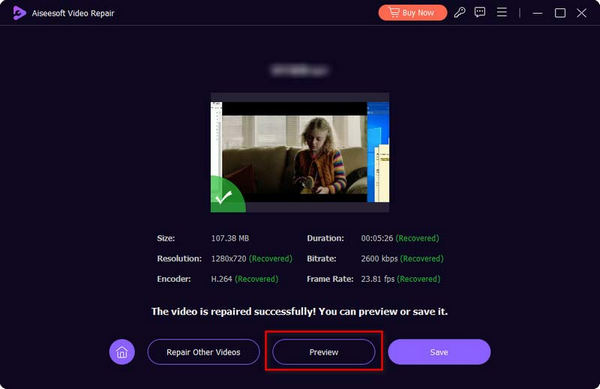
Cuando termine el proceso de reparación, haz clic en Preview para comprobar el resultado.
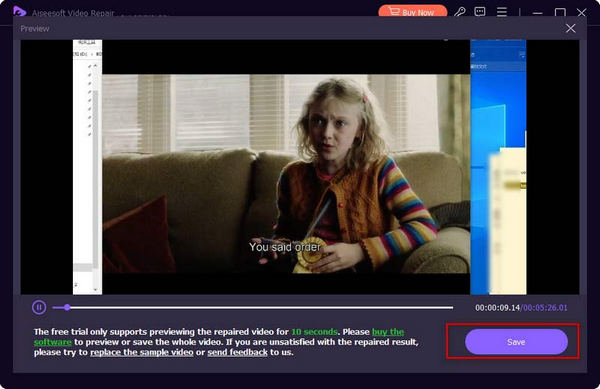
Si todo está correcto, haz clic en Save para descargar el vídeo reparado en tu ordenador.
Parte 2. Corregido: Los videos no se reproducen en Chrome
Supongamos que el problema no está en el video. En ese caso, debes considerar si hay algún problema con el navegador o si le falta alguno de los complementos necesarios para reproducir el video. A continuación, explicaremos cada una de las tres opciones para ayudarte a solucionar por qué los videos no se reproducen en Chrome.
Solución 1: Habilitar Flash Player
Si desea reproducir un video Flash, pero no tiene instalado Adobe Flash Player en su navegador, verá un mensaje en la ventana de reproducción. Este mensaje le indicará que debe hacer clic en "Habilitar Adobe Flash Player". Si no lo ve, puede comprobar manualmente si Flash Player está habilitado correctamente.
Aquí te explicamos cómo habilitar Flash Player en tu navegador Chrome.
Paso 1. Abre el navegador Google Chrome en tu ordenador. Ve a la página donde se encuentra el vídeo que quieres ver.
Paso 2. Localiza el icono de candado a la izquierda de la URL del vídeo. Haz clic en él.

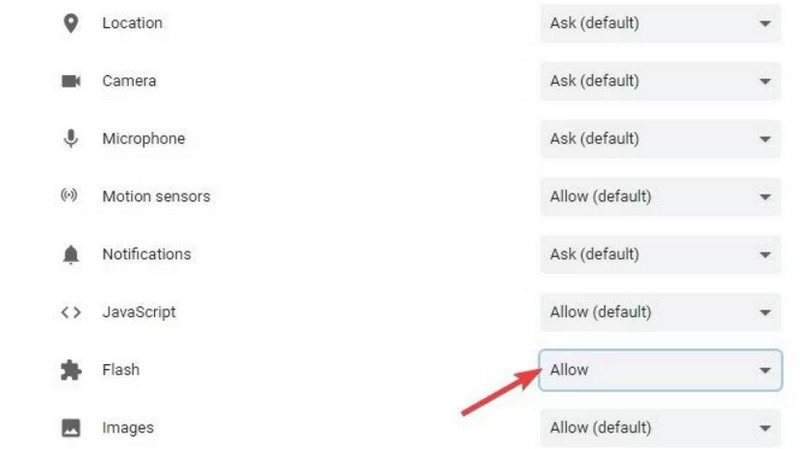
Paso 3. Se desplegará una lista. Busca Flash y selecciona Allow en el cuadro que aparece a su lado.
Paso 4. Vuelve a abrir la página de reproducción del vídeo y comprueba si el problema se ha resuelto.
Solución 2: Borrar cookies y caché
Cada vez que abres un archivo, como un video, audio o imagen, en tu navegador, se generan datos en caché que se utilizan para reducir el tiempo de carga al abrir la interfaz. Sin embargo, si se acumulan demasiados datos en caché, la reproducción del video será lenta. Debes borrar la caché periódicamente para liberar espacio y garantizar que tu navegador siga funcionando eficientemente para cargar y reproducir nuevos videos.
Si las cookies y el caché hacen que YouTube no reproduzca videos en Chrome, use la siguiente guía para borrarlos.
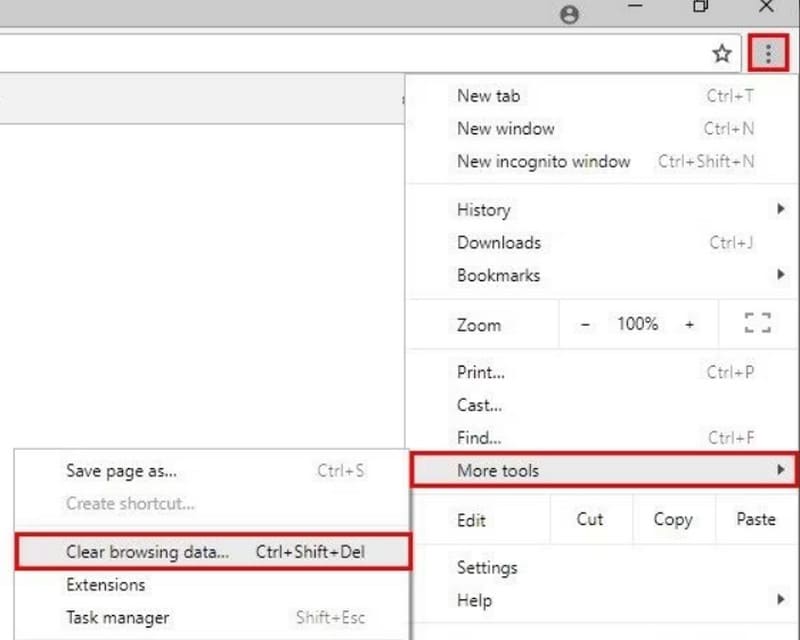
Paso 1. Abre tu navegador Chrome. Ve a la esquina superior derecha de la página web y haz clic en el icono de tres puntos, que representa Más.
Paso 2. Elige Más herramientas en la lista desplegable y haz clic en Borrar datos de navegación.
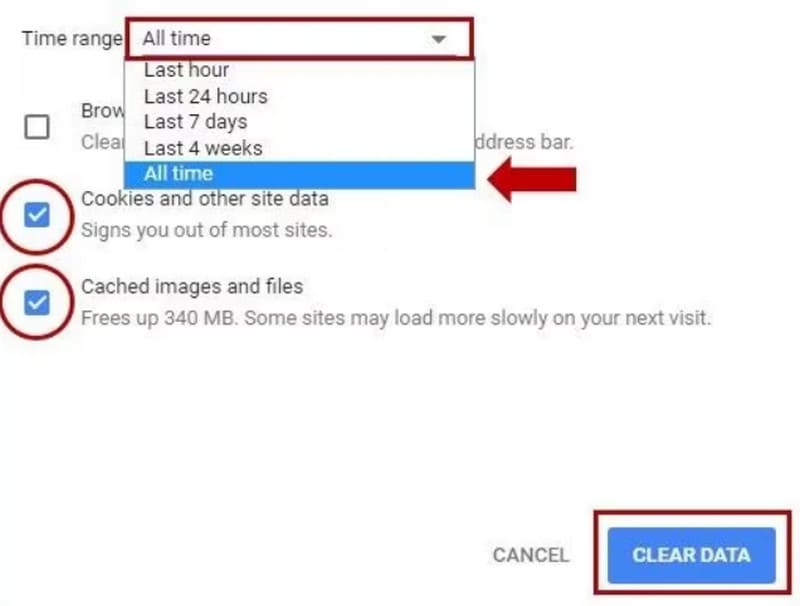
Paso 3. Aparecerá una nueva ventana emergente. Selecciona Intervalo de tiempo > Todos. Luego marca las casillas junto a Cookies y otros datos de sitios e Imágenes y archivos en caché.
Paso 4. Por último, haz clic en BORRAR DATOS.
Solución 3: Reiniciar la aplicación del navegador Chrome
A veces, tu navegador puede bloquearse repentinamente o mostrar errores inexplicables, al igual que tu computadora o celular. La solución más sencilla en este caso es reiniciar. Si ves que los videos de YouTube, HBO Max, TikTok o Amazon no se reproducen en Chrome, prueba a cerrar el navegador y reiniciarlo. Luego, vuelve a la página web que contiene el video que buscas.
Paso 1. Ve a la barra de direcciones en la parte superior de la página web.
Paso 2. Escribe chrome://restart en ella y pulsa Intro en el teclado. Puedes marcar esta dirección en favoritos para usarla cuando la necesites.

Parte 3. Preguntas frecuentes sobre videos que no se reproducen en Chrome
¿Por qué no se reproducen los videos en Chrome?
Las razones pueden ser muchas. Puede que la red a la que estás conectado sea inestable, que el vídeo actual esté dañado, que el formato de archivo no sea compatible con el reproductor de vídeo o que el navegador tenga demasiada caché. Puedes ir descartando estas posibilidades una por una para identificar cuál es la que realmente te impide ver el vídeo correctamente.
¿Por qué la transmisión en vivo no funciona en mi computadora portátil?
Supongamos que sigues experimentando lag al ver transmisiones en vivo. En ese caso, lo más probable es que la velocidad del wifi de tu dispositivo sea demasiado baja o inestable. Intenta cambiar la conexión de red.
¿Cuál es el mejor reproductor de vídeo para una Chromebook?
La mejor opción es, por supuesto, VLC Media Player. Aun así, también puedes probar más alternativas a VLC Media Player, como QuickTime Player, Windows Media Player, etc.
Conclusión
En esta publicación verás 4 opciones para ayudarte a resolver el problema de que los vídeos no se reproducen en Chrome. Entre ellas se incluyen habilitar Adobe Flash Player, borrar la caché del navegador y reiniciar el navegador. Si descubres que el problema está en el propio archivo de vídeo, deja que FVC Video Repair se encargue de arreglarlo todo por ti. Es fácil de usar y los resultados de la reparación son inmediatos.
-
 3 formas efectivas de realizar capturas de pantalla en Google Chrome [Guía]
 Descubra cómo tomar capturas de pantalla de sitios web rápidamente en Google Chrome con estos sencillos pasos. Ahorre tiempo y aumente la productividad con nuestra guía fácil de usar.
-
 Los 10 mejores reproductores HD para ver películas HD en Windows / Mac / iOS / Android
 Esta es su última revisión de reproductor de video HD. Puede obtener ventajas y desventajas imparciales de los 10 mejores reproductores de HD del mercado. Simplemente lea y elija su mejor reproductor HD compatible con todos los formatos.
-
 Remo Video Repair: Análisis completo (actualizado en 2025)
 ¿Busca herramientas de reparación de videos en línea? ¡Te tenemos! Obtenga una revisión en profundidad de Remo Video Repair y aprenda cómo puede reparar sus archivos de video corruptos de manera eficiente.
