


 Video Converter Ultimate
 Grabador de pantalla
 Reparación de vídeo
 Descarga segura
Copiar DVD con VLC: Cómo convertir DVD fácilmente con VLC [2024]
¿Seguro que ver películas en un reproductor de DVD formó parte de tu vida? Cuéntanos, ¿dónde viste tu primera caricatura o película de niño? Qué nostalgia, ¿verdad? Hoy en día, con Netflix dominando todas las plataformas de streaming, ver películas nunca ha sido tan fácil ni accesible. Por ello, muchos discos se olvidan, esperando a deteriorarse con el tiempo.
Ahora bien, si estás buscando una forma de guardar tus colecciones, la única manera de hacerlo es extrayendo el contenido de cada DVD con la ayuda de VLC. VLC es un reproductor multimedia gratuito que permite a los usuarios reproducir, convertir y reparar varios tipos de vídeos. Pero además de eso, esta herramienta puede ripear DVDs, extrayendo su contenido multimedia. Por ello, en este artículo hemos preparado una guía que puede ayudarte a ripear DVDs con VLC. Además, al final del artículo te espera una alternativa a VLC que puede ofrecer funciones más sencillas y avanzadas. ¿A qué estás esperando? Desplázate hacia abajo y sumérgete en este artículo.

Parte 1. Copiar DVD en VLC
VLC es un reproductor multimedia disponible para usuarios de Windows, macOS y Linux. Esta herramienta es ampliamente conocida por sus funciones adicionales, que permiten a los usuarios no solo reproducir diversos vídeos, sino también ripear DVD, haciéndolos más accesibles y reproducibles en diferentes dispositivos. Esta herramienta extrae el contenido del disco y lo convierte en un archivo de vídeo digitalizado que se puede almacenar o compartir fácilmente.
Precio: 100% gratis
Aquí tienes una guía paso a paso sobre cómo ripear DVDs con VLC:
Paso 1: Primero, tienes que descargar e instalar VLC en tu dispositivo. Después de eso, inserta el disco.
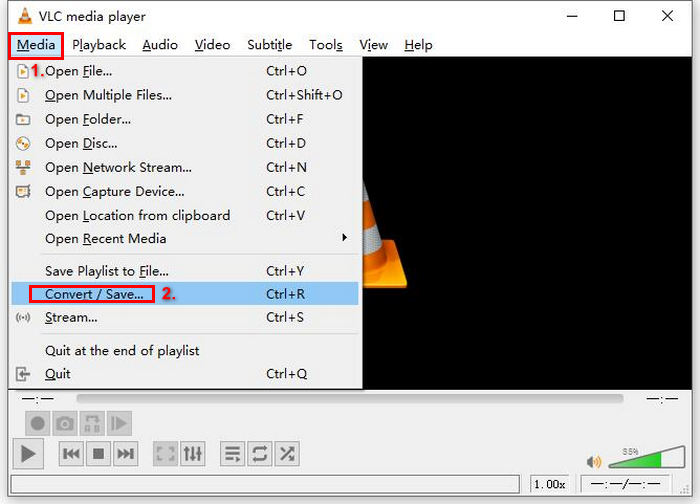
Paso 2: A continuación, ve a la pestaña Medio y selecciona la opción Convertir/ Guardar de la lista.
Paso 3: Después de eso, haz clic en Disco en la pestaña superior, activa la opción DVD y selecciona el DVD que quieres ripear en Dispositivo de disco.
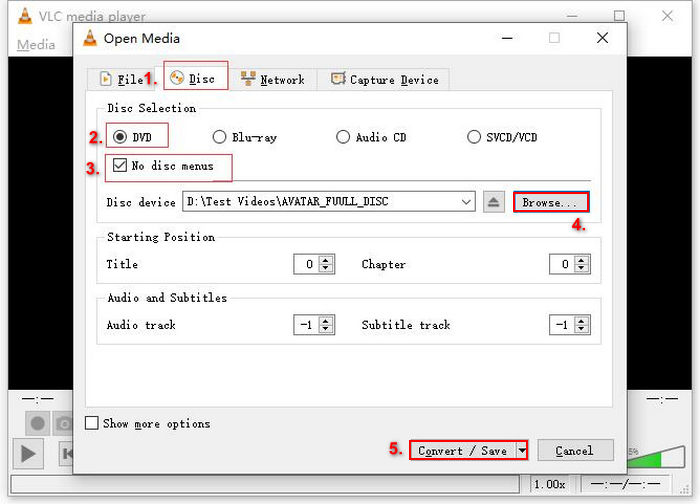
Paso 4: Ahora, haz clic en el botón Convertir/ Guardar y establece el formato de salida en MKV haciendo clic en el menú desplegable de perfil que aparece abajo.
Paso 5: Después de eso, en la sección Destino de abajo, haz clic en Examinar, selecciona una carpeta y ponle un nombre al archivo de salida.
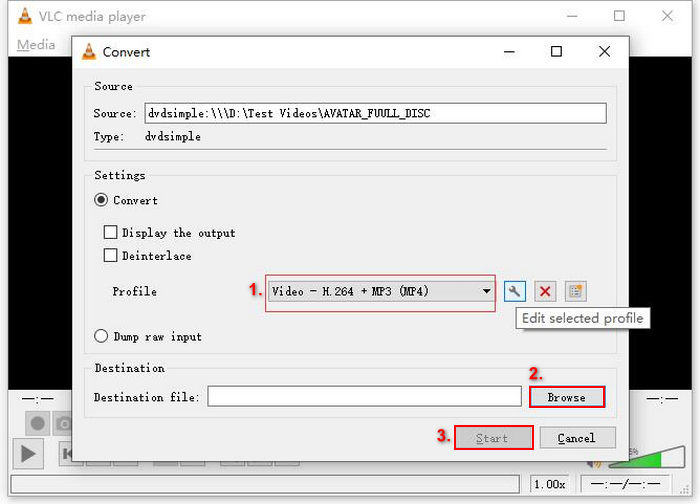
Paso 6: Cuando todo esté listo, haz clic en el botón Iniciar para ripear el DVD con VLC.
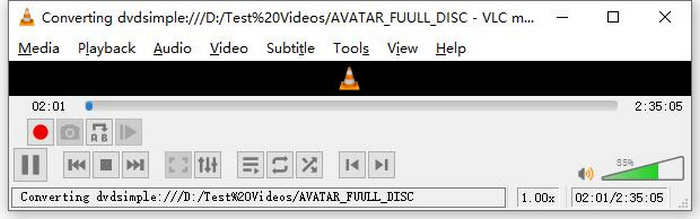
Nota: Puedes ver la barra de progreso de Conversión en la parte inferior. Simplemente espera a que VLC termine el ripeo.
Comentario:
Lo que nos encanta de VLC Media Player es su fiabilidad y versatilidad, especialmente para quienes buscan una opción gratuita para ripear DVD. Sin embargo, a pesar de esta característica, su interfaz puede resultar algo técnica para principiantes, y el proceso puede parecer largo en comparación con programas de ripeo de DVD más especializados. Además, puede tener problemas con algunos discos con protección anticopia, lo que limita su eficacia en esos casos. Aun así, se recomienda ripear DVD con VLC.
Parte 2. Alternativas al VLC DVD Ripper
Si buscas una herramienta alternativa para ripear DVD además de VLC, AnyMP4 DVD Ripper es la ideal. Esta alternativa a VLC DVD Ripper es una herramienta completa compatible con varios formatos de salida de vídeo populares, como MP4, MOV, AVI, MKV y más. Con ella, puedes convertir fácilmente DVD a formatos digitales para reproducirlos en varios dispositivos sin perder calidad. Su capacidad para ripear DVD es excepcional, ya que permite convertir cualquier DVD, como DVD caseros, comerciales, de entrenamiento y de 99 títulos.
Descarga gratuitaPara Windows 7 o posteriorDescarga segura
Descarga gratuitaPara macOS 10.7 o posteriorDescarga segura
Pasos sobre cómo copiar un DVD usando AnyMP4 DVD Ripper:
Paso 1: Primero, tienes que descargar e instalar la herramienta en tu dispositivo. Recuerda insertar el DVD en la unidad de DVD de tu ordenador y esperar unos minutos hasta que sea detectado.
Descarga gratuitaPara Windows 7 o posteriorDescarga segura
Descarga gratuitaPara macOS 10.7 o posteriorDescarga segura
Paso 2: Ahora, ejecuta la herramienta y haz clic en "Cargar DVD" para cargar el disco.
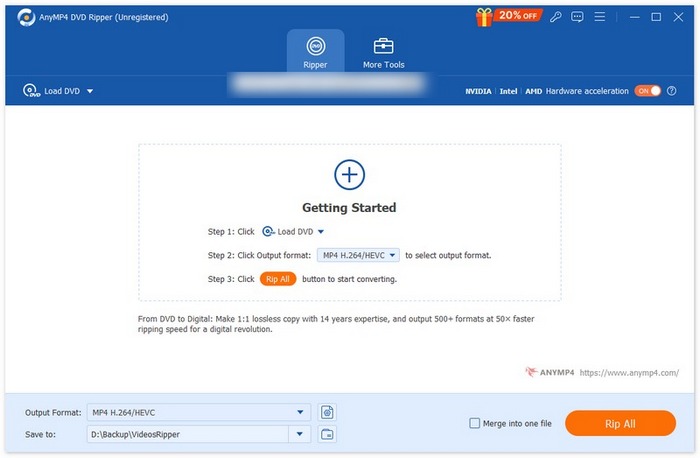
Paso 3: Después de eso, haz clic en "Formato de salida" abajo y elige el formato de vídeo que desees en la pestaña "Vídeo". Con este proceso, podrás convertir tu DVD en un formato de archivo de vídeo más accesible y compatible con varios dispositivos. Cuando termines, simplemente haz clic en el botón "Ripear todo" para empezar a ripear tu DVD.

Mucho más fácil, ¿verdad? AnyMP4 DVD Ripper es una excelente alternativa a VLC DVD Ripper. Gracias a su interfaz, proceso de extracción y otras funciones necesarias, esta herramienta es revolucionaria y mucho mejor que VLC para extraer DVD.
Parte 3. Preguntas frecuentes sobre la copia de DVD en VLC
¿Cuál es el mejor formato para copiar un DVD?
El mejor formato para copiar un DVD depende del dispositivo del usuario. Sin embargo, MP4 es un formato de vídeo muy utilizado. Por lo tanto, al copiar un DVD, el formato más seguro es MP4.
¿Puedo copiar un DVD en Windows 7?
Sí. Puedes copiar un DVD en Windows 7 con VLC Media Player. VLC es compatible con varios sistemas operativos, incluido Windows 7. Para copiar DVD en VLC, sigue el mismo proceso que en otras versiones de Windows. Asegúrate de que tu unidad de DVD funcione y que VLC esté actualizado para evitar problemas de compatibilidad.
¿Cuánto tiempo se tarda en copiar un DVD?
El tiempo que se tarda en ripear un DVD varía en función de varios factores. Es imprescindible tener en cuenta el tamaño del DVD, la velocidad de la unidad de DVD y los ajustes que elijas para el ripeo, por ejemplo, la resolución, el formato, etc. Pero, por lo general, ripear un DVD estándar puede llevar de 20 minutos a más de una hora. Las extracciones de mayor calidad y los archivos de mayor tamaño suelen tardar más en procesarse. Si quieres conocer la velocidad de reproducción de VLC, consulta aquí.
¿Puedo copiar DVD protegidos contra copia con VLC?
No. Es difícil para cualquier software copiar DVD protegidos contra copia debido al cifrado y a las protecciones de gestión de derechos digitales.
Conclusión
Ahora que ya sabes cómo ripear DVDs con VLC, no hay motivo para que sigas guardando todos tus DVDs para siempre. Solo tienes que seguir esta guía y podrás convertir todos tus discos en archivos digitales que podrás reproducir en cualquier lugar y en cualquier dispositivo que quieras. Mientras tanto, si VLC no funciona en tu caso, puedes probar AnyMP4 DVD Ripper como alternativa. ¿Estás preparado? Vamos a ello y empecemos a ripear.
-
 Cómo transmitir películas en DVD desde PC / Mac a TV a través de Chromecast
 ¿No sabes cómo ver películas en DVD en la televisión a través de Chromecast? Este artículo muestra la forma más sencilla de transmitir películas en DVD desde la PC al televisor a través de Chromecast.
-
 Reproductor de DVD de Android: cómo reproducir videos de DVD en dispositivos móviles con Android
 ¿Cómo reproducir archivos de DVD en móviles Android? ¿Hay reproductores de DVD de Android? En este artículo, aprenderá acerca de 3 formas de reproducir videos en DVD en móviles Android con o sin el controlador externo.
-
 Las 3 mejores alternativas al reproductor DVDFab para reproducir videos en DVD en PC
 ¿Vale la pena comprar DVDFab Player? ¿Puede reproducir videos 4K? ¿Qué tal su versión de pago? Este artículo presentará sus características en detalle y hay las 3 mejores alternativas a DVDFab Player para que elijas.
