


 Video Converter Ultimate
 Grabador de pantalla
 Reparación de vídeo
 Descarga segura
Cómo grabar en PS4 por defecto y las mejores alternativas
La PS4, o PlayStation 4, ha estado impresionando a muchos jugadores con su enorme potencia y gran rendimiento desde que salió por primera vez. Incluso hoy en día, sigue formando parte importante de la vida de muchos gamers gracias a su amplio catálogo de juegos y a su capacidad para hacer mucho más que solo jugar. Ahora bien, cuando estás disfrutando de tus juegos favoritos en PS4, es totalmente normal que quieras capturar esos momentos épicos para compartirlos con los demás, ¿verdad? Sea cual sea tu motivo, saber cómo grabar en PS4 es bastante importante. ¡Por eso estamos aquí para ayudarte!
En esta publicación, desglosaremos los pasos que debes seguir para grabar tu juego en tu consola favorita utilizando el modo predeterminado, junto con las mejores alternativas que puedes usar. Así que presta atención y sigue atentamente las instrucciones para asegurarte de hacerlo bien.

Parte 1. Cómo grabar la pantalla de PS4 con calidad total sin límites además del modo predeterminado
Como la PS4 tiene una limitación de tiempo, vayamos primero a la mejor alternativa. Así que, ya que estás buscando grabar tus sesiones de juego en tu consola, FVC Screen Recorder es tu opción de confianza. Es un software de escritorio centrado en la captura de gameplays, además de pantallas, vídeos, sonidos, móviles y más. Con compatibilidad para grabación sin pérdida a 60 fotogramas por segundo, puedes capturar tus partidas con fluidez y alta calidad. Además, es especialmente útil para quienes necesitan grabar gameplays sin límite de tiempo. Asimismo, este FVC Screen Recorder ofrece opciones de edición y de compartir tus clips grabados en varias plataformas como YouTube, Twitter, Facebook, Instagram y más.
Lo más interesante es que ofrece preferencias que te permiten personalizar tus grabaciones para que se adapten a tus necesidades. Por lo tanto, ya sea que se trate de ajustar la configuración de salida, limpiar tu voz en off con cancelación de ruido o incorporar tu cámara web en un modo de imagen en imagen, ¡esta herramienta te tiene cubierto! Además, con funciones como captura de pantalla, uso compartido rápido en sitios web populares y mejora, este grabador de pantalla sigue siendo una herramienta versátil para los jugadores. Por lo tanto, aquí te mostramos cómo grabar una pantalla de PS4 sin limitaciones de tiempo.
Paso 1. Primero, debes descargar en tu ordenador la versión adecuada del grabador de juegos y abrirlo. Antes de comenzar a grabar, asegúrate de que tu PS4 esté conectada al mismo ordenador mediante la función de juego remoto por screencast.
Descarga gratuitaPara Windows 7 o posteriorDescarga segura
Descarga gratuitaPara macOS 10.7 o posteriorDescarga segura
Paso 2. Cuando se abra el software de grabación, verás varias opciones. Pero para esta tarea, haz clic en la herramienta Game Recorder. Ahora, elige la ventana donde se muestra tu PS4 cuando pulses el botón de flecha en el primer cuadro de selección. Luego, configura libremente el resto de los ajustes según tus preferencias.
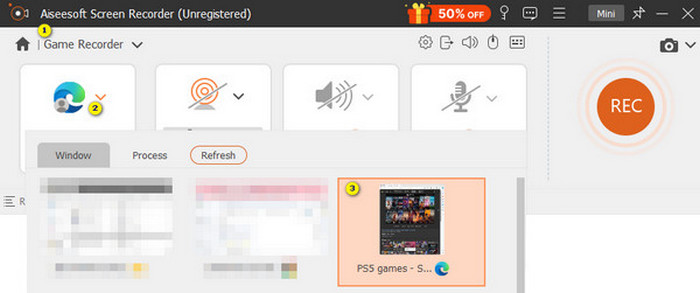
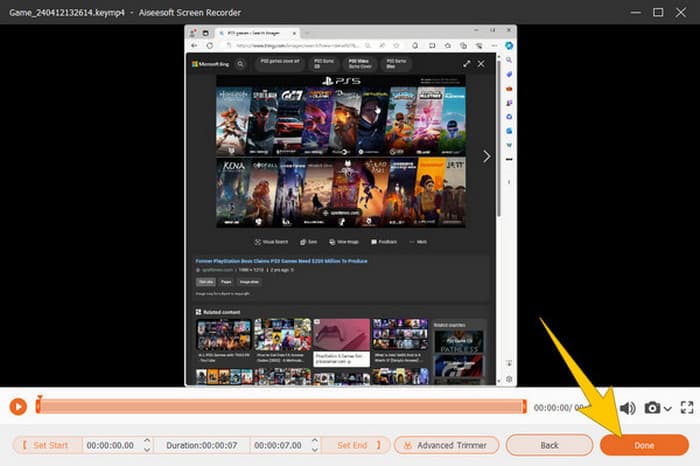
Paso 3. Tras la configuración, haz clic en el botón REC para empezar a grabar. Cuando termines de grabar, pulsa el botón Detener. Al finalizar, el software te llevará a una ventana donde podrás hacer algunos ajustes en tu grabación. Si quieres, puedes recortar, hacer una captura de imagen y ajustar el volumen. Después, haz clic en el botón Listo para proceder a guardar el resultado.
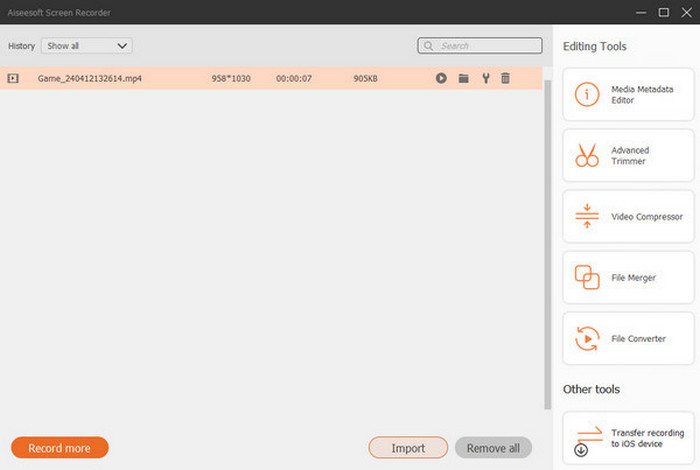
Paso 4. Cuando el vídeo se haya guardado, aparecerá una nueva ventana. Puedes probar a hacer clic con el botón derecho en tu partida grabada y elegir alguna configuración avanzada que quieras aplicar. Además, si lo deseas, puedes compartirla en la plataforma que prefieras. Así es como grabar la pantalla de una PS4 sin ningún tipo de límite.
Parte 2. Cómo grabar en PS4 de forma predeterminada
Además del grabador de juegos de terceros, también cuentas con un grabador integrado en la PS4. Ahora, veamos los pasos para usar el grabador incorporado de PS4.
Paso 1. Empieza encendiendo tu PS4 y seleccionando el juego que quieras capturar. Después, entra en el juego que hayas elegido y empieza a jugar. Cuando estés listo para iniciar la grabación, simplemente pulsa dos veces seguidas el botón Share de tu mando.
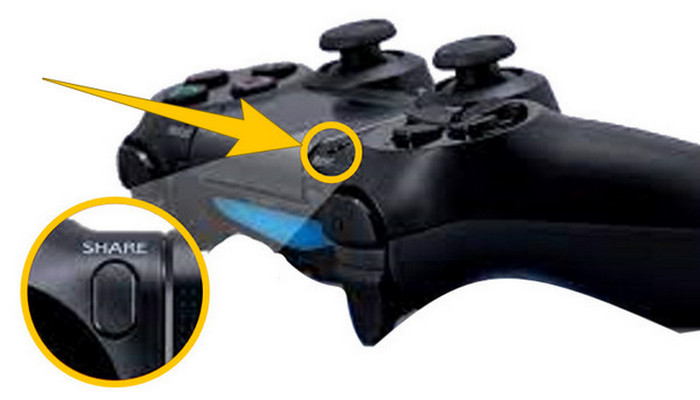
Paso 2. Verás una notificación indicando que la grabación ha comenzado. Pero ¿cómo se detiene la grabación de la partida en PS4 cuando terminas? Para hacerlo, solo tienes que mantener pulsado el botón Share durante unos segundos.
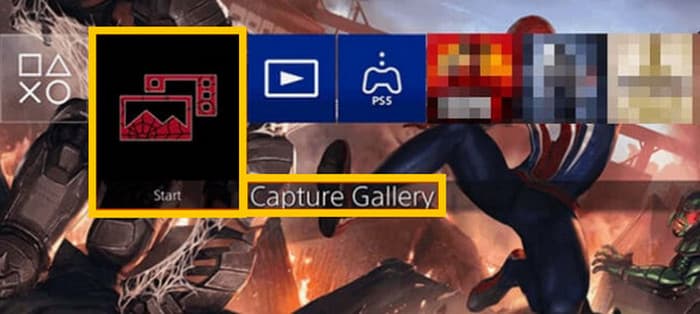
Paso 3. Después, revisa tu grabación accediendo al Menú principal y seleccionando la Galería de capturas entre las opciones disponibles.
Parte 3. Cómo grabar partidas en PS4 con una tarjeta de captura
Otra alternativa popular a la grabadora predeterminada de PS4 es el uso de una tarjeta de captura. ¡Por supuesto! Una tarjeta de captura te ayudará a conectar tu PS4 a otros dispositivos y te permitirá grabar todo lo que se guarde en tu PS4. Si no lo sabías, sigue leyendo y sigue las instrucciones que te damos a continuación.
Paso 1. Conecta la tarjeta de captura a tu PS4, a tu ordenador y a tu monitor de televisión mediante HDMI. Luego, asegúrate de que tu ordenador tenga instalado OBS para que la grabación funcione.

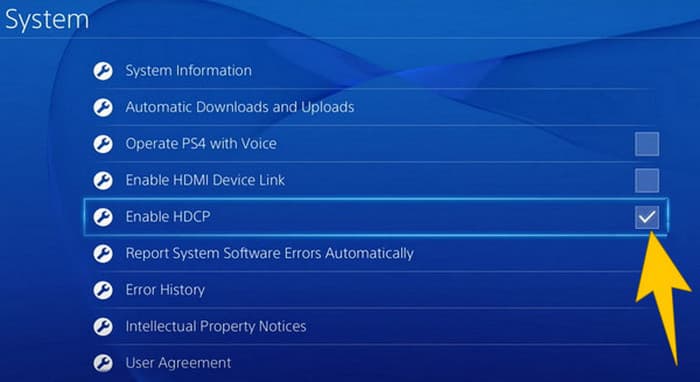
Paso 2. Ahora, configura tu PS4 yendo a Ajustes y seleccionando Sistema, luego Información del sistema. Desde ahí, marca la opción Activar HDCP.
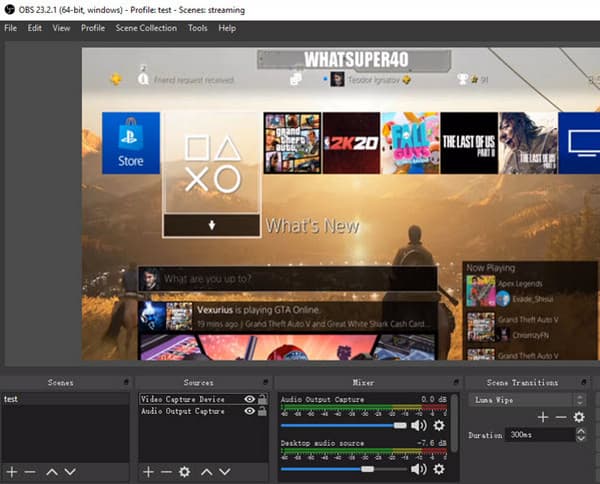
Paso 3. Inicia OBS y ve a Fuente > Más > Dispositivo de captura de vídeo, y después haz clic en el botón OK. Ahora puedes hacer clic en el botón Iniciar grabación y empezar a jugar para registrar tu partida. Para terminar la grabación, haz clic en el botón Detener grabación cuando quieras.
Parte 4. Preguntas frecuentes sobre la grabación en PS4
¿Cómo detener la grabación de juegos en PS4?
Para detener la grabación del juego con la grabadora predeterminada de tu PS4, solo tienes que mantener presionado el botón Compartir. Después de presionar este botón, verás la opción Detener grabación en tu pantalla. Haz clic en ella para aplicarla.
¿Necesito un software especial para utilizar una tarjeta de captura en mi PS4?
Sí. Básicamente, necesitarás un software específico como OBS para hacer que la tarjeta de captura funcione con tu PS4. Además de eso, también necesitarás dispositivos de visualización y conectores, como cables HDMI y USB, para poder realizar correctamente la grabación de pantalla usando una tarjeta de captura.
¿Cuáles son las limitaciones para grabar en PS4 con la grabadora incorporada?
Es cierto que la función de grabación integrada en PS4 tiene limitaciones en la grabación. Las limitaciones más comunes están en la duración y la calidad de la partida grabada.
Conclusión
Estas son las indicaciones sobre cómo grabar en PS4. Puedes grabar usando el método integrado de la consola, una tarjeta de captura y software especializado pensado para la grabación de pantalla. Pero no conviene que pases por alto las limitaciones del grabador incorporado, que te impiden capturar grabaciones largas y de gran calidad. Del mismo modo, las tarjetas de captura también pueden tener limitaciones según el hardware y la capacidad de almacenamiento de tu ordenador. Por lo tanto, si no quieres que estas limitaciones te afecten, apuesta por FVC Screen Recorder como tu mejor opción.
-
 Cómo grabar acrobacias épicas, embragues o tutoriales en Minecraft
 ¿Quieres saber cómo grabar tus acrobacias en Minecraft? Entonces lea este artículo que proporcionamos.
-
 Cómo grabar en PS5 de dos formas fantásticas y sin límites
 Este artículo te mostrará las mejores formas de aprender a grabar partidas en PS5. ¡En esta guía encontrarás formas predeterminadas e ilimitadas! ¡Así que léela ahora!
-
 Guía detallada sobre cómo reproducir archivos MKV en PS4 [Actualizado 2024]
 Al leer este artículo, aprenderá algunas formas sobre cómo reproducir MKV en PS4 y cómo convertir el archivo de video en caso de que el video no se reproduzca.
