


 Video Converter Ultimate
 Grabador de pantalla
 Reparación de vídeo
 Descarga segura
Cómo grabar partidas en PS5 sin límite [Guía completa]
En tan solo tres años, la PlayStation 5 ha volado de las estanterías. Ha superado los 50 millones de unidades vendidas desde su lanzamiento, ya que es un hardware impresionante y una consola que ofrece juegos en 4K. Ahora bien, si tienes ganas de mostrar tus habilidades de juego o compartir tus momentos épicos con tus seguidores, grabar en una PlayStation 5 es una gran opción. Si te preguntas cómo grabar en PS5, la consola incluye una práctica función que puedes usar para capturar, retocar y compartir tus aventuras de juego en varias plataformas. Pero ¿cómo se hace exactamente todo esto? Quédate para descubrir cómo grabar y hacer capturas de pantalla en tu PS5, e incluso cómo hacerlo usando una técnica de grabación sin límites.

Parte 1. Cómo grabar partidas en PS5
Seguramente, la PS5 viene con una grabadora incorporada que te ayudará a grabar tus impresionantes partidas. Sin embargo, vale la pena tomar nota de que la grabadora de tu consola tiene limitaciones y efectividad. En lo que respecta a la eficacia, es seguro decir que es muy eficaz para producir videos grabados de alta calidad. Por otro lado, en lo que respecta a sus limitaciones, debes tener en cuenta que esta consola solo te permite grabar un máximo de 60 minutos de tiempo de juego. Aparte de eso, solo te permitirá producir videos en MP4 y WebM como sus formatos de salida compatibles.
Mientras tanto, para la pregunta de cómo grabar la pantalla en la grabadora de juegos incorporada de PS5, permita que los pasos a continuación le brinden respuestas.
Grabar una partida
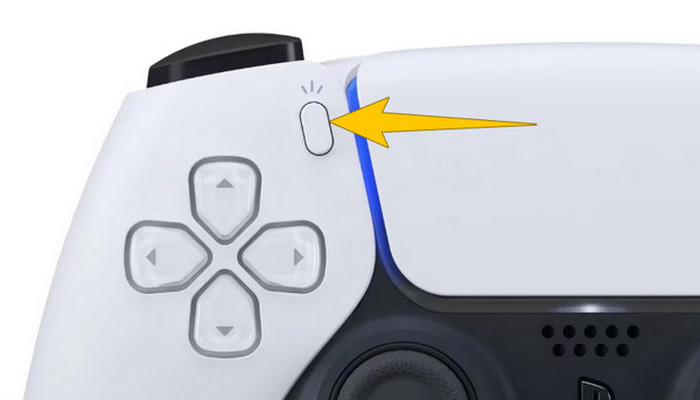
Paso 1. Coge tu mando DualSense y pulsa el botón que está encima de los botones de flecha. Este corresponde a la función Create y puede pulsarse cuando estés a punto de grabar tu partida.
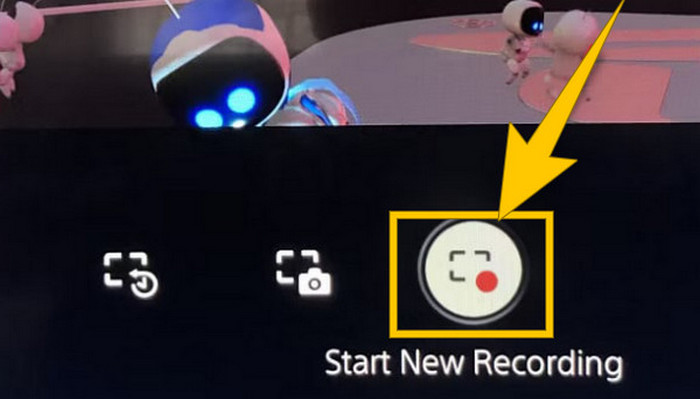
Paso 2. Después de pulsar el botón, mira la pantalla y haz clic en la opción Start New Recording. Verás esta opción en la parte inferior. Inmediatamente empezará la grabación, así que ya puedes iniciar tu partida.
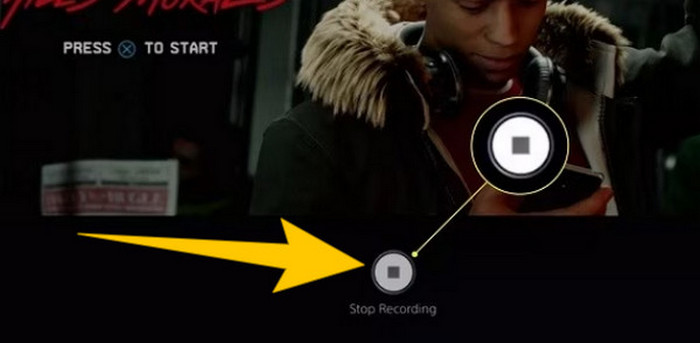
Paso 3. Supongamos que ya has terminado tu partida, así es como se detiene la grabación de juego en PS5. Solo tienes que pulsar de nuevo el botón Create y, esta vez, hacer clic en Stop Recording, que verás en la pantalla.
Descargar las grabaciones
Después de grabar, PS5 guardará automáticamente el resultado en tu galería multimedia, donde se guardan todos los archivos. Ahora bien, si quieres conservar una copia para tu dispositivo independiente, es lamentable informarte que dicha galería no tiene la opción de descarga. Sin embargo, todavía hay una forma de conservar los archivos.
Paso 1. Conecta tu tarjeta SD externa o unidad USB a la consola. Luego, ve a tu Galería de contenido y ábrela.
Paso 2. Selecciona la grabación de pantalla que guardaste recientemente. Después, haz clic en el botón Ellypsis o el icono de tres puntos en la parte inferior de la pantalla, junto con las demás opciones disponibles.
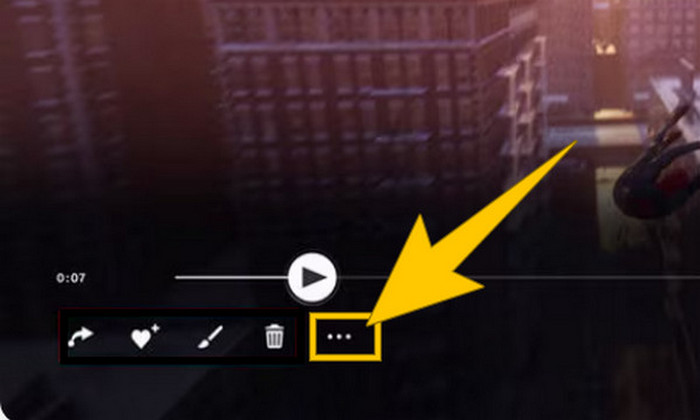
Paso 3. Una vez hecho clic, selecciona la opción Copiar a unidad USB para empezar a copiar el vídeo grabado a tu USB. Cuando termine, transfiere el vídeo al dispositivo en el que quieras conservar el archivo grabado.
Parte 2. Cómo grabar la pantalla de PS5 en calidad 4K sin límites
No te preocupes si PlayStation 5 solo te permite capturar hasta una hora de juego con buena calidad. Sabemos lo frustrante que es para muchos jugadores, y no todos los juegos admiten esta función. Así que, para grabar sin límite y con calidad 4K en todos los juegos de PS5, quizá quieras echar un vistazo a FVC Screen Recorder. Efectivamente, este grabador de pantalla no limita el tiempo de grabación, solo el espacio de almacenamiento de tu ordenador. Además, no ralentizará tu partida. Con este magnífico grabador de juegos también podrás retocar tus grabaciones antes de guardarlas. De hecho, puedes recortar, unir, comprimir, convertir, editar metadatos, mejorar la grabación y compartirla fácilmente en las plataformas que elijas.
También vale la pena señalar que FVC Screen Recorder ofrece varias herramientas de grabación para cumplir con sus tareas de grabación. Con él, puede grabar videos, audio, ventanas, cámaras web, teléfonos, etc. ¡Sorprendentemente, puede disfrutar de sus grabaciones sin marcas de agua incrustadas en ellas! Entonces, para obtener más información sobre FVC Screen Recorder, siga los pasos a continuación para ver cómo grabar la pantalla en PS5.
Paso 1. Consigue FVC Screen Recorder descargándolo en tu ordenador. Para ello, solo tienes que hacer clic en el botón Descarga gratuita y luego seguir las instrucciones para instalarlo y abrirlo.
Descarga gratuitaPara Windows 7 o posteriorDescarga segura
Descarga gratuitaPara macOS 10.7 o posteriorDescarga segura
Paso 2. Cuando llegues a la interfaz de FVC, busca y haz clic en la herramienta Game Recorder. Se encuentra en la parte central derecha de la pantalla. Desde ahí, haz clic en la pequeña flecha junto a Select the Game para elegir la ventana en la que se está mostrando tu PS5.
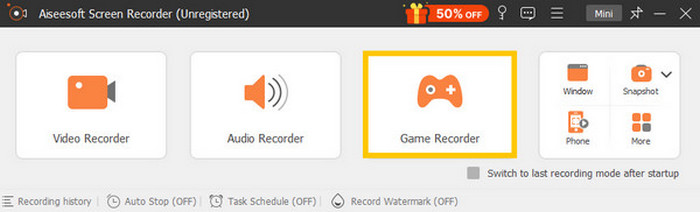
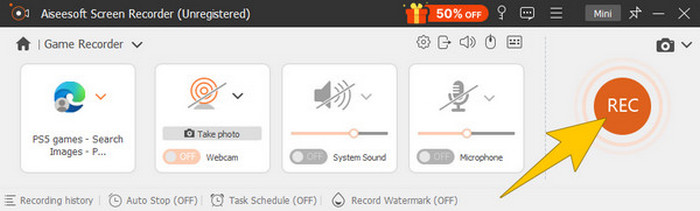
Paso 3. Una vez que hayas seleccionado la ventana, notarás que el grabador se centrará en ella. Además, puedes decidir si quieres incluir tu cámara web para una grabación con imagen incrustada, el sonido del sistema y el audio del micrófono en tu grabación. Cuando todo esté configurado, haz clic en el botón REC para comenzar el juego y la grabación.
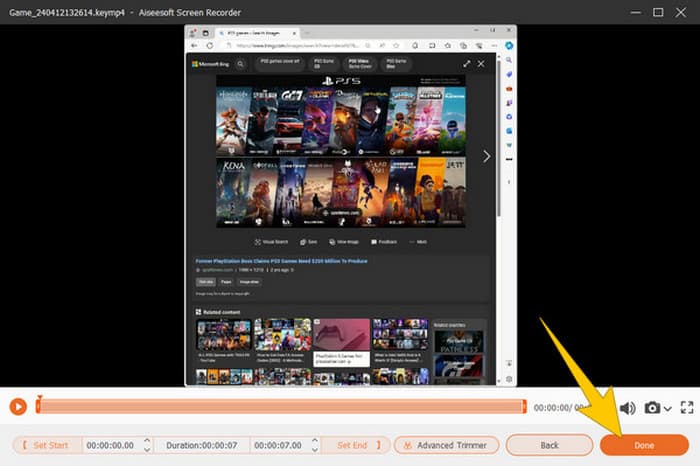
Paso 4. Cuando termines de grabar, haz clic en el botón Stop de la barra flotante. A continuación, podrás retocar el vídeo con las herramientas de edición disponibles en la nueva ventana. Después, haz clic en el botón Done para guardar el archivo grabado en tu galería.
Paso 5. Este paso es opcional. Pero si quieres compartir tu grabación en tus redes sociales, puedes hacer clic derecho en tu grabación de juego más reciente y luego seleccionar la opción Compartir. Además, puedes usar herramientas de edición avanzadas adicionales para mejorar tus grabaciones.
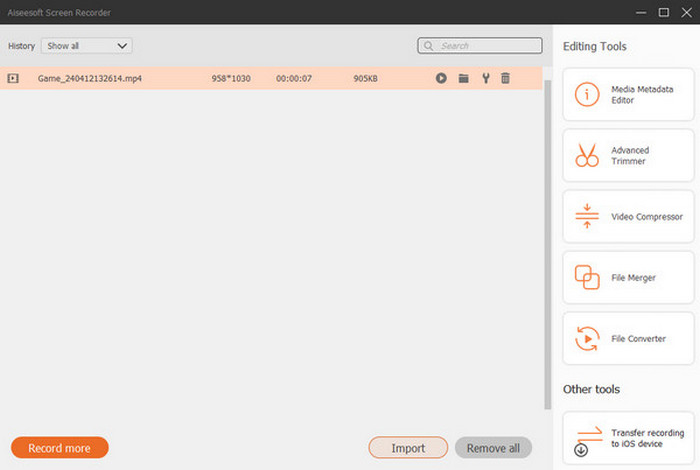
Si quieres saber más sobre esta grabadora, aquí tienes más consejos para aprender.
Lecturas recomendadas
5 formas eficaces de grabar la pantalla en GIF en Mac y Windows
Cómo grabar acrobacias épicas, clutches o tutoriales en Minecraft
Parte 3. Preguntas frecuentes sobre la grabación de partidas en PS5
¿Cómo desactivar la grabación de juegos en PS5?
Para apagar o detener la grabación de partidas en tu PS5, solo tienes que pulsar el botón Crear desde tu mando de juego. Luego, en tu pantalla, haz clic en la opción Detener grabación.
¿Dónde puedo ver mis clips de juego grabados en mi PS5?
Los clips de juego grabados se almacenan en la sección Capturas de la Galería principal. Puedes acceder a esta galería desde la pantalla de inicio. Con ella, puedes ver, editar y compartir tus clips como te lo permita tu galería.
¿Cómo compartiré mis grabaciones en PS5?
Puedes compartir tus clips después de grabarlos en tu PS5 directamente desde la Galería de capturas. Solo tienes que seleccionar el clip que quieres compartir, hacer clic en el botón Opciones de tu mando y seleccionar la opción Compartir.
Conclusión
Ya no tendrás que preguntar cómo grabar en PS5, ya que este artículo te ha mostrado los métodos predeterminados y los mejores. Así podrás disfrutar de grabaciones de partidas largas y de calidad, según prefieras. Luego, comparte estas soluciones con tus compañeros de juego para que ellos también tengan la misma emocionante experiencia de grabación en sus PS5.
-
 5 de los principales programas de grabación de juegos que todo jugador debe conocer [2024]
 ¿Eres un jugador que quiere hacer una grabación del juego? Entonces, este artículo le brindará la mejor grabadora de juegos que puede usar para experimentar nuevas alturas de juego.
-
 Las 5 mejores aplicaciones de grabación de pantalla de Android que debes adquirir en 2024
 ¿Tiene problemas porque no puede hacer una grabación de pantalla en su Android? Si es así, este artículo revisó las grabadoras de pantalla de Android que puede descargar.
-
 Los 5 mejores grabadores de reuniones de Zoom para grabar reuniones en Zoom [2024]
 ¿Necesita grabar una reunión de zoom para no perderse los detalles importantes de su reunión? Si es así, este artículo proporciona las mejores grabadoras de zoom que debe conocer.
