


 Video Converter Ultimate
 Grabador de pantalla
 Reparación de vídeo
 Descarga segura
Manera simplificada de grabar Blu-ray en OBS Studio y otras posibles herramientas
El disco Blu-ray almacena la máxima calidad que se puede guardar en un disco. Puede guardar un vídeo de hasta 1080 píxeles. Al igual que en el audio, produce un sonido nítido como el cristal en comparación con los CD. Y además, no hay que preocuparse por almacenar archivos de gran tamaño en un Blu-ray porque tiene mucho espacio. A medida que avanzamos, OBS Studio es un programa de código abierto, gratuito y descargable. Es compatible con plataformas como Windows, macOS y Linux. Además, es perfecto para grabar audio y vídeo en la pantalla de tu ordenador. A algunos usuarios les resulta complicado grabar Blu-ray en un estudio. Así que mantente atento y lee el artículo para saber cómo grabar películas de Blu-ray con OBS y qué grabador profesional deberías usar para obtener un vídeo de salida de alta calidad.

Parte 1. Cómo grabar películas en Blu-ray con OBS Studio
Conocido por ser una poderosa herramienta sin transmisión, OBS Studio recibe actualizaciones periódicas debido a sus patrocinadores influyentes Youtube, Twitch, Facebook, API.video, own3d.pro y muchas otras plataformas. No hay necesidad de preocuparse por la transmisión debido a estas plataformas principales. Por otro lado, construye su nombre como la herramienta más compleja para grabar y menos guía. Pero si desea una transmisión simple, no es necesario sumergirse en configuraciones complicadas. Además, convierta lo difícil en manejable leyendo este artículo para conocer los pasos y detalles sobre OBS Studio.
A continuación, se muestran algunos pasos sobre cómo utilizar OBS Studio:
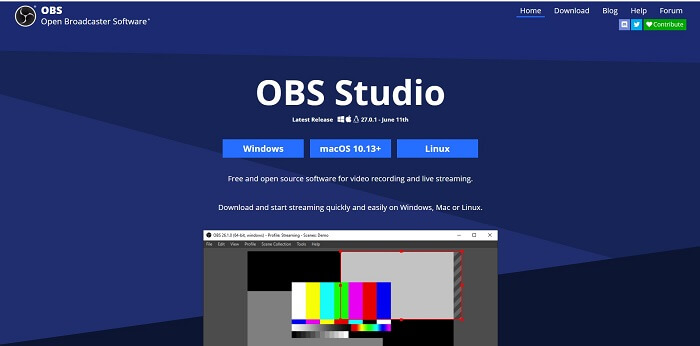
Paso 1. Ve a tu navegador. Luego elige qué sistema operativo estás utilizando actualmente, descárgalo, configúralo, instálalo y haz clic en Finalizar para iniciar la herramienta.
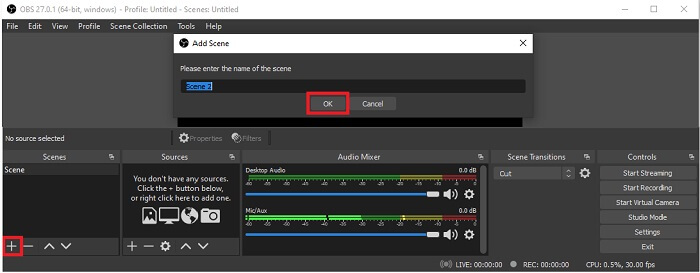
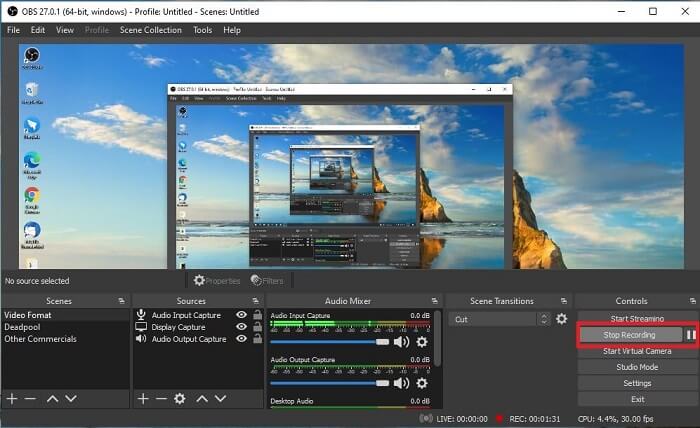
Paso 2. Ve al panel de Escenas, haz clic en el icono Añadir para añadir una escena y luego ponle un nombre. Haz clic en OK para continuar.
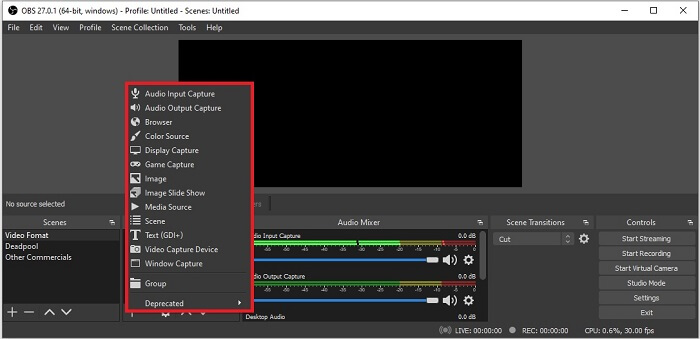
Paso 3. Continúa en el panel de fuentes. Haz clic en el icono Más y aparecerán diferentes opciones. Aquí tienes algunas opciones básicas que se enumeran aquí. Audio Input Capture para grabar tu voz con el micrófono. Después, Audio Output Capture para grabar el sonido que sale de tu sistema. Y Display Capture para grabar toda la pantalla. Por último, Game Capture para grabar tus montajes de juego. Haz clic en OK para guardar. Una vez que hayas reunido todas las fuentes necesarias, ajusta el volumen en la pestaña Audio Mixer.
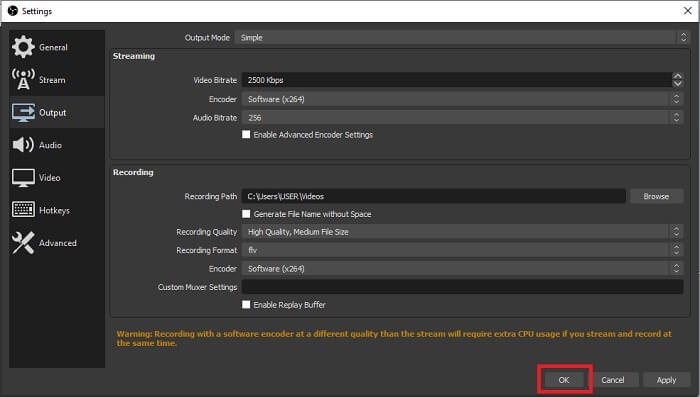
Paso 4. Haz clic en el botón Settings bajo el Control Panel en la parte inferior derecha de la interfaz. Ve a la pestaña Output, establece el formato y ajusta las opciones según tus necesidades. Configura las demás opciones y haz clic en OK para guardar.
Paso 5. Haz clic en el botón Start Recording y comienza a grabar. Del mismo modo, cuando la grabación haya terminado haz clic en la parte inferior derecha donde hiciste clic para iniciar la grabación. Puedes comprobar la grabación en el explorador de archivos.
Pros
- Es adecuado para grabar cualquier video y transmisión en vivo.
- No le ofrece una prueba gratuita. Porque es gratis.
- Ofrece muchas opciones para elegir.
Contras
- No es la mejor opción para un principiante porque hay mucho que configurar.
- No admite la edición de video, por lo que deberá instalar otra herramienta para editar. Y la herramienta en sí tiene 85,6 MB, que es el almacenamiento más grande que tiene una grabadora de pantalla.
Parte 2. Método en línea para capturar Blu-rays con OBS Alternative
De hecho, el estudio OBS es una buena opción para grabar y transmitir. Pero la herramienta tiene mucho en su interfaz, por lo que es una molestia para el nuevo usuario grabar. Aquí hay una herramienta en línea alternativa que puede utilizar.
Grabador de pantalla gratuito FVC (herramienta en línea)
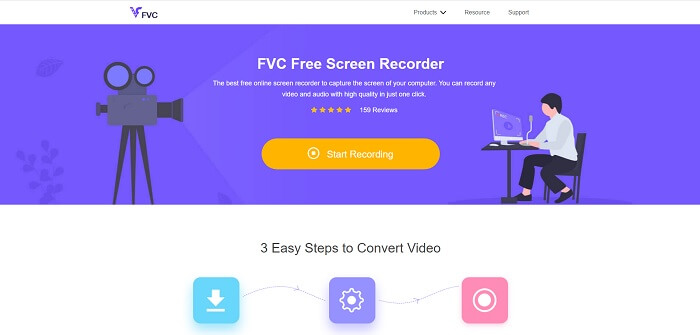
Una herramienta gratuita en línea que supone menos complicaciones para el usuario es el FVC Free Screen Recorder. Funciona igual que grabar Blu-ray con OBS Studio, pero es más fácil de usar gracias a su manejable barra de herramientas flotante. Esta herramienta detallada y precisa te ayuda a grabar cualquier tipo de plataforma de vídeo y audio disponible, con sonido claro y salida de vídeo en alta definición que puedes guardar en Blu-ray. En lugar de descargar un archivo grande para usarlo solo una vez, ¿por qué no pruebas esta herramienta en línea? Ahora hagamos un recorrido por cómo funciona esta herramienta. Aquí tienes algunos pasos sobre cómo usarla en línea.
Paso 1. Abre tu navegador y visita https://www.free-videoconverter.net/free-screen-recorder/. Luego haz clic en el botón Start Recording para iniciar la herramienta en línea. Una barra flotante aparecerá en tu pantalla después de iniciar la herramienta.
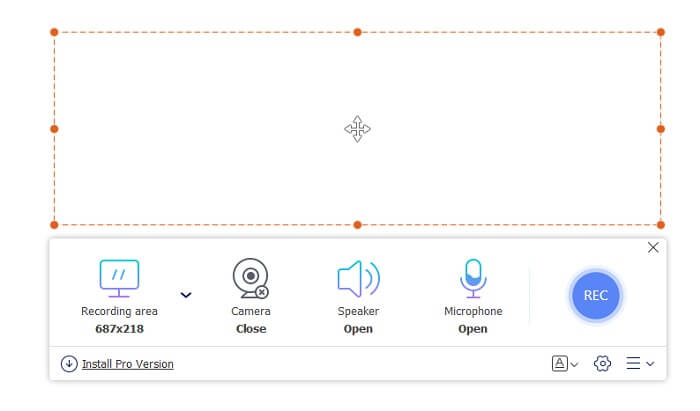
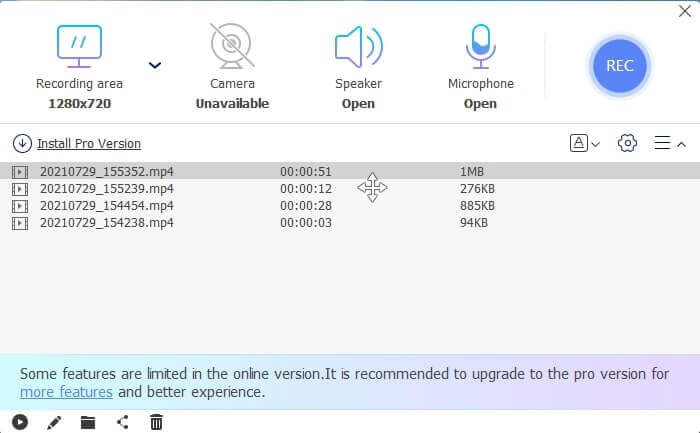
Paso 2. En la barra de herramientas flotante, hay 4 paneles diferentes entre los que puedes elegir. Puedes ajustar el tamaño del marco o hacer clic en pantalla completa. Después, haz clic en el icono de Speaker en el volumen del sistema. También puedes añadir tu voz y tu cara si haces clic para activar el Microphone y la Webcam. Pero si no tienes intención de añadirlos, puedes hacer clic de nuevo para desactivarlos. Luego haz clic en el botón redondo REC para empezar a grabar.
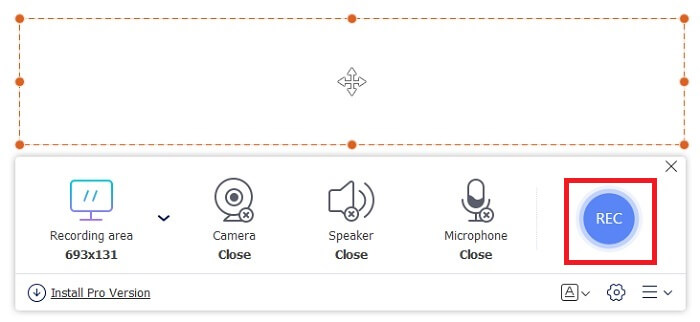
Paso 3. Cuando la grabación haya terminado, haz clic en el botón cuadrado para detenerla. Todas las grabaciones que captures se enumeran en el history dropdown. Haz clic en el primer vídeo grabado, ya que es el más reciente.
Pros
- Fuente gratuita abierta en línea. Sin descargas, por lo que no hay problemas.
- La mejor grabadora de pantalla para servicios en línea compatible con todas las plataformas.
- Fácil de usar debido a su instrucción puntual de la herramienta.
Contras
- Necesita una conexión a Internet para que funcione la herramienta.
- Las funciones premium no se admiten de forma gratuita.
Parte 3. El mejor reemplazo de OBS para grabar películas en Blu-ray
Otro mejor registro de Blu-ray en OBS Studio es este grabador de pantalla FVC. Si desea grabar en línea y fuera de línea y disponible para todas las plataformas, esto es para usted.
Grabador de pantalla FVC
A diferencia de OBS Studio, esta herramienta es fácil de usar con una barra de herramientas manejable. FVC Screen Recorder es una de las mejores alternativas para grabar. Incluye características como OBS que son más precisas y fáciles de entender. Por ejemplo, grabe la pantalla, la cámara web, el audio y el sonido del sistema, y muchos más. Esta herramienta también tiene su función de bloqueo que la obs no tiene. Excepto que esta herramienta es de pago. Además, si hace uso de esta grabadora de pantalla, entonces toma la decisión correcta.
Siga los pasos a continuación sobre cómo utilizar esta herramienta en toda su extensión.
Paso 1. Haz clic en el botón de descarga para instalar el software, luego configura tus preferencias deseadas y haz clic en Finalizar para continuar. Entonces la herramienta se iniciará.
Descarga gratuitaPara Windows 7 o posteriorDescarga segura
Descarga gratuitaPara macOS 10.7 o posteriorDescarga segura
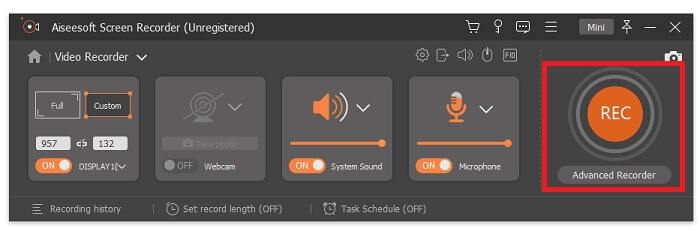
Paso 2. Haz clic en Video Recorder. Entonces aparecerán 4 paneles diferentes. En el primer panel, puedes ajustar el tamaño del marco para cambiar la relación de aspecto o hacer clic en Full para grabar toda la pantalla. El segundo panel, Webcam, está pensado para grabar tu rostro mientras grabas la pantalla. El siguiente panel es System Sound para grabar el audio del sistema. Por último, un microphone para introducir tu voz en el vídeo. Haz clic en el botón con forma de disco para empezar a grabar.
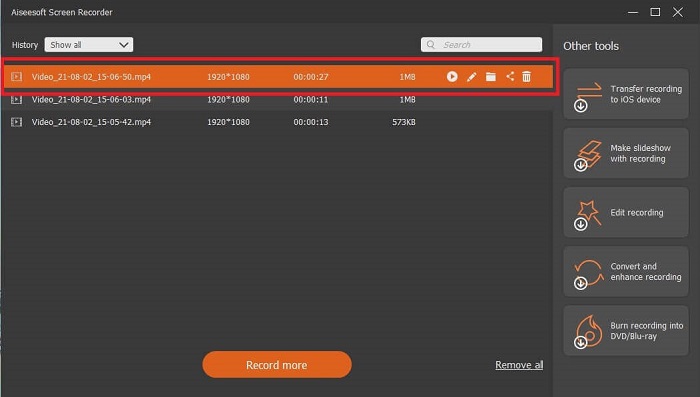
Paso 3. Si la grabación de vídeo ha terminado, haz clic en el botón cuadrado para detenerla. Haz clic en el botón Play para reproducir el vídeo grabado.
Pros
- Tiene esta característica única de lo que llamamos pantalla de bloqueo para evitar molestias durante la grabación.
- Puede grabar durante 24 horas sin ninguna disfunción de audio y video.
- Almacenamiento y fácil de usar debido a su formato de datos comprimidos y fácil de ejecutar la información.
Contras
- Para adquirirlo hay que pagarlo ya sea un mes, un año o de por vida.
- Necesita ser descargado del sitio web para usarlo.
Otras lecturas
1. Grabar vídeo de pantalla con VLC Media Player
2. Grabar la pantalla con audio en Mac usando QuickTime
Parte 4. Preguntas frecuentes sobre la grabación de Blu-ray en OBS Studio
¿Cuál es la diferencia entre Blu-ray, DVD y CD?
La principal diferencia entre cada formato de disco óptico es la salida y el almacenamiento que puede almacenar por sí solo. Afirma que un CD puede almacenar hasta 700 MB de un archivo, un DVD puede almacenar hasta 4,7 GB de datos, mientras que Blu-ray puede almacenar hasta 25 GB. En algunos casos, un Blu-ray de doble capa puede contener 50 GB de datos. También tiene una capa de disco triple y una capa cuádruple.
¿OBS es una herramienta gratuita? ¿Es seguro descargarlo?
Sí, OBS Studio es una herramienta gratuita sin cargos ocultos. Además, puede descargarlo en todas las plataformas diferentes. Otro Sí, está a salvo de malware, virus, gusanos, secuestradores de navegadores y más.
¿Qué códecs de video son compatibles con Blu-ray?
Para vídeo: MPEG-2, MPEG-4 AVC y SMPTE VC-1.
Para audio: Linear PCM (LPCM), Dolby Digital® (DD), Dolby Digital® Plus (DD+), Dolby® TrueHD, DTS Digital Surround® y DTS-HD®.
Conclusión
Después de todo, al final del día, los grabadores de pantalla son útiles debido a su capacidad. OBS es una buena opción para grabar, pero debido a varias opciones, hace que el usuario adivine y pregunte si lo está haciendo bien. Pero debido a la lista en línea y fuera de línea que admite todas las plataformas. Ahora tienes el poder de elegir. Para elegir lo que es mejor para ti.
Como el grabador de pantalla FVC. Es una herramienta fácil de usar y puntual que ayuda al usuario a grabar en cualquier momento y en cualquier lugar. Aunque es una herramienta de pago. Aún así, vale la pena cada centavo gastado. Recuerde no estresarse con lo difícil de usar si lo fácil de usar puede funcionar mejor.
-
 ¡Acción! Revisión del grabador de pantalla: contras, pros y su mejor alternativa
 ¿Action Screen Recorder es el software de grabación de juegos deseado para capturar videos de juegos? Solo obtenga más detalles de la revisión y su alternativa del artículo.
-
 3 mejores grabadoras de llamadas de Facebook para computadoras, iOS y Android
 Cuando desee grabar llamadas de Facebook para guardar cosas valiosas, hay muchas grabadoras de llamadas de Facebook para elegir. Aquí puede aprender las 3 mejores herramientas para grabar videollamadas de Facebook para PC, iOS y Android.
-
 Los 6 mejores grabadores WAV gratuitos disponibles para Windows y Mac
 El mejor software de grabación WAV que compartimos en este artículo tiene una variedad de funciones útiles que lo ayudan a capturar audio y voz como profesionales.
