


 Video Converter Ultimate
 Grabador de pantalla
 Reparación de vídeo
Aprenda a grabar en Minecraft con las mejores herramientas de grabación de pantalla
Todo el mundo que disfruta jugando en el ordenador conoce Minecraft. Debido a su enorme popularidad, ya ha influido a muchos streamers para que transmitan este juego. Y la mayoría de ellos tiene una jugada épica destacada que los hizo populares. Como el boat clutch de Dream: muchos de nosotros ya lo hemos intentado muchas veces y hemos fallado. Después de intentarlo un montón de veces, por fin lo consigues, pero no hay nadie para ver tu clutch. Por eso, la mejor forma de compartir tu propio boat clutch al estilo Dream es grabarlo. Así que aquí te presentamos las diferentes herramientas que puedes usar y con las que podrás aprender cómo grabar en Minecraft. Si sigues leyendo este artículo, descubrirás el mejor software de grabación que podrás encontrar en la web.

Parte 1. Cómo grabar Minecraft usando una herramienta en línea
Grabador de pantalla gratuito FVC
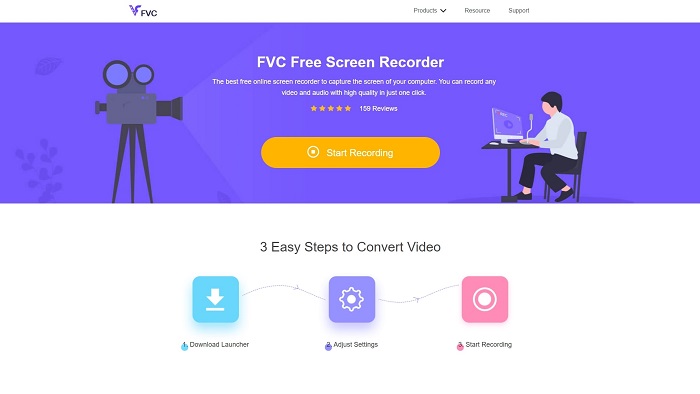
¿Quieres aprender cómo grabar un vídeo de Minecraft online? Entonces intenta leer y usar esta herramienta. El FVC Screen Recorder no tiene cargos ocultos. Además, la interfaz de la herramienta web no incluye anuncios molestos ni invasivos. Asimismo, aquí puedes grabar sin límites. Aunque la herramienta parece lista para usarse en la grabación de pantalla, la versión online no tiene modo de juego. Pero puedes seguir usándola siempre que tengas conexión a internet. Así que, para saber cómo usar esta herramienta, es imprescindible seguir los pasos que se indican a continuación.
Paso 1. Para acceder a la herramienta, haz clic primero en este enlace.
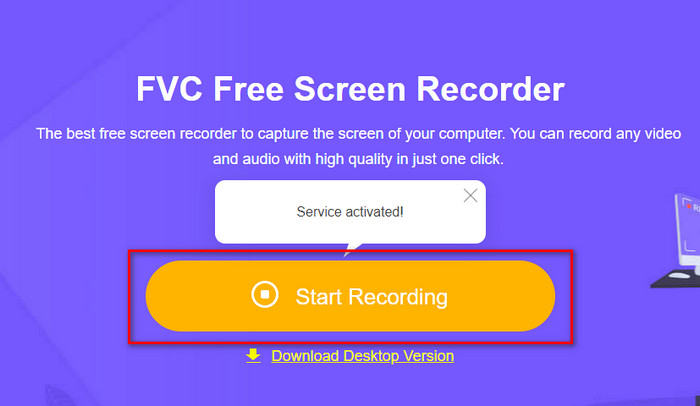
Paso 2. Pulsa en Start Recording, después descarga el lanzador si es la primera vez y instálalo. Vuelve a hacer clic en Start Recording para iniciar la herramienta esta vez.
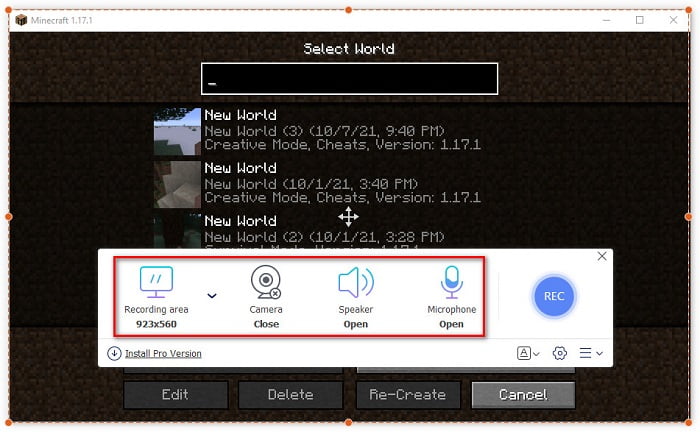
Paso 3. Ajusta la proporción del marco de tu pantalla y luego abre la Cámara para añadir tu reacción, el Altavoz para incluir el sonido generado por el juego y el Micrófono para añadir tu voz.
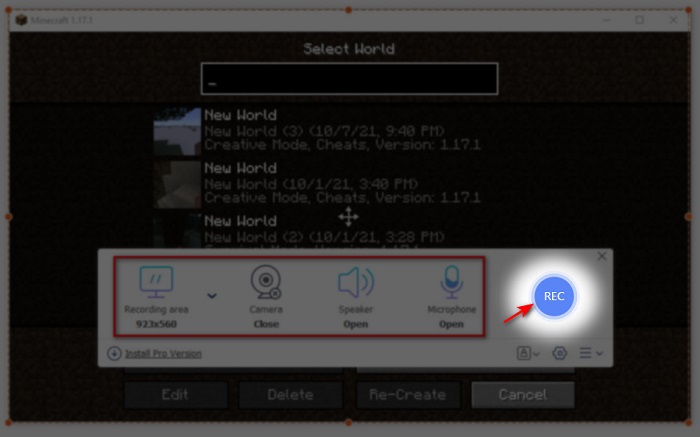
Paso 4. Luego haz clic en el botón REC para comenzar la grabación.
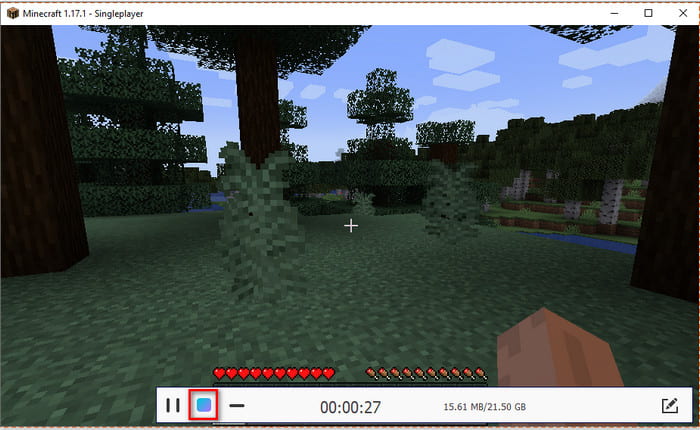
Paso 5. Para terminar la grabación, haz clic en el botón en forma de cuadrado y selecciona el primer archivo en la Recording List para volver a ver tu clutch antes de enviarlo o subirlo.
Parte 2. Cómo grabar Minecraft con las 2 mejores herramientas de grabadoras sin conexión
1er. Grabador de pantalla FVC
¿Quieres capturar cada momento de tus acrobacias en Minecraft? Entonces FVC Screen Recorder es la mejor opción para ti. Esta herramienta es mucho mejor que su versión online y que OBS si hablamos del rendimiento general y de una interfaz fácil de usar. Este programa incluye Game Recorder, que puedes utilizar para grabar partidas de la forma más ágil posible. Además, puedes configurar y editar teclas de acceso rápido para controlar la herramienta y disponer de un acceso más sencillo. Podrás grabar sin interrupciones incluso si dura hasta 24/7. Así que, para saber cómo grabar Minecraft en Windows 10 o en Mac, sigue atentamente los pasos.
Paso 1. Descarga e instala el software en tu disco. Luego realiza una configuración rápida del programa y haz clic en finalizar para guardar la configuración.
Descarga gratuitaPara Windows 7 o posteriorDescarga segura
Descarga gratuitaPara macOS 10.7 o posteriorDescarga segura
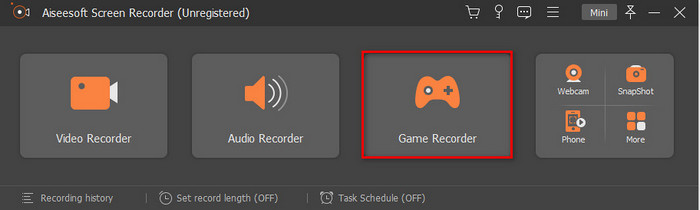
Paso 2. Haz clic en Game Recorder y permite que la herramienta se ejecute como administrador, luego pulsa en OK. Vuelve a hacer clic en Game Recorder para continuar.
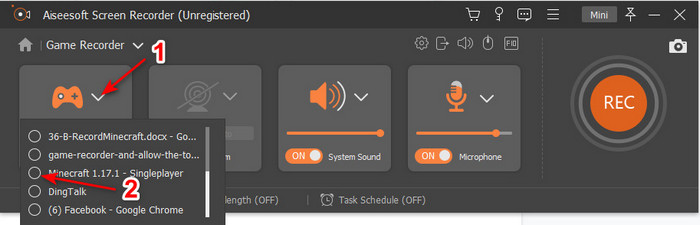
Paso 3. Inicia primero Minecraft y espera a que cargue por completo. Pulsa en Select Game y elige Minecraft.
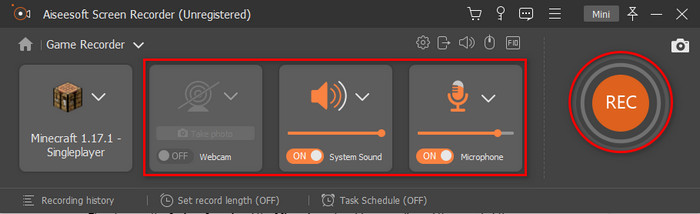
Paso 4. Antes de empezar a grabar, activa la Webcam para añadir tu reacción mientras grabas. Después enciende el System Sound y el Microphone para añadir tu audio y el sonido del juego. Haz clic en el botón REC para comenzar la grabación y el juego se mostrará automáticamente en tu pantalla. Ahora ya puedes hacer las acrobacias épicas que quieras capturar.
Paso 5. Si quieres terminar la grabación, haz clic en el botón en forma de cubo para detenerla. Pulsa en Save y luego en Next para proceder a guardar el vídeo. Se mostrará en pantalla el History; haz clic en el primer archivo para volver a ver las acrobacias épicas que has hecho y compartirlas después.
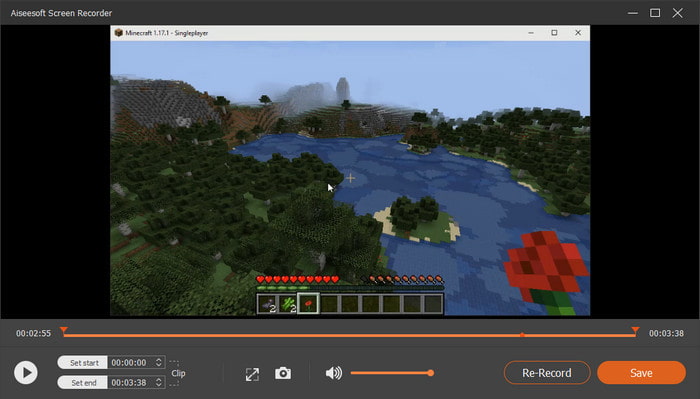
2do. OBS
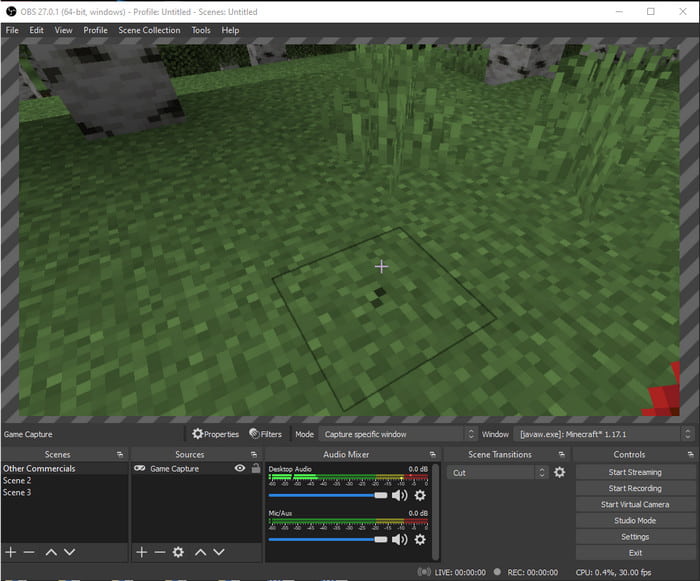
OBS es conocido por ser una de las herramientas más complejas que usan muchos usuarios. Pero siempre produce una gran calidad aunque sea difícil de manejar. Así que, si quieres aprender cómo grabar Minecraft con OBS, asegúrate de tener bastante tiempo libre. Porque esta herramienta es mucho más complicada de lo que parece; si no tienes ni idea de cómo hacerlo, sigue estos pasos.
Paso 1. Descarga primero OBS en tu disco.
Paso 2. Luego abre primero Minecraft y ve al panel Source, después haz clic en Game Capture. Cambia el modo a Capture Specific Window, luego haz clic en el botón desplegable de ventanas y elige el archivo con el nombre de Minecraft. Después haz clic en OK para continuar.
Paso 3. Haz clic en Start Recording para comenzar a grabar. Y para terminar, haz clic en Stop Recording y la grabación de pantalla se guardará automáticamente en tu almacenamiento.
Parte 3. Preguntas frecuentes sobre la grabación de Minecraft
¿Cuáles son los juegos populares para PC en este momento?
Hay muchos juegos populares para PC, pero estos son los primeros 5 juegos que siempre están en la parte superior de cada revisión. Primero está el Minecraft publicado por Mojang en 2011, el siguiente en la lista es League of Legend o conocido como LOL creado por Riot Games en 2009, Counter Strike Global desarrollado por Valve Corporation en 2012, Grand Theft Auto Five publicado por Rockstar Games y desarrollado por Rockstar North en 2013, y por último es el Valorant creado por Riot Games en 2020.
¿Es Bandicam la mejor herramienta para hacer la grabación?
Mucha gente tiene opiniones diferentes sobre Bandicam, pero vamos a conocerlo mejor y determinar si realmente merece la pena usarlo. Para saber más sobre Bandicam, haz clic en este enlace para ir al nuevo artículo que habla sobre Bandicam.
¿Cómo subir un video de archivo grande en YouTube?
Como YouTube es tan conocido por ser una plataforma para compartir vídeos, muchos usuarios intentan subir contenido. Pero cuando subimos un vídeo de gran tamaño, puede llevar muchísimo tiempo. Así que ahora, la mejor forma de publicarlo fácilmente es comprimir el vídeo sin perder calidad. Averigua cómo comprimir el archivo de vídeo y subirlo a YouTube fácilmente.
Conclusión
Para terminar esta explicación, ahora te resultará más fácil entender cómo grabar Minecraft en PC. Puede que a estas alturas ya hayas elegido tu grabador de pantalla, pero además, FVC Screen Recorder es la elección correcta. Porque puedes aprender a usar esta herramienta sin dificultad incluso si eres principiante. Aprender a manejar este grabador de pantalla inigualable no es nada complicado. Así que, antes de empezar a grabar tu Dream boat clutch, asegúrate de haber descargado ya este software.
Descarga gratuitaPara Windows 7 o posteriorDescarga segura
Descarga gratuitaPara macOS 10.7 o posteriorDescarga segura
-
 Mejor grabador de pantalla XviD para principiantes en 2021 [en línea y fuera de línea]
 XviD es conocido por comprimir archivos de video. Es un software de código abierto que realiza el formato ISO MPEG-4. Reanude para leer y obtener más detalles.
-
 [Ir a la guía] Grabe Blu-ray en OBS Studio y herramientas alternativas
 Aprenda a grabar Blu-ray en OBS Studio y otros sustitutos con estos útiles y sencillos pasos y consejos. Continúe leyendo y veamos & #039; s profundizar en los detalles.
-
 Proceso para copiar y grabar DVD con VLC para digitalizar el formato reproducible
 VLC admite numerosos formatos de archivos comprimidos de audio y video, incluida la grabación en DVD. Simplemente mantenga la bola rodando para más discusión y detalles hasta el final.
